
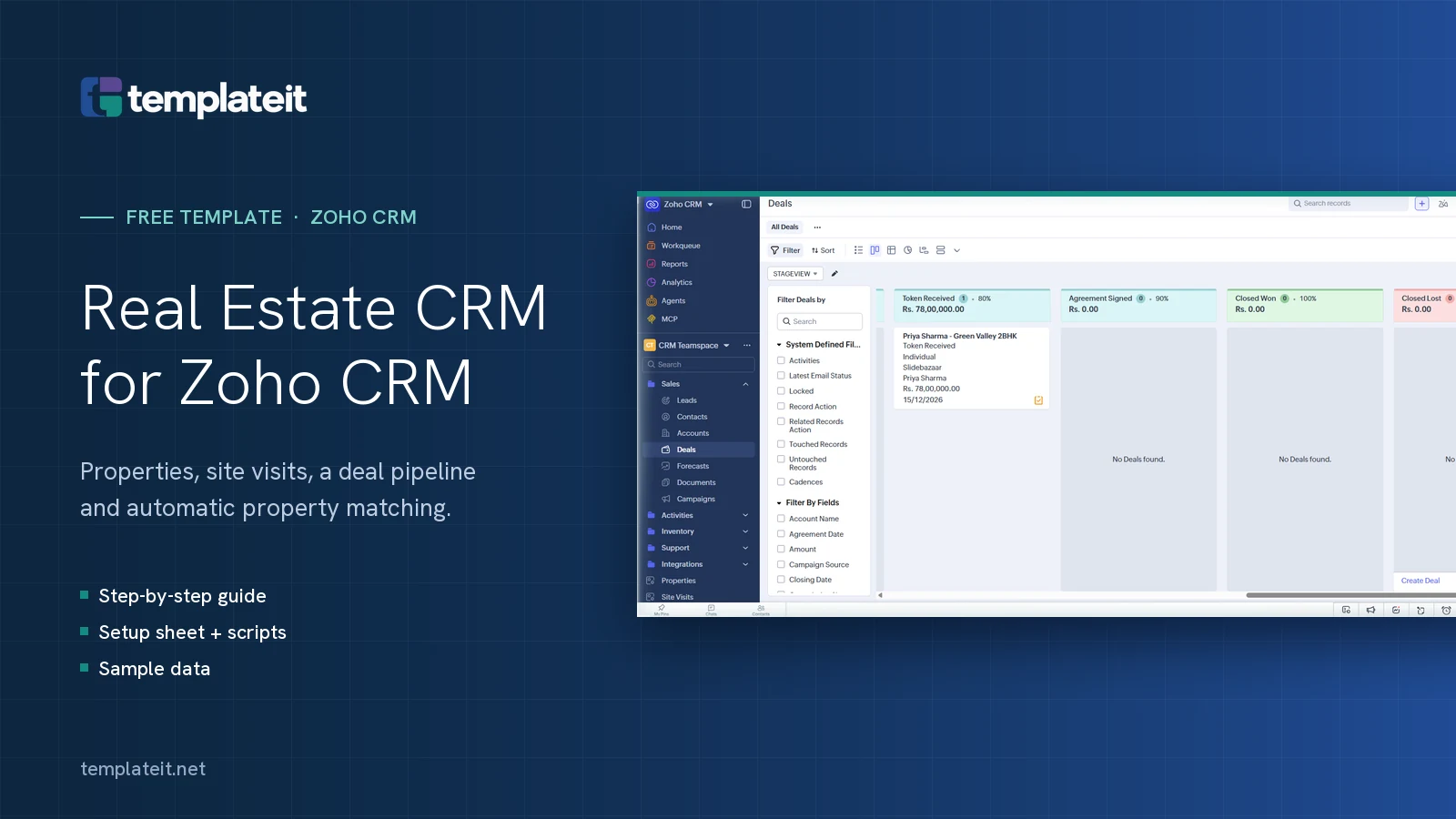
This template sets up Zoho CRM for a real estate agency: property listings, site visits, a pipeline for property deals, and workflows that match new enquiries to available properties. There are 10 steps, each with screenshots. Setup takes about 90 minutes.
On this page
- What you get
- Before you start
- Step 1: Create the Properties module
- Step 2: Add the Properties fields
- Step 3: Create the Site Visits module
- Step 4: Add fields to Leads, Contacts and Deals
- Step 5: Create the Real Estate pipeline
- Step 6: Add the email templates
- Step 7: Add the custom functions
- Step 8: Create the workflow rules
- Step 9: Import the sample data
- Step 10: Test it end to end
- Troubleshooting
- FAQ
What you get
- Properties module: every listing with price, specs, location, owner and status
- Site Visits module: viewings with client feedback and an automatic follow-up task
- Real Estate deal pipeline: from New Enquiry to Token Received to Closed Won
- Automatic property matching: new enquiries get a note listing matching available properties
- Automatic status updates: properties switch to Under Offer, Sold or Rented as deals move
- 4 email templates: enquiry acknowledgement, visit confirmation, post-visit thank you, deal closed
- Sample data: 10 properties, 10 leads and 5 owners for testing
What’s in the download
| File | What it’s for |
|---|---|
setup-sheet.xlsx | Every module, field, stage, workflow and function, with a checklist column |
guide.md | This guide, for offline use |
deluge/*.deluge | 3 custom functions you paste into Zoho CRM |
email-templates/*.html | 4 ready-made HTML email templates |
sample-data/*.csv | Demo owners, properties and leads to import |
Before you start
- Zoho CRM edition: Enterprise is recommended (tested end to end on an Enterprise trial). The template uses custom modules, pipelines and custom functions in workflow rules. Check Zoho’s current edition comparison for limits on lower editions.
- Permissions: administrator access.
- Time: about 60 to 90 minutes.
- Company details: set your company name in Setup → Company Details. The emails use it.
- Tip: try it in a trial or sandbox first if your CRM is already in use.
Open setup-sheet.xlsx and keep it next to Zoho CRM. It lists every field and setting used below. Tick the Done column as you go.
Step 1: Create the Properties module
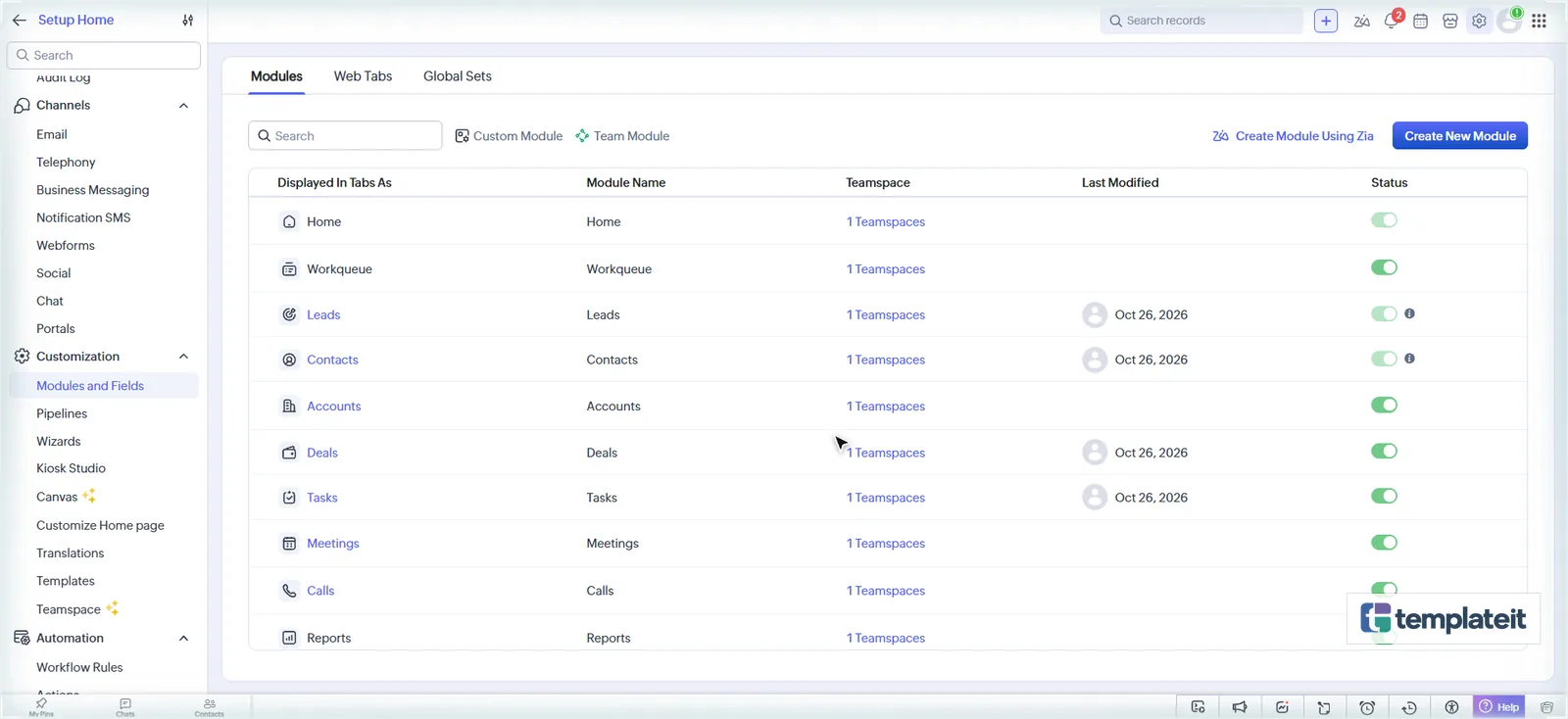
- Go to Setup (⚙️) → Customization → Modules and Fields and click Create New Module.
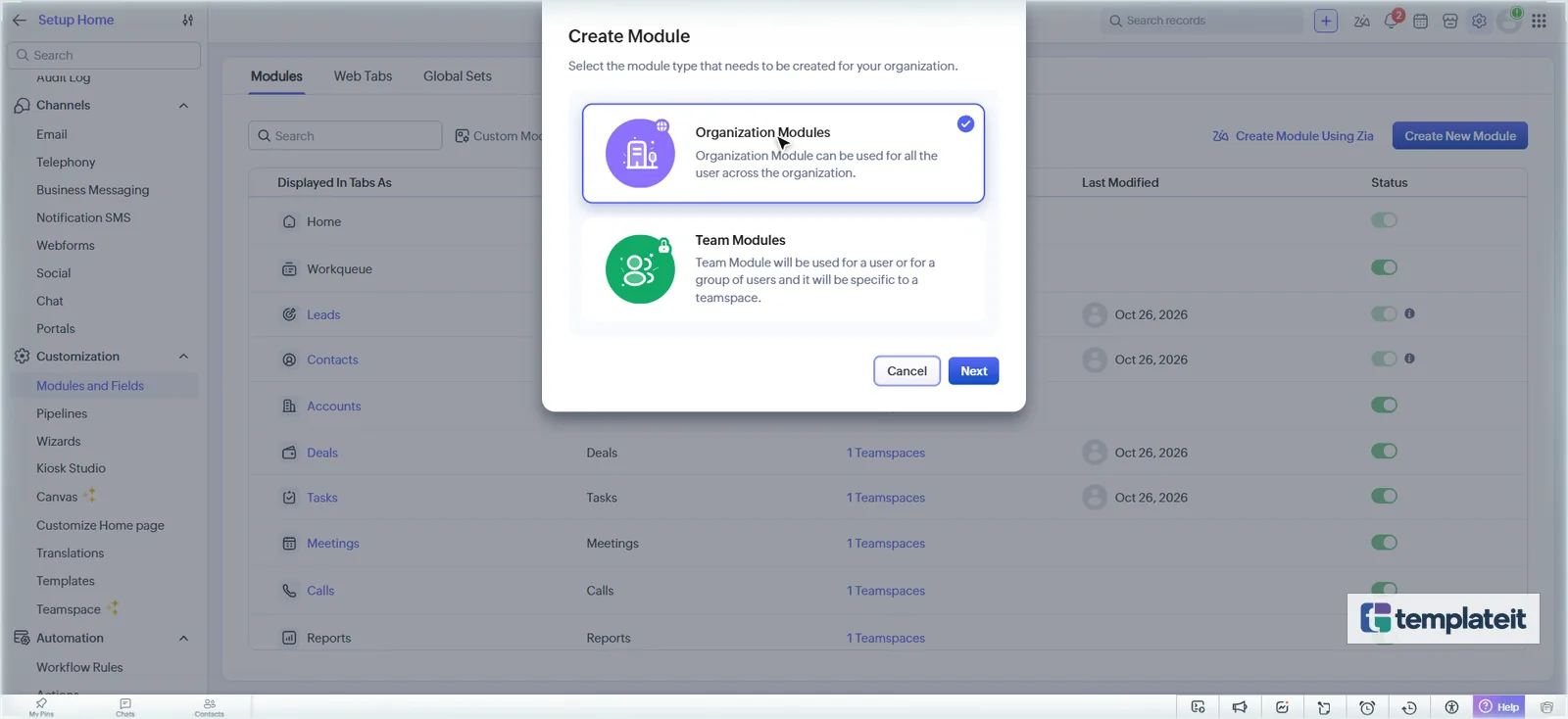
- Choose Organization Modules and click Next. The layout editor opens.
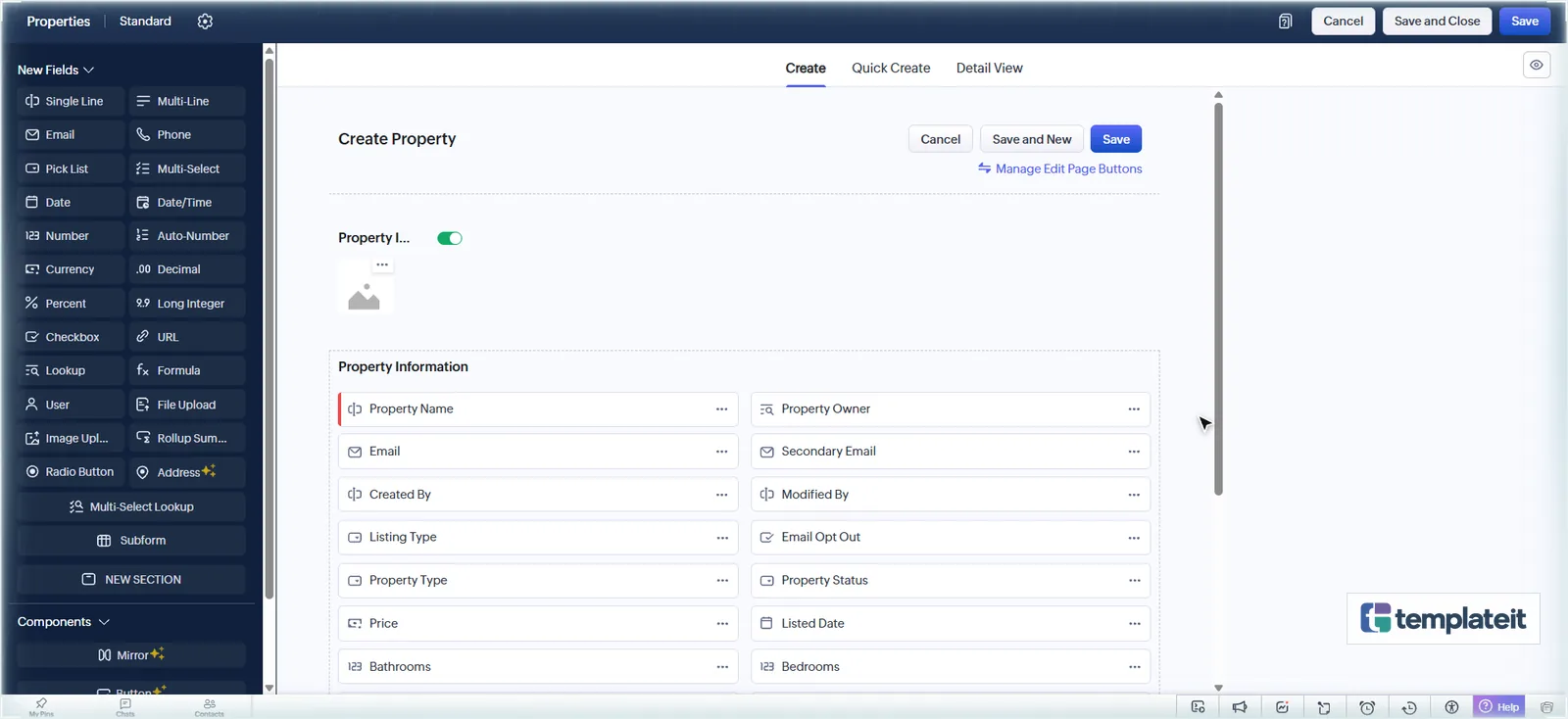
- Click Untitled at the top left. Enter Properties as the plural name, then replace the singular name with Property. Click Save.
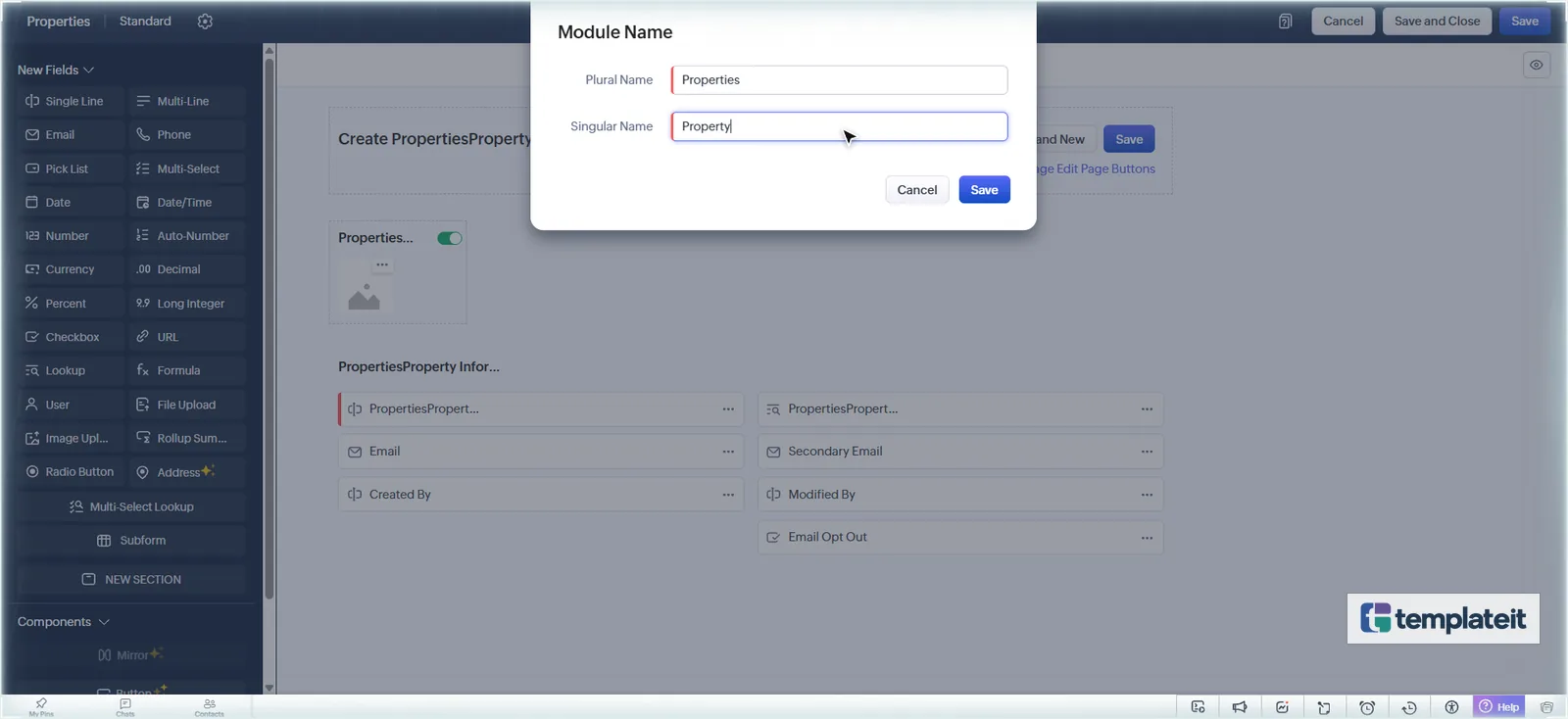
Zoho creates Property Name and a Property Owner field for you. Property Owner is the CRM user who owns the record, not the seller. That’s why the template’s seller/landlord lookup is called Owner Contact.
Step 2: Add the Properties fields
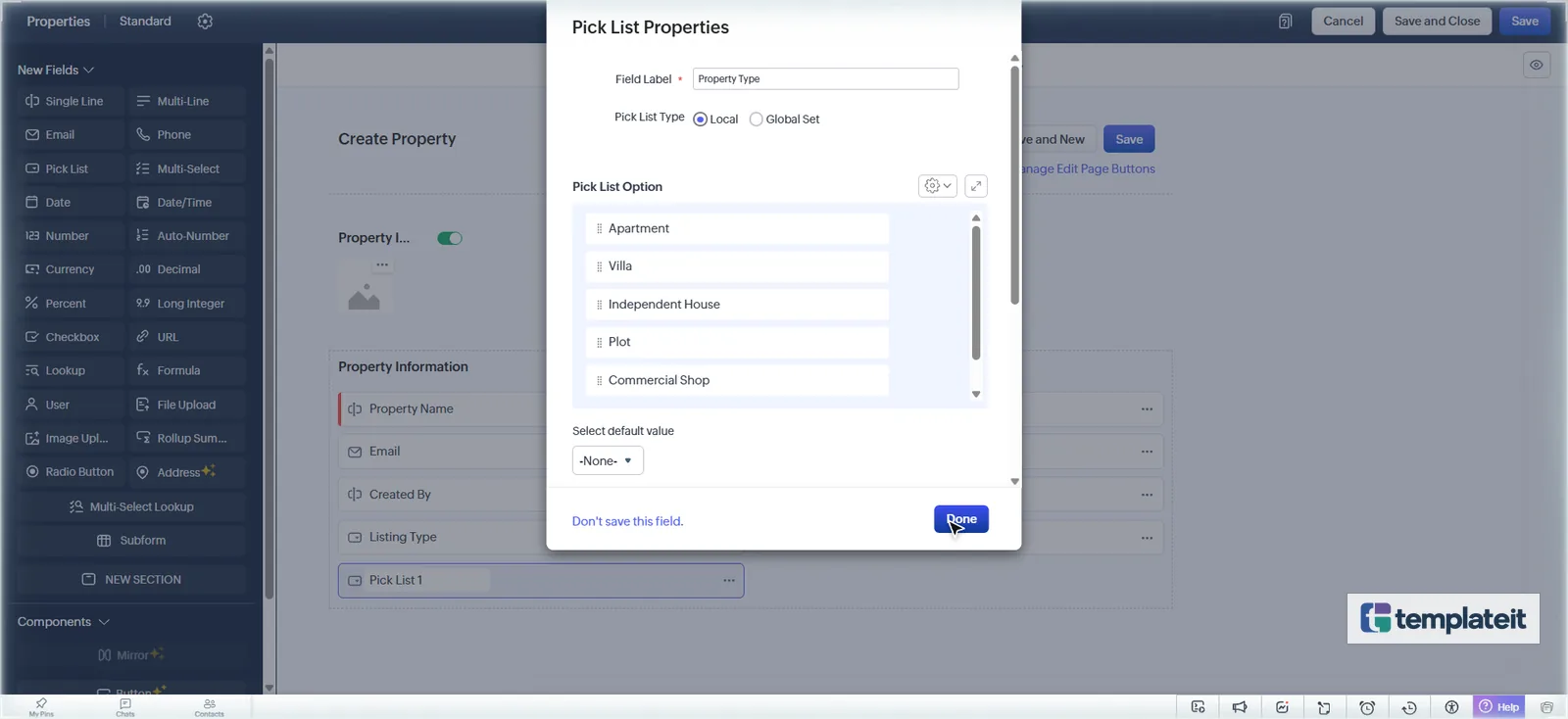
Drag each field type from the New Fields panel onto the layout, type the label, and fill in the popup. All 16 fields are in tab “2 Fields” of the setup sheet.
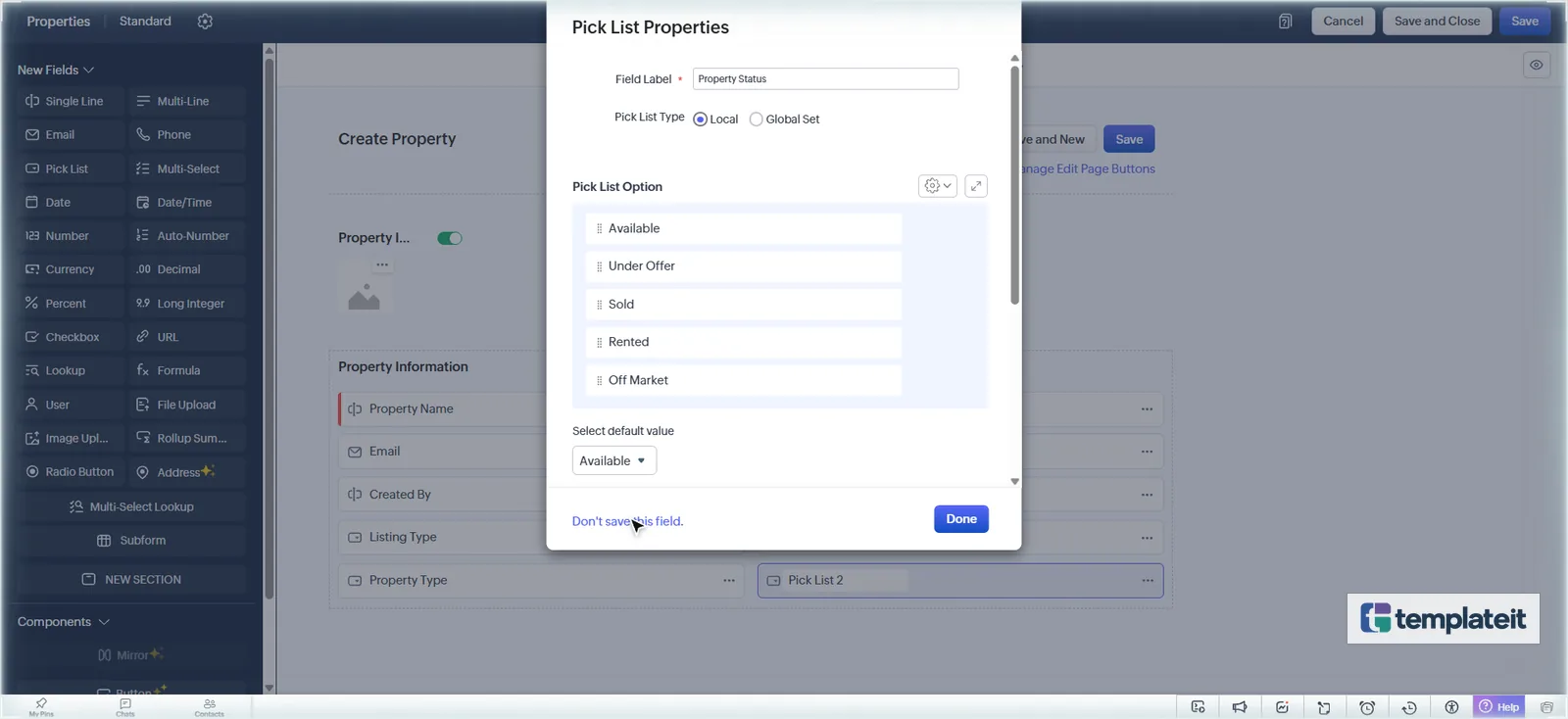
- Pick lists (Listing Type, Property Type, Property Status, Furnishing): type the first two values over Option 1 and Option 2, then use the ⚙️ menu → Add Bulk Options for the rest.
- Property Status: under Select default value, choose Available.
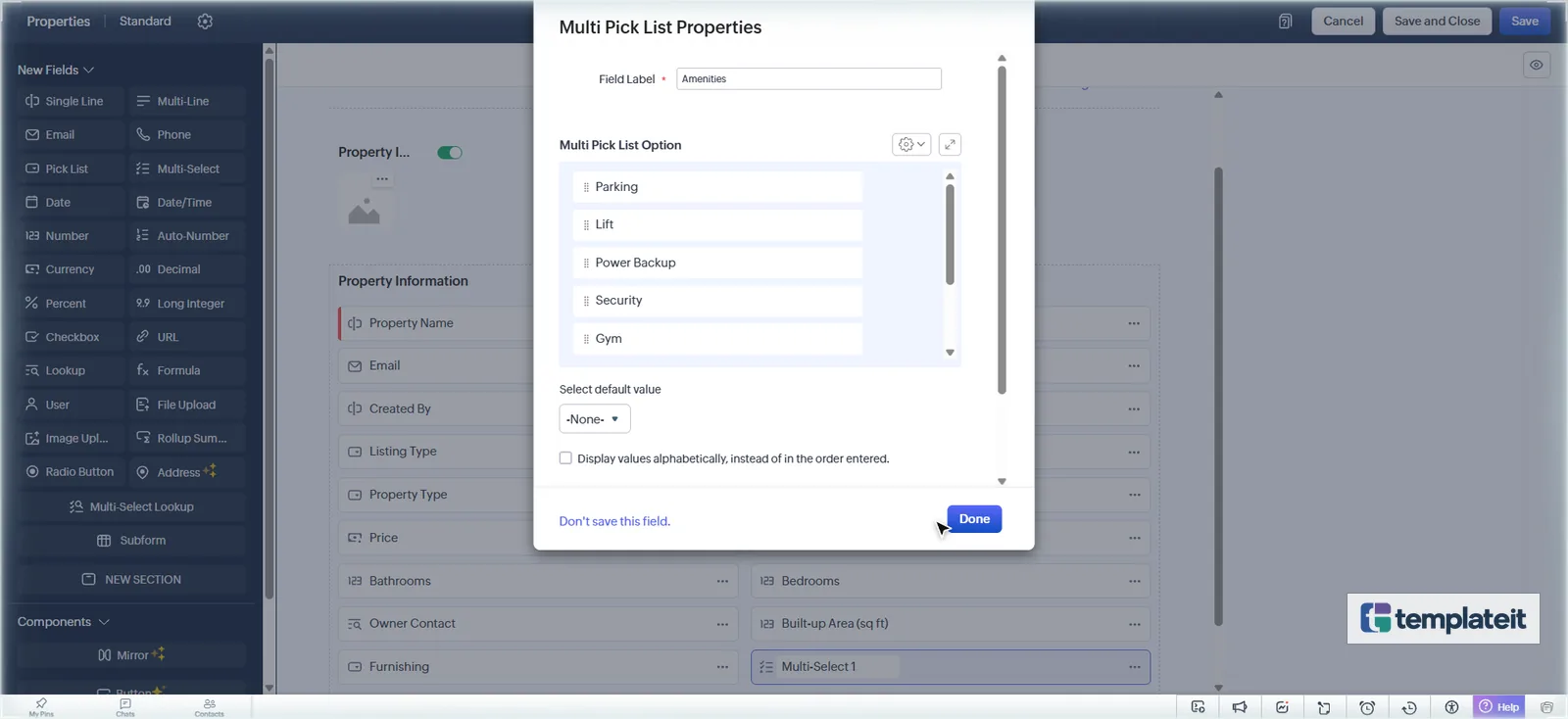
- Amenities is a Multi-Select field.
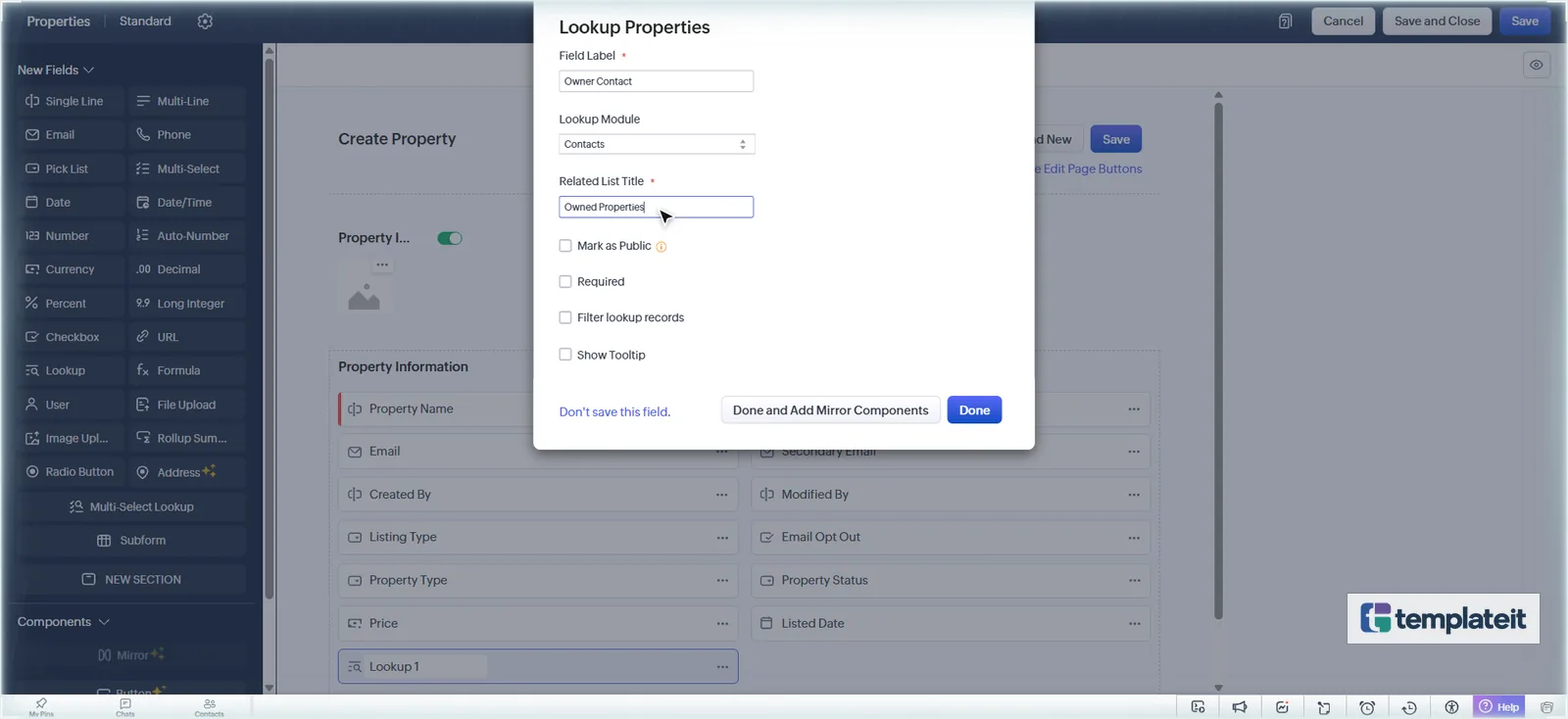
- Owner Contact is a Lookup to Contacts. Set the Related List Title to Owned Properties.
When every field is on the layout, click Save and Close at the top right.
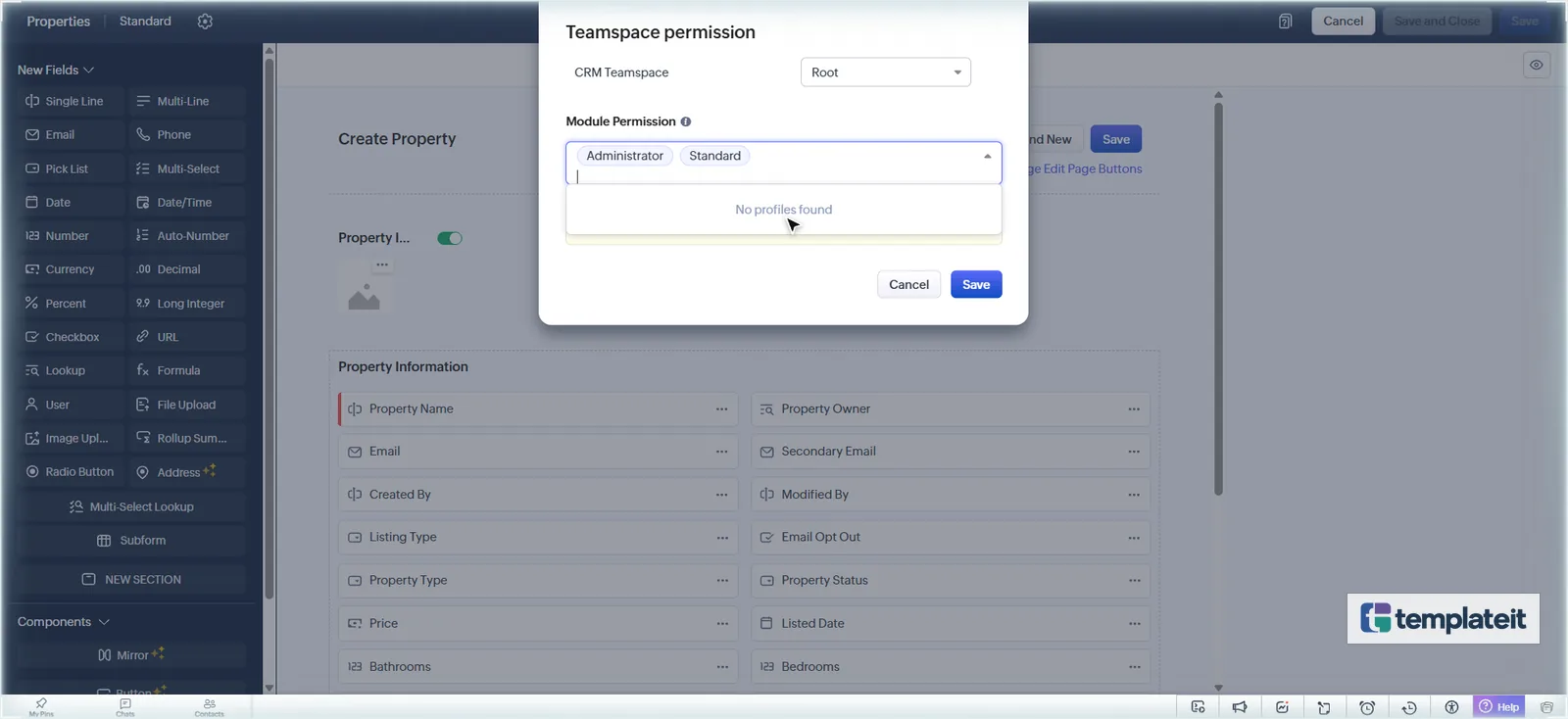
Zoho asks which profiles may use the module. Add Standard next to Administrator and click Save.
Step 3: Create the Site Visits module
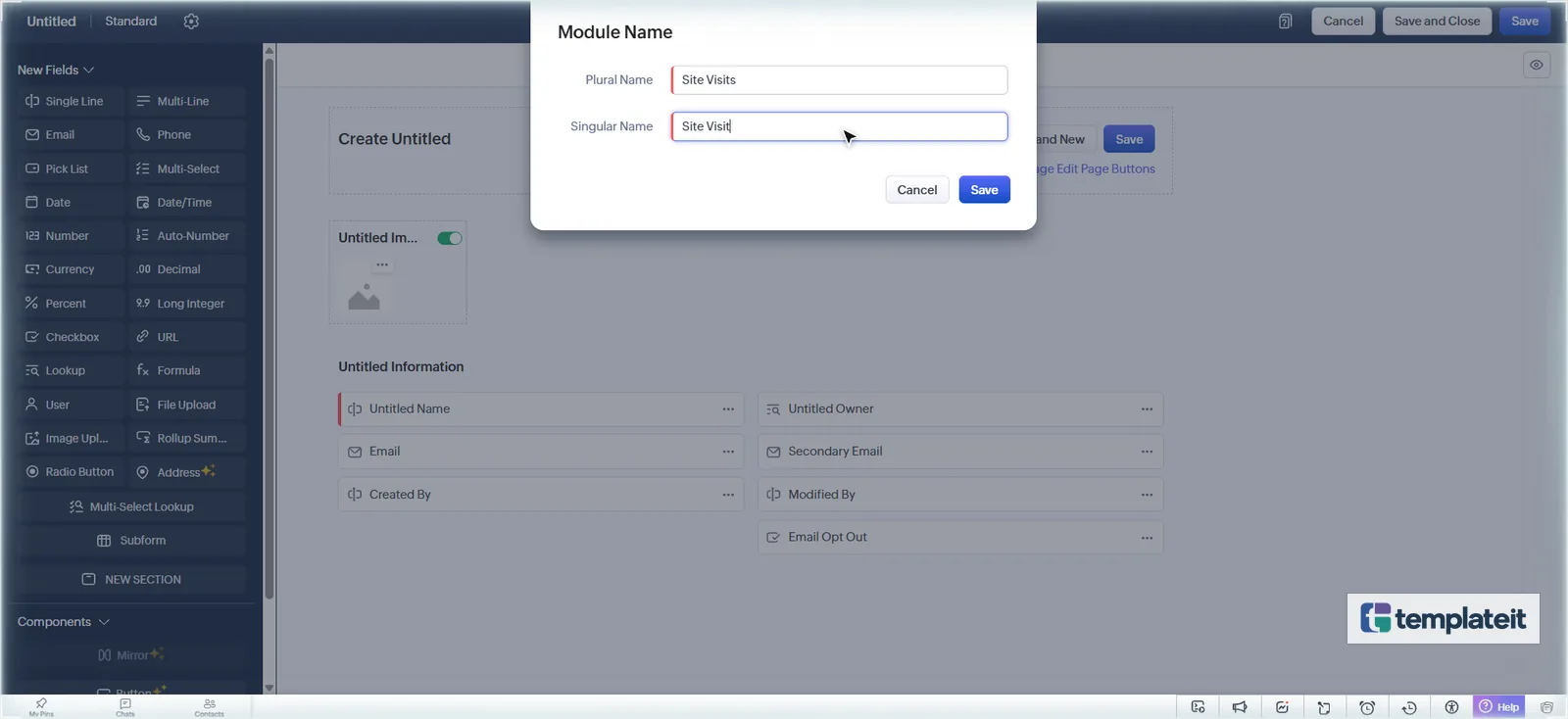
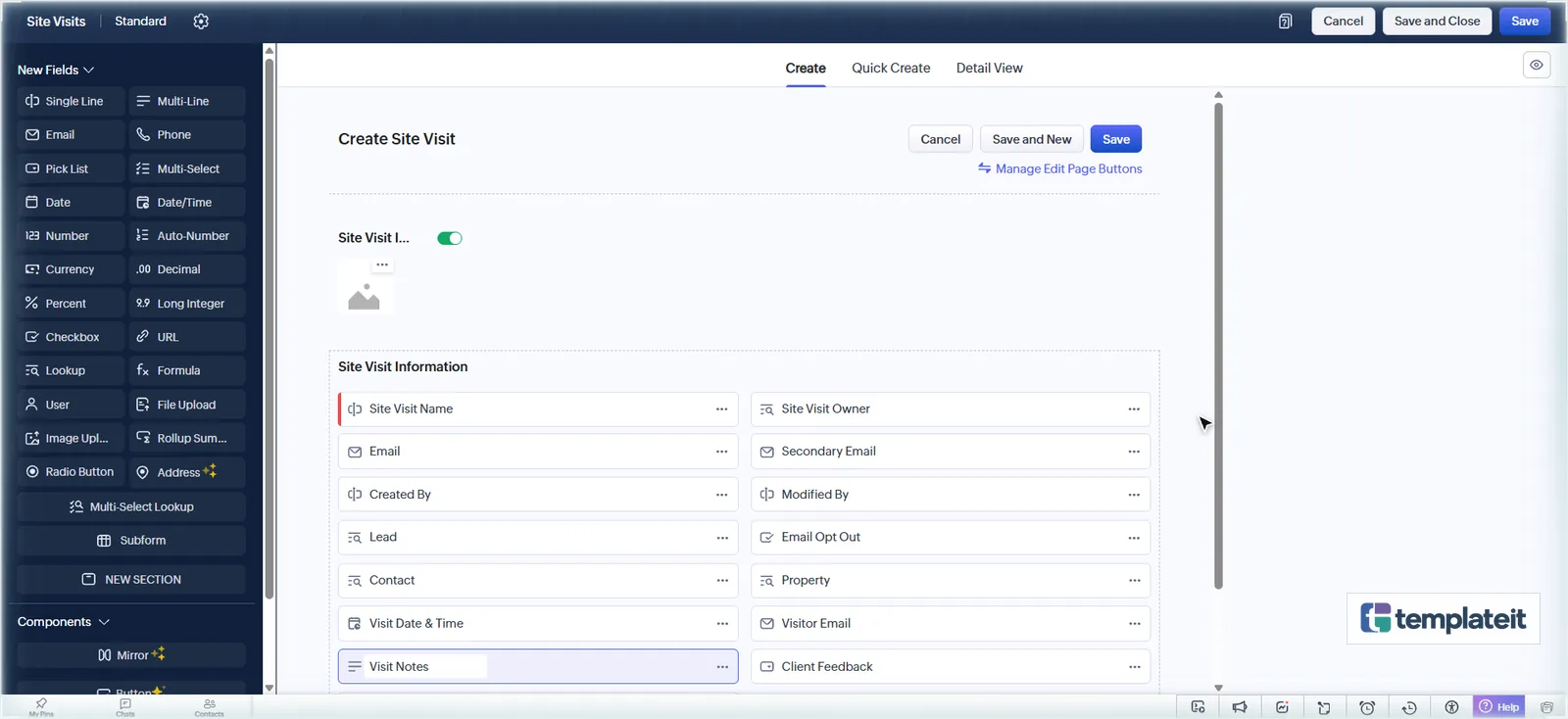
Repeat Steps 1 and 2 for Site Visits (singular Site Visit). Its name field is Site Visit Name.
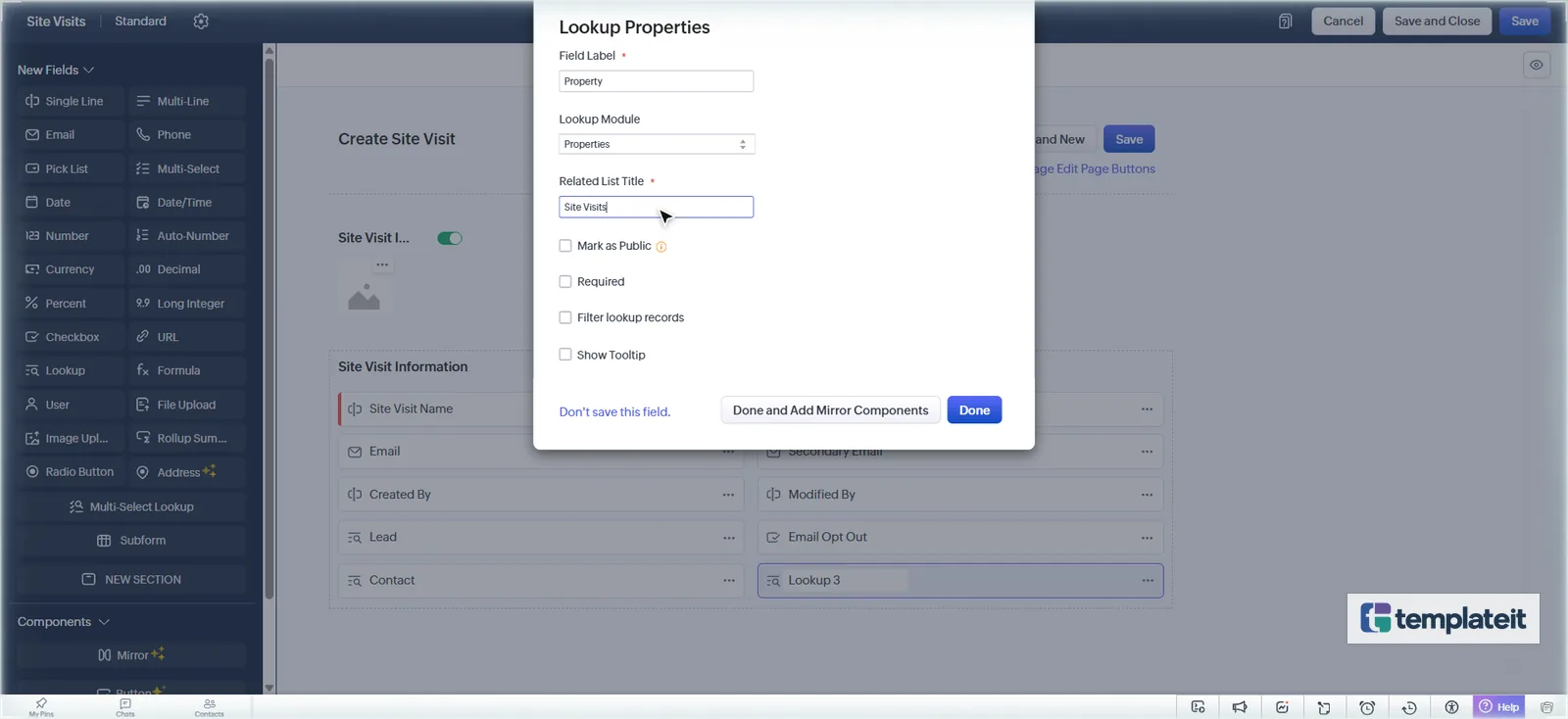
- Lead, Contact and Property are lookups (to Leads, Contacts and Properties). Use Site Visits as the related list title.
- Visit Date & Time (Date/Time), Visitor Email (Email), Visit Notes (Multi-Line).
- Visit Status: Scheduled, Completed, Cancelled, No-show. Default Scheduled.
- Client Feedback: Very interested, Interested, Thinking, Price too high, Not suitable.
Step 4: Add fields to Leads, Contacts and Deals
Open Modules and Fields → [module] → Layouts → Standard.
Leads
Drag a NEW SECTION to the bottom, rename it Property Requirement, and add Looking For, Property Type, Preferred Location, Budget Min, Budget Max, Bedrooms Required, Move-in Timeline and Matching Properties.
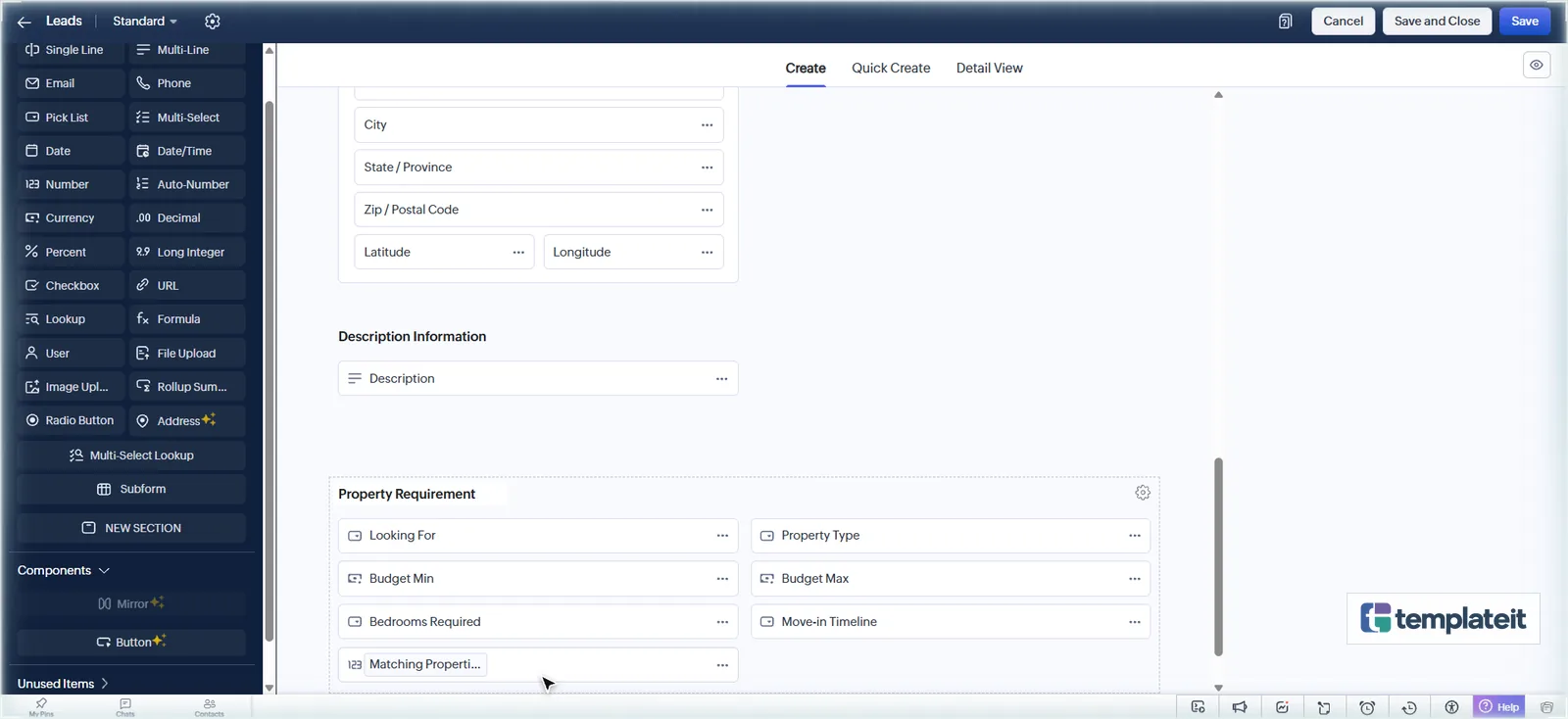
Important: Zoho makes Company mandatory on Leads. Home buyers are individuals, so open the Company field’s menu → Edit Properties and untick Mandatory. Otherwise every converted lead creates an Account.
Contacts
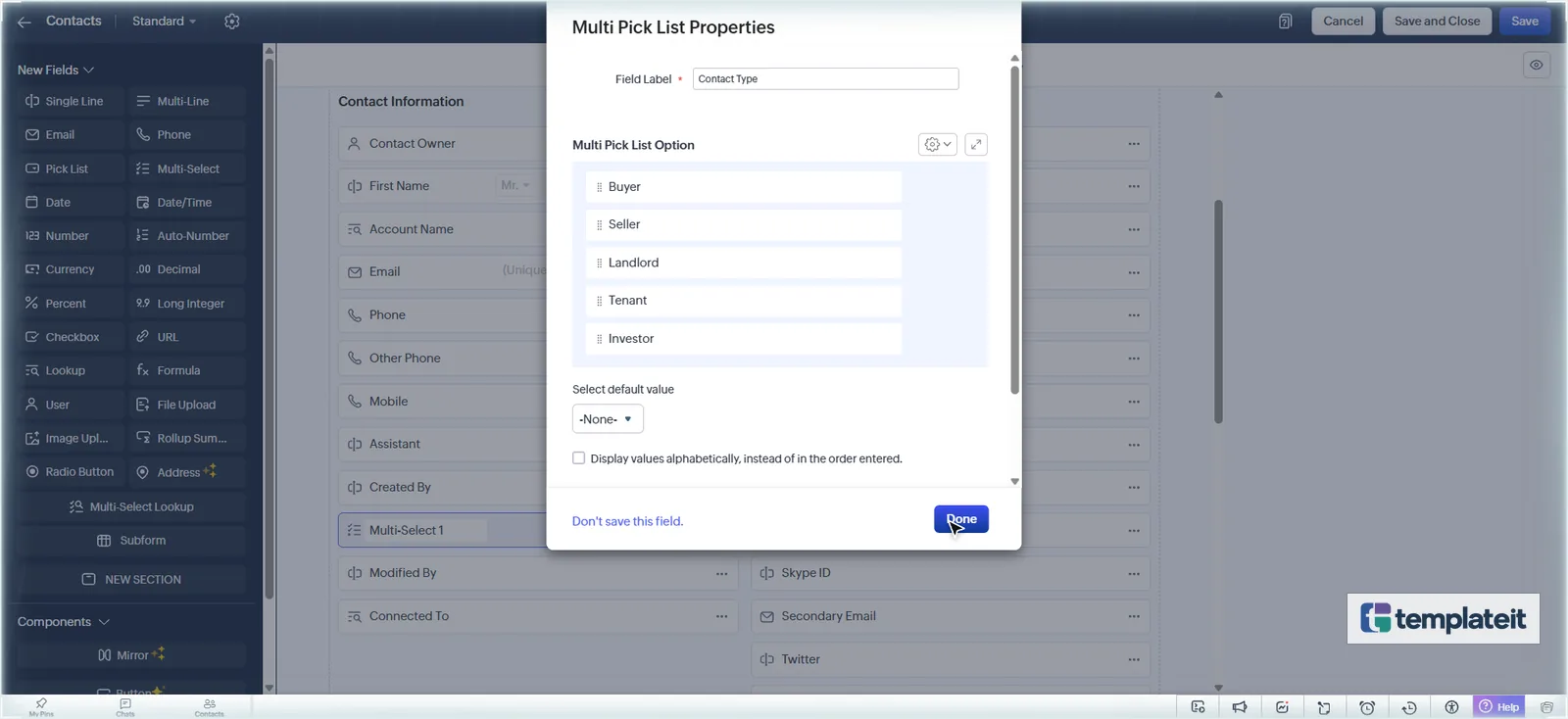
Add Contact Type (Multi-Select: Buyer, Seller, Landlord, Tenant, Investor) to Contact Information.
Deals
Add a Property Deal section with Property (lookup to Properties), Deal Type, Commission %, Token Amount, Token Date and Agreement Date. Zoho already has a Reason For Loss field, so use that for lost deals.
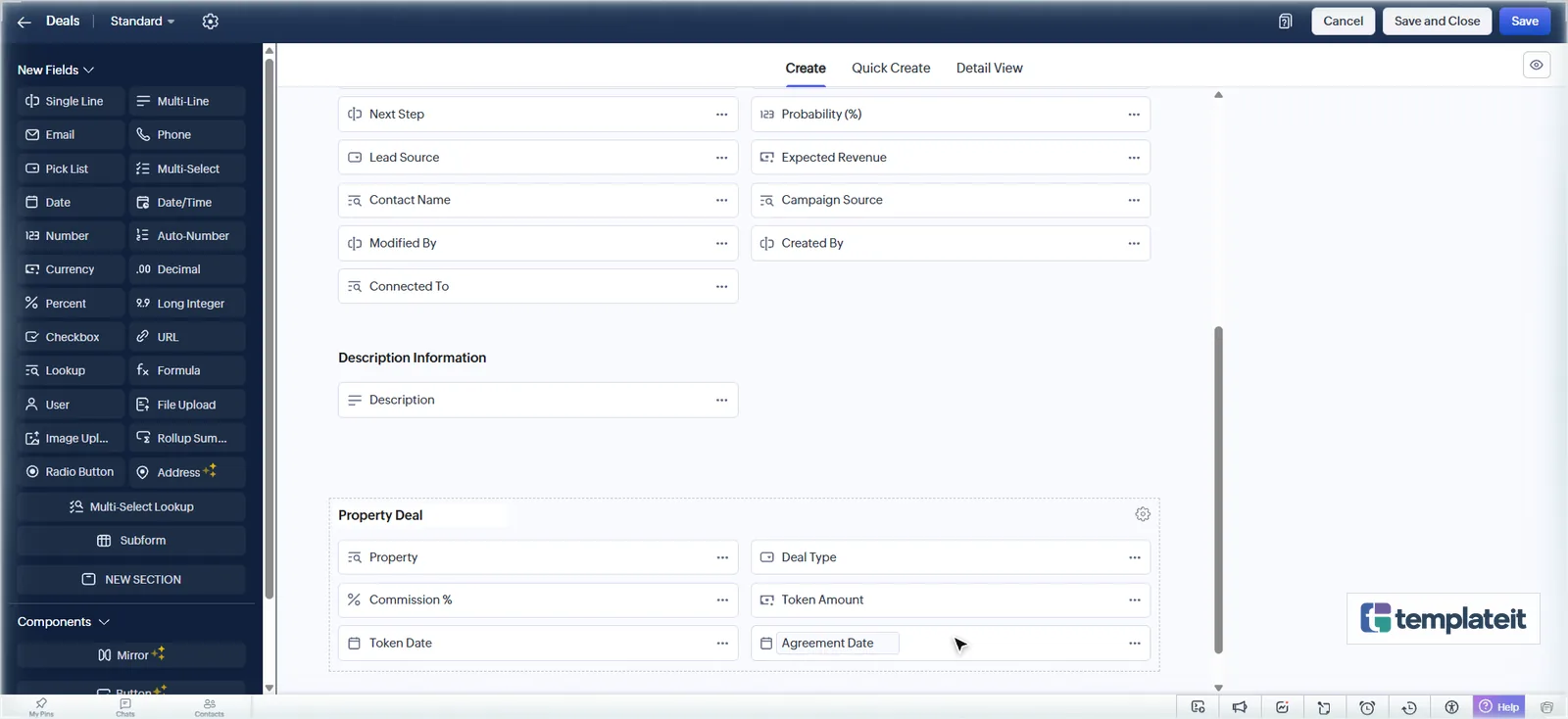
Use the top-right Save / Save and Close buttons in the layout editor. The form preview has its own Save button that doesn’t save the layout.
Commission Amount (formula): save the Deals layout first, because the formula editor only lists saved fields. Then drag in a Formula field, set Formula Return Type to Currency, insert Amount with the Insert button, type *, insert Commission %, and type /100:
${Deals.Amount}*${Deals.Commission %}/100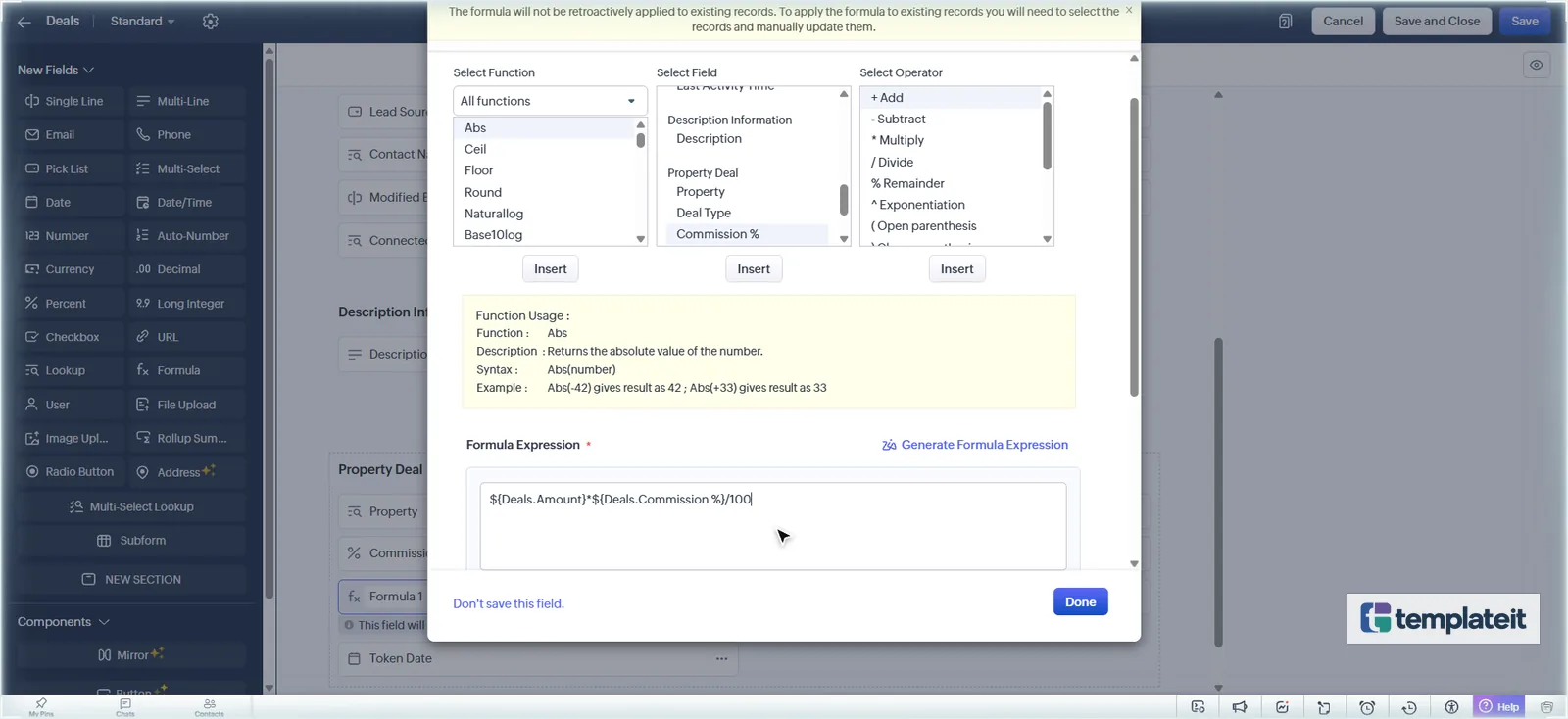
Step 5: Create the Real Estate pipeline
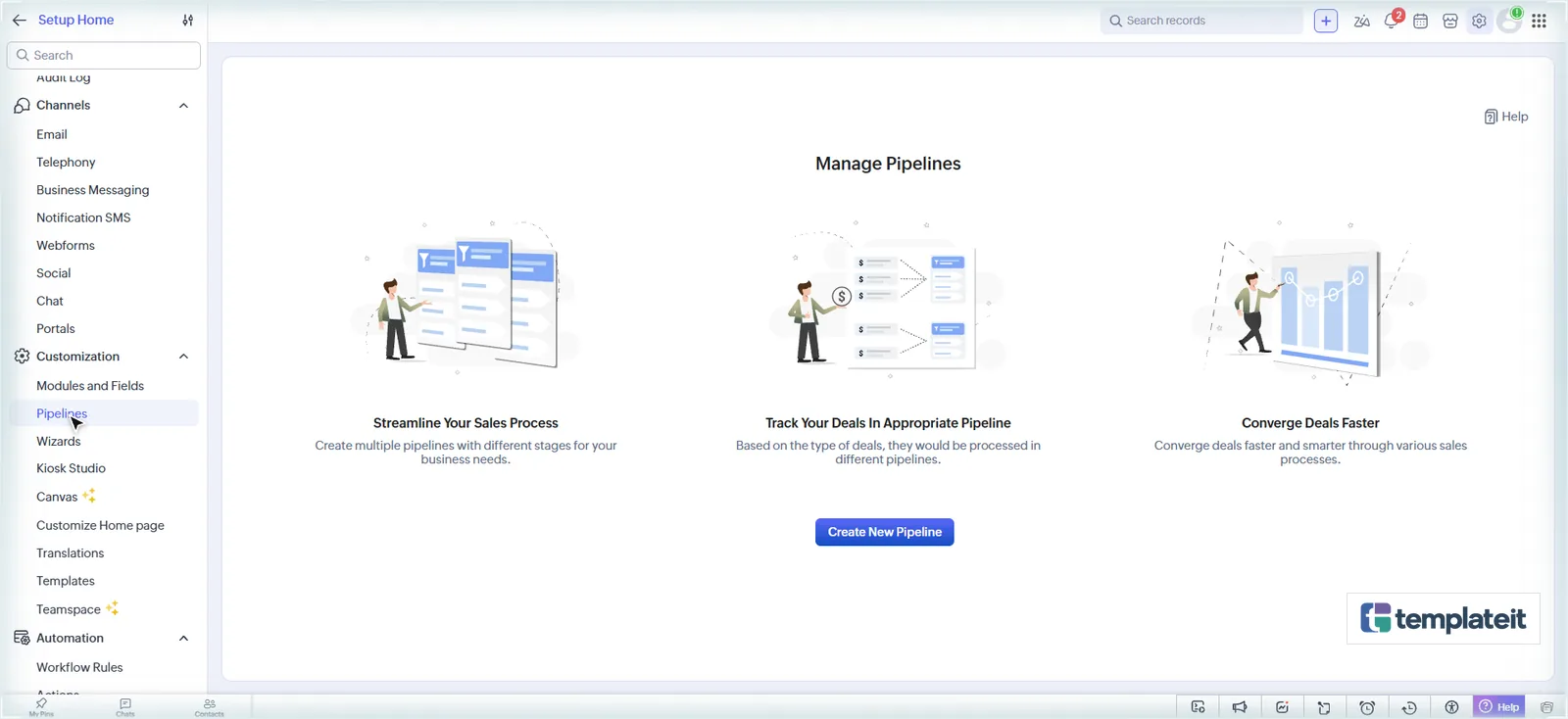
- Go to Setup → Customization → Pipelines and click Create New Pipeline.
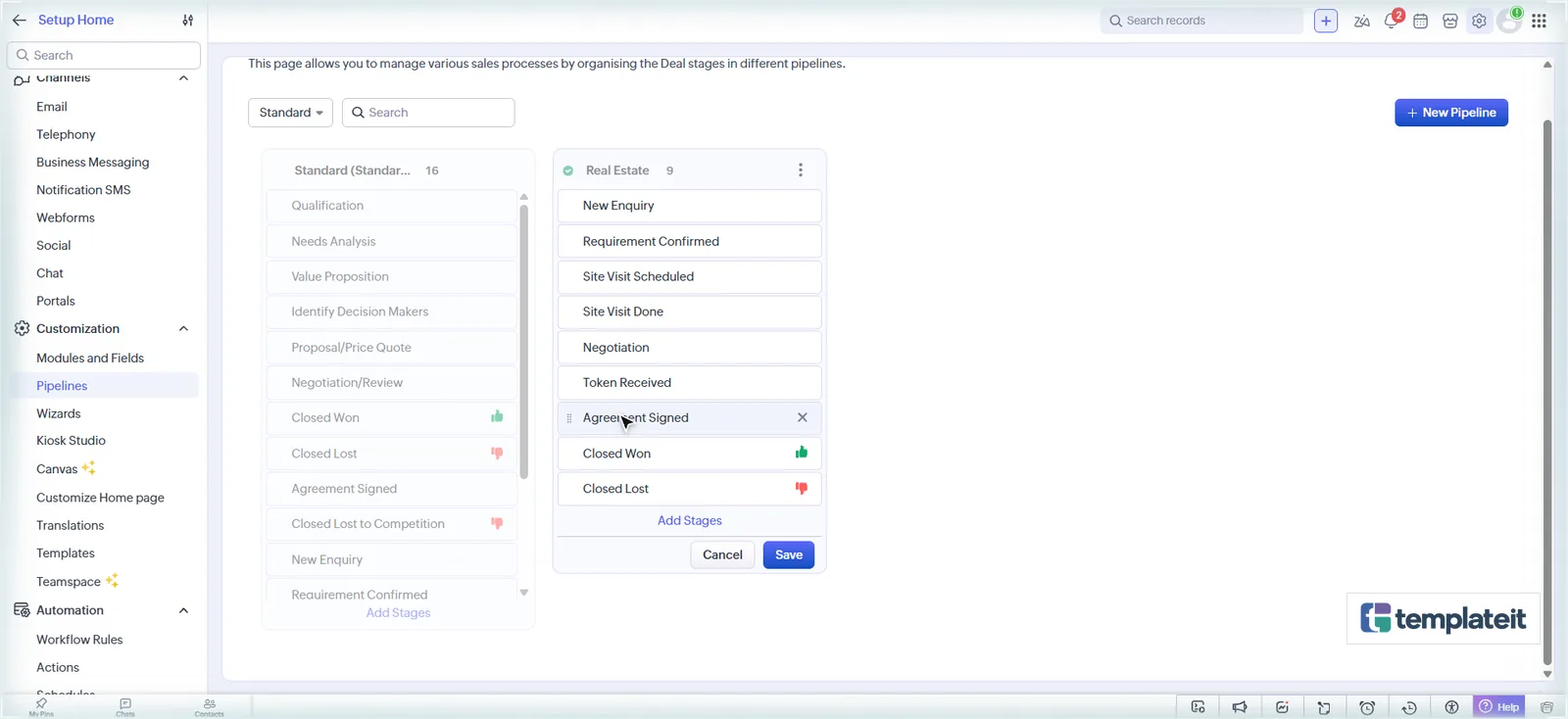
- In Stages, click Create New Stage for each stage in the table below. Enter the name and probability, pick the Record Category and Forecast Category, and click Save.
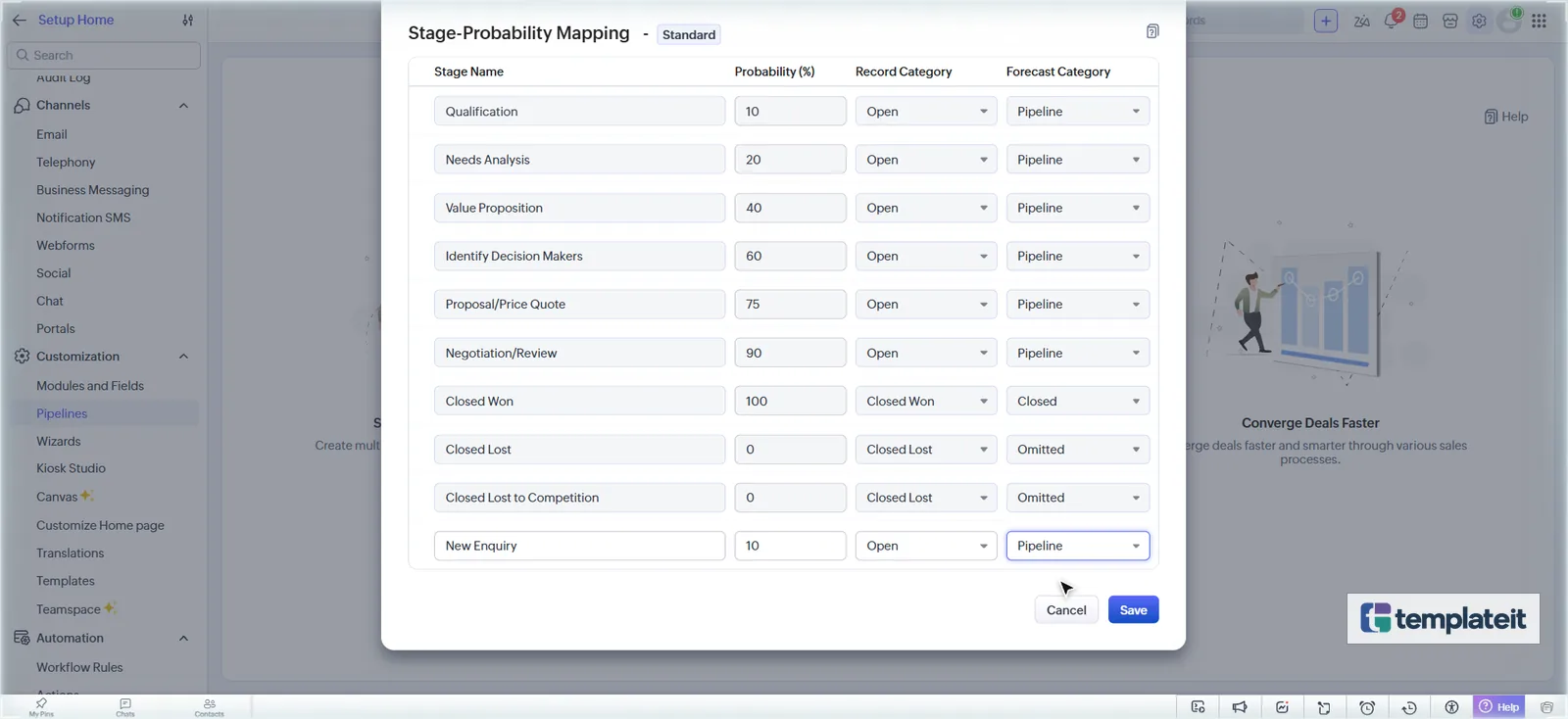
| Stage | Probability | Forecast |
|---|---|---|
| New Enquiry | 10% | Pipeline |
| Requirement Confirmed | 20% | Pipeline |
| Site Visit Scheduled | 30% | Pipeline |
| Site Visit Done | 45% | Pipeline |
| Negotiation | 60% | Pipeline |
| Token Received | 80% | Best Case |
| Agreement Signed | 90% | Committed |
| Closed Won / Closed Lost | 100% / 0% | Closed / Omitted |
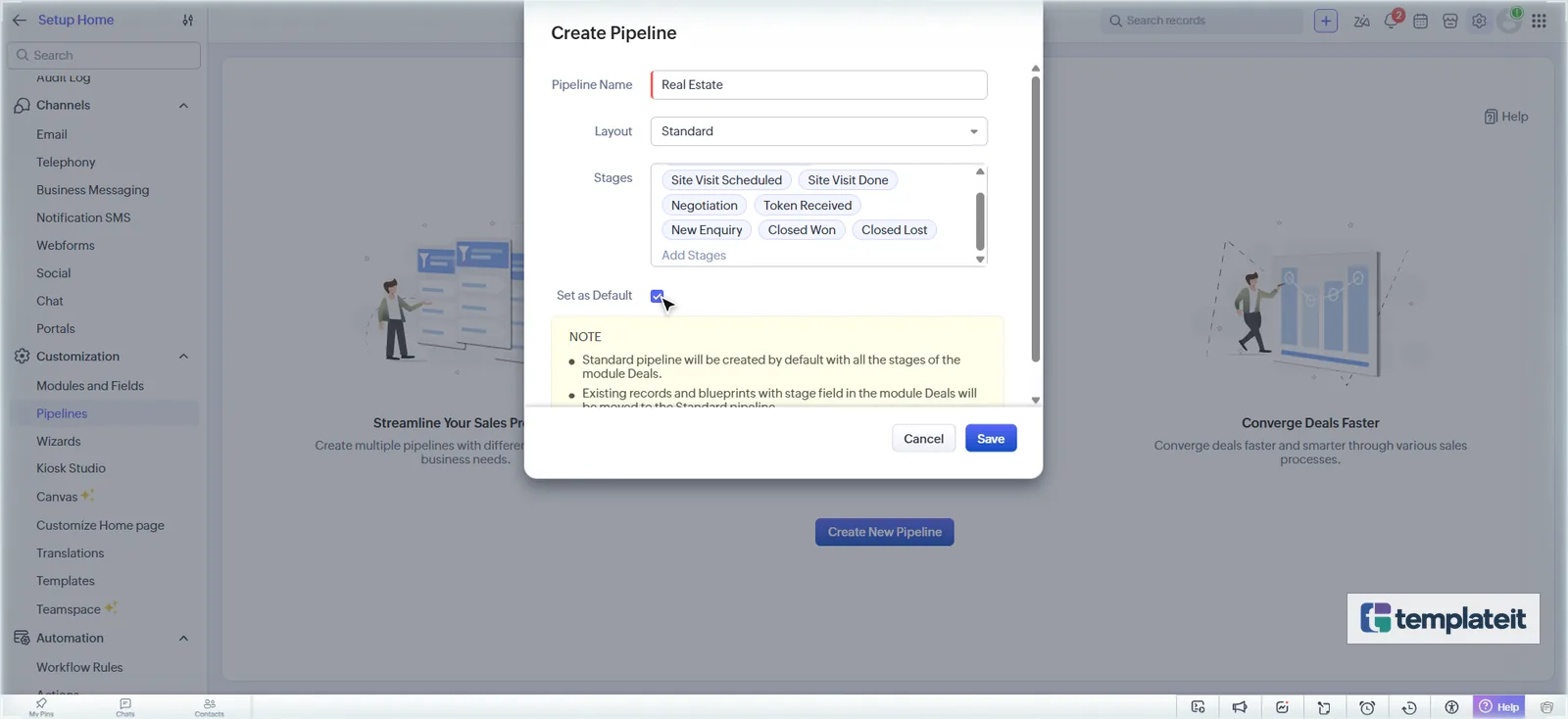
- Name the pipeline Real Estate, add the stages including Closed Won and Closed Lost, tick Set as Default, and click Save.
- Drag the stages into the order above on the Pipelines page and click Save.
Step 6: Add the email templates
Files for this step
email-templates/re-01-enquiry-acknowledgement.htmlemail-templates/re-02-site-visit-confirmation.htmlemail-templates/re-03-post-visit-thank-you.htmlemail-templates/re-04-deal-closed-congratulations.html
Download the template (.zip) · includes every file
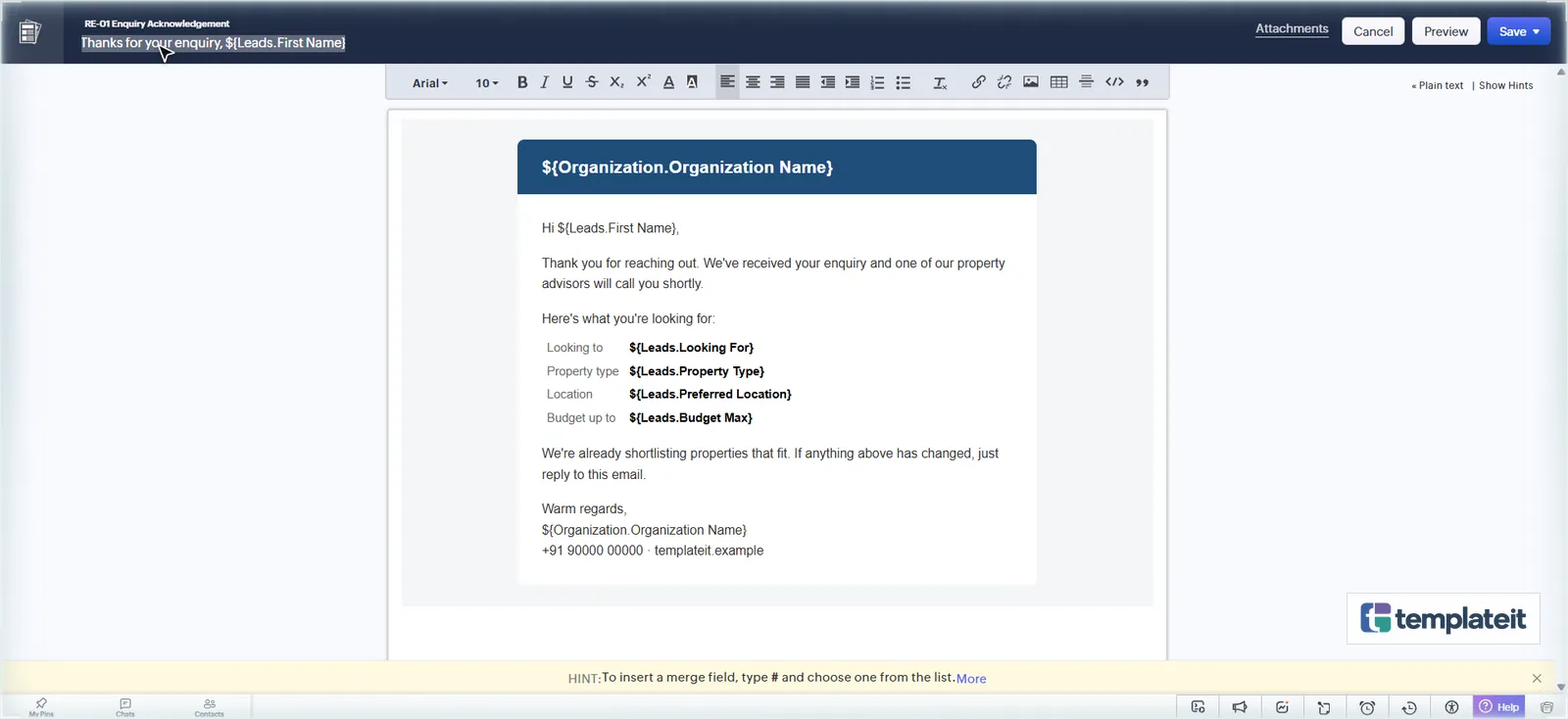
Each file starts with a comment that names its module and subject line. For each file:
- Go to Setup → Customization → Templates and click New Template.
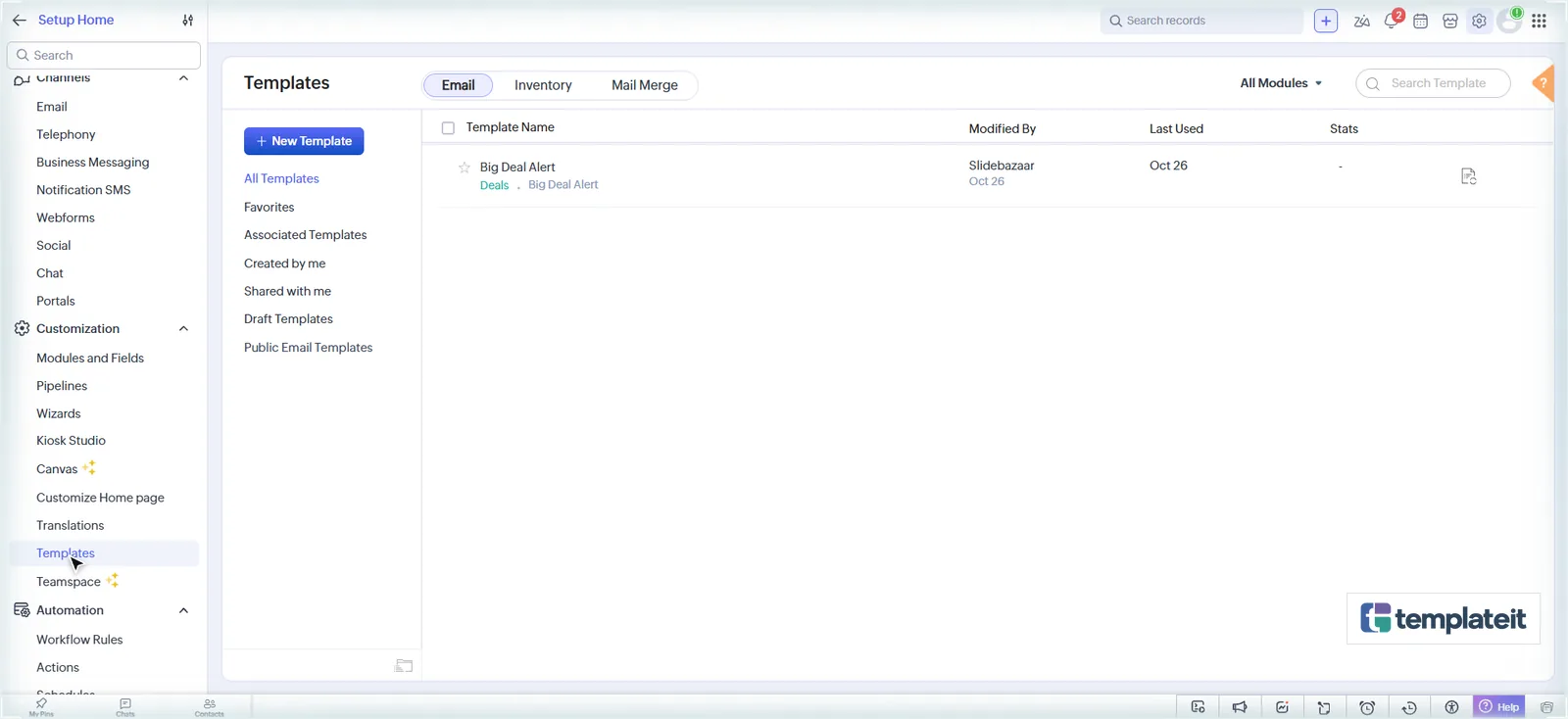
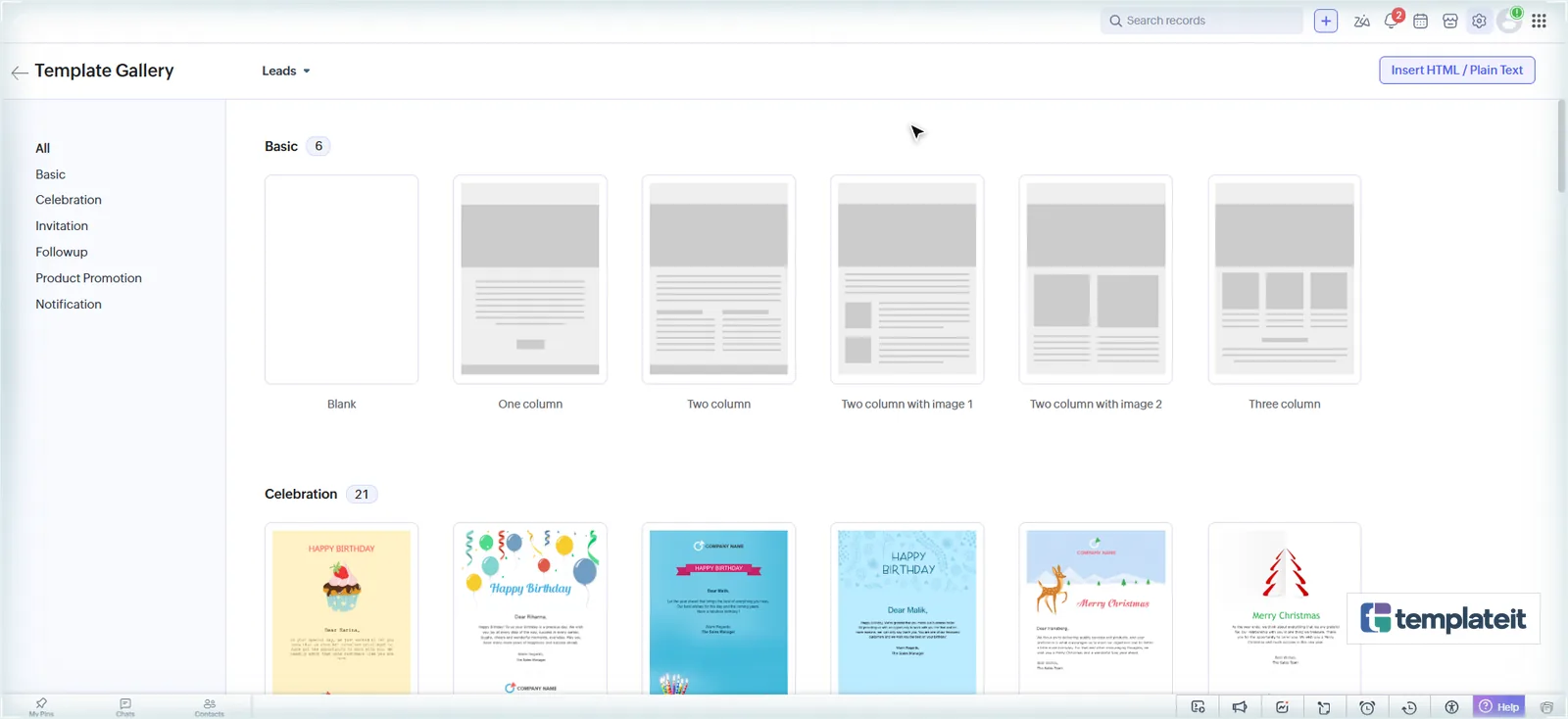
- Pick the module from the file’s header comment (Leads, Site Visits or Deals), click Next, then click Insert HTML / Plain Text at the top right of the gallery.
- Click the </> button in the editor toolbar, select everything in the box, paste the file’s HTML, and click Insert.
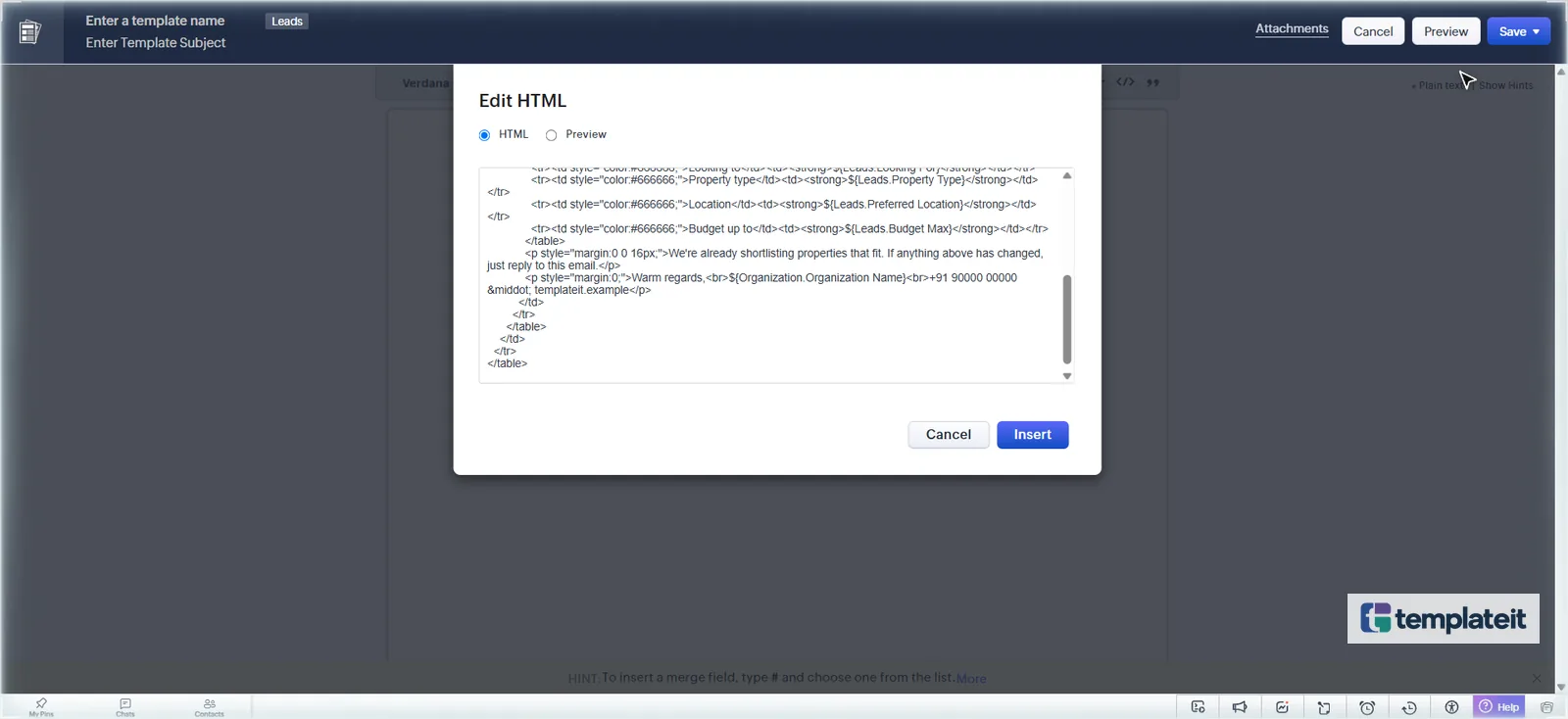
- Enter the template name and the subject from the file’s header comment.
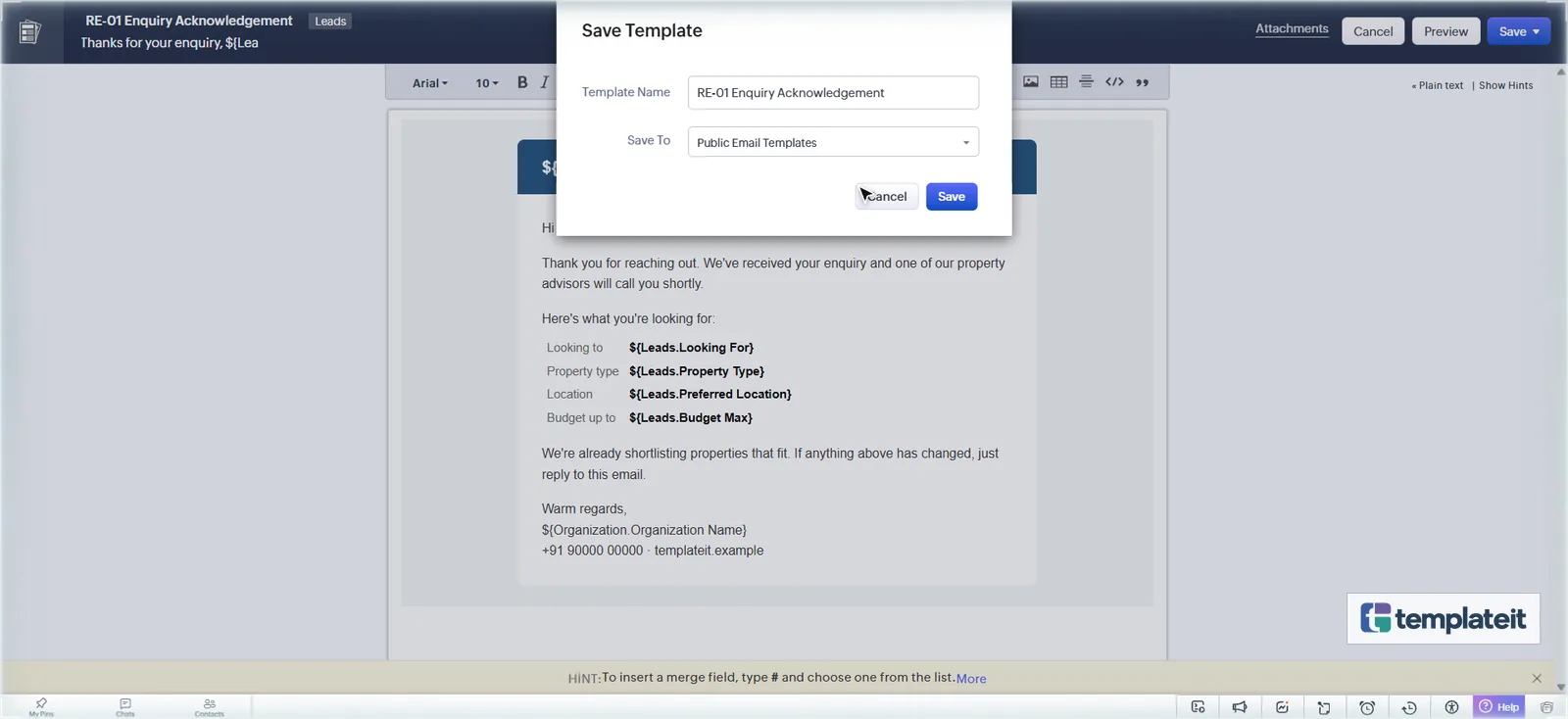
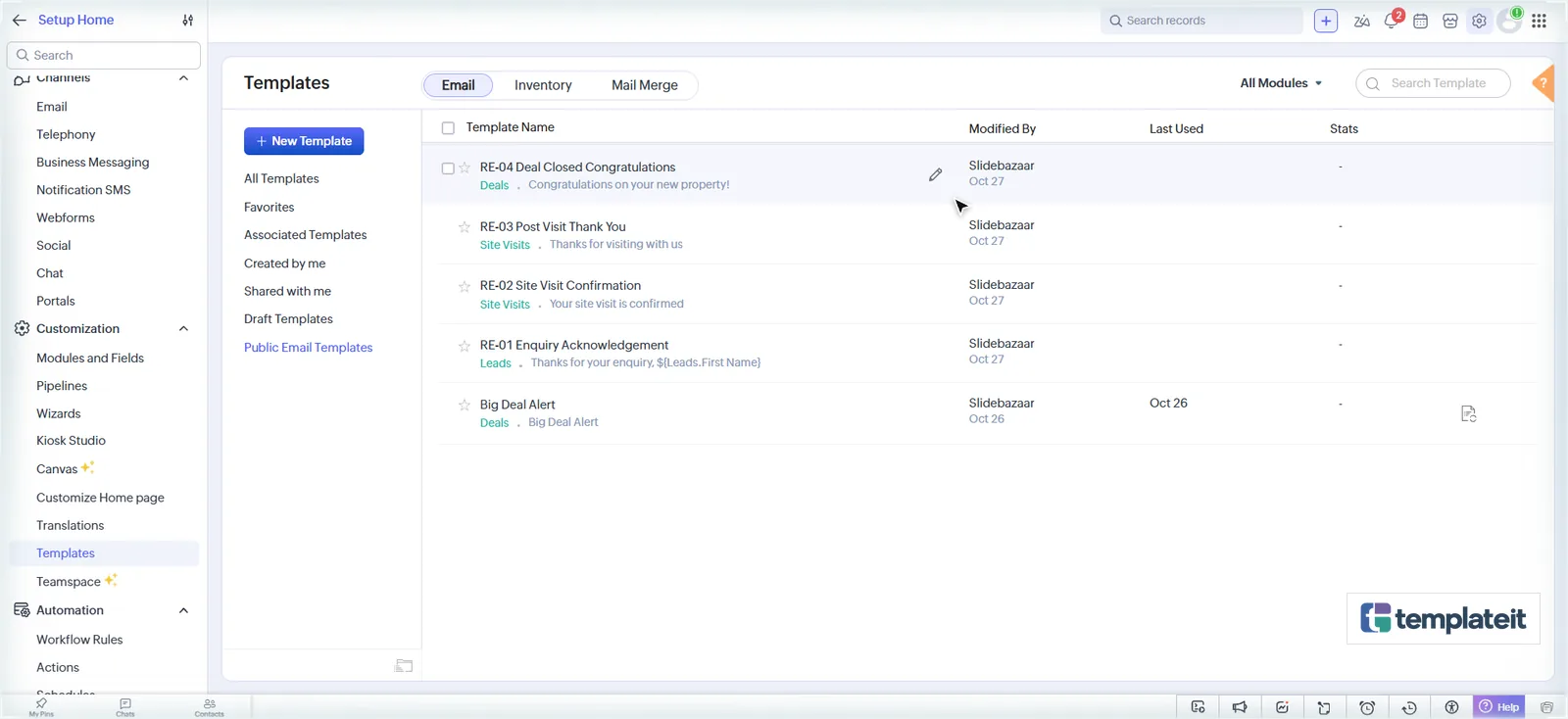
- Click Save → Save Now, choose the Public Email Templates folder, and click Save.
Replace [Phone], [Website] and [Review Link] with your details. The merge fields (${Leads.First Name}, ${Organization.Organization Name} …) use the same format as Zoho’s # merge picker, so they work as pasted.
Step 7: Add the custom functions
Files for this step
deluge/match_properties_for_lead.delugedeluge/sync_property_status.delugedeluge/create_followup_after_site_visit.deluge
Download the template (.zip) · includes every file
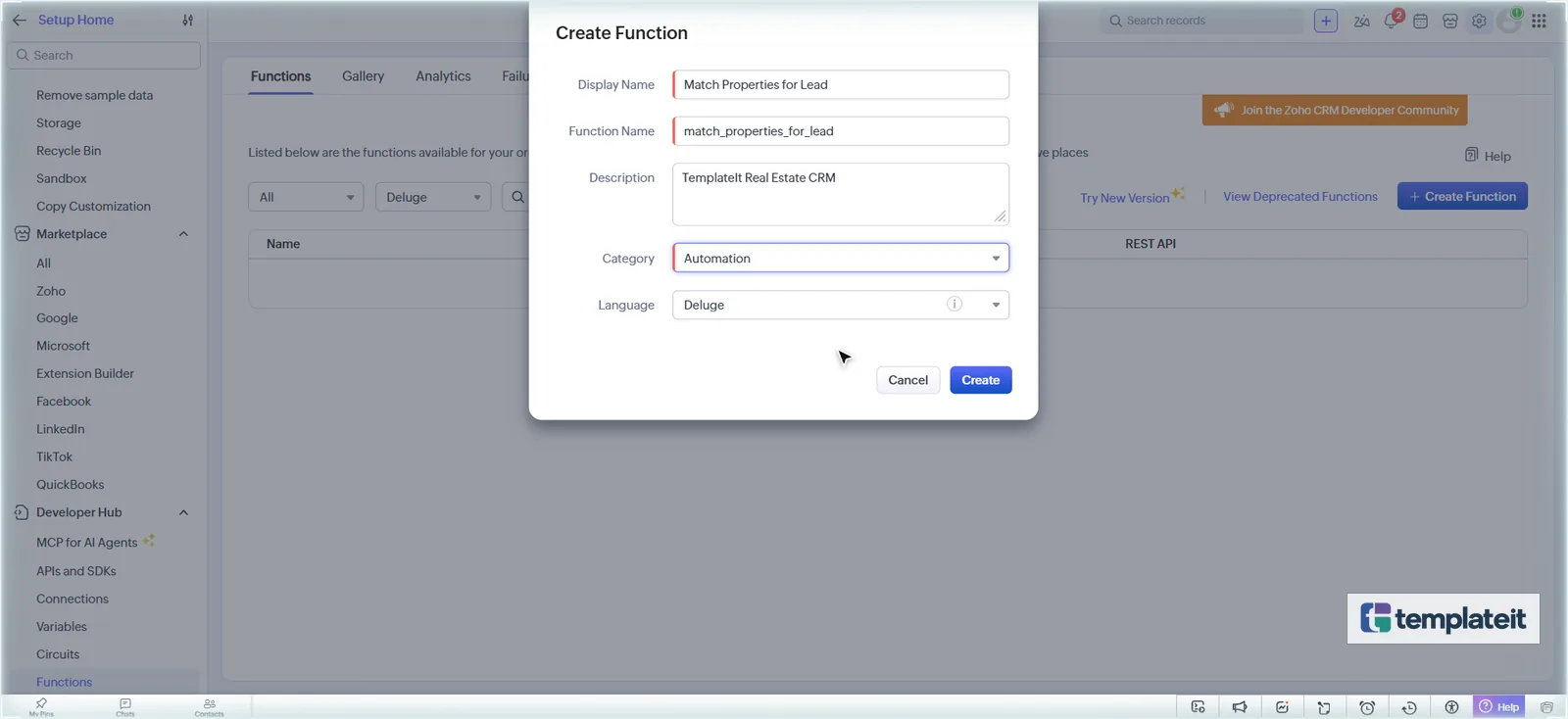
- Go to Setup → Developer Hub → Functions and click Create Function.
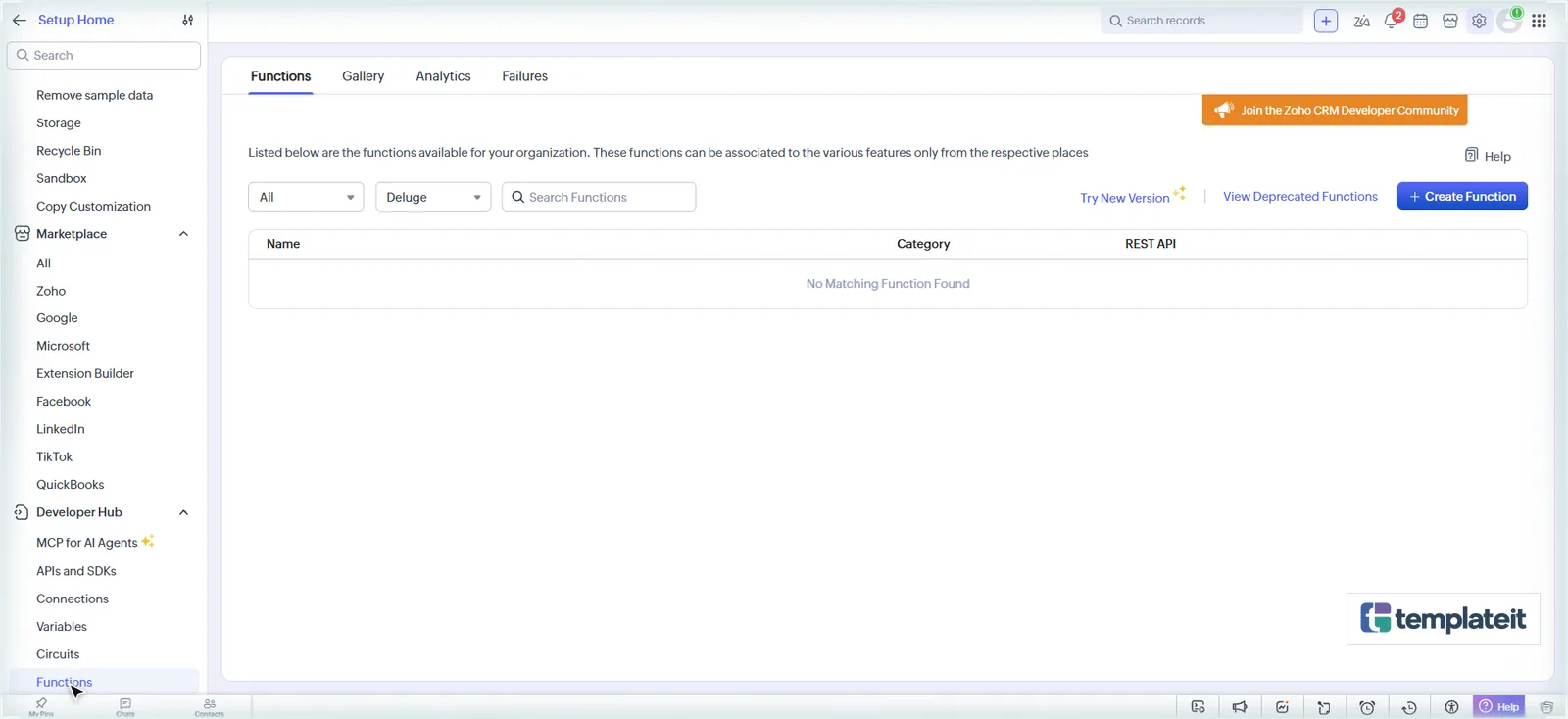
- Enter the display name and function name from tab “5 Functions” of the setup sheet, choose category Automation, and click Create.
- Replace the editor contents with the line that declares the argument, for example
void automation.match_properties_for_lead(String leadId), then{, the code from the.delugefile, and}. - Click Save. It should save with 0 errors.
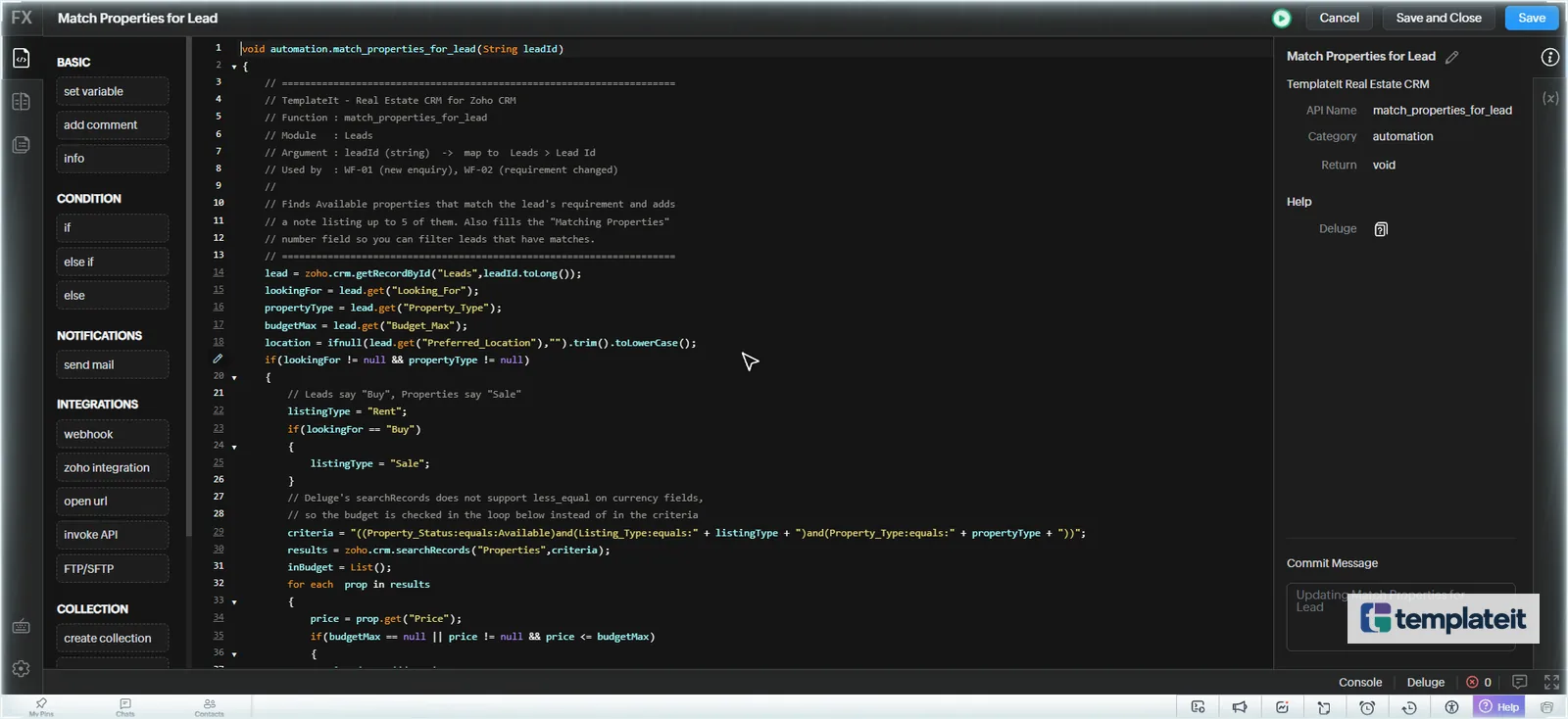
The code for all three functions:
match_properties_for_lead.deluge · argument leadId
// =====================================================================
// TemplateIt - Real Estate CRM for Zoho CRM
// Function : match_properties_for_lead
// Module   : Leads
// Argument : leadId (string)  ->  map to  Leads > Lead Id
// Used by  : WF-01 (new enquiry), WF-02 (requirement changed)
//
// Finds Available properties that match the lead's requirement and adds
// a note listing up to 5 of them. Also fills the "Matching Properties"
// number field so you can filter leads that have matches.
// =====================================================================
lead = zoho.crm.getRecordById("Leads",leadId.toLong());
lookingFor = lead.get("Looking_For");
propertyType = lead.get("Property_Type");
budgetMax = lead.get("Budget_Max");
location = ifnull(lead.get("Preferred_Location"),"").trim().toLowerCase();
if(lookingFor != null && propertyType != null)
{
	// Leads say "Buy", Properties say "Sale"
	listingType = "Rent";
	if(lookingFor == "Buy")
	{
		listingType = "Sale";
	}
	// Deluge's searchRecords does not support less_equal on currency fields,
	// so the budget is checked in the loop below instead of in the criteria
	criteria = "((Property_Status:equals:Available)and(Listing_Type:equals:" + listingType + ")and(Property_Type:equals:" + propertyType + "))";
	results = zoho.crm.searchRecords("Properties",criteria);
	inBudget = List();
	for each  prop in results
	{
		price = prop.get("Price");
		if(budgetMax == null || price != null && price <= budgetMax)
		{
			inBudget.add(prop);
		}
	}
	// Prefer properties in the requested location; fall back to all in budget
	matches = List();
	if(location != "")
	{
		for each  prop in inBudget
		{
			place = (ifnull(prop.get("Locality"),"") + " " + ifnull(prop.get("City"),"")).toLowerCase();
			if(place.contains(location))
			{
				matches.add(prop);
			}
		}
	}
	if(matches.size() == 0)
	{
		matches = inBudget;
	}
	lines = List();
	for each  prop in matches
	{
		if(lines.size() < 5)
		{
			line = "- " + prop.get("Name") + " | " + ifnull(prop.get("Locality"),"") + ", " + ifnull(prop.get("City"),"") + " | Price: " + ifnull(prop.get("Price"),"") + " | Bedrooms: " + ifnull(prop.get("Bedrooms"),"-");
			lines.add(line);
		}
	}
	noteContent = "No available properties match this requirement right now.";
	if(lines.size() > 0)
	{
		// Deluge strings don't support "\n", so matches are separated with " || "
		noteContent = lines.toString(" || ");
	}
	noteMap = Map();
	noteMap.put("Parent_Id",leadId.toLong());
	noteMap.put("se_module","Leads");
	noteMap.put("Note_Title","Matching properties: " + matches.size());
	noteMap.put("Note_Content",noteContent);
	noteResp = zoho.crm.createRecord("Notes",noteMap);
	info noteResp;
	updateMap = Map();
	updateMap.put("Matching_Properties",matches.size());
	updateResp = zoho.crm.updateRecord("Leads",leadId.toLong(),updateMap);
	info updateResp;
}
sync_property_status.deluge · argument dealId
// =====================================================================
// TemplateIt - Real Estate CRM for Zoho CRM
// Function : sync_property_status
// Module   : Deals
// Argument : dealId (string)  ->  map to  Deals > Deal Id
// Used by  : WF-06 (Stage modified)
//
// Keeps the linked property's status in step with the deal:
//   Token Received / Agreement Signed  ->  Under Offer
//   Closed Won                         ->  Sold (or Rented for rent deals)
//   Closed Lost                        ->  Available (only if it was Under Offer)
// =====================================================================
deal = zoho.crm.getRecordById("Deals",dealId.toLong());
property = deal.get("Property");
stage = deal.get("Stage");
if(property != null)
{
	propertyId = property.get("id").toLong();
	newStatus = "";
	if(stage == "Token Received" || stage == "Agreement Signed")
	{
		newStatus = "Under Offer";
	}
	else if(stage == "Closed Won")
	{
		newStatus = "Sold";
		if(deal.get("Deal_Type") == "Rent")
		{
			newStatus = "Rented";
		}
	}
	else if(stage == "Closed Lost")
	{
		current = zoho.crm.getRecordById("Properties",propertyId);
		if(current.get("Property_Status") == "Under Offer")
		{
			newStatus = "Available";
		}
	}
	if(newStatus != "")
	{
		updateMap = Map();
		updateMap.put("Property_Status",newStatus);
		resp = zoho.crm.updateRecord("Properties",propertyId,updateMap);
		info resp;
	}
}
create_followup_after_site_visit.deluge · argument visitId
// =====================================================================
// TemplateIt - Real Estate CRM for Zoho CRM
// Function : create_followup_after_site_visit
// Module   : Site Visits
// Argument : visitId (string)  ->  map to  Site Visits > Site Visits Id
// Used by  : WF-05 (Visit Status set to Completed)
//
// Creates a follow-up task for the visit owner, due tomorrow, linked to
// the lead or contact. High priority when the client was interested.
// =====================================================================
visit = zoho.crm.getRecordById("Site_Visits",visitId.toLong());
feedback = ifnull(visit.get("Client_Feedback"),"Not recorded");
priority = "Normal";
if(feedback == "Very interested" || feedback == "Interested")
{
	priority = "High";
}
propertyName = "";
property = visit.get("Property");
if(property != null)
{
	propertyName = property.get("name");
}
taskMap = Map();
taskMap.put("Subject","Follow up after site visit: " + visit.get("Name"));
taskMap.put("Due_Date",zoho.currentdate.addDay(1).toString("yyyy-MM-dd"));
taskMap.put("Priority",priority);
taskMap.put("Status","Not Started");
taskMap.put("Description","Property: " + propertyName + " | Client feedback: " + feedback + " | Visit notes: " + ifnull(visit.get("Visit_Notes"),"-"));
owner = visit.get("Owner");
if(owner != null)
{
	taskMap.put("Owner",owner.get("id"));
}
// Link the task to the contact if there is one, otherwise to the lead
contact = visit.get("Contact");
lead = visit.get("Lead");
if(contact != null)
{
	taskMap.put("Who_Id",contact.get("id"));
}
else if(lead != null)
{
	taskMap.put("What_Id",lead.get("id"));
	taskMap.put("$se_module","Leads");
}
resp = zoho.crm.createRecord("Tasks",taskMap);
info resp;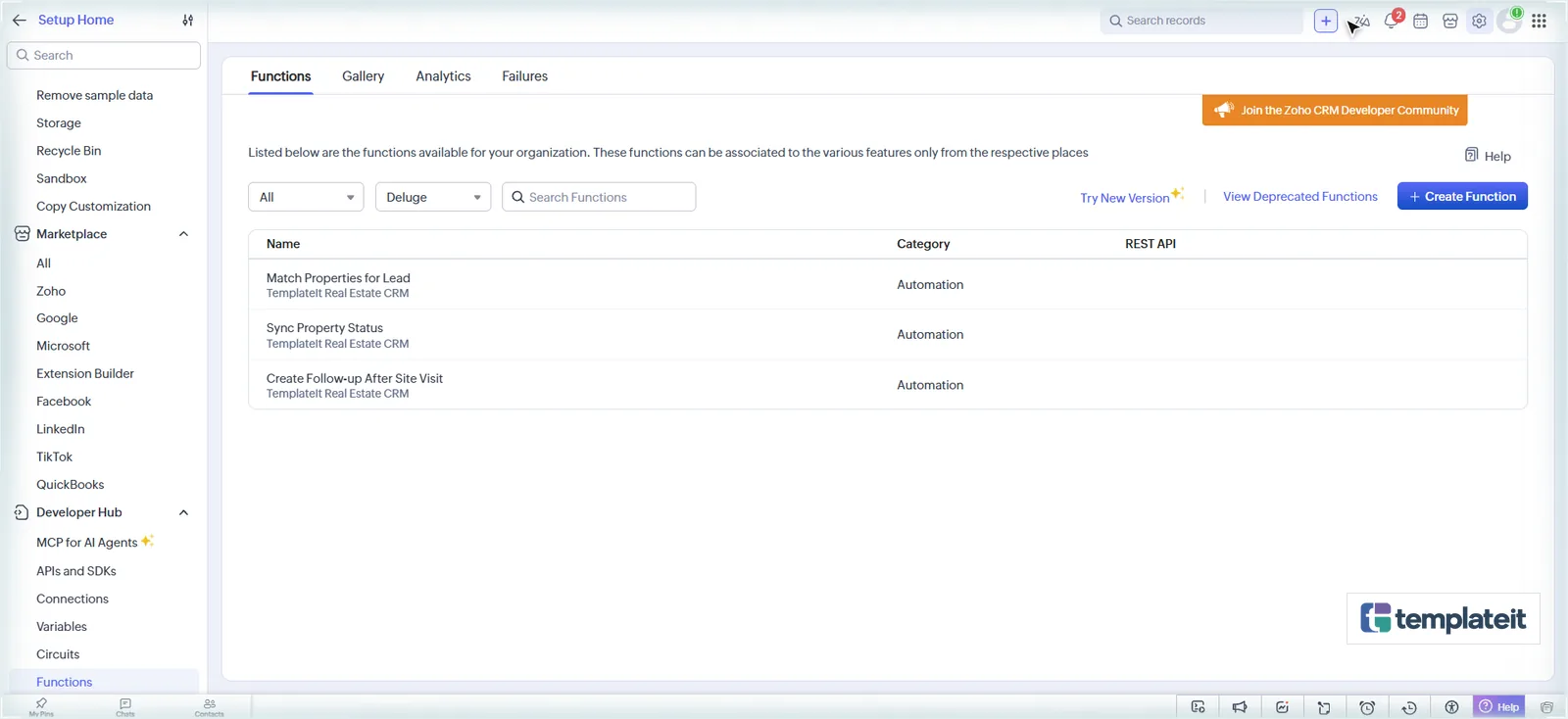
Step 8: Create the workflow rules
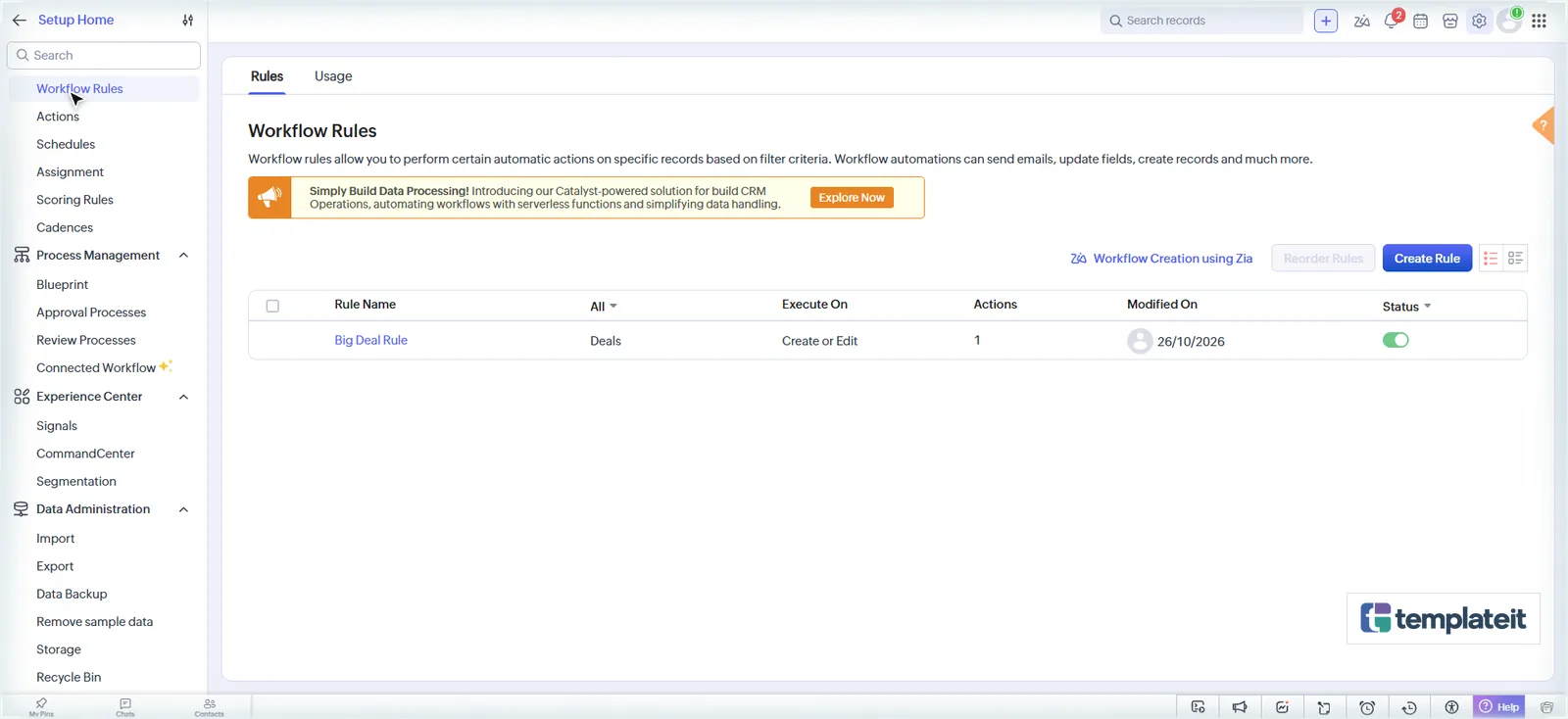
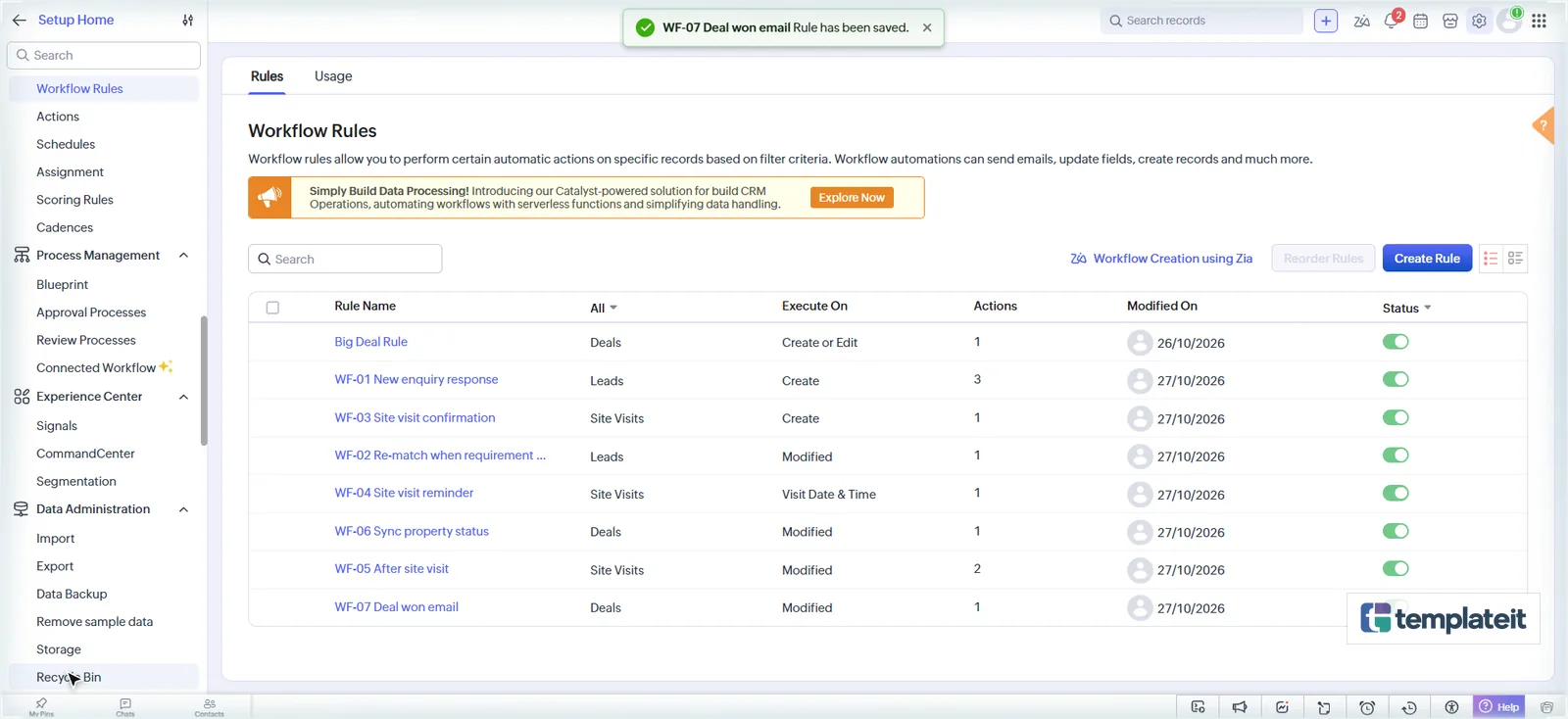
Go to Setup → Automation → Workflow Rules → Create Rule, pick the module and enter the rule name. Create these seven rules:
| ID | Module | When | Condition | Actions |
|---|---|---|---|---|
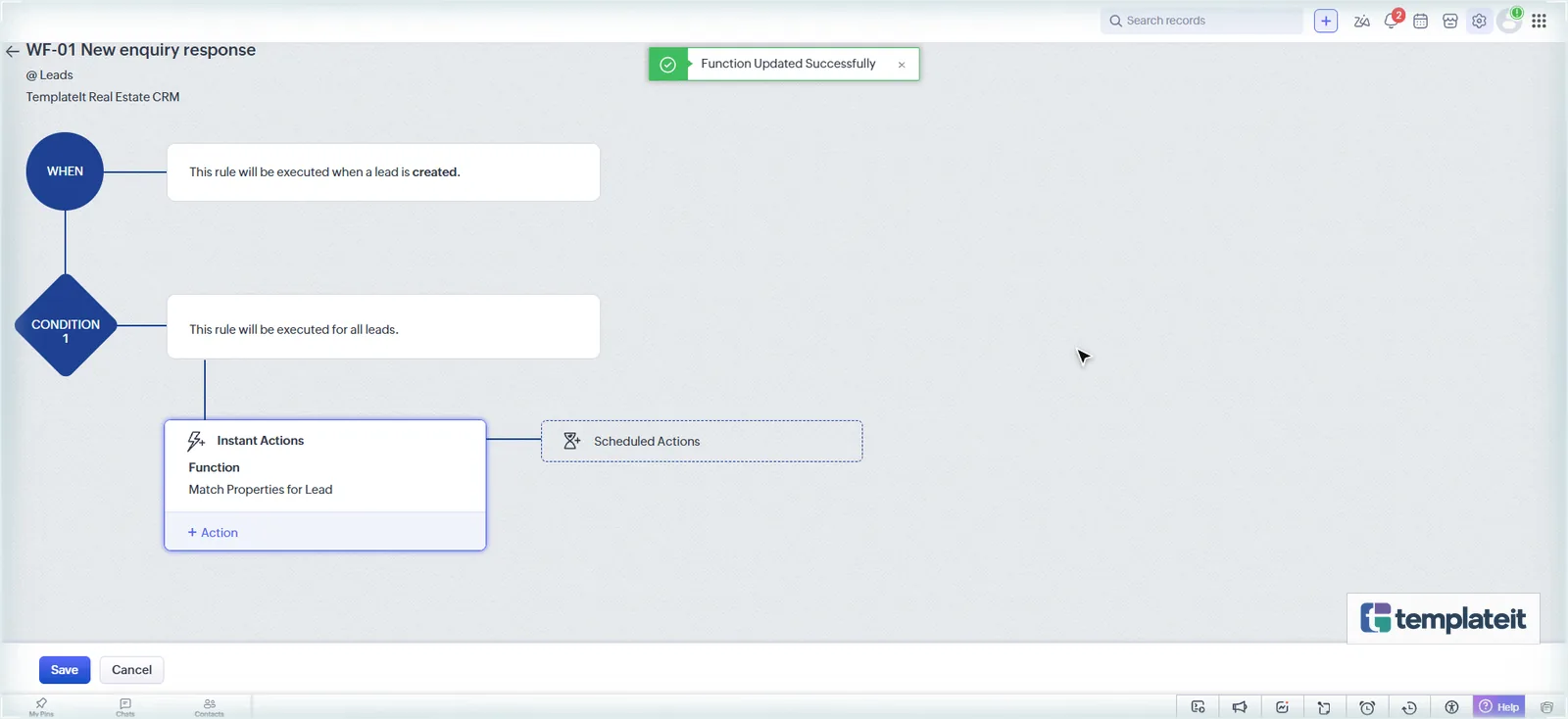
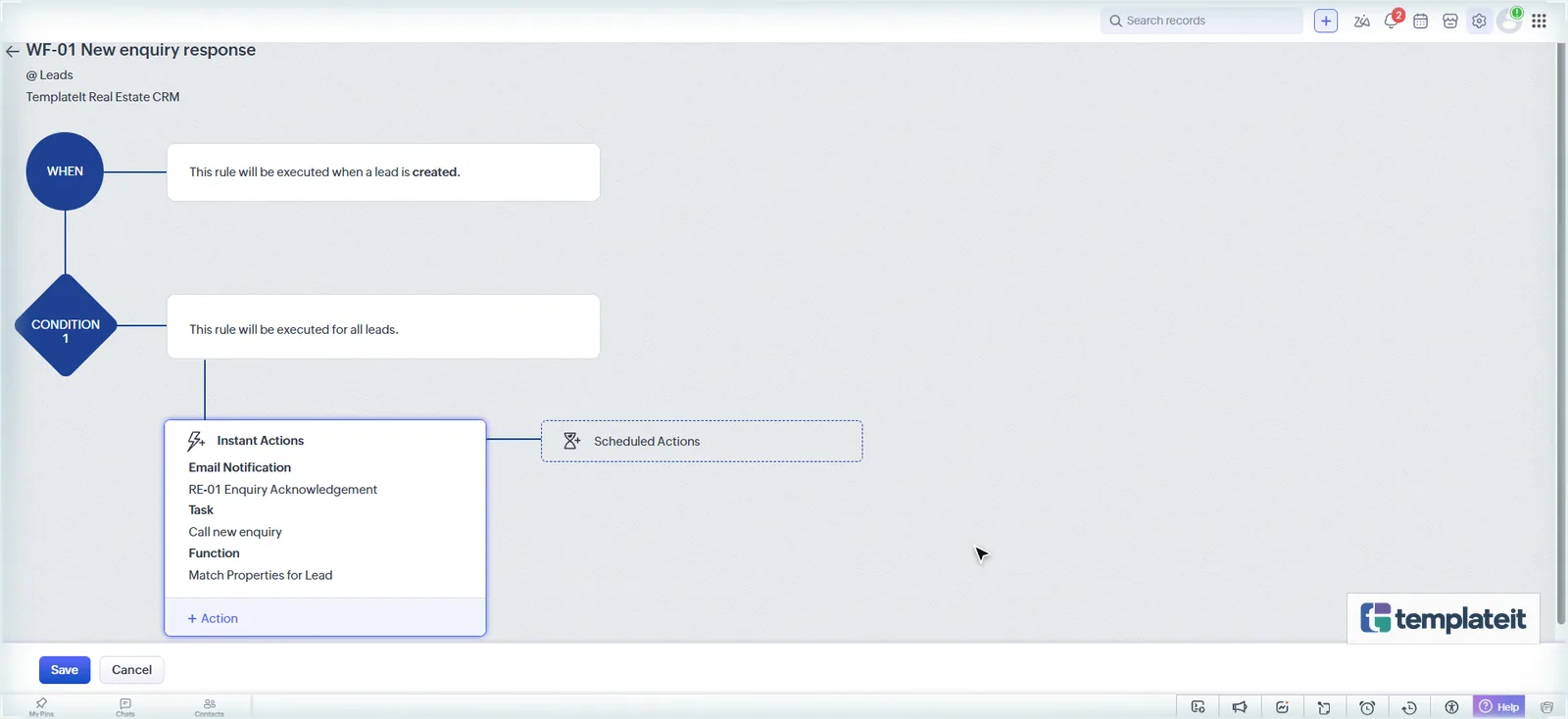
| WF-01 | Leads | Record action → Create | All Leads | Function Match Properties for Lead, Email RE-01 to Email, Task “Call new enquiry” |
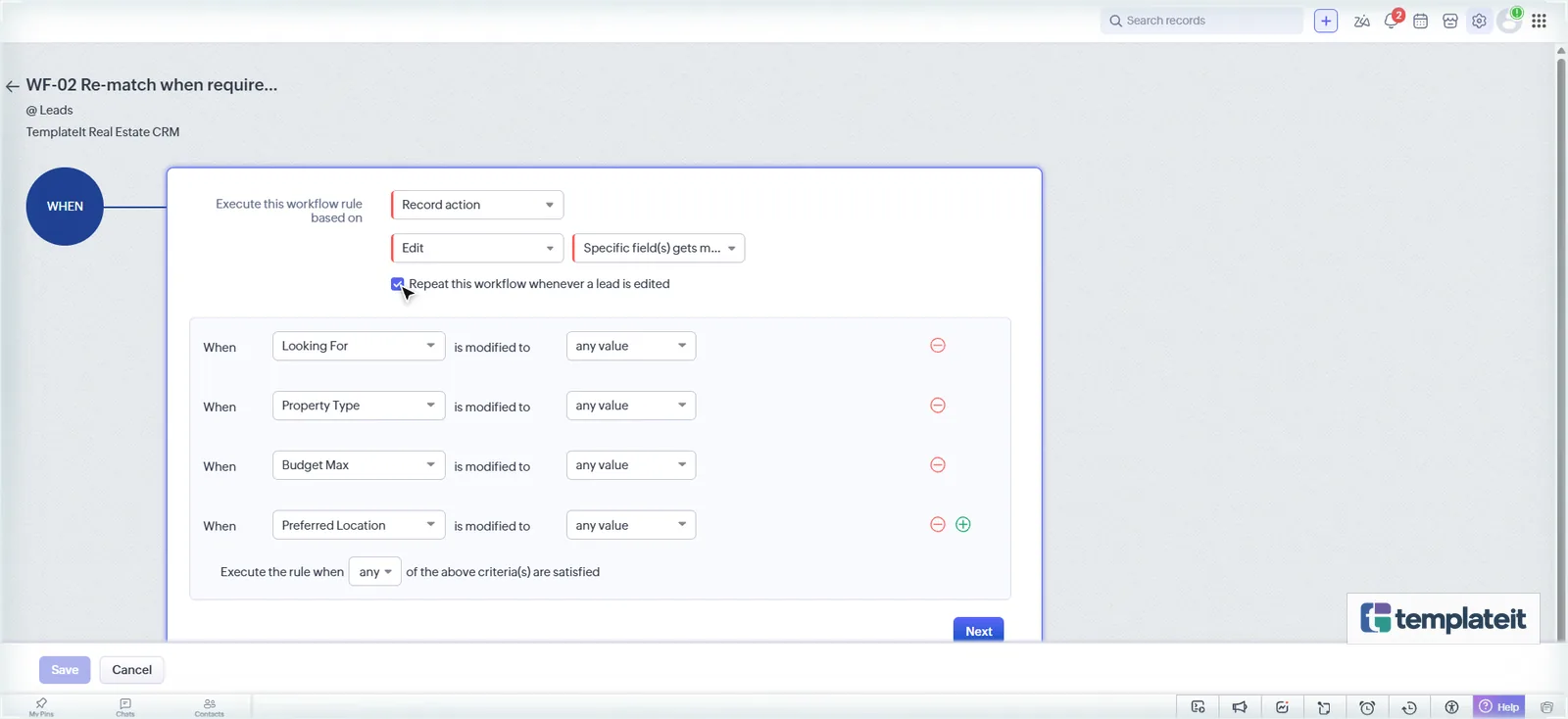
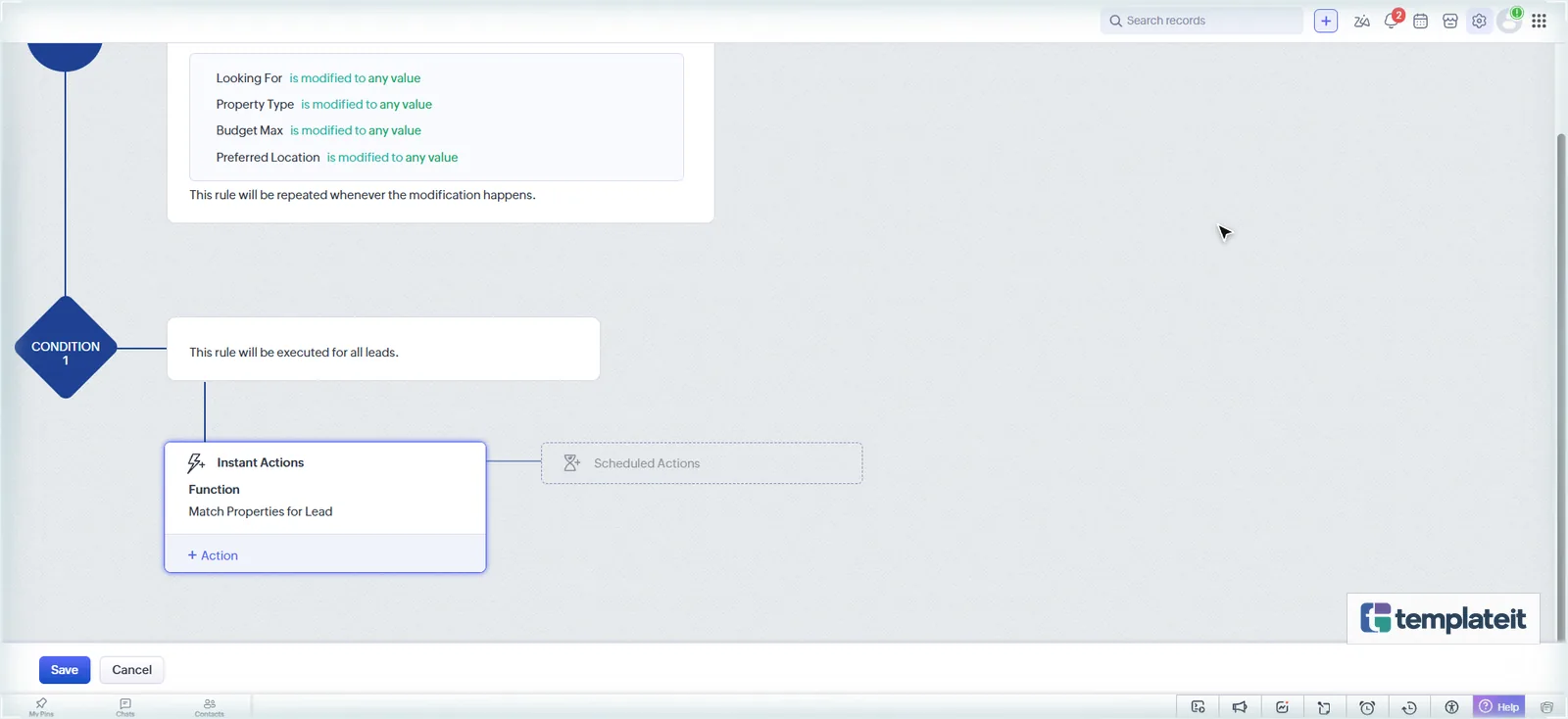
| WF-02 | Leads | Record action → Edit → Specific field(s) gets modified: Looking For / Property Type / Budget Max / Preferred Location → any value (tick Repeat) | All Leads | Function Match Properties for Lead |
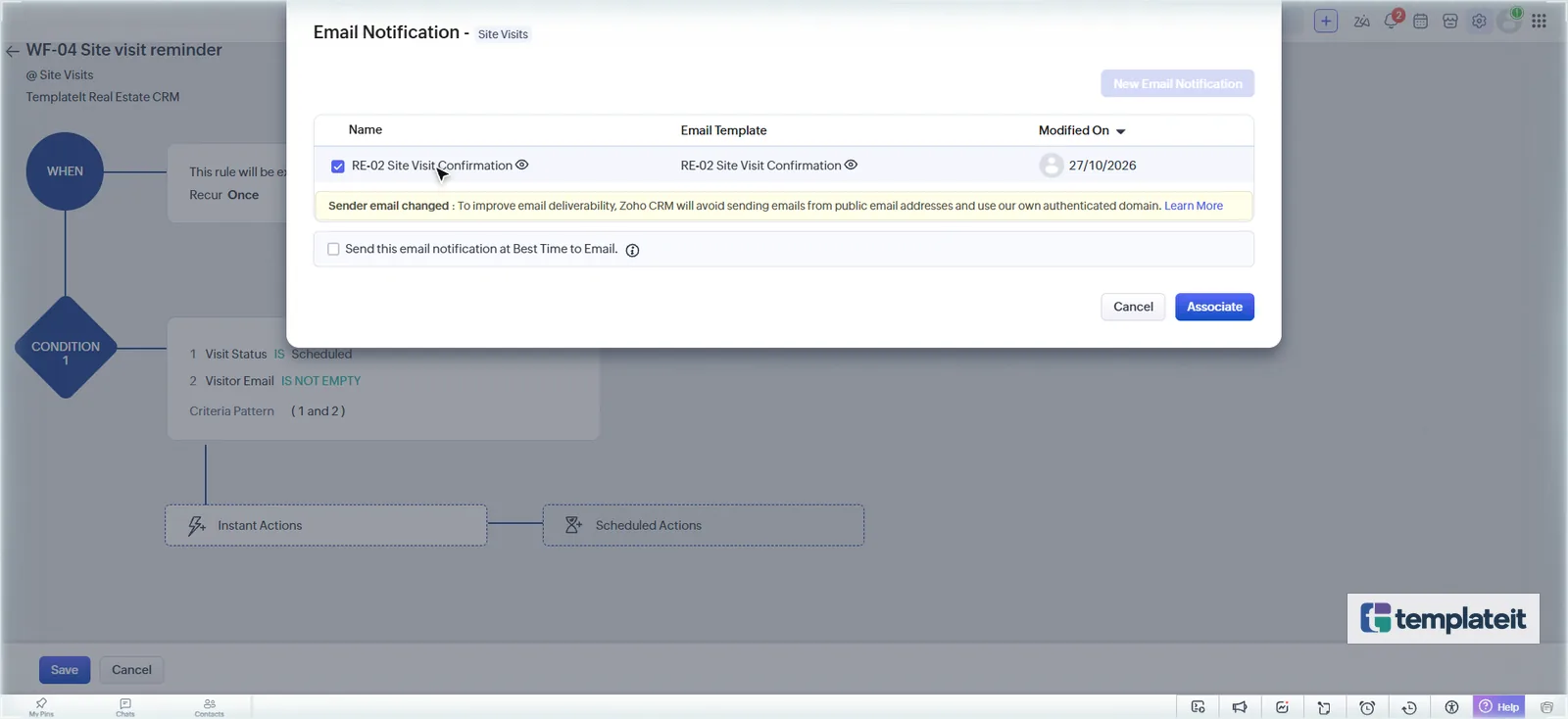
| WF-03 | Site Visits | Record action → Create | Visit Status is Scheduled and Visitor Email is not empty | Email RE-02 to Visitor Email |
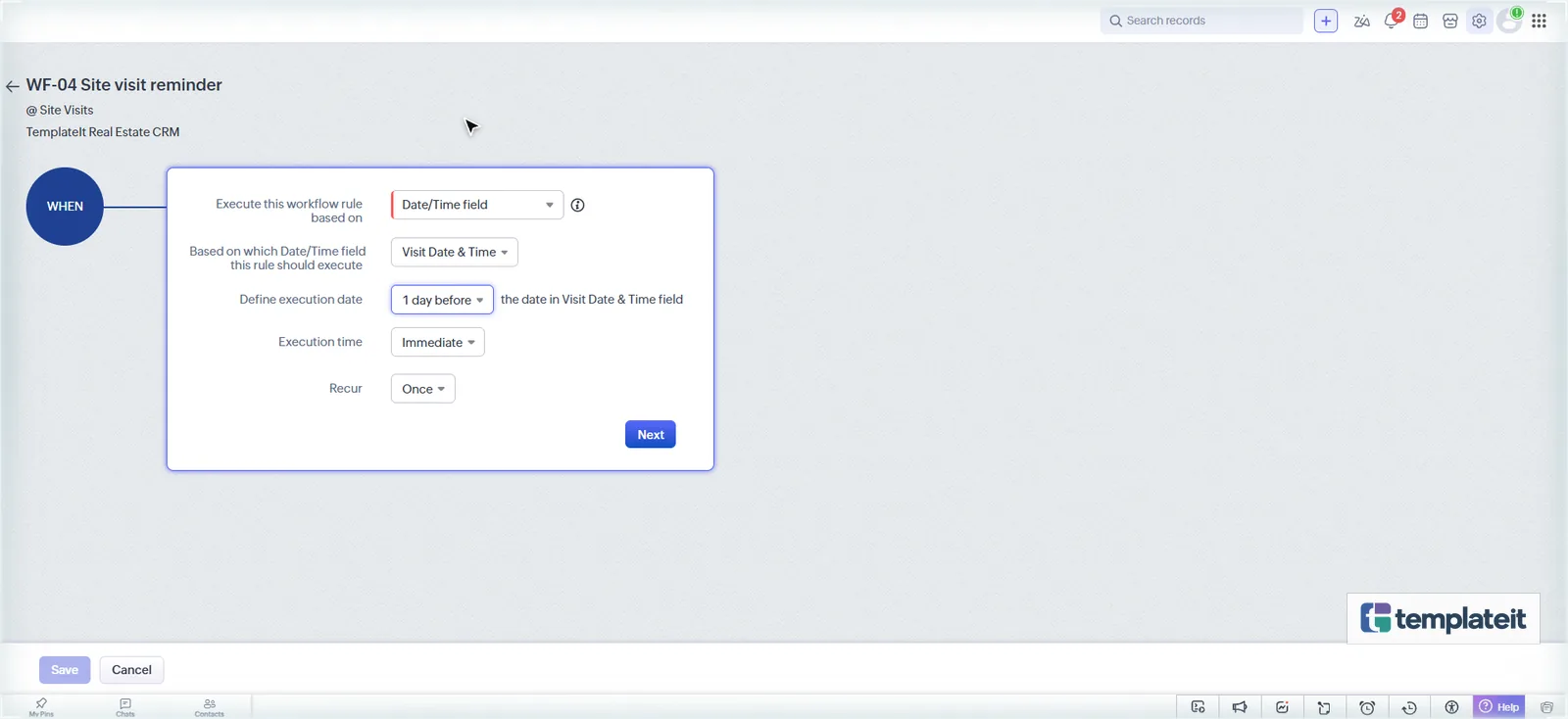
| WF-04 | Site Visits | Date/Time field → Visit Date & Time → 1 day before | Same as WF-03 | Email RE-02 |
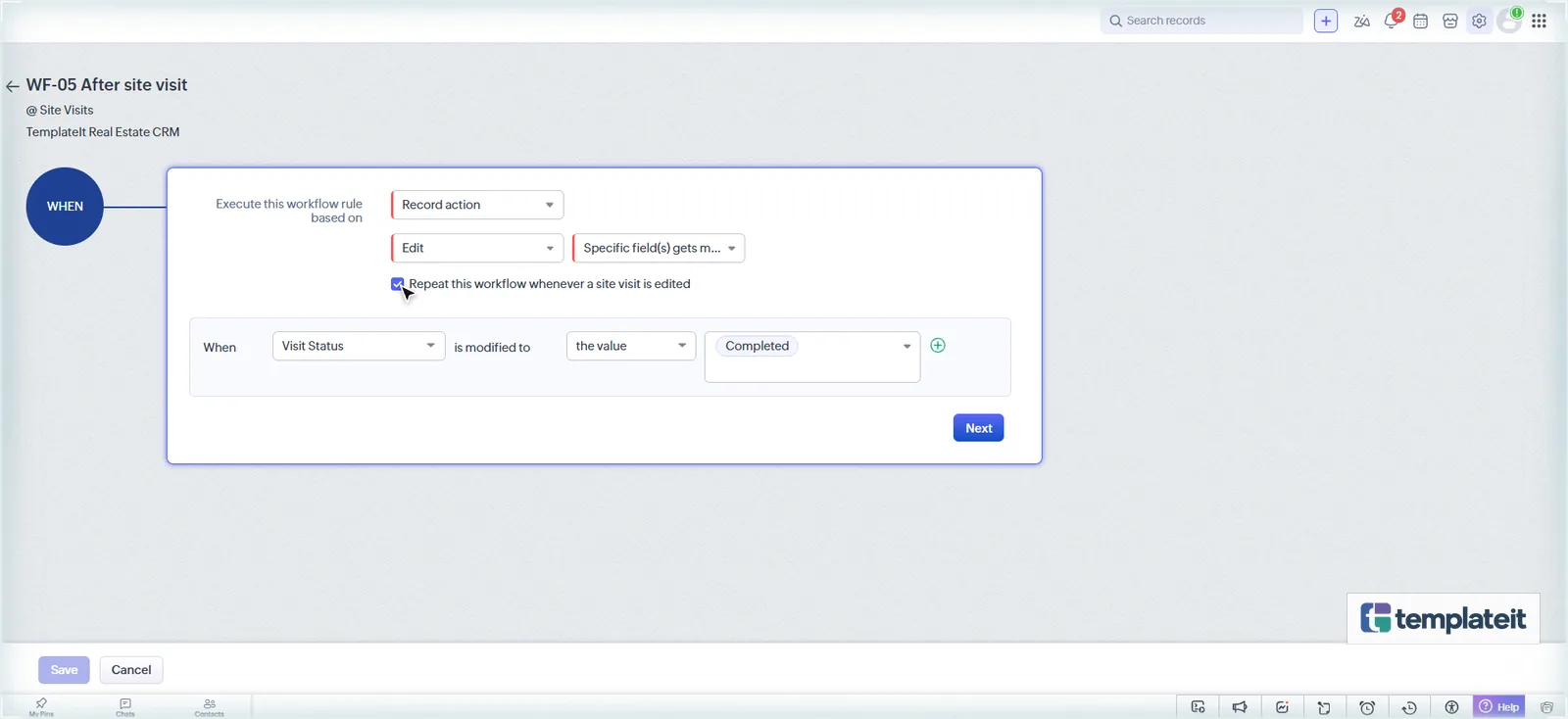
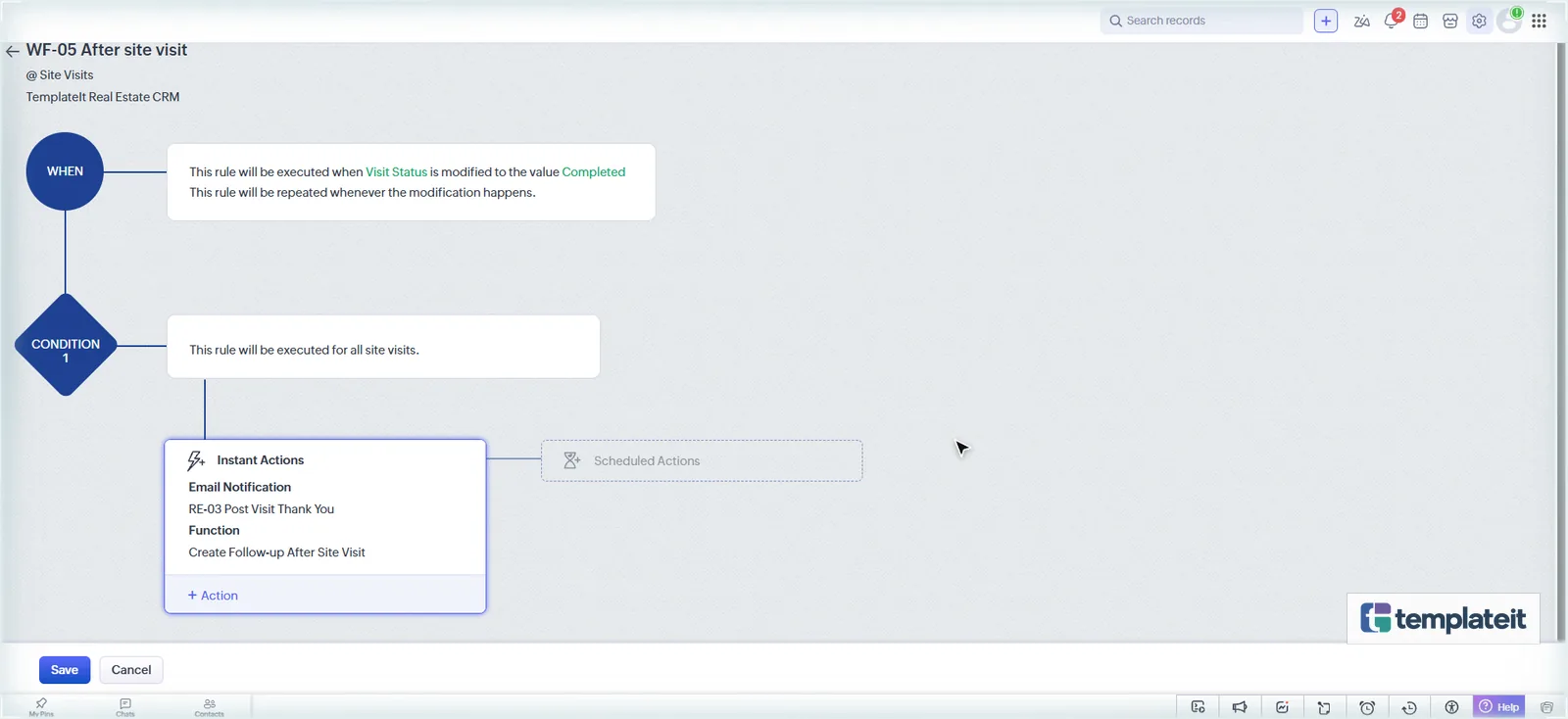
| WF-05 | Site Visits | Edit → Visit Status → the value Completed (tick Repeat) | All Site Visits | Function Create Follow-up After Site Visit, Email RE-03 to Visitor Email |
| WF-06 | Deals | Edit → Stage → any value (tick Repeat) | All Deals | Function Sync Property Status |
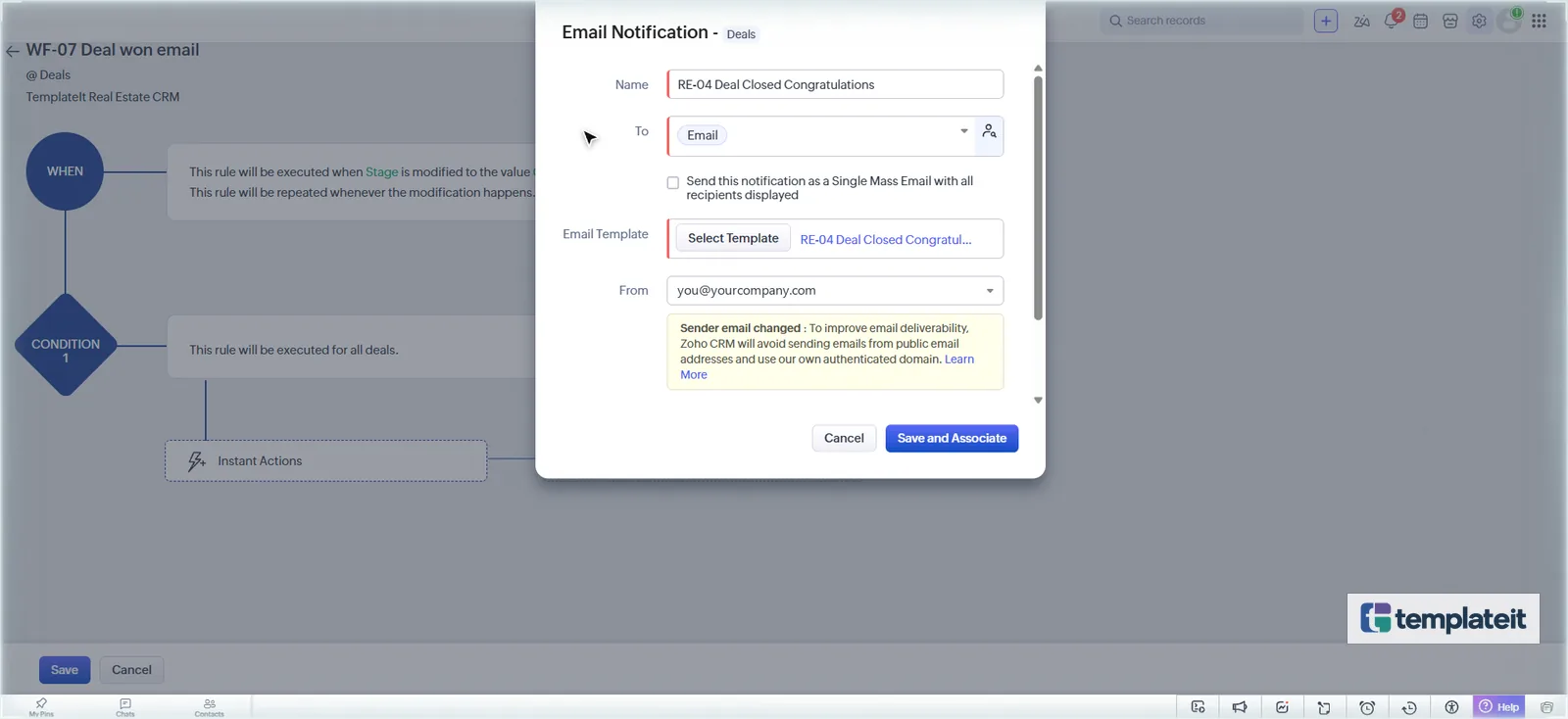
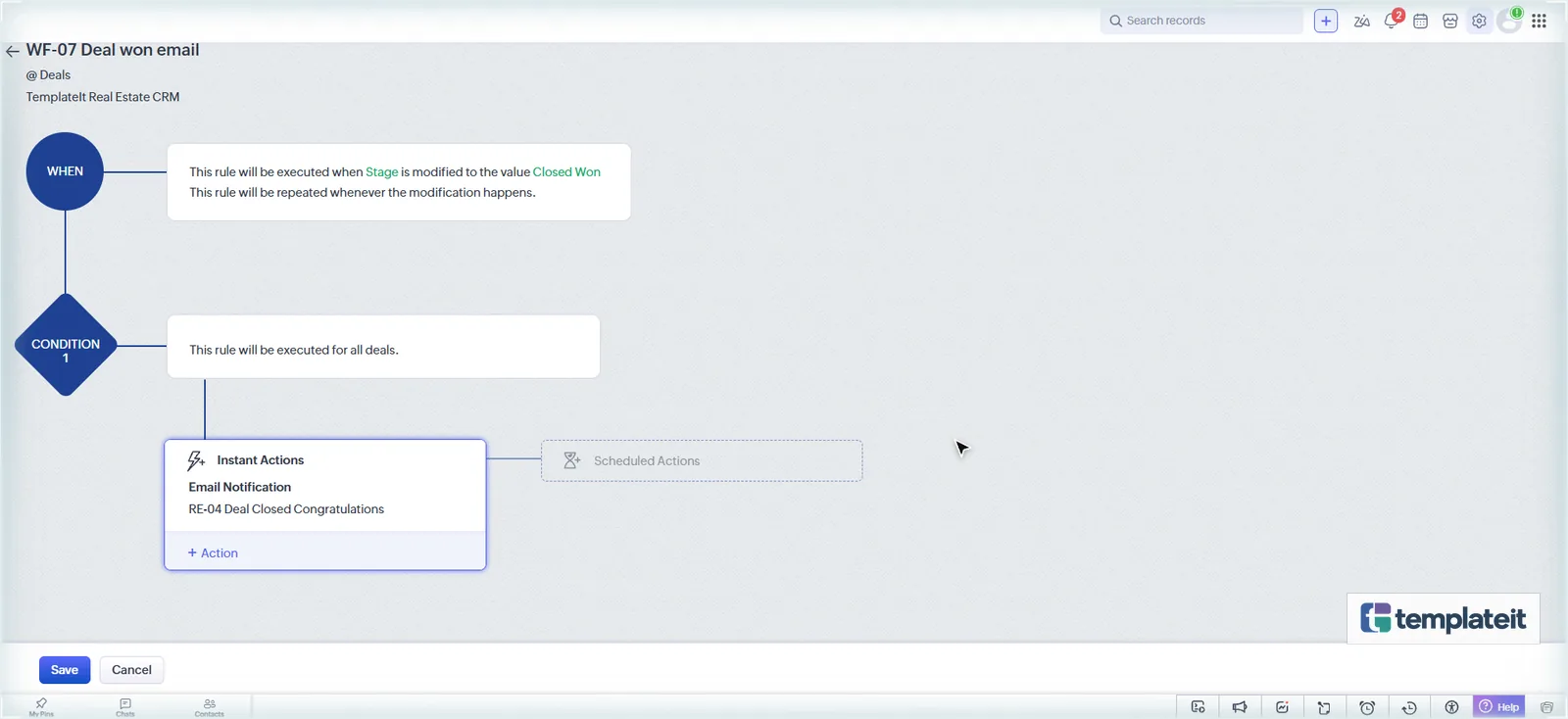
| WF-07 | Deals | Edit → Stage → the value Closed Won (tick Repeat) | All Deals | Email RE-04 (in To, switch the list from Deal to Contact and pick Email) |
WF-01: New enquiry response
Attaching a function: under Instant Actions → Function → Functions, click Configure next to the function, then in Value type # and pick the module’s Id field (for example Leads → Lead Id). Click Done, then Save and Associate.
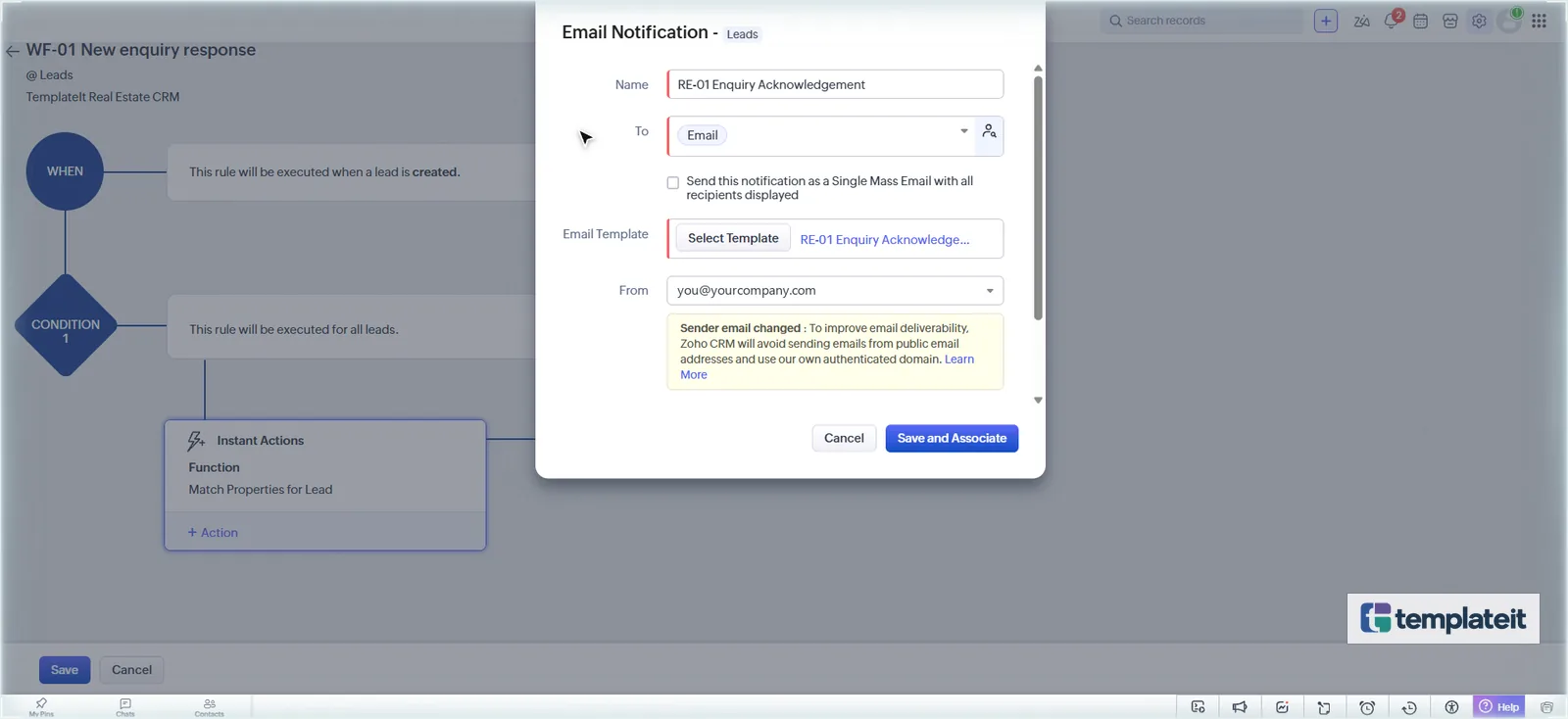
Email alert: + Action → Email Notification → New Email Notification, name it, choose Email in To, Select Template RE-01, then Save and Associate.
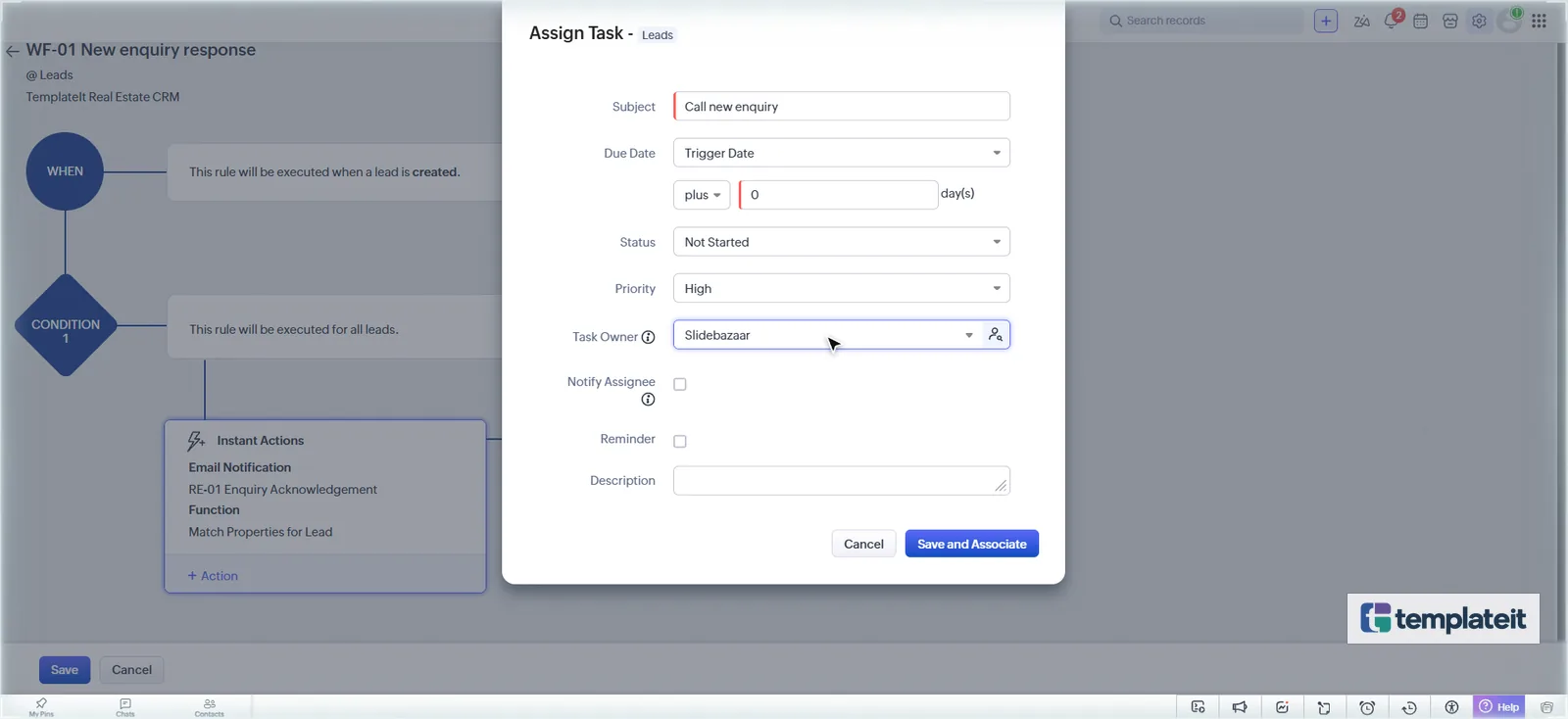
Task: + Action → Activities → Assign Task → Create Task: subject Call new enquiry, due date Trigger Date plus 0 days, priority High.
WF-02: Re-match when requirements change
Choose Edit → Specific field(s) gets modified, add the four fields with any value, and tick Repeat this workflow whenever a lead is edited. WF-02 reuses WF-01’s function: Zoho lists it, so select it and click Associate.
WF-03 and WF-04: Site visit confirmation and reminder
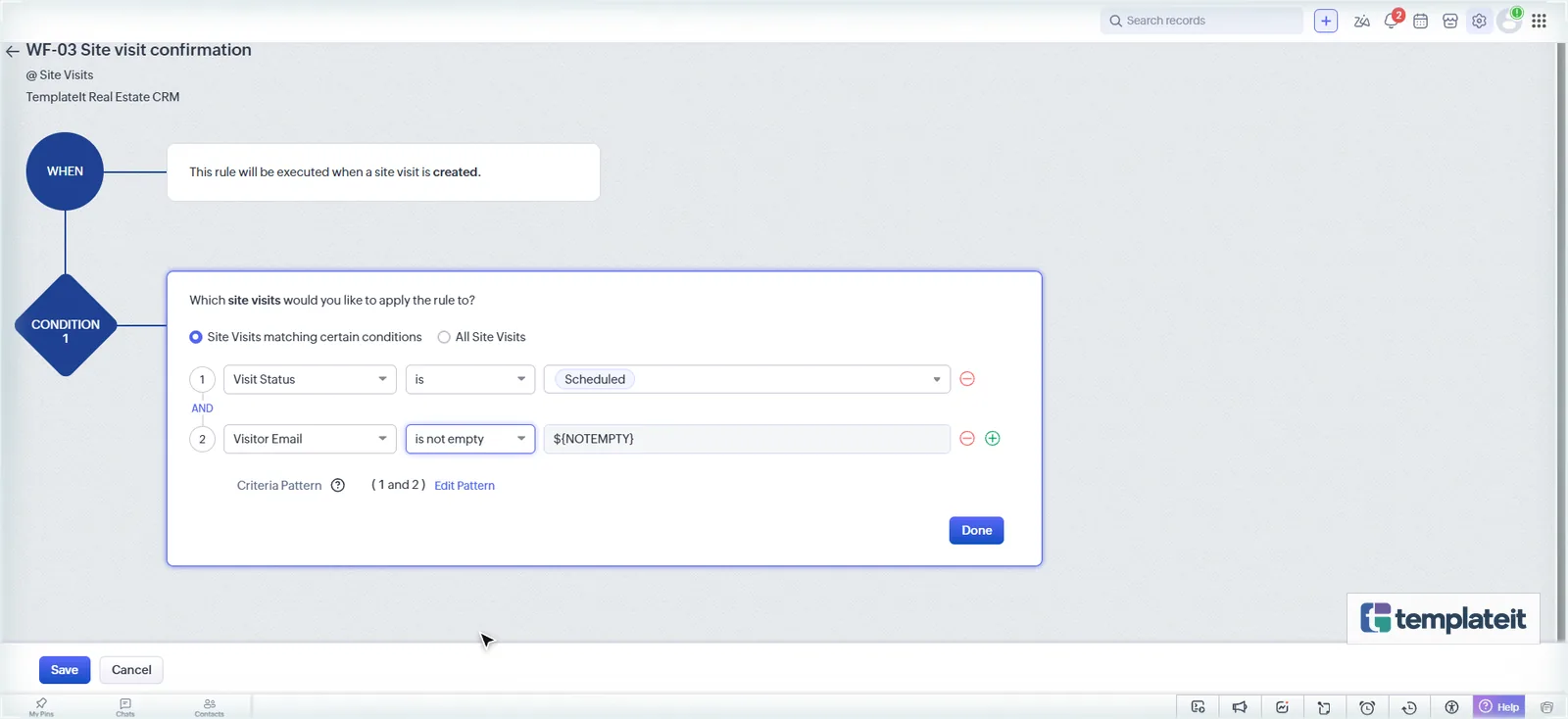
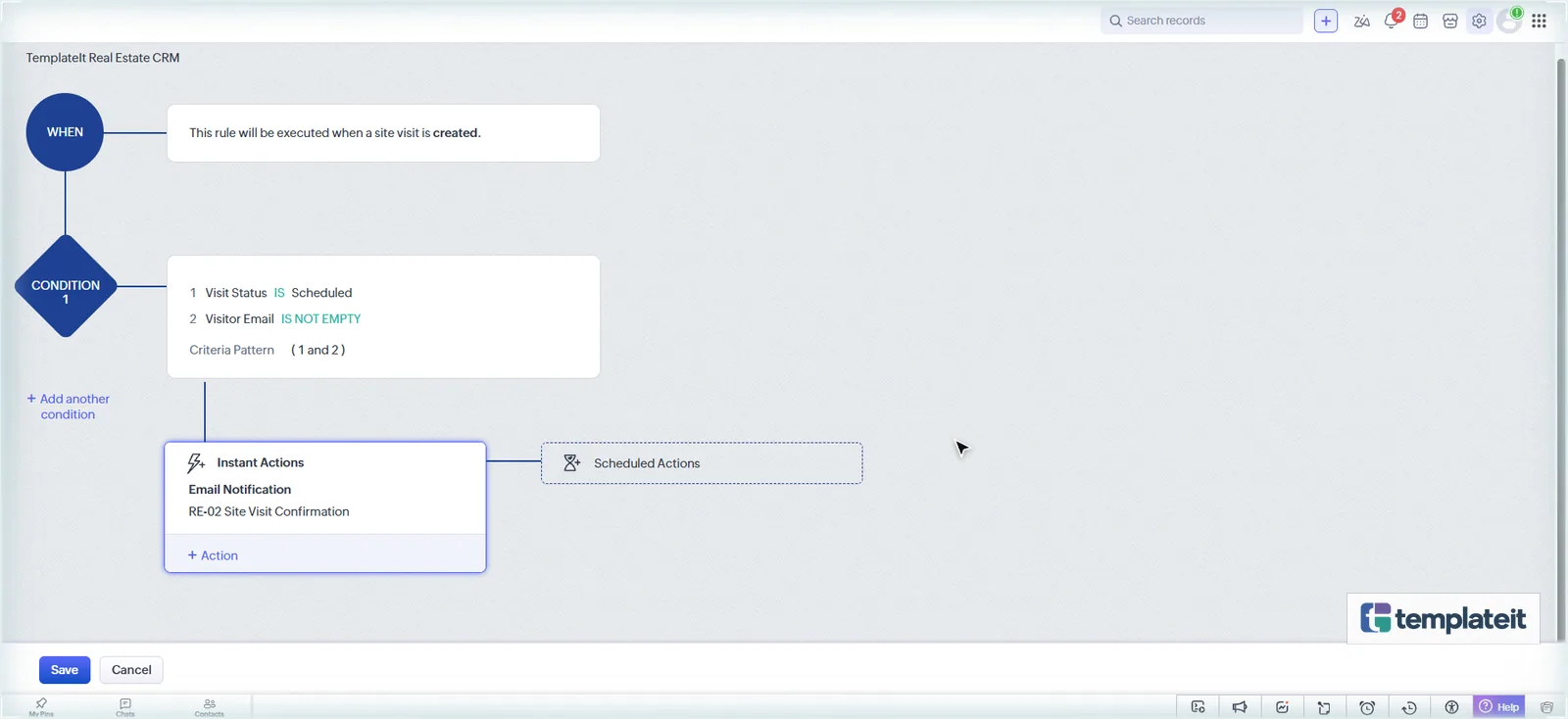
WF-04 uses a Date/Time field trigger to send the same email one day before the visit. Pick the existing RE-02 alert from the list instead of creating a new one.
WF-05: After the site visit
WF-06 and WF-07: Deal stage automation
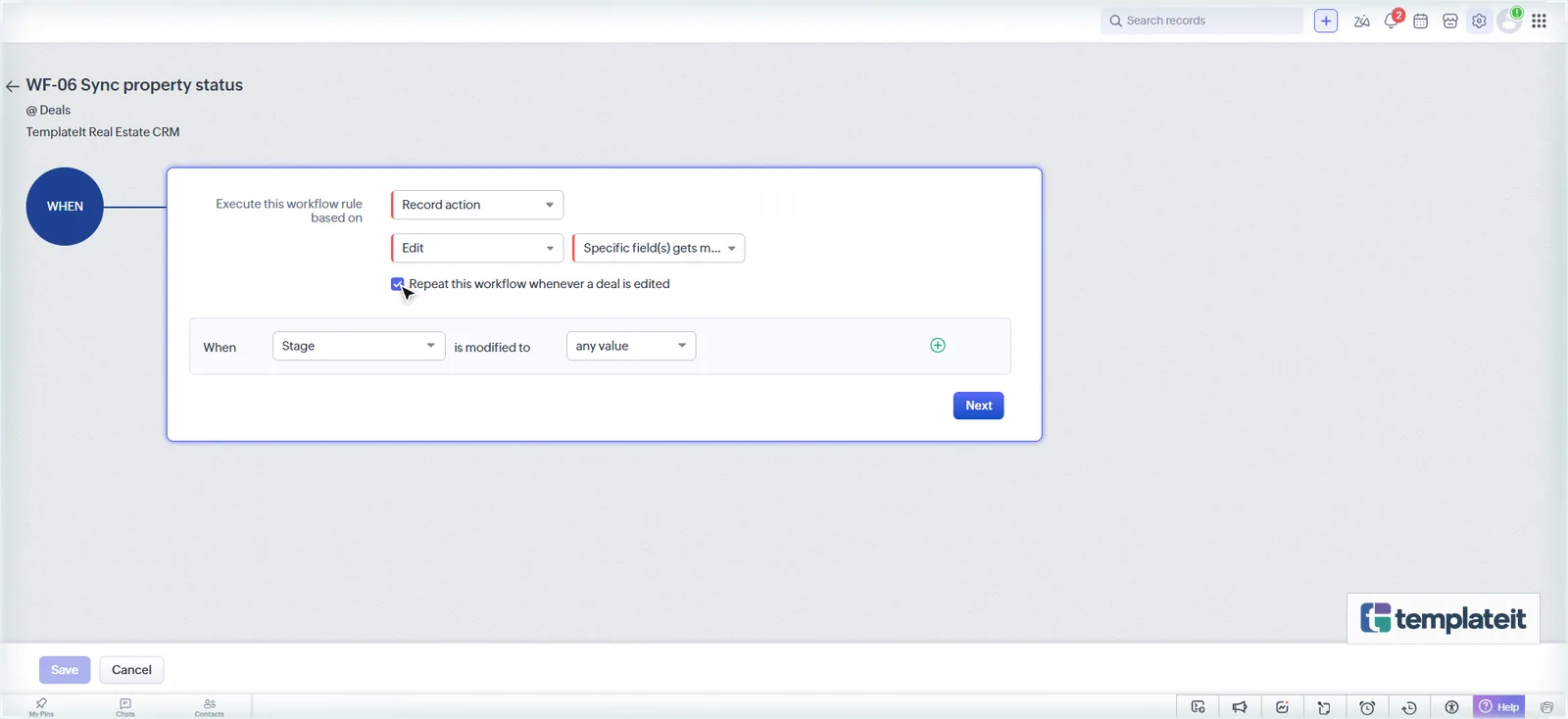
For WF-07’s email, switch the To list from Deal to Contact and pick Email, because deals don’t have an email field.
Step 9: Import the sample data
Files for this step
sample-data/property-owners.csvsample-data/properties.csvsample-data/leads.csv
Download the template (.zip) · includes every file
Import in this order from each module’s Create ▾ → Import:
property-owners.csv→ Contactsproperties.csv→ Properties (map Owner Contact to the Contact lookup)leads.csv→ Leads
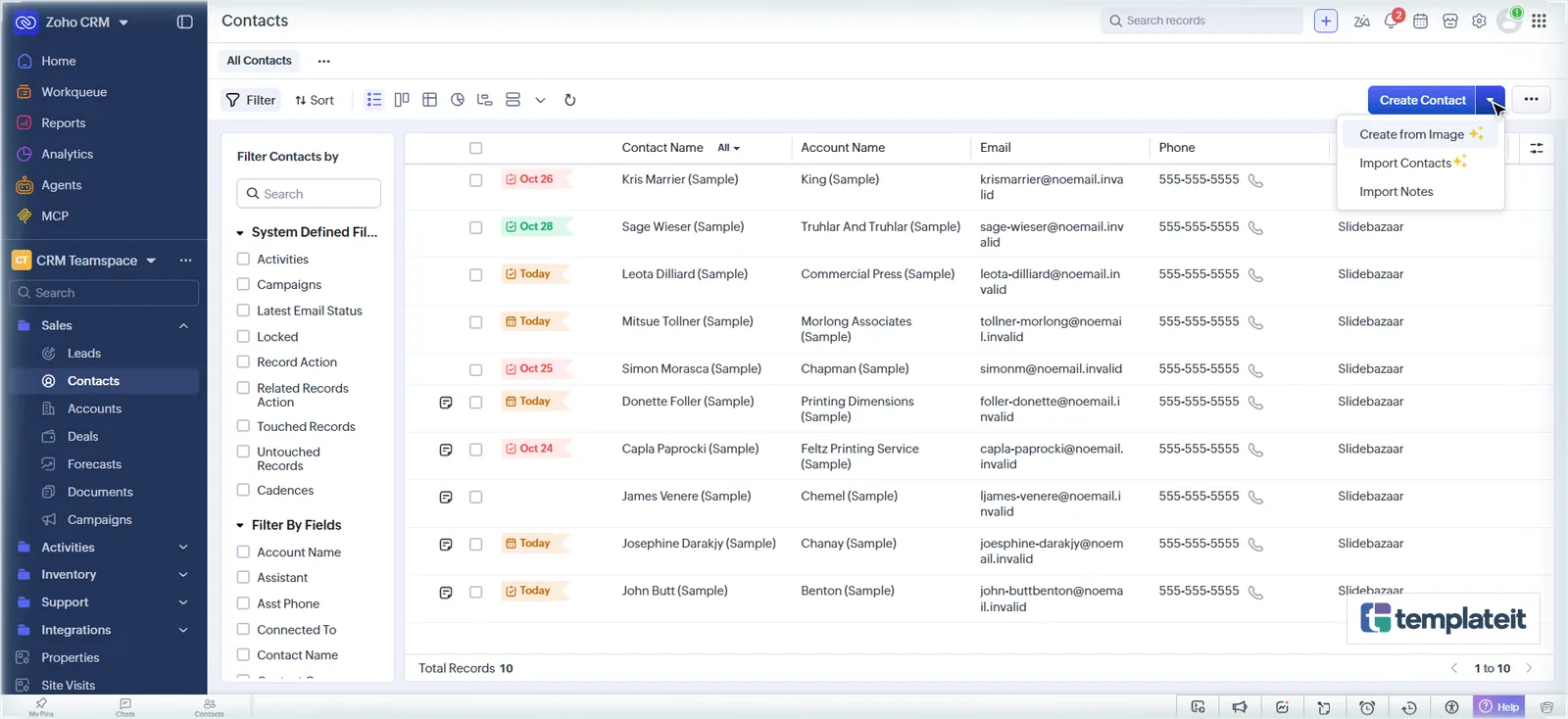
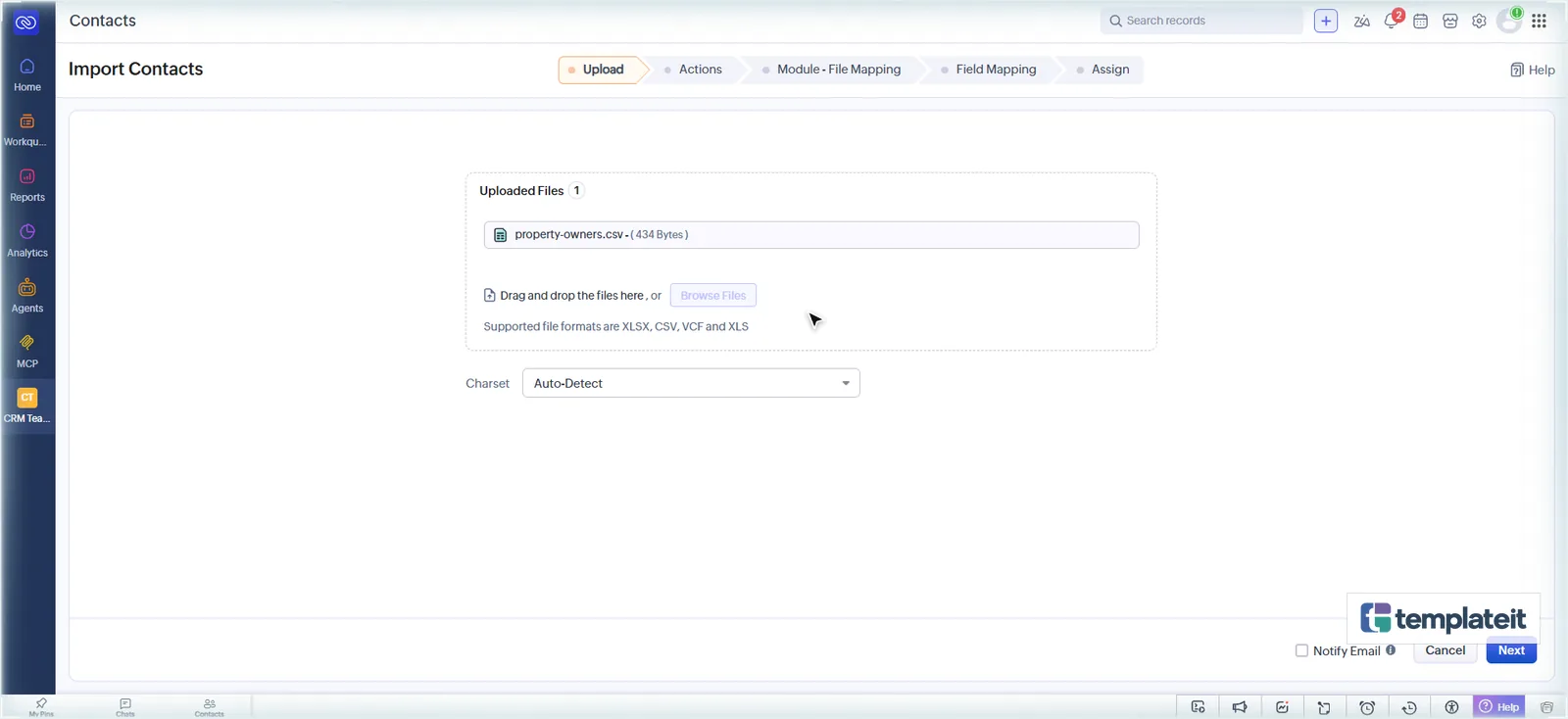
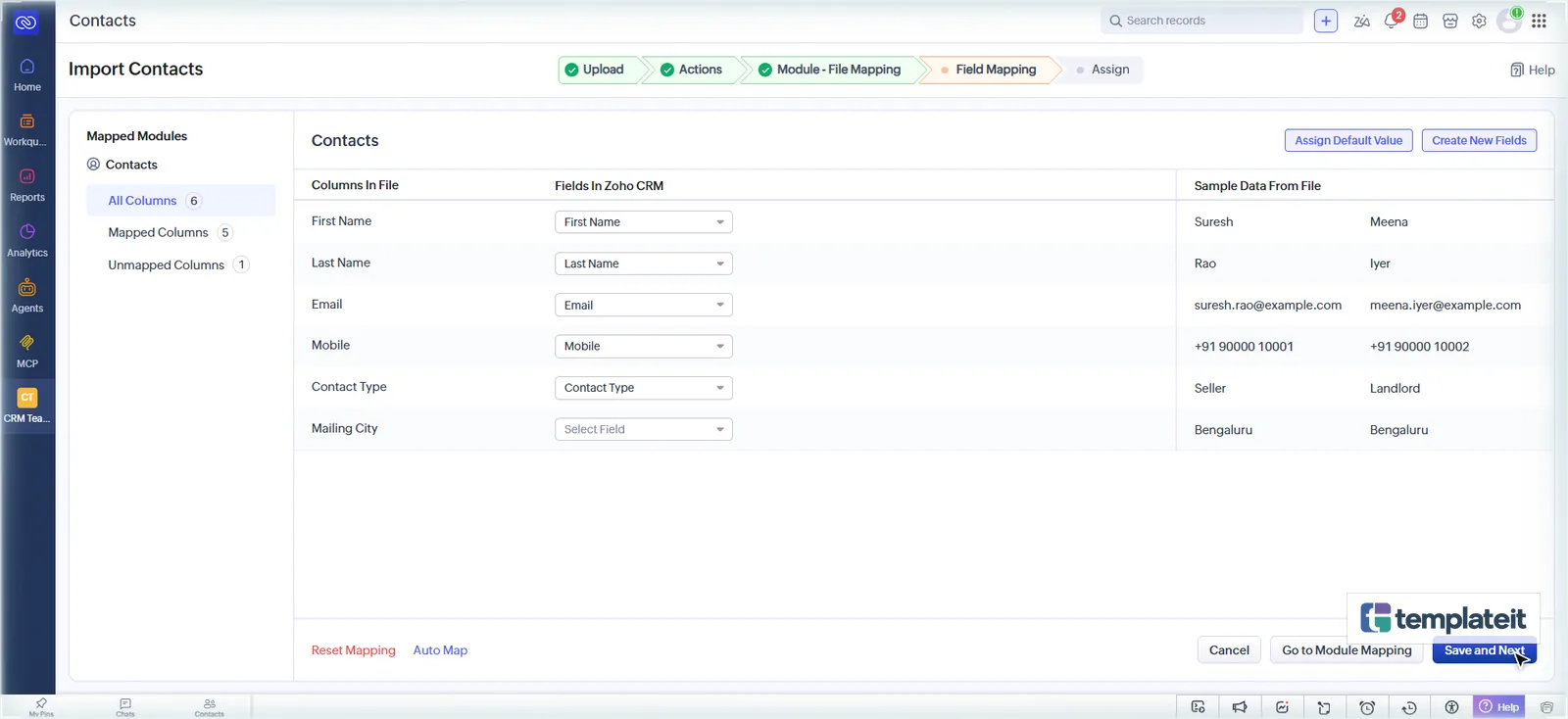
Multi-select values (Amenities, Contact Type) are separated by ;. On the last step leave Trigger configured automations unticked, since the sample records use @example.com addresses.
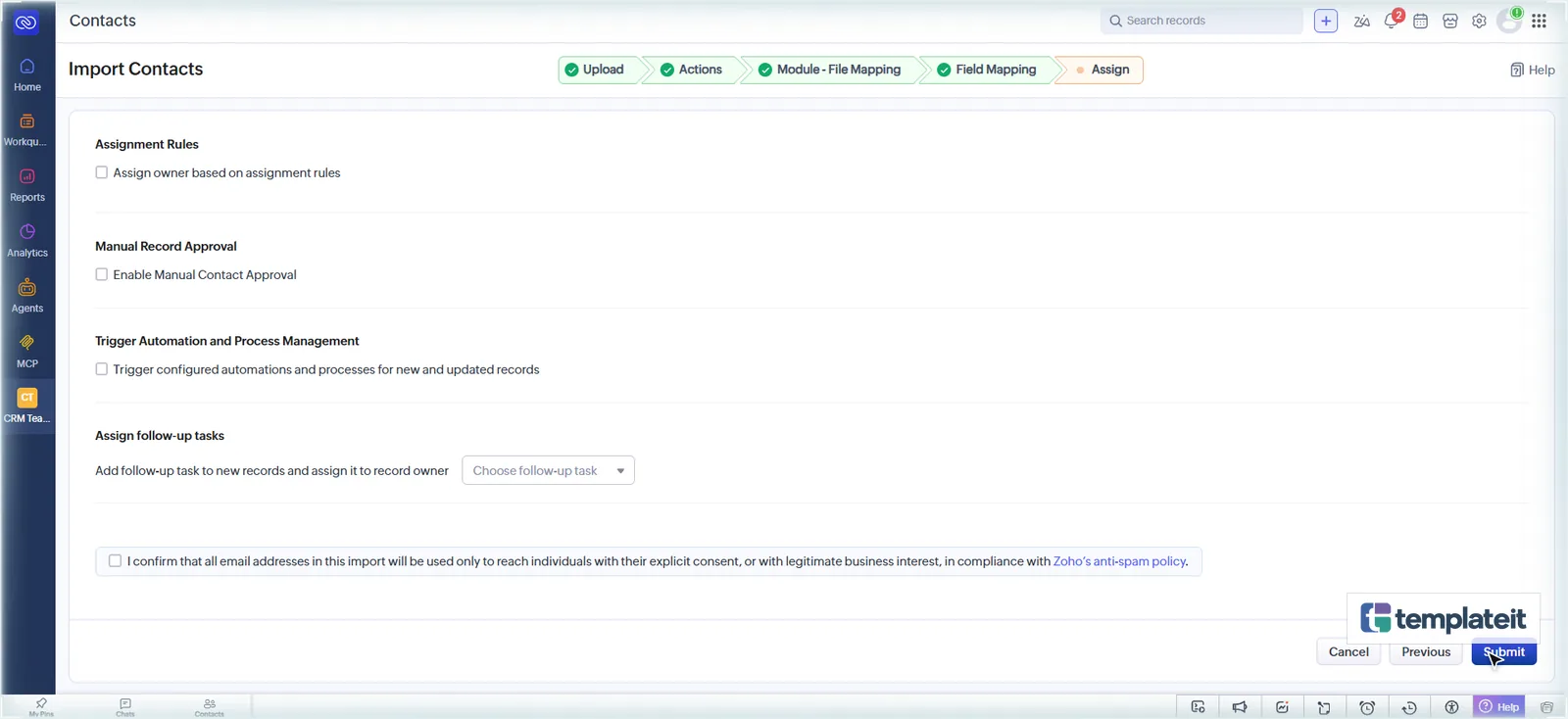
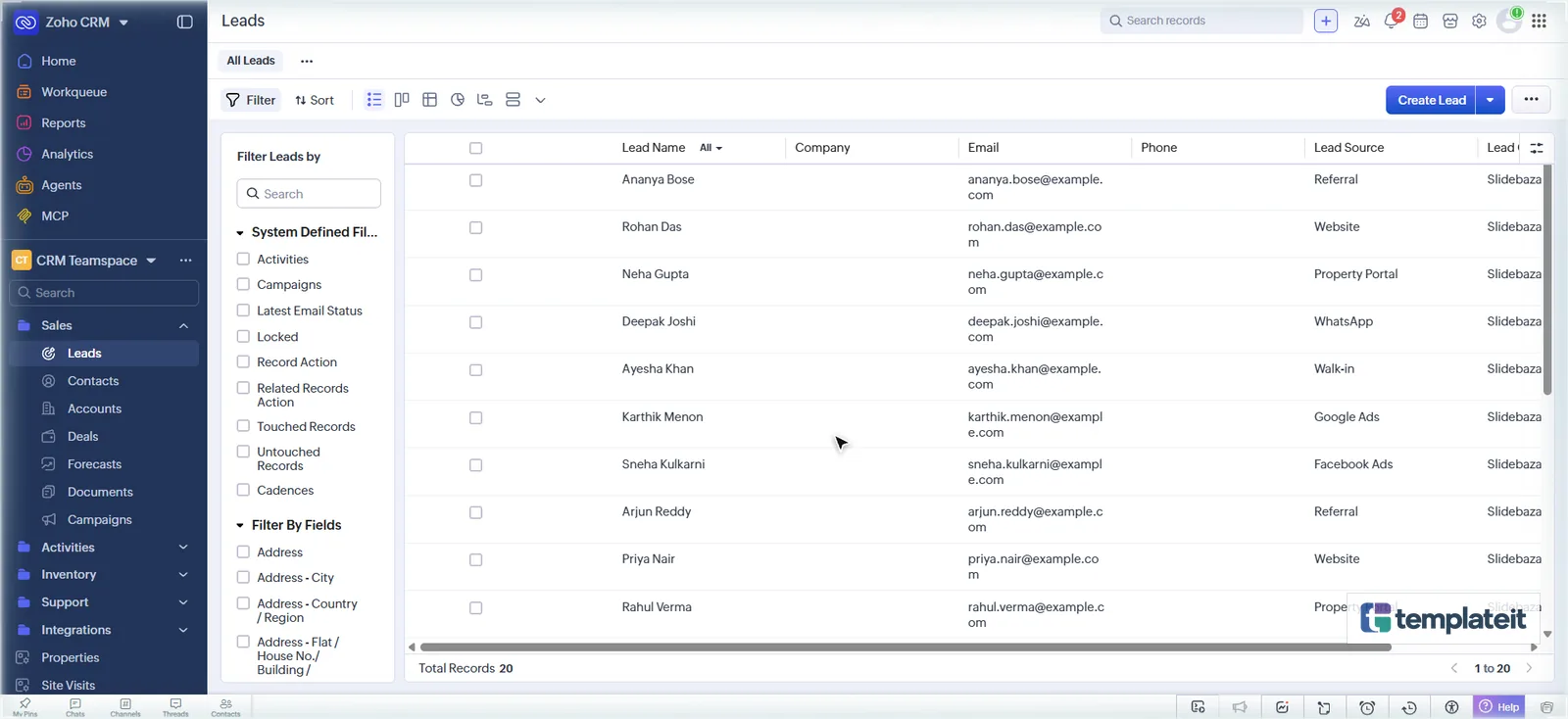
Delete the sample data before you go live.
Step 10: Test it end to end
- Create a lead with your own email: Buy, Apartment, Budget Max 9,000,000, Whitefield.
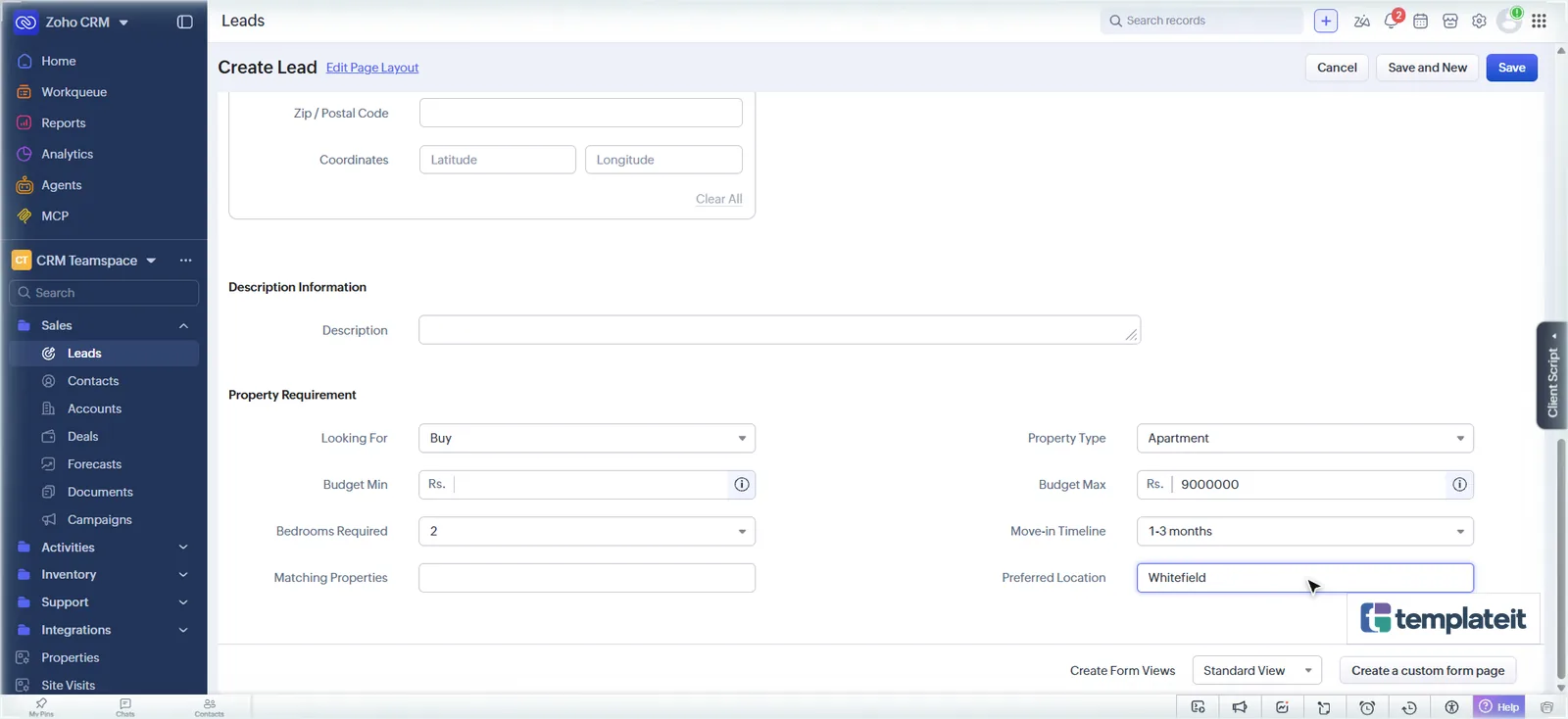
You get the acknowledgement email, a Call new enquiry task, and a note listing Green Valley 2BHK.
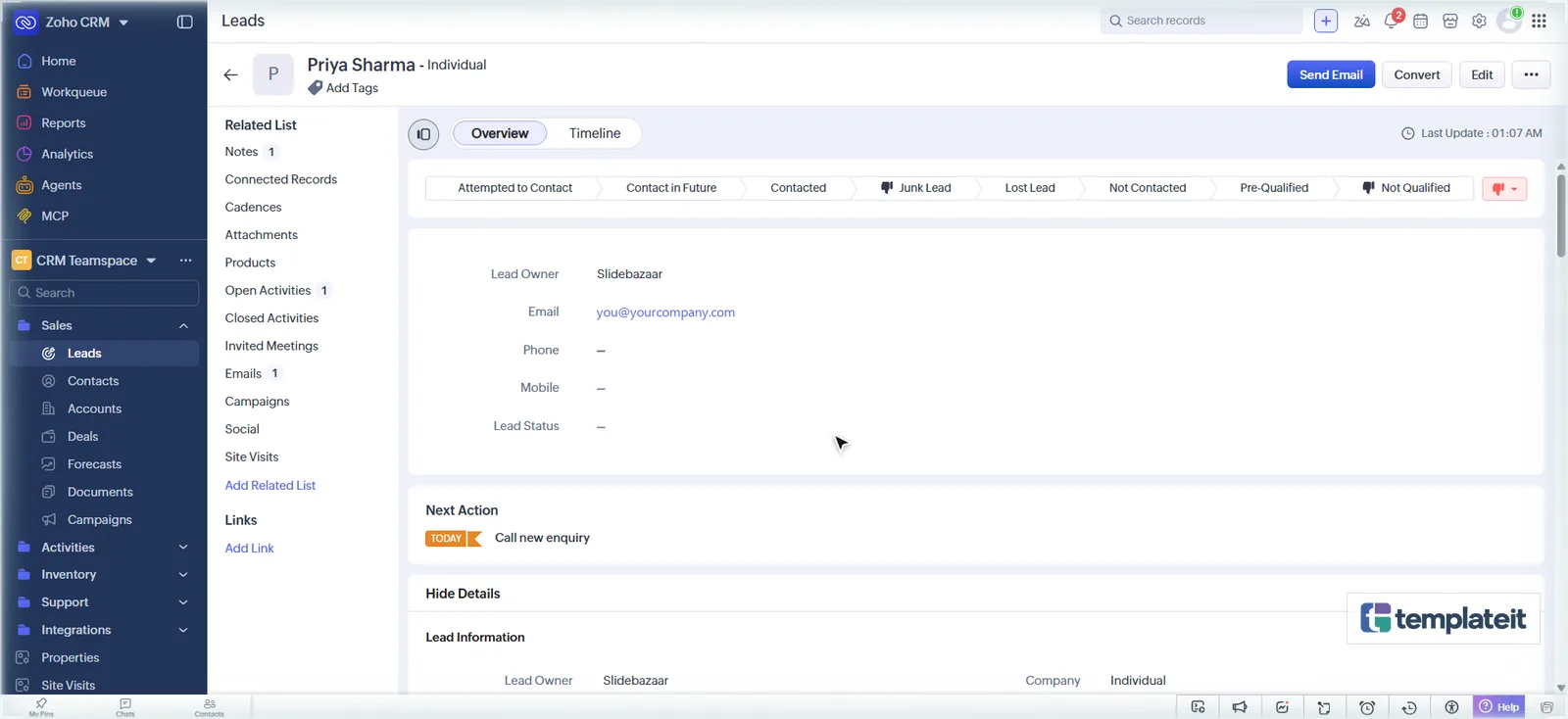
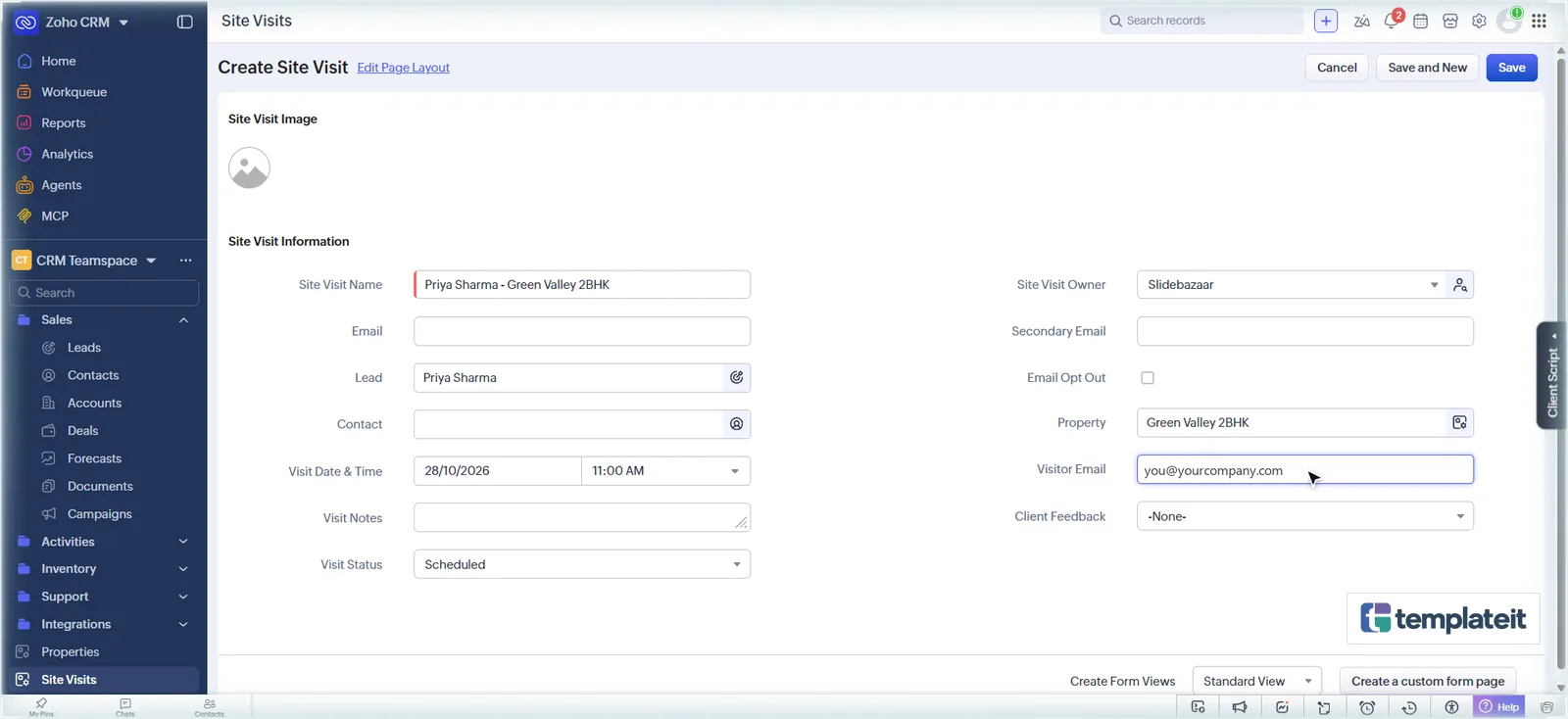
- Create a site visit for that lead and Green Valley 2BHK, with your email as Visitor Email. You get the confirmation email.
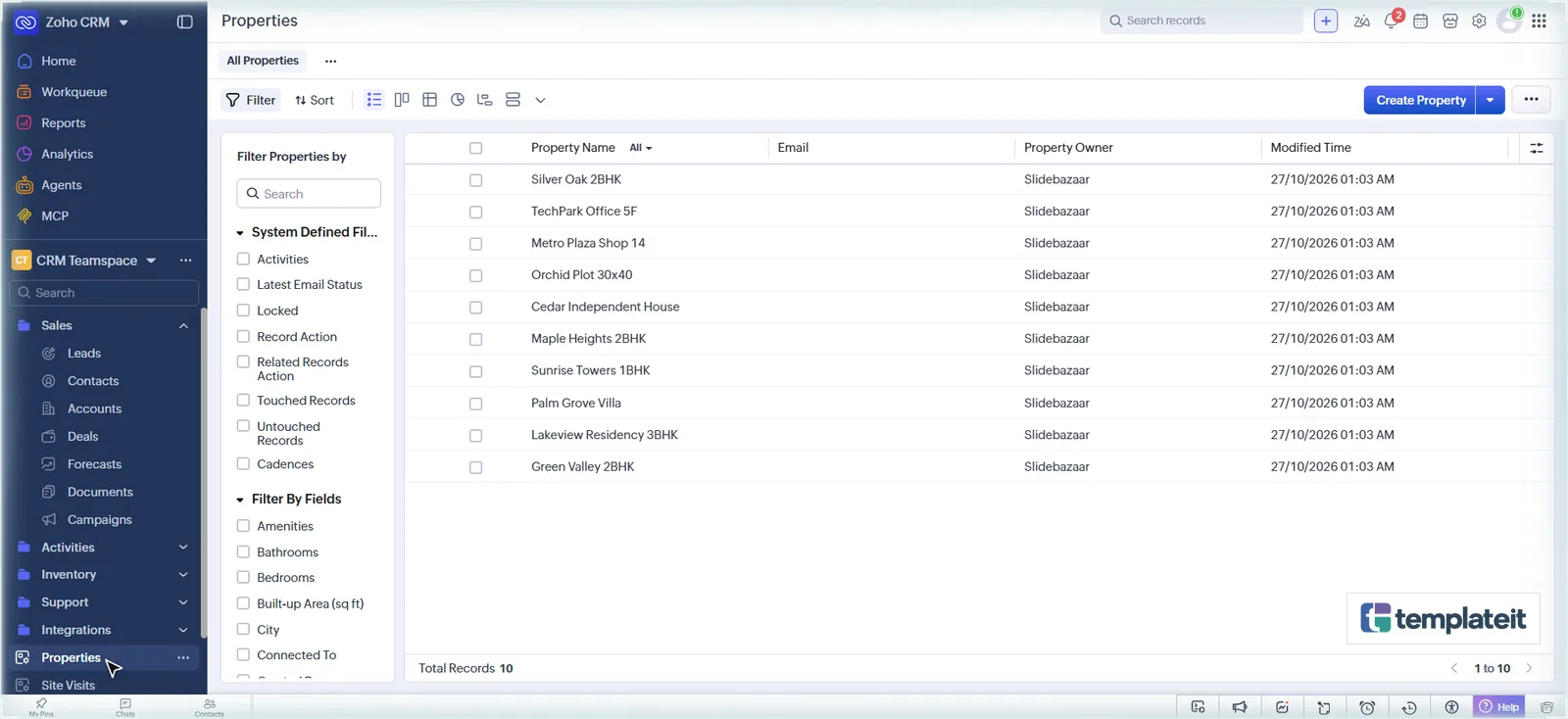
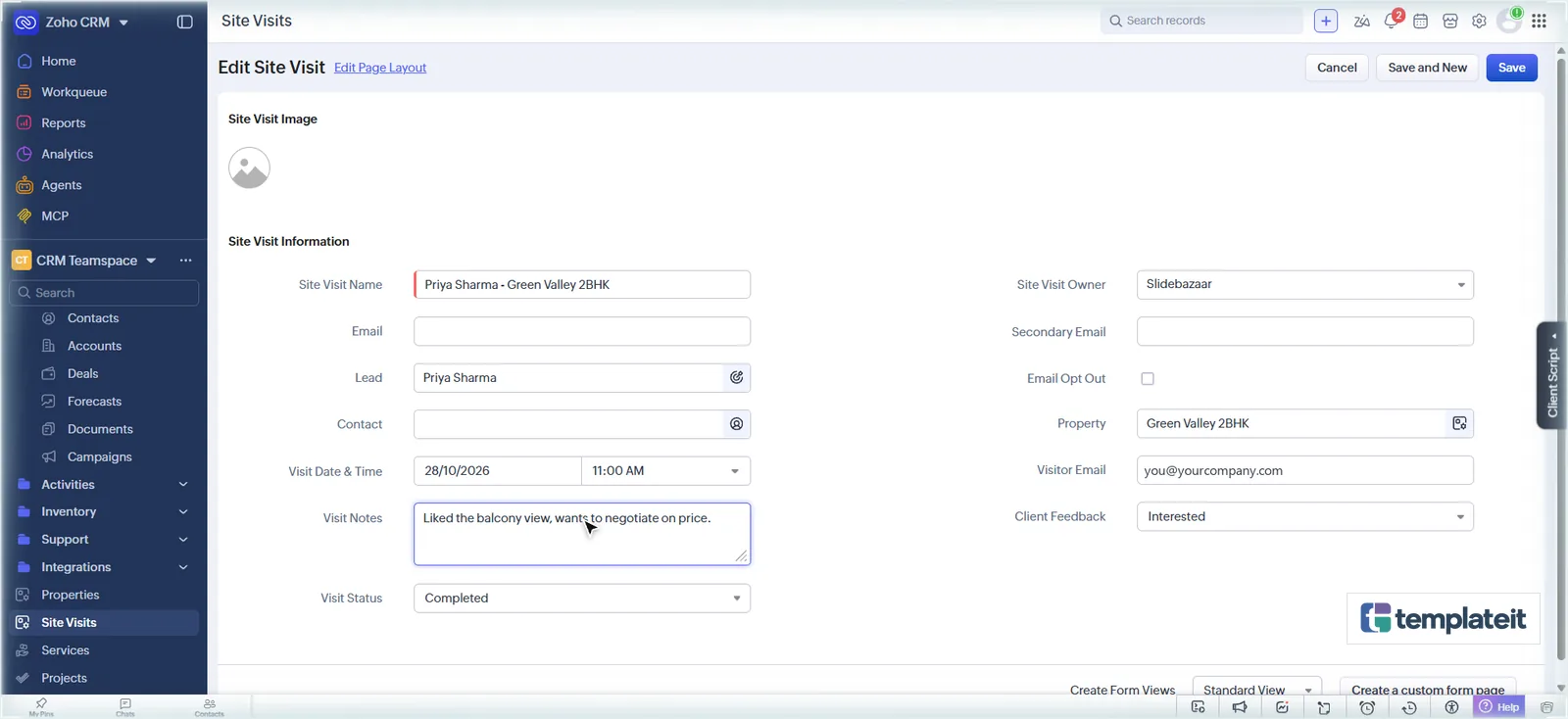
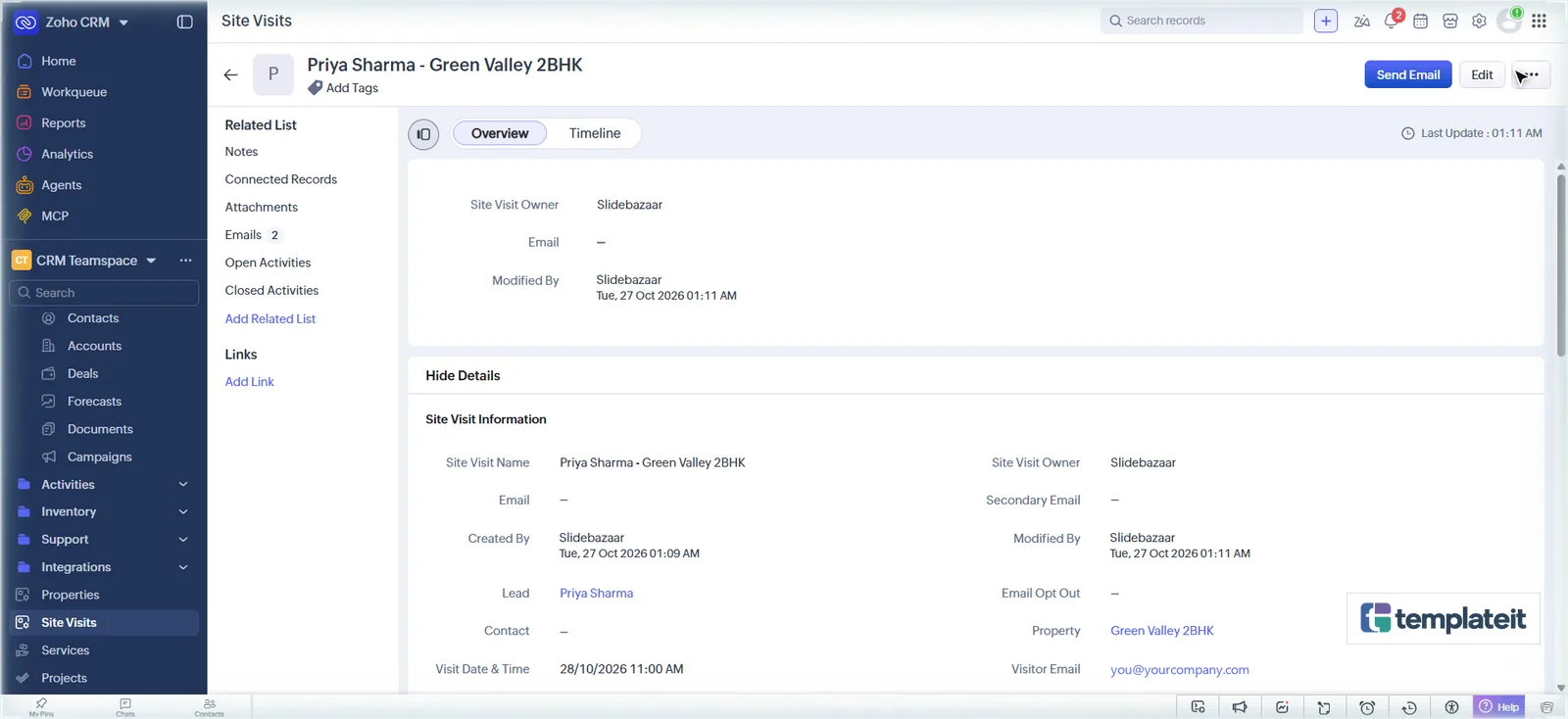
- Mark the visit Completed with feedback Interested. You get the thank-you email and a high-priority follow-up task due tomorrow.
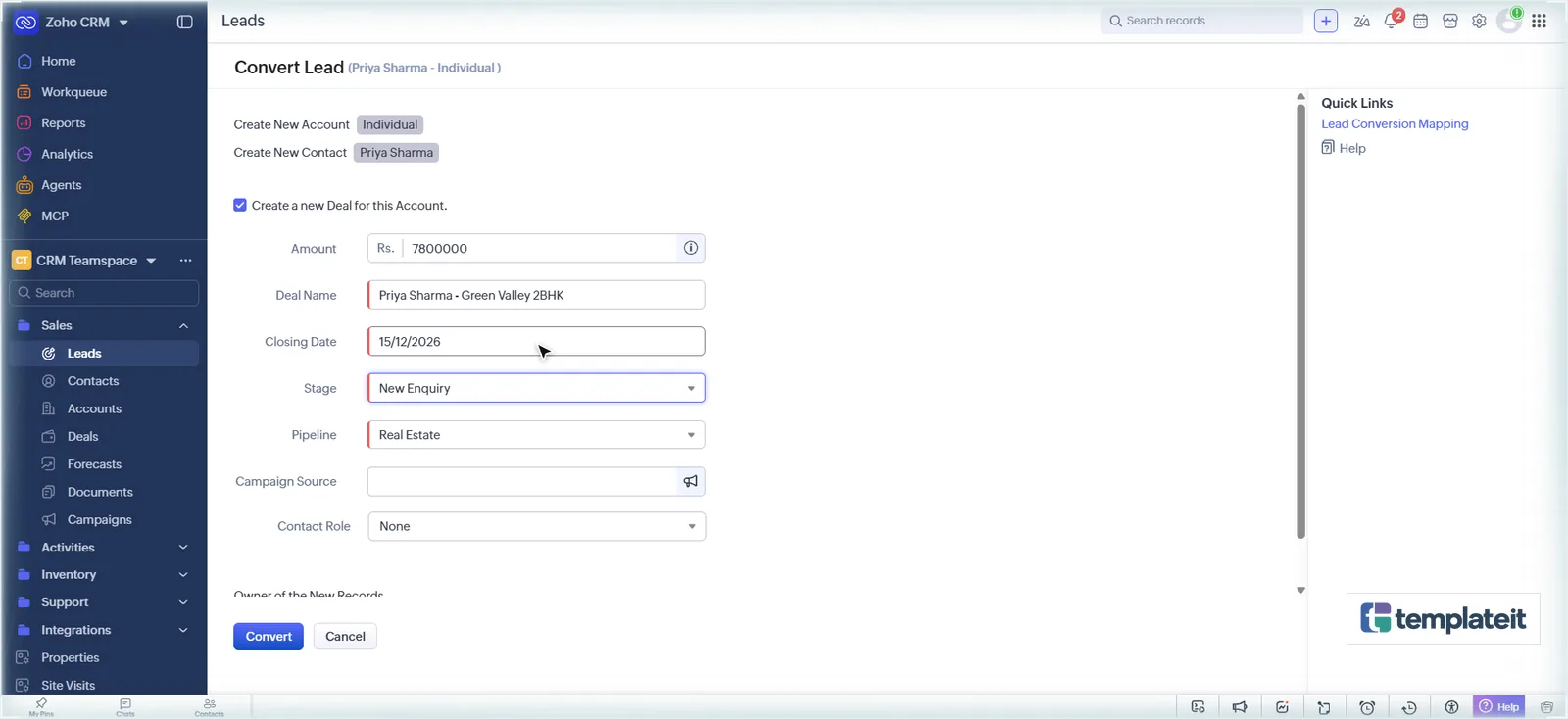
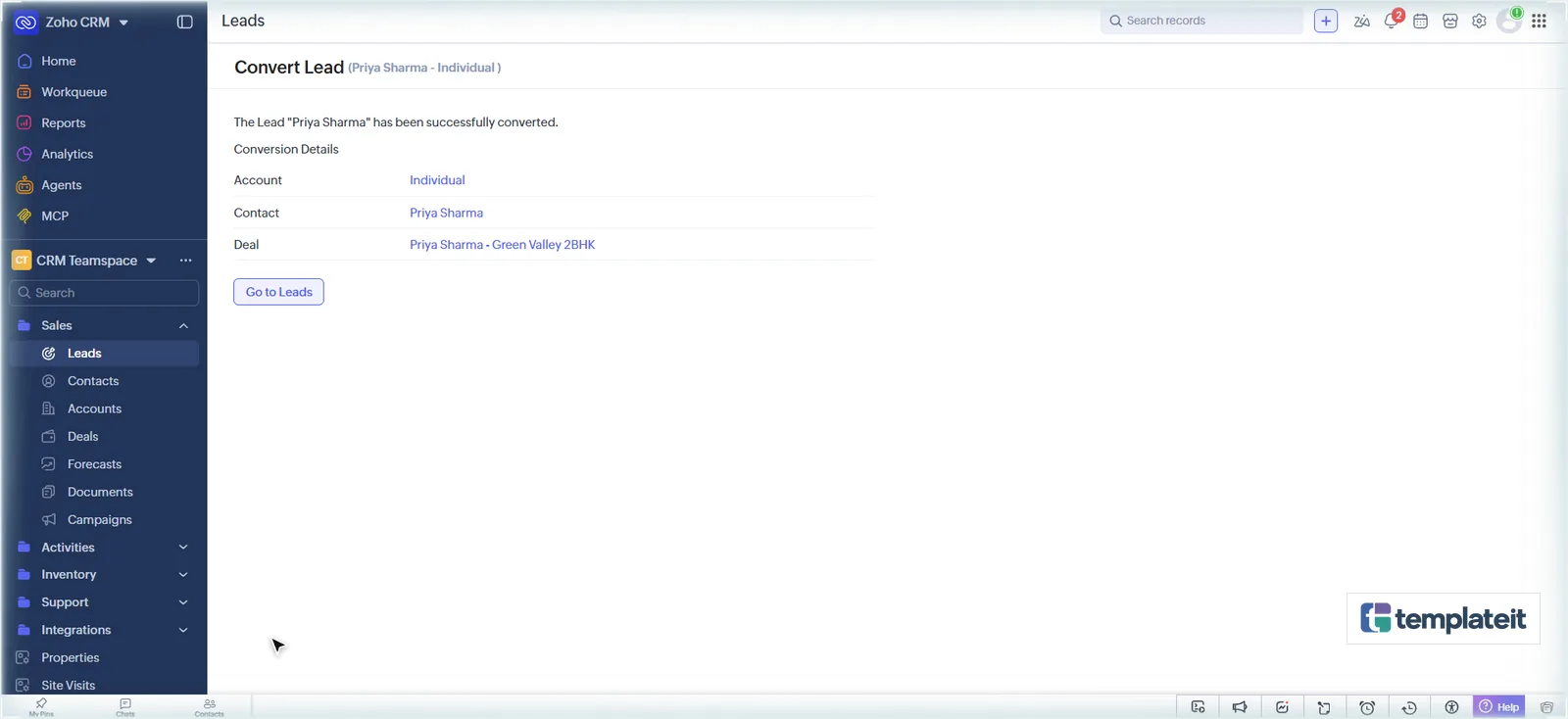
- Convert the lead: tick Create a new Deal. The deal opens in the Real Estate pipeline at New Enquiry.
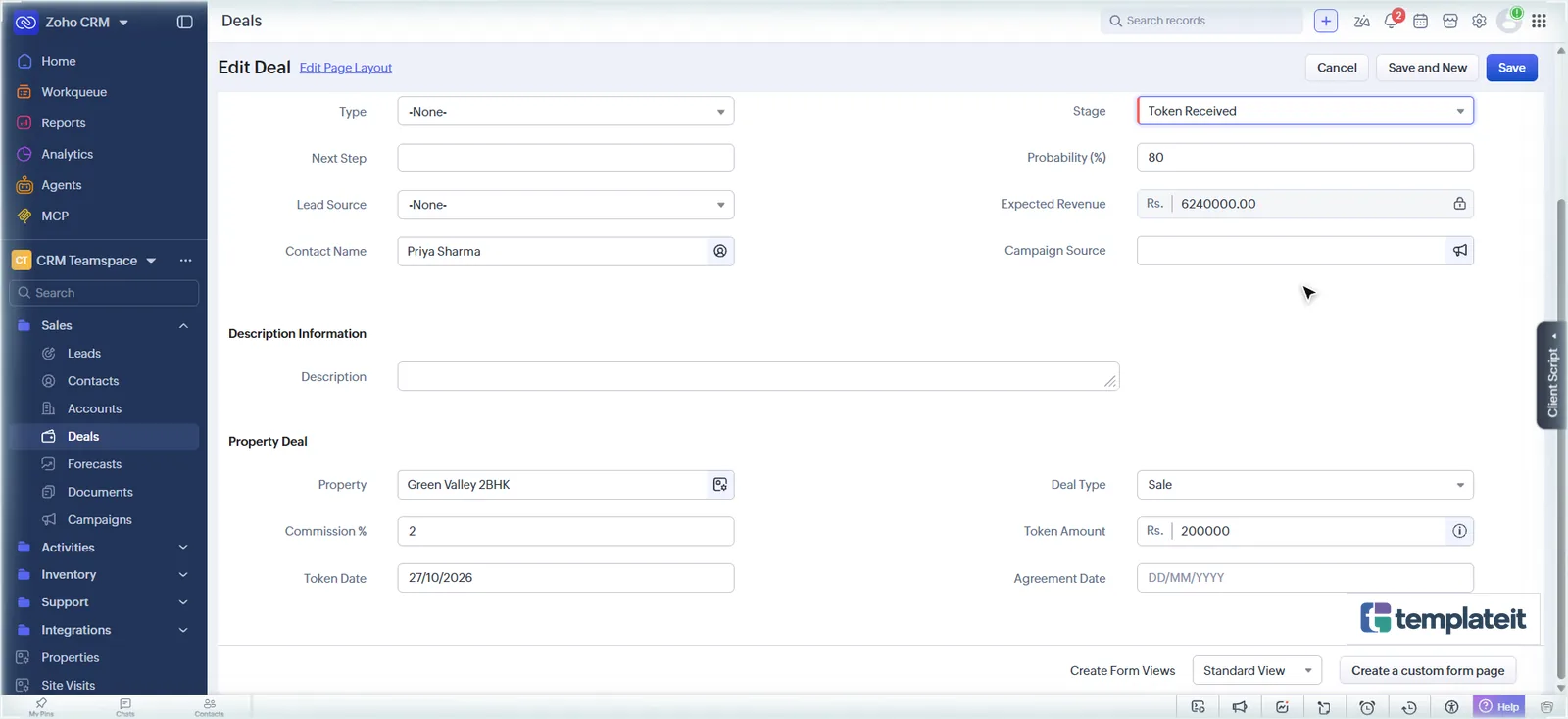
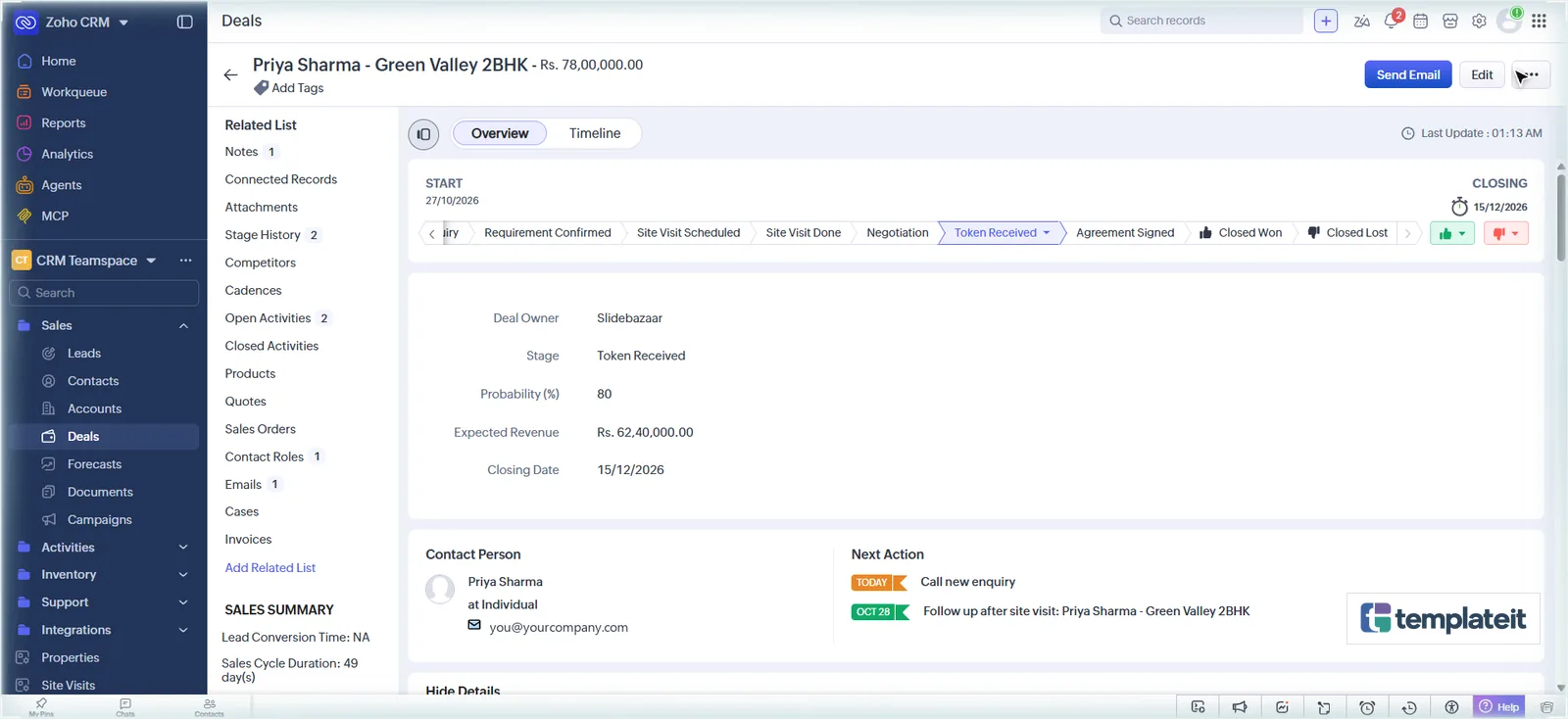
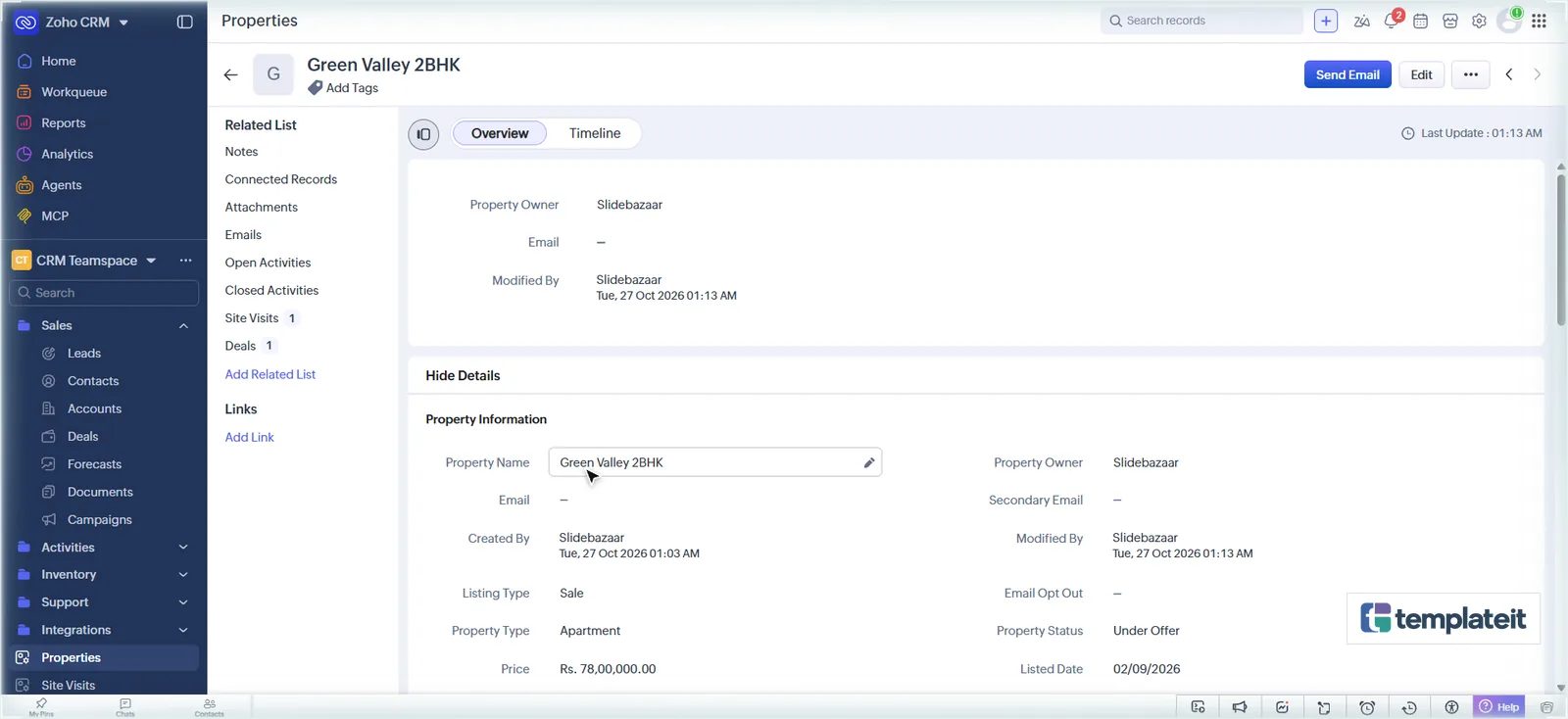
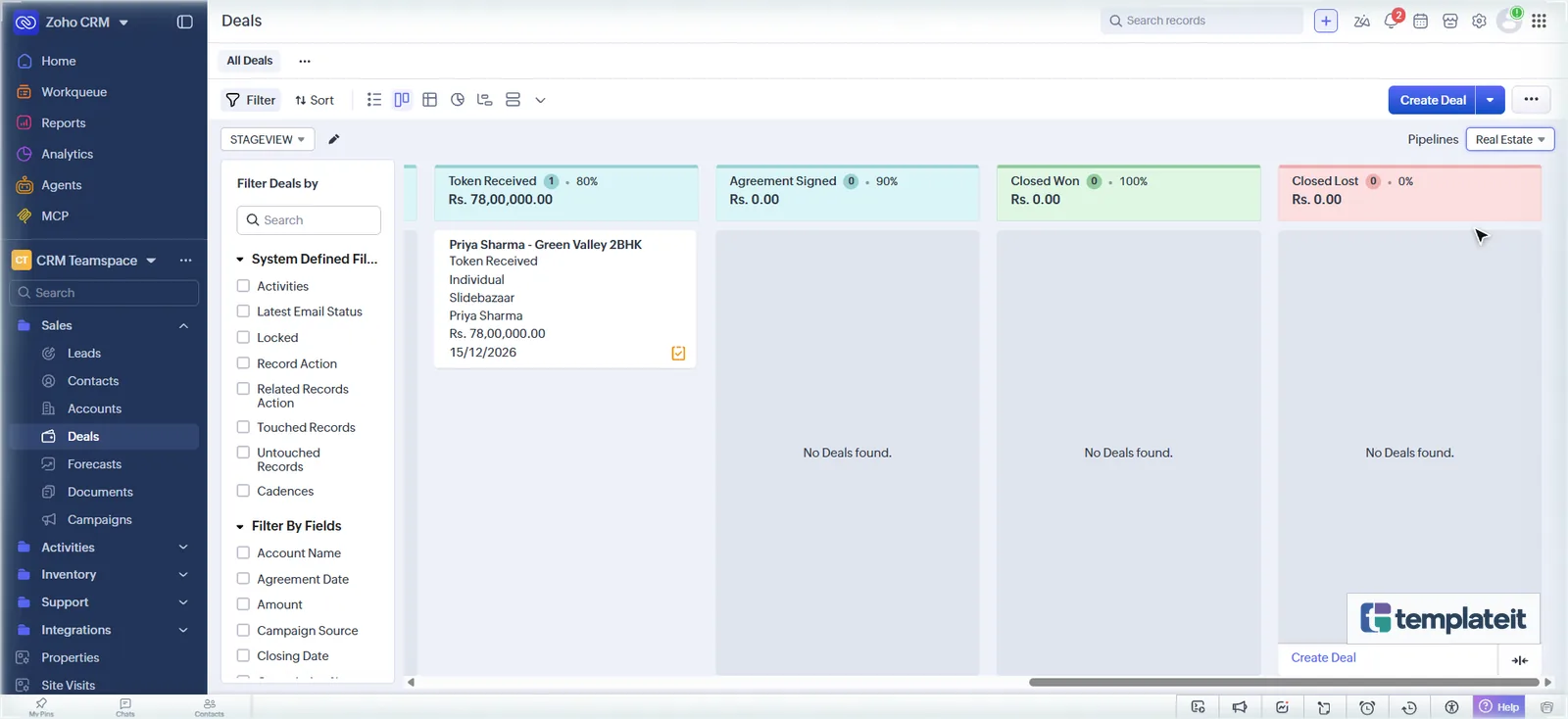
- Edit the deal: set Property, Deal Type Sale, Commission 2%, and Stage Token Received. The property becomes Under Offer, and Commission Amount shows 2% of the deal amount.
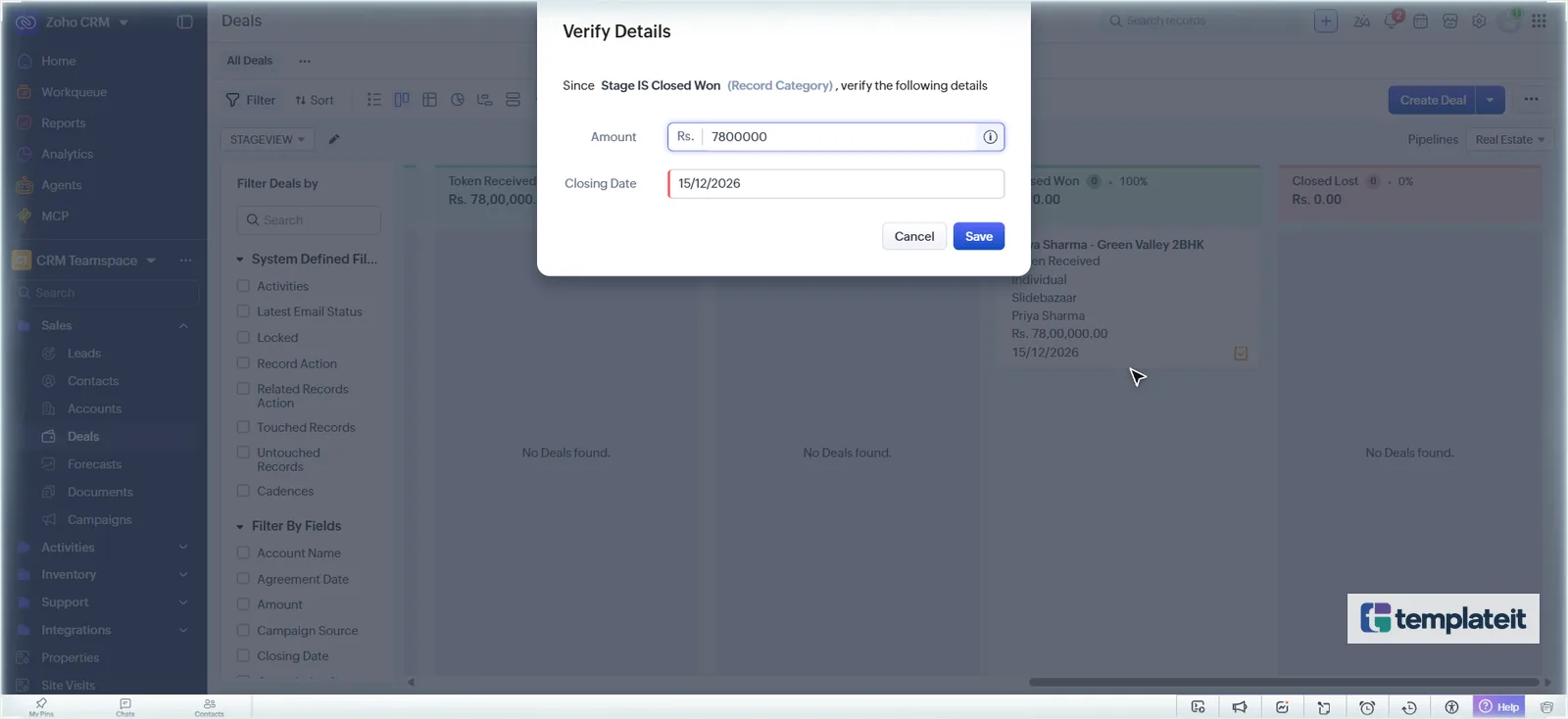
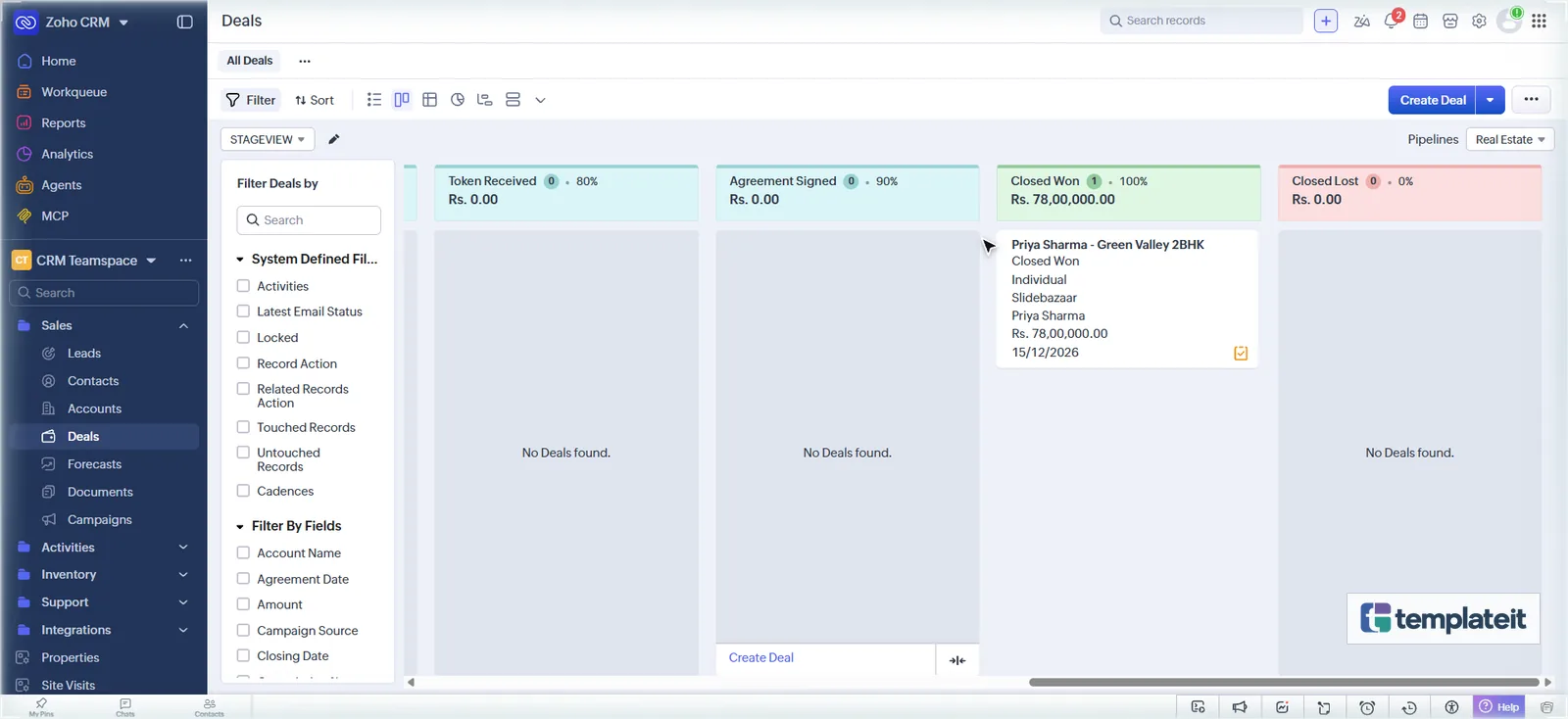
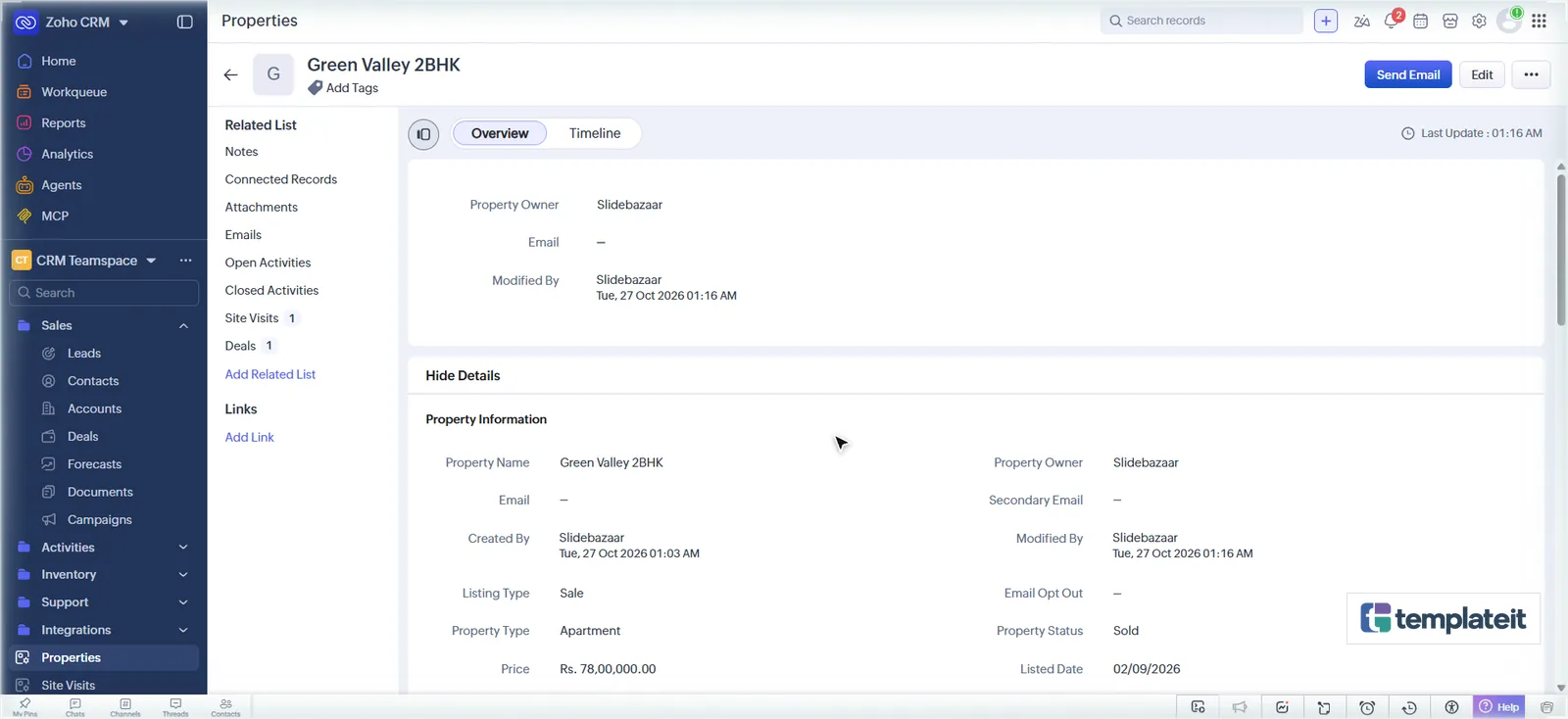
- Drag the deal to Closed Won on the Kanban. The property becomes Sold, and the contact gets the congratulations email.
If all six checks pass, the setup is complete.
Troubleshooting
| Problem | Fix |
|---|---|
| Function fails with “invalid field” | An API name differs from the script. Check Developer Hub → APIs and SDKs → API Names. |
| No matching properties note | Make sure Looking For and Property Type are filled and pick list values match exactly. Check Developer Hub → Functions → Failures. |
| Template shows “Please Remove/Change the unsupported merge fields” | A merge field’s label differs in your CRM. Re-insert it with # in the editor. |
| Lead won’t save: “Company cannot be empty” | Make Company optional (Step 4). |
| Fields disappear after saving a layout | You clicked the preview form’s Save. Use the top-right Save. |
| Workflow WF-02 runs only once | Tick Repeat this workflow whenever a lead is edited. |
| Company name in emails is wrong | Update it in Setup → Company Details. |
| Emails land in spam | Zoho sends public-domain senders (Gmail, Outlook) through its own domain. Set up your business domain under Setup → Channels → Email. |
FAQ
Is the template free?
Yes. You can use it for your own business or for clients.
Does it work for rentals and commercial property?
Yes. Listing Type handles Sale/Rent, Property Type covers apartments, villas, houses, plots, shops and offices, and Closed Won marks rentals as Rented.
Can I connect property portals, WhatsApp or my website forms?
Yes. Those need integrations that depend on the tools you use, so they are done as a customization.
Will it affect my existing data?
It adds modules, fields and a new pipeline. Your existing Standard pipeline and deals stay as they are.
Need it set up or customized?
We can set this template up in your Zoho CRM for you, or adapt it to how your business works: portal lead capture, WhatsApp messaging, commission reports, owner portals, dashboards and more.
This template is created by TemplateIt and is not affiliated with or endorsed by Zoho Corporation.