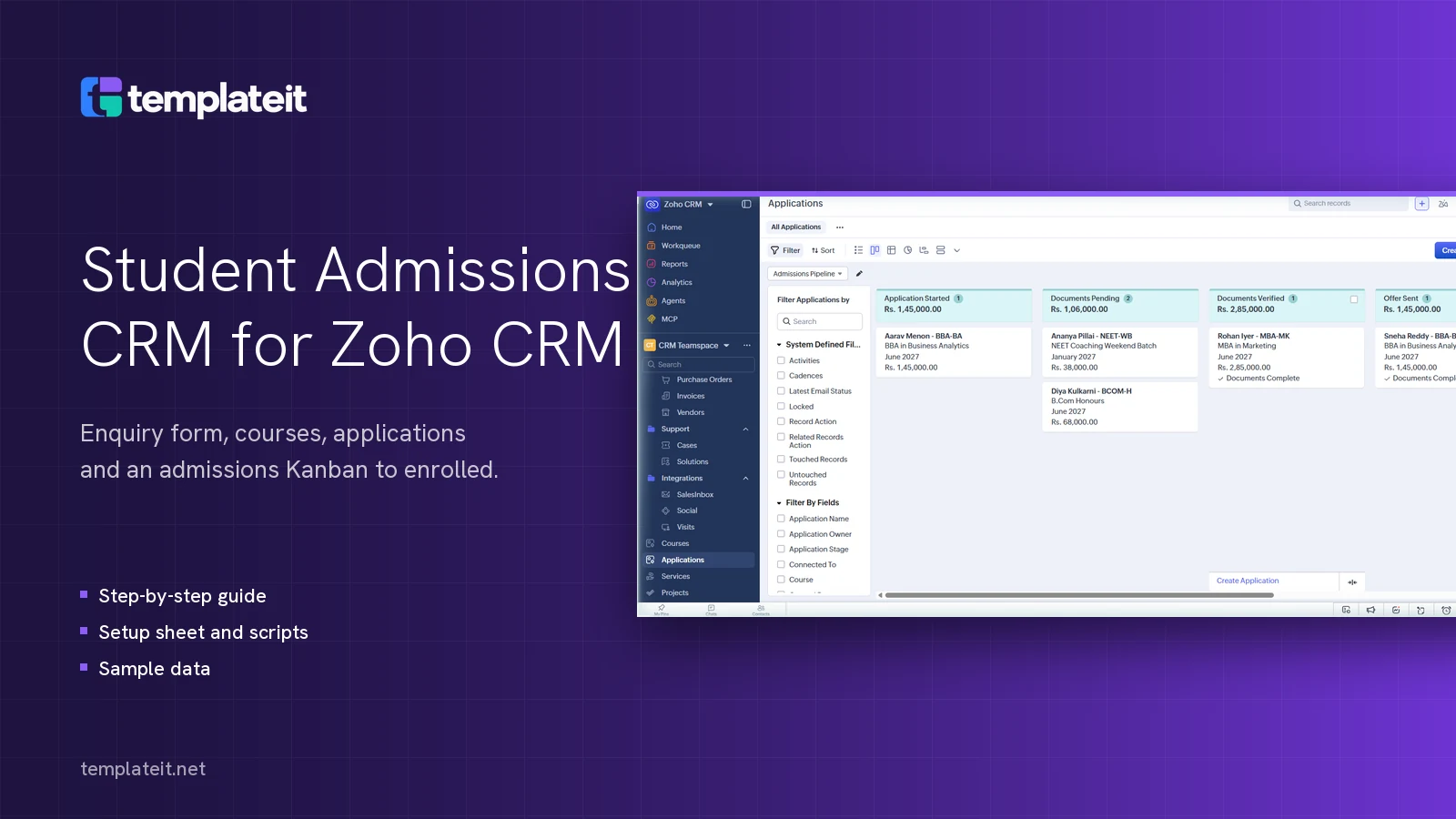
The first decision on this student admissions CRM for Zoho CRM was where the pipeline should live, and we kept it out of Deals. Admissions run in their own Applications module with a Kanban board from Application Started to Enrolled. That leaves your Deals pipelines free (a Deals layout holds three) and keeps admissions apart from any other selling a school, college or coaching institute does in Deals, like corporate training or events. Around that sit an enquiry form for your website, a Courses module that counts its own seats, and ten workflow rules that email the family at each stage.
An enquiry stays a lead while you counsel the family, which keeps the many who never apply out of your Students list. Set it to Ready to Apply and it becomes a Student with an Application at the course’s fee. In our test that took about two seconds, and nobody retyped a name.
On this page
- How the template is put together
- You’ll need
- Step 1: Create the Courses and Applications modules
- Step 2: Give Leads the enquiry fields and statuses
- Step 3: Build the enquiry web form
- Step 4: Turn Application Stage into a Kanban board
- Step 5: Paste in the three functions
- Step 6: Add the seven email templates
- Step 7: Create the ten workflow rules
- Step 8: Build the admissions dashboard
- Step 9: Import the sample data and walk one enquiry through
- Changing it for your institution
- Setup by us
How the template is put together
- Admission Enquiry web form asking for name, email, mobile, course, intake, qualification, parent details and a question. Each submission arrives as a lead with Lead Source Website and Lead Status New Enquiry.
- Courses, a custom module holding code, level, duration, intake, total seats, seats filled, a Seats Left formula, application fee and tuition fee.
- Students, which is Contacts with the tab renamed, plus a Student ID (STU-1001 onwards), Enrolment Status and parent details.
- Applications: student, course, intake, Application Stage, four document checkboxes, offer and fee details. Its Kanban view is the admissions board.
- Three Deluge functions. One converts a ready enquiry, one checks the documents, one recounts seats when someone enrols or withdraws.
- 10 workflow rules and 7 email templates covering the thank you, a two-day follow-up, counselling confirmation, document checklist, offer letter, fee receipt and welcome.
- An Admissions dashboard, and sample data for five courses.
What’s in the download
| File | What it’s for |
|---|---|
setup-sheet.xlsx | Every module, field, pick list value, rule, function and test step, with a Done column |
deluge/*.deluge | The three functions you paste into Zoho CRM |
email-templates/*.html | The seven emails, EM-01 to EM-07 |
sample-data/*.csv | Courses, students, applications and enquiries |
setup-guide.txt | These steps as plain text |
Download the template: #download
You’ll need
Zoho CRM Enterprise or a trial of it, administrator access, and about two and a half hours. We built and tested on an Enterprise trial in October 2026. Custom modules, functions inside workflow rules and a formula field all play a part, so look at the current edition comparison before you try a lower plan.
Put your institution name in Setup > Company Settings > Company Details first, since every email prints it in the header. If your CRM is already live, do this in a sandbox: it renames the Contacts tab to Students.
One more thing for later. A trial signed up with a Gmail or Outlook address sends workflow emails as name@viafreezohocrm.com, so set up your own domain in Setup > Channels > Email before families see them.
Keep setup-sheet.xlsx open beside Zoho CRM and tick Done as you go.
Step 1: Create the Courses and Applications modules
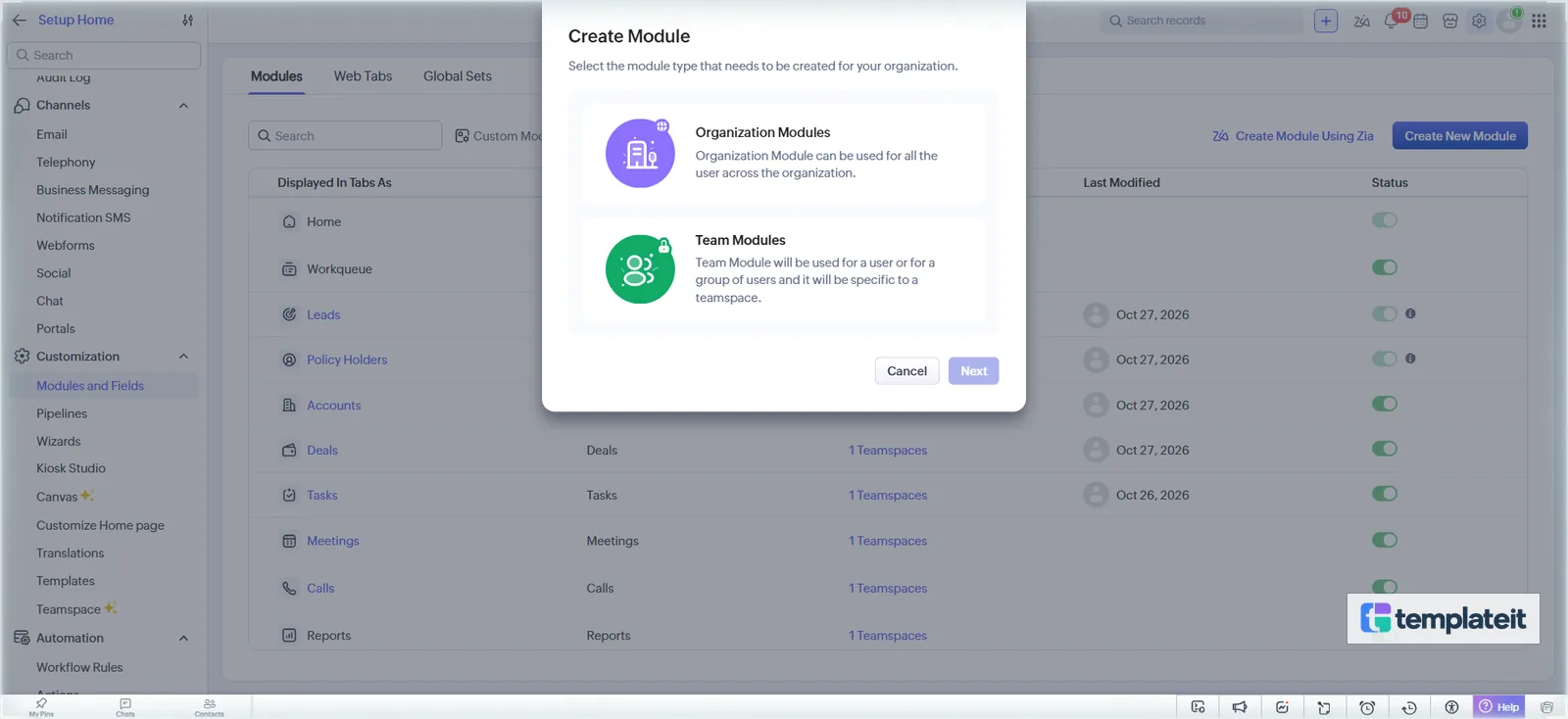
- In Setup > Customization > Modules and Fields, click Create New Module, choose Organization Modules and click Next.
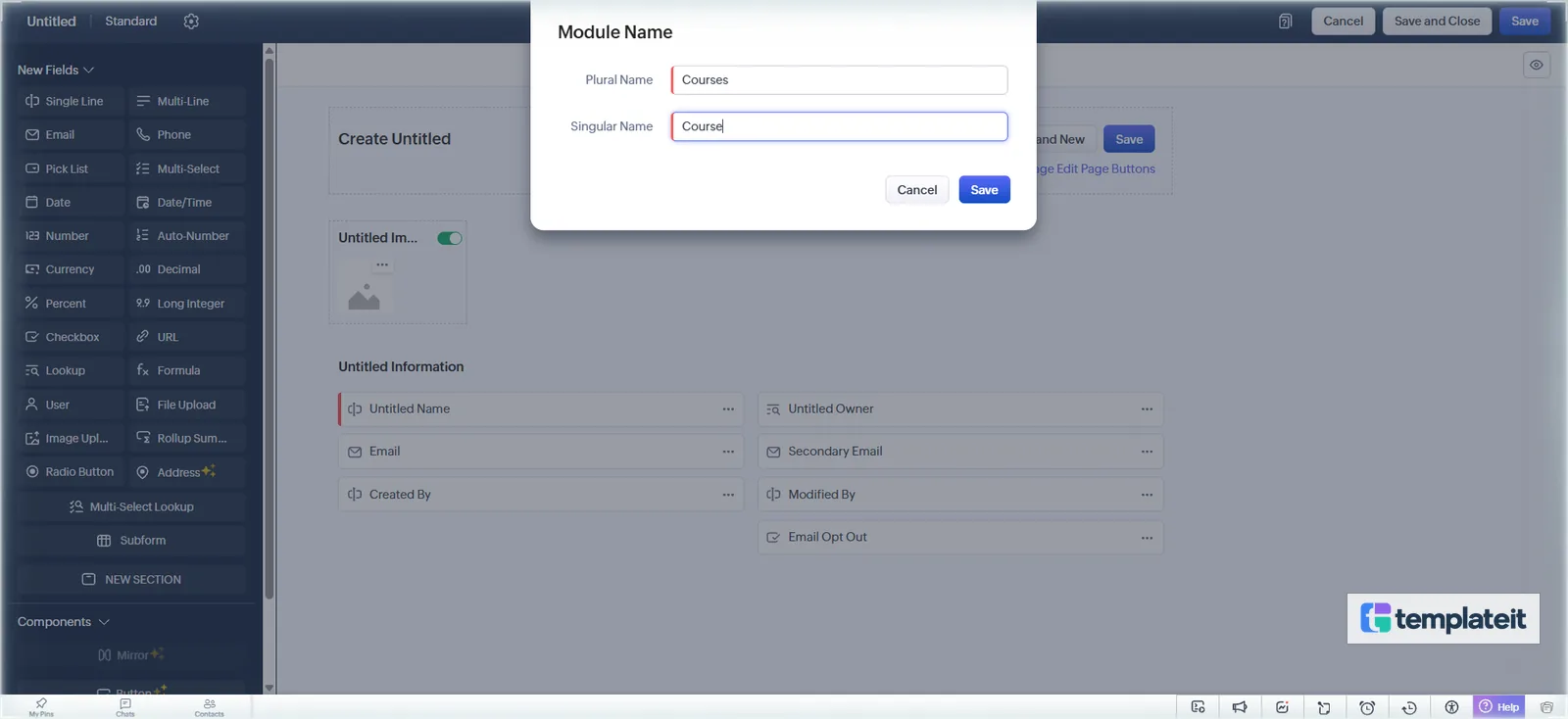
- Click Untitled and type Courses as the plural. Zoho copies whatever you type into the singular box as well, so click into it and delete the last letter to get Course, then save. Courses suits colleges and coaching institutes alike.
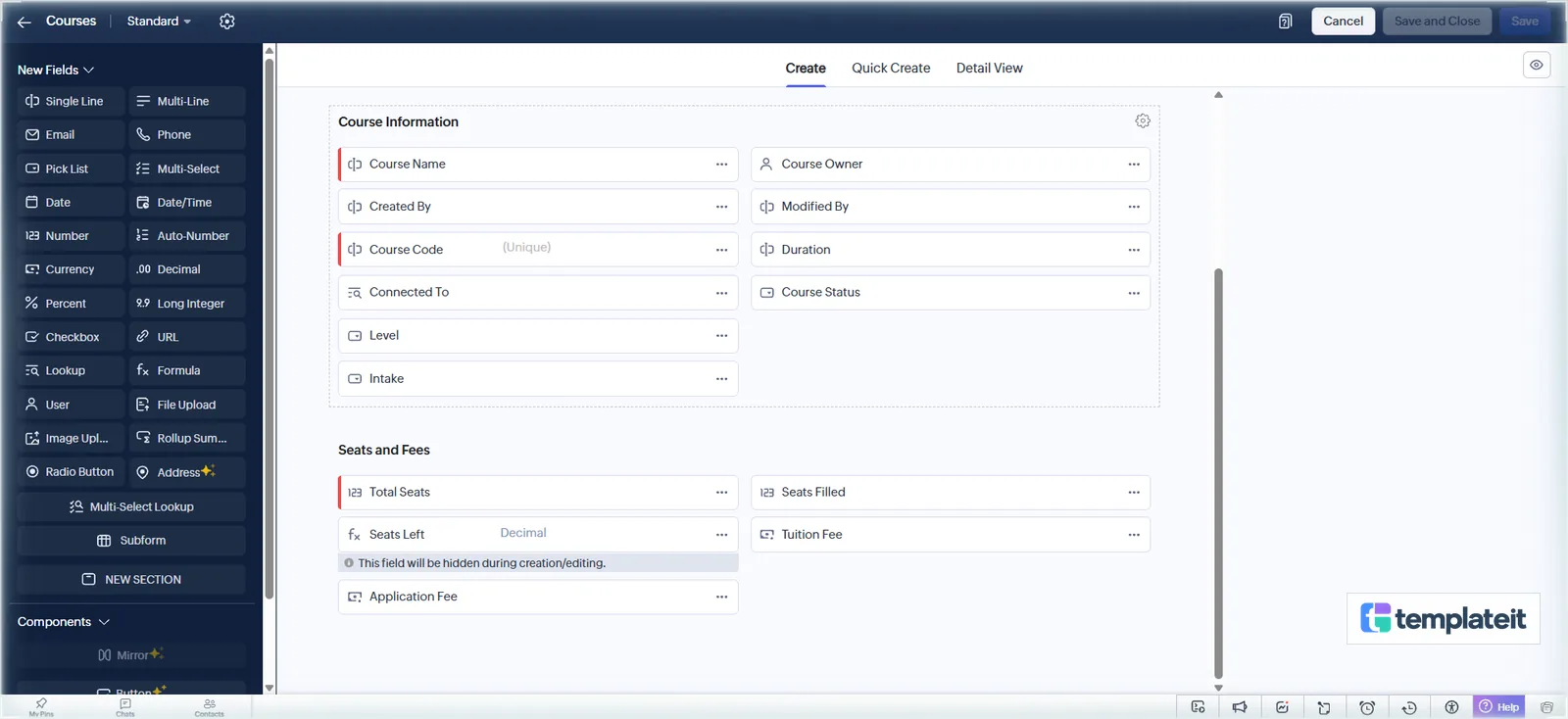
- Drag in the Course fields listed on tab 2 Fields of the setup sheet. Clicking a field type in the New Fields panel does nothing, it has to be dragged onto the layout. Make Course Code required, then tick Do not allow duplicate values in its Edit Properties; once the field is required, that’s the only place the option shows.
- Add a NEW SECTION called Seats and Fees and drag Total Seats, Seats Filled, Application Fee and Tuition Fee into it by the icon to the left of each label.
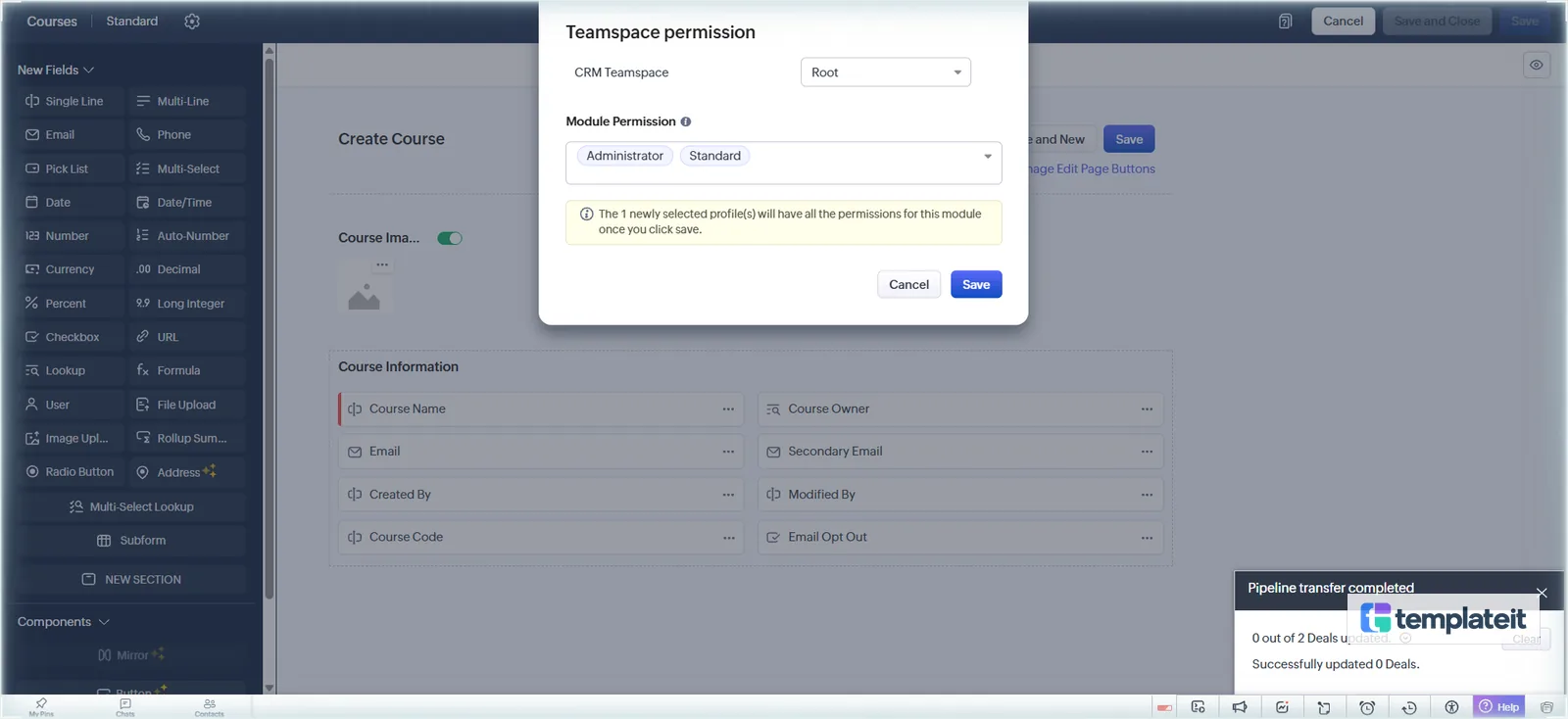
- Save and Close. When Zoho asks who can use the module, add Standard next to Administrator.
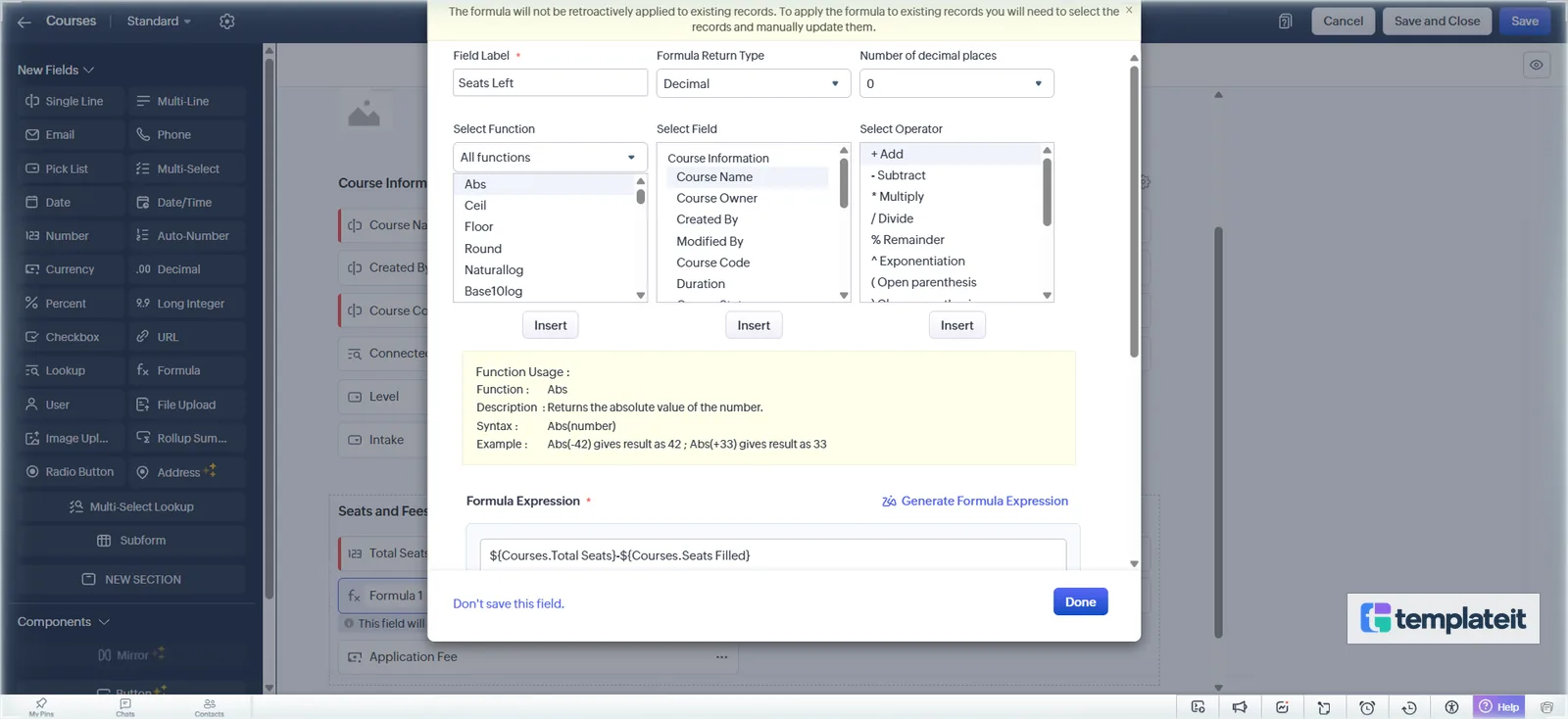
- Reopen the layout and add a Formula field, Seats Left, return type Decimal, 0 decimal places:
${Courses.Total Seats}-${Courses.Seats Filled}. It comes after the save because the formula editor only lists fields that are already saved.
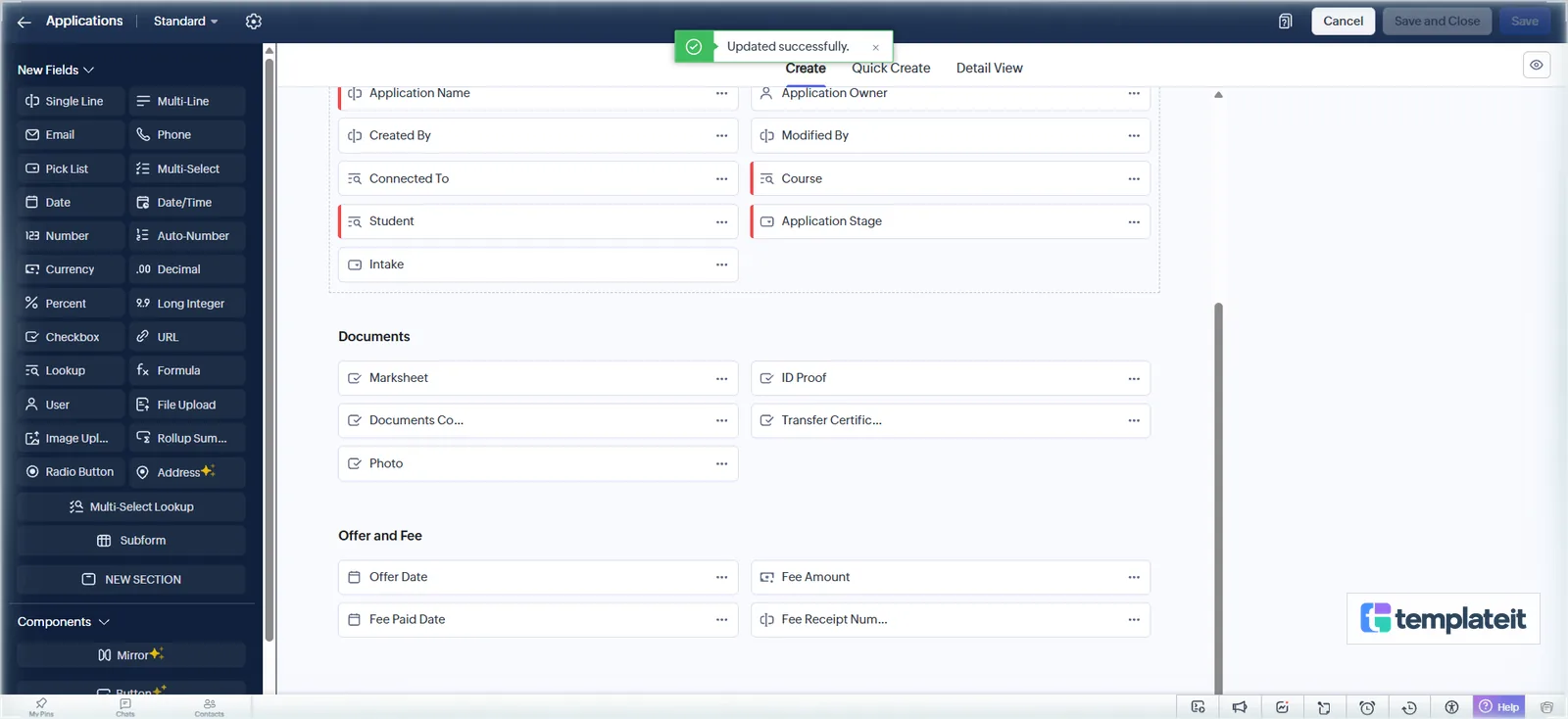
- Create Applications (singular Application) the same way. It needs the lookups Student (to Contacts, related list Applications) and Course (to Courses), Intake, and Application Stage with Application Started, Documents Pending, Documents Verified, Offer Sent, Fee Paid, Enrolled and Withdrawn (default Application Started). Marksheet, ID Proof, Photo, Transfer Certificate and Documents Complete go in a Documents section; Offer Date, Fee Amount, Fee Paid Date and Fee Receipt Number in Offer and Fee. Remove the default Email fields and make Student, Course and Application Stage required.
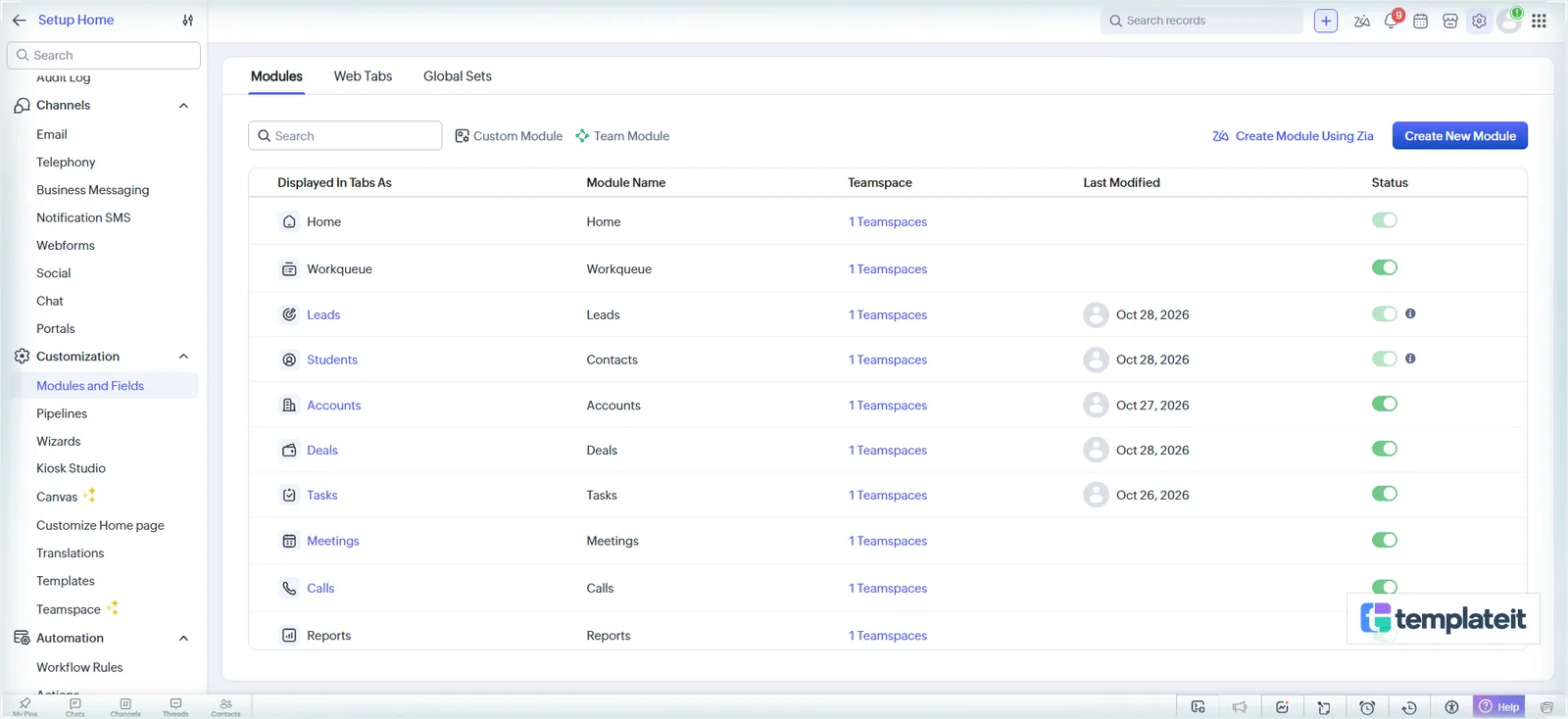
- Back in Modules and Fields, open the … menu on the Contacts row, choose Rename, and enter Students and Student. Lead conversion and email carry on working, though merge fields and Deluge still call it Contacts. Then add Student ID (Auto-Number, prefix STU-, starting 1001), Enrolment Status (Applicant, Enrolled, Withdrawn, Alumni), Parent or Guardian, Parent Phone and Highest Qualification.
Step 2: Give Leads the enquiry fields and statuses
Leads get a section called Admission Enquiry holding Course Interested (lookup to Courses, related list Enquiries), Course Enquired (pick list of your course names plus Not sure yet), Preferred Intake, Highest Qualification, Qualification Score or Percentage, Parent or Guardian Name, Parent Phone, Preferred Counselling Date and Counselling Notes.
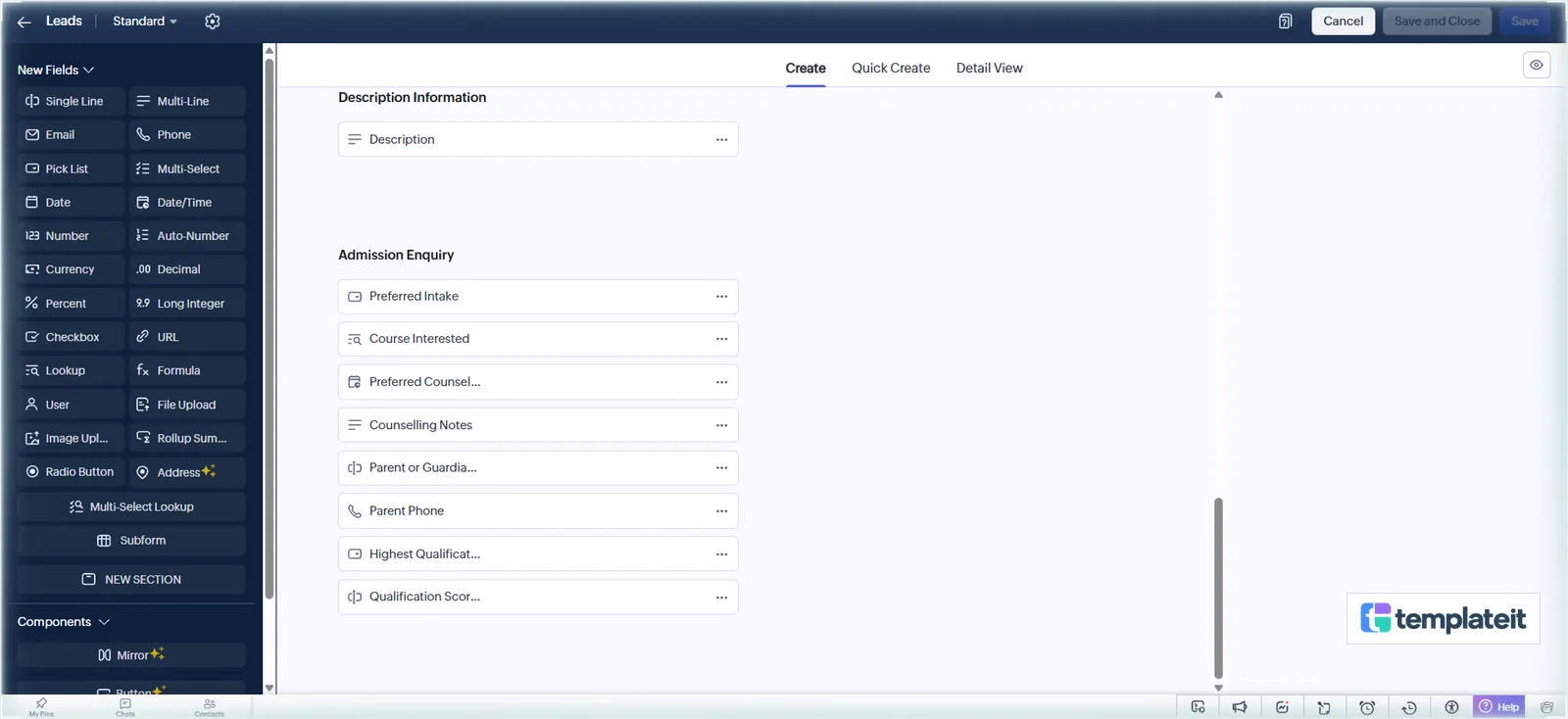
There are two course fields on purpose. Web forms in Zoho CRM take pick lists, not lookups, so the form asks through the Course Enquired pick list and a counsellor sets the Course Interested lookup later. The convert function prefers Course Interested and falls back to Course Enquired, matching it by name, which is why the pick list values have to be spelled exactly like your course names.
Add the Lead Status values New Enquiry (the default), Counselling Booked, Counselling Done, Ready to Apply and Not Interested. Contacted is already in the list.
Step 3: Build the enquiry web form
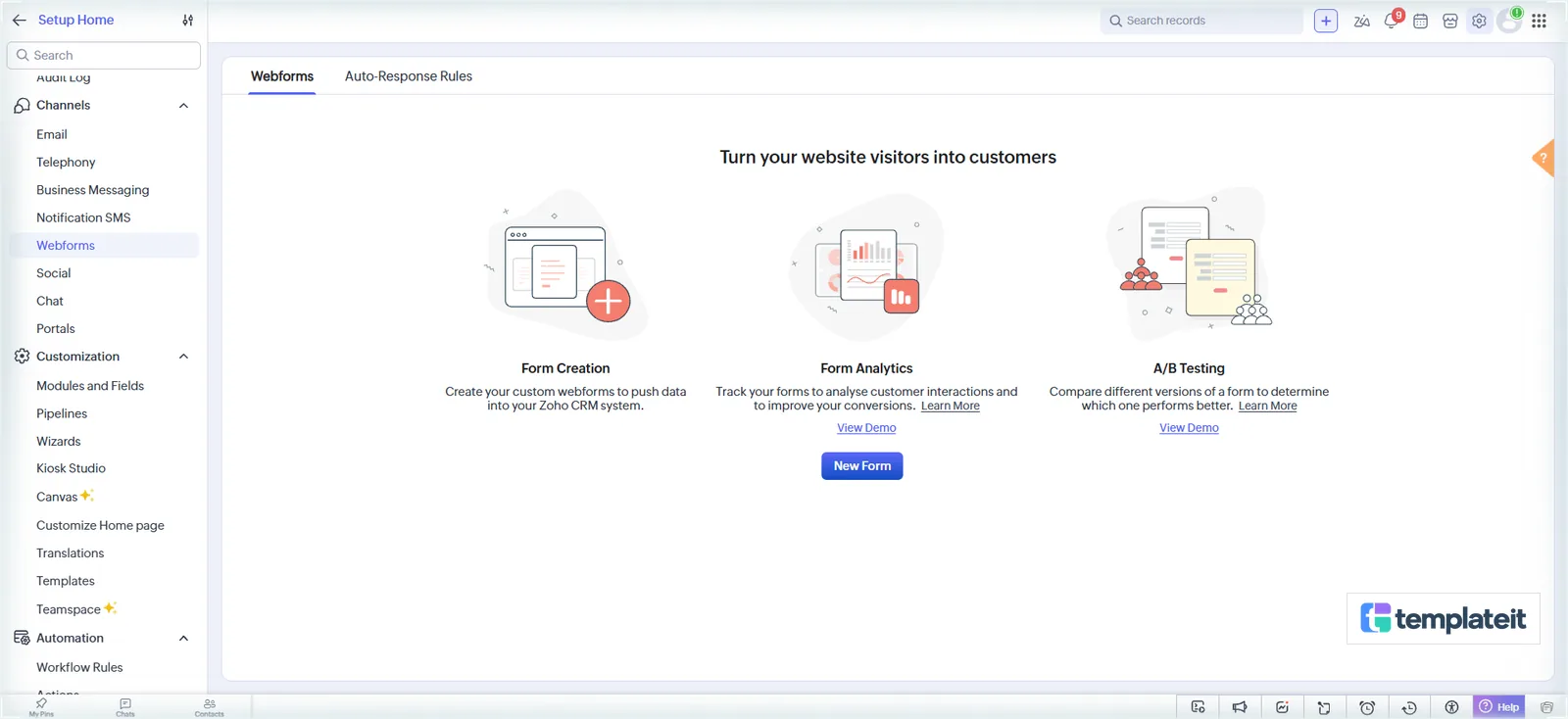
- Go to Setup > Channels > Webforms, choose Leads, click New Form and name it Admission Enquiry.
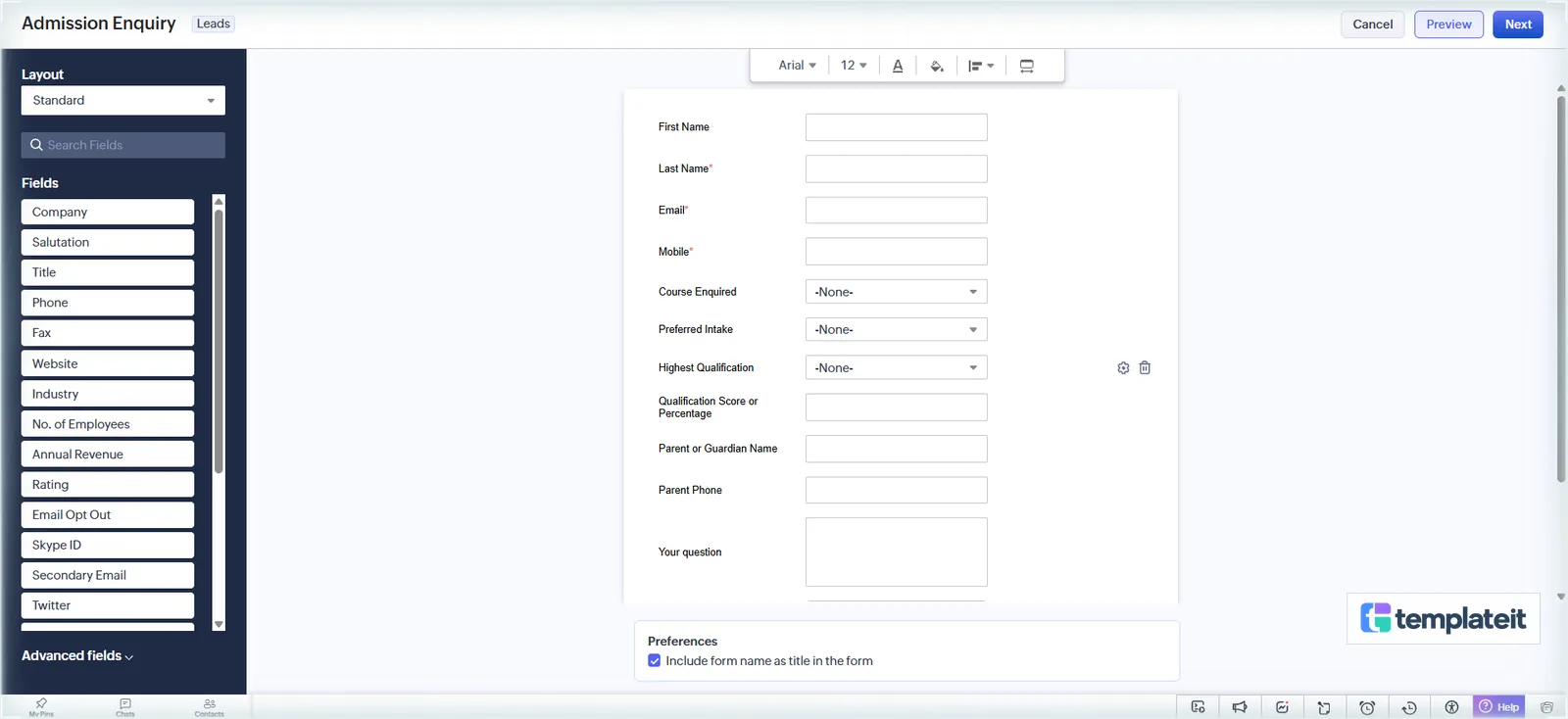
- Drag on First Name, Last Name, Email, Mobile, Course Enquired, Preferred Intake, Highest Qualification, Qualification Score or Percentage, Parent or Guardian Name, Parent Phone and Description. Each new field drops in just above Submit, so First Name ends up under Last Name; drag it back up by its label.
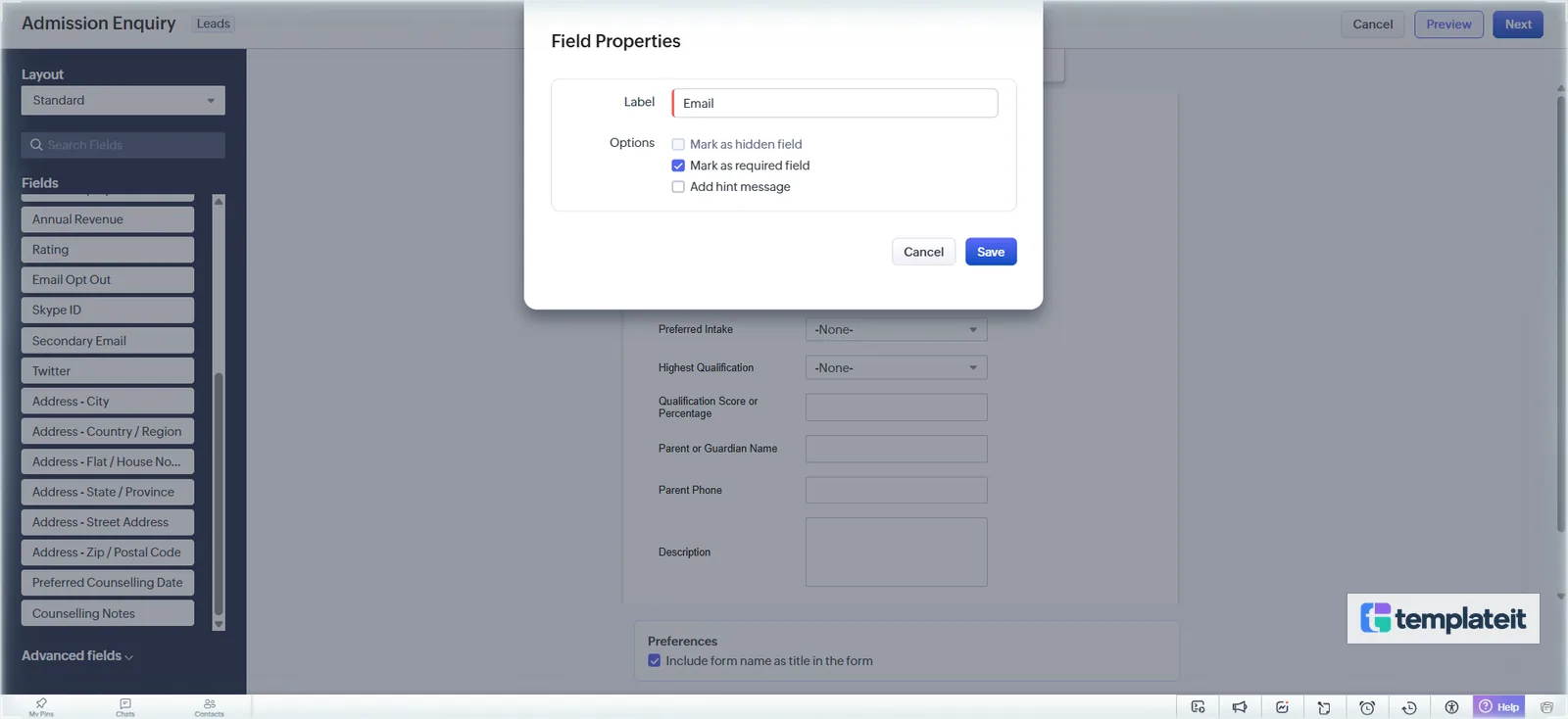
- Use the gear on Email and on Mobile to tick Mark as required field, and relabel Description as Your question (that only changes the form, not the CRM field).
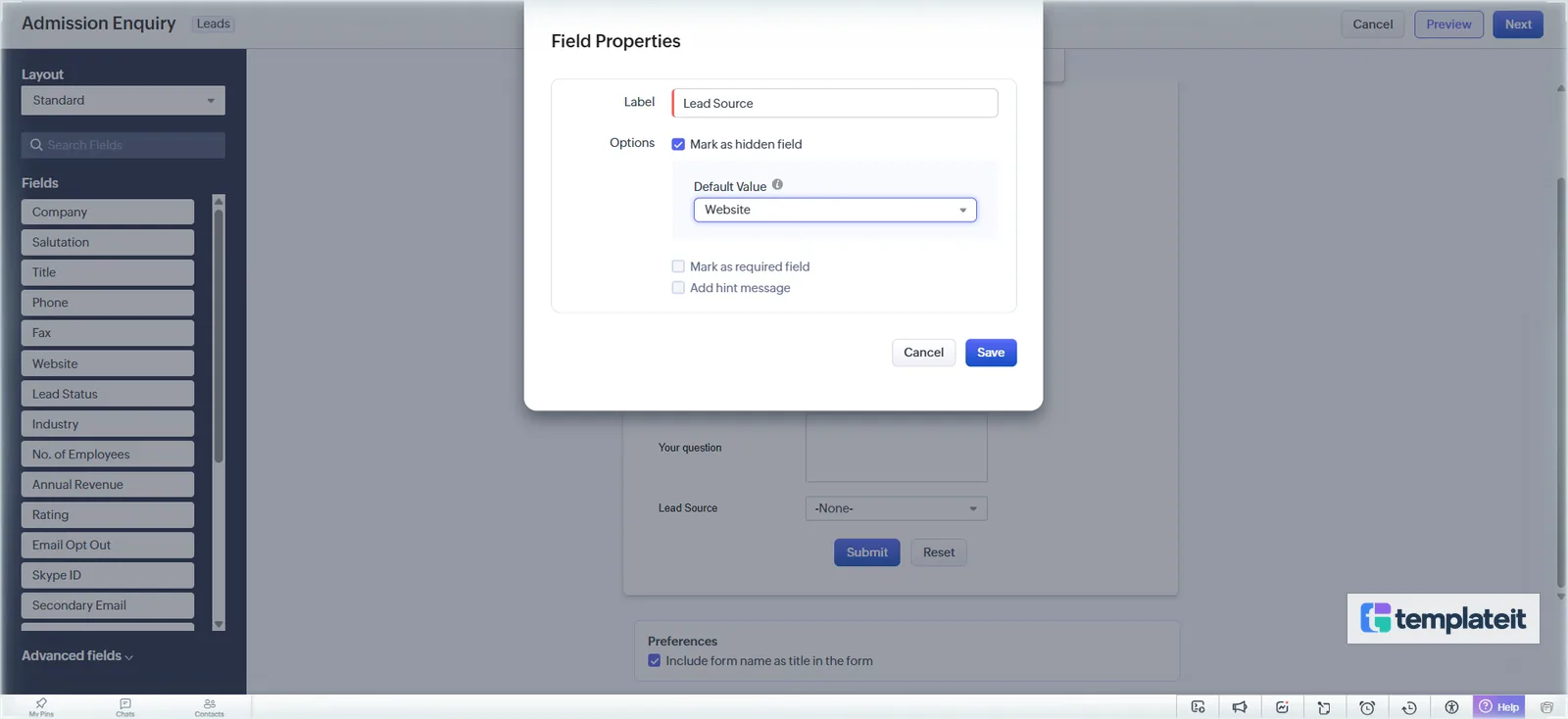
- Add Lead Source and Lead Status as hidden fields through the gear, Mark as hidden field, with the default values Website and New Enquiry. Don’t skip the status: AD-01 only fires for New Enquiry.
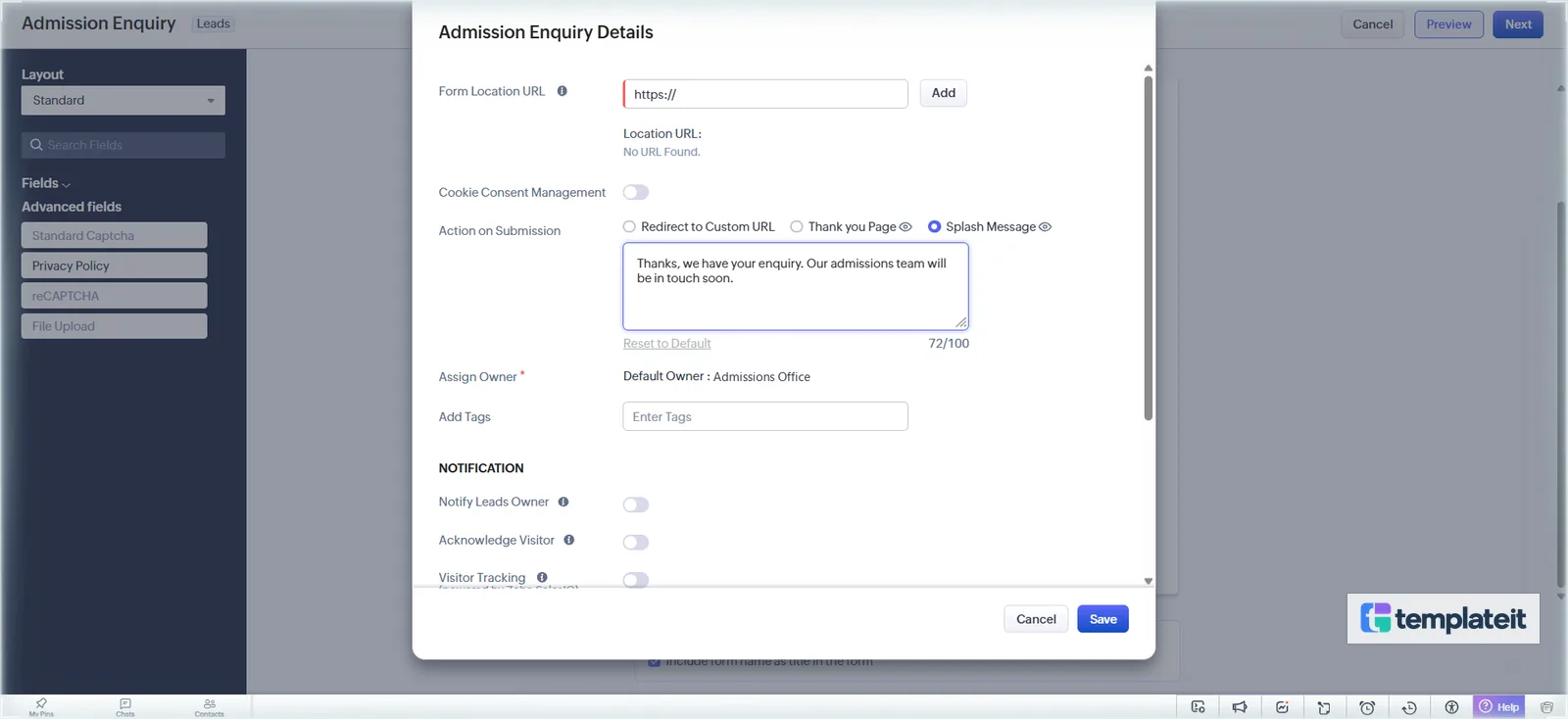
- Click Next. Enter your admissions page in Form Location URL and click Add; the form needs it to save. Under Action on Submission pick Splash Message and write a short thank-you. Turn on Acknowledge Visitor and pick EM-01 so every enquirer gets the thank-you email straight away.
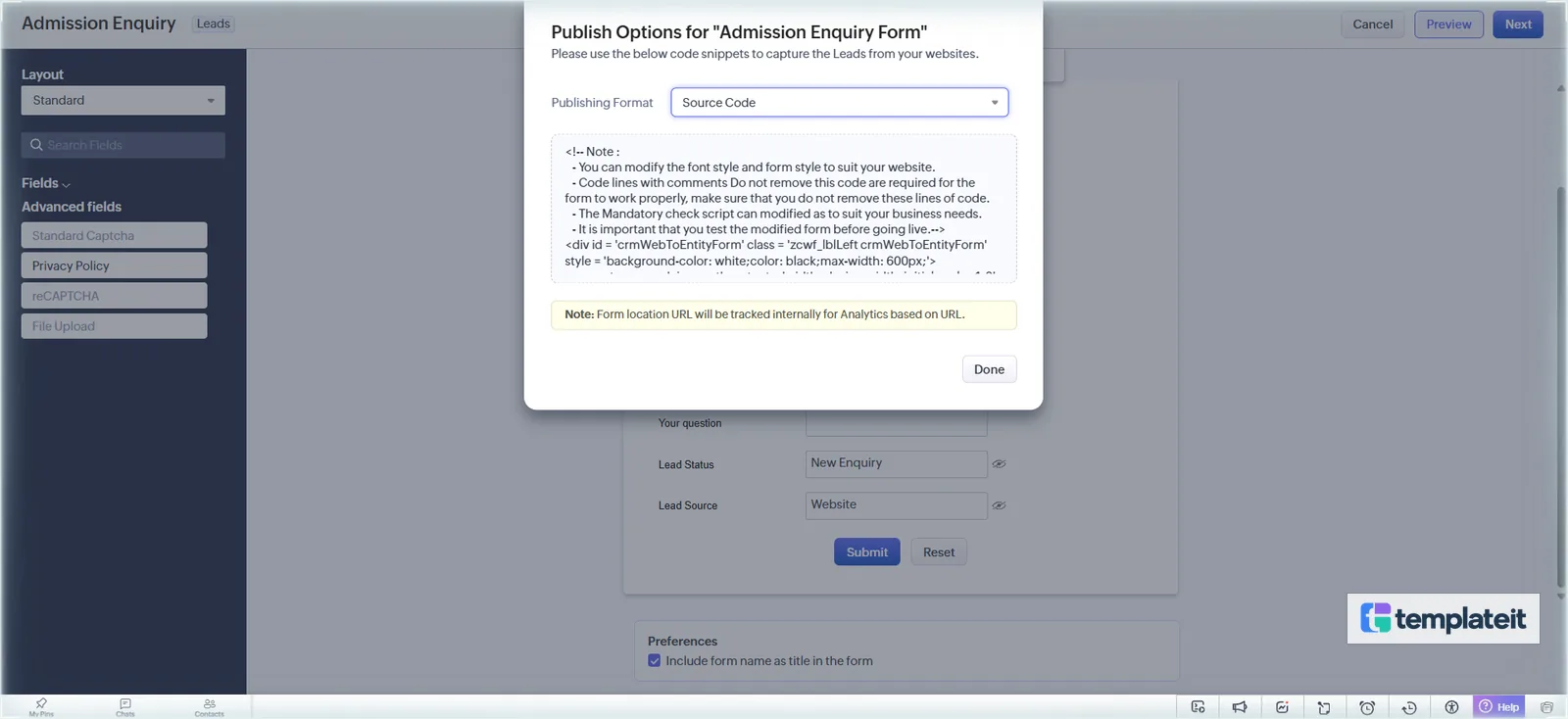
- Save, then copy the Source Code into your admissions page.
Step 4: Turn Application Stage into a Kanban board
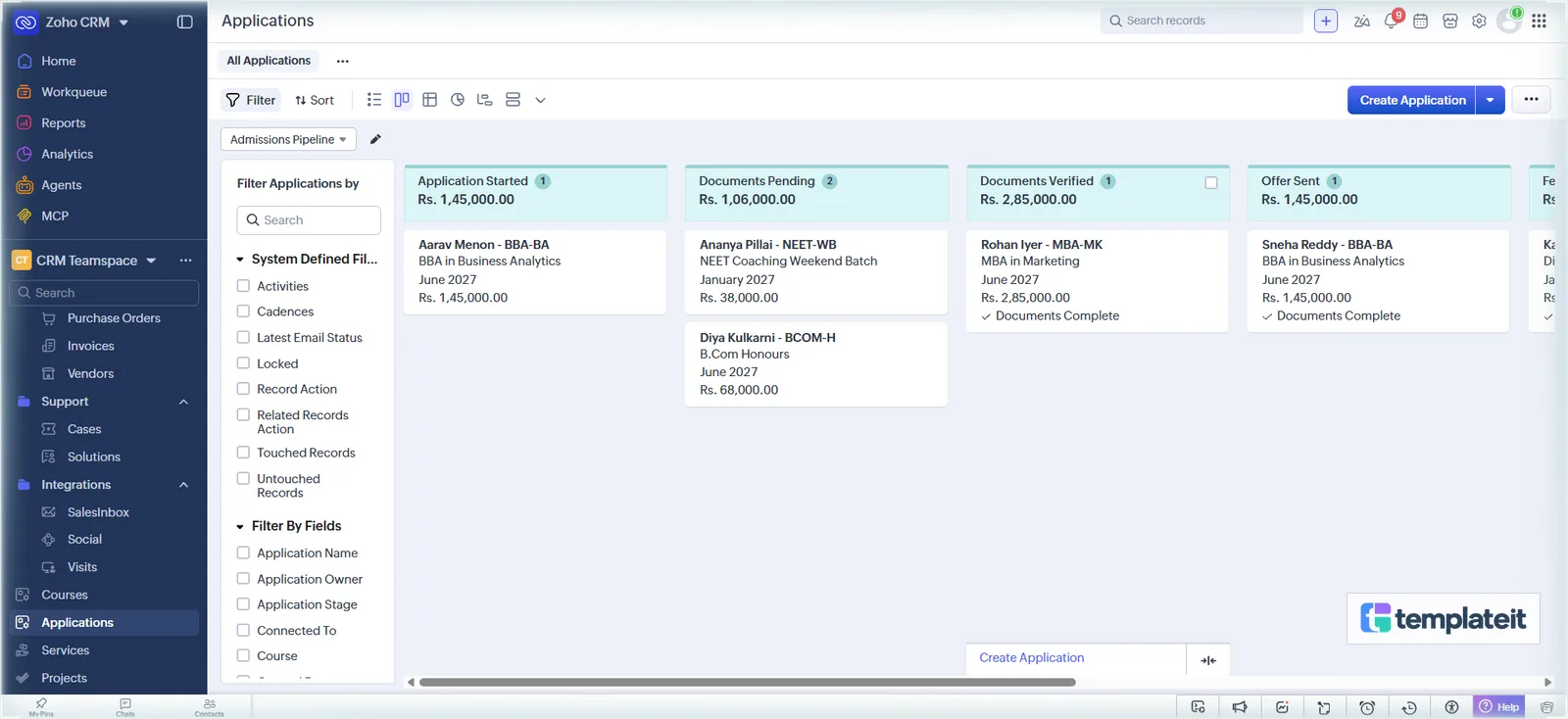
On the Applications list, the Kanban icon beside the list icon opens Kanban View Settings directly. Call the view Admissions Pipeline, set Categorize By to Application Stage and Aggregate By to Fee Amount, so each column totals the fees sitting in it. Then hover over Course, Intake, Fee Amount and Documents Complete in Available, click the + on each to put it on the cards, and save. It took us about three minutes.
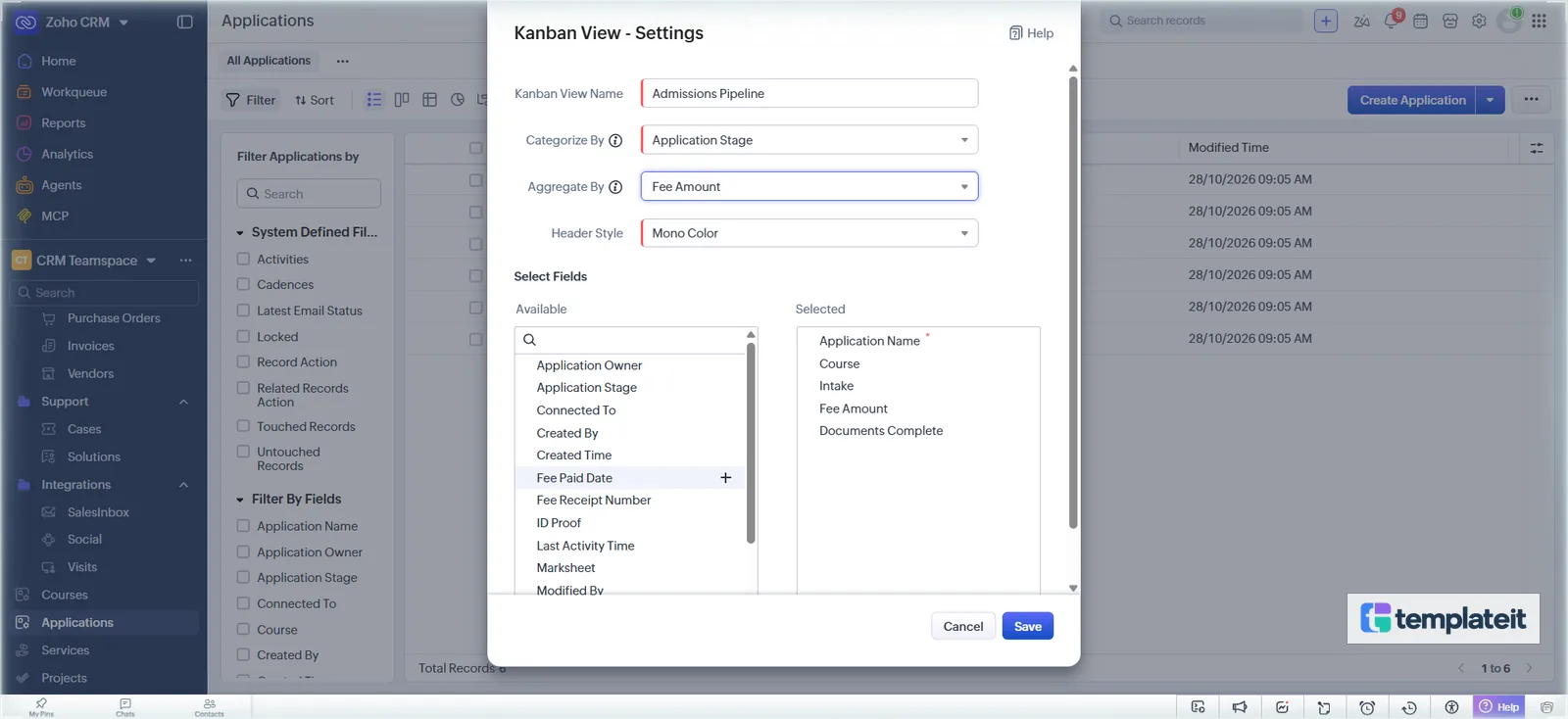
Moving a card is an edit as far as Zoho is concerned, so it fires the stage rules from Step 7. Dropping one on Documents Pending sent our checklist email and made the chase task.
Step 5: Paste in the three functions
Each file in deluge/ goes in the same way.
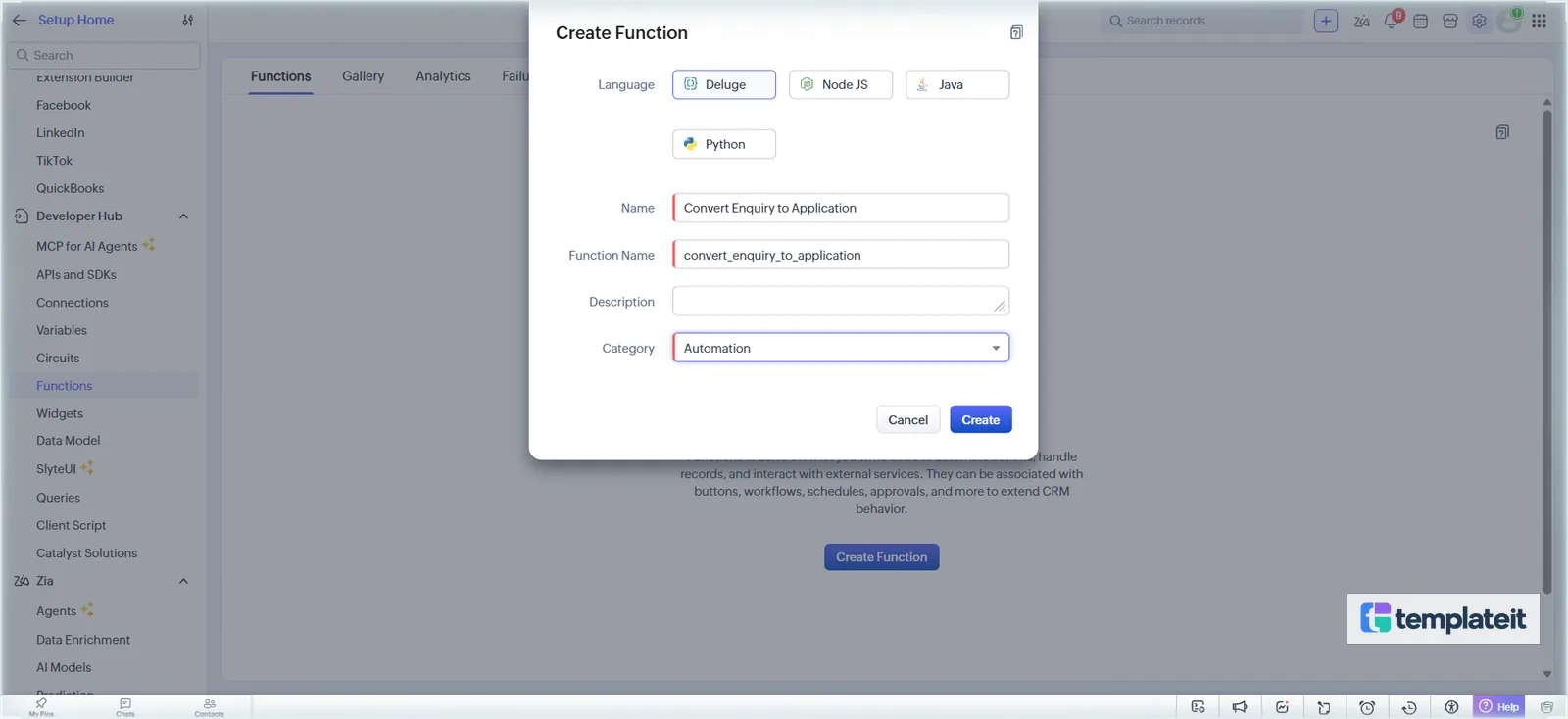
- Setup > Developer Hub > Functions > Create Function. Pick Deluge, enter the name and function name from tab 7 Functions, category Automation, and click Create.
- Clear the editor and type the signature from the file’s first comment (for example
void automation.convert_enquiry_to_application(String leadId)), then{, the rest of the file and}. - Save. You should see 0 errors.
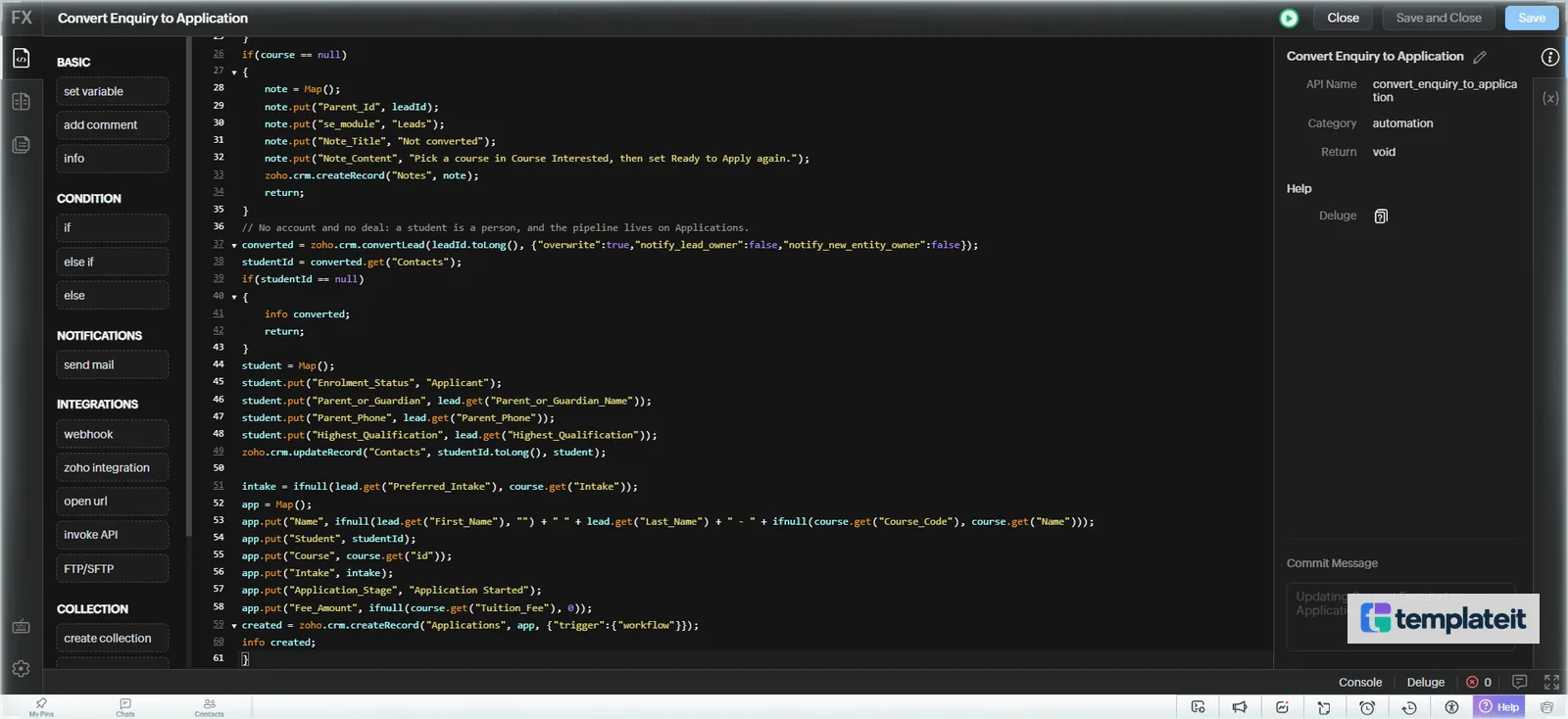
deluge/convert_enquiry_to_application.deluge · Convert a ready enquiry into a Student and an Application
// void automation.convert_enquiry_to_application(String leadId)

lead = zoho.crm.getRecordById("Leads", leadId.toLong());
if(ifnull(lead.get("Lead_Status"), "") != "Ready to Apply")
{
	return;
}
// form leads only have course enquired, counsellor's pick wins
course = null;
if(lead.get("Course_Interested") != null)
{
	course = zoho.crm.getRecordById("Courses", lead.get("Course_Interested").get("id").toLong());
}
else if(ifnull(lead.get("Course_Enquired"), "") != "" && lead.get("Course_Enquired") != "Not sure yet")
{
	found = zoho.crm.searchRecords("Courses", "(Name:equals:" + lead.get("Course_Enquired") + ")");
	if(found.size() > 0)
	{
		course = found.get(0);
	}
}
if(course == null)
{
	note = Map();
	note.put("Parent_Id", leadId);
	note.put("se_module", "Leads");
	note.put("Note_Title", "Not converted");
	note.put("Note_Content", "Pick a course in Course Interested, then set Ready to Apply again.");
	zoho.crm.createRecord("Notes", note);
	return;
}
// no account or deal, pipeline is on applications
converted = zoho.crm.convertLead(leadId.toLong(), {"overwrite":true,"notify_lead_owner":false,"notify_new_entity_owner":false});
studentId = converted.get("Contacts");
if(studentId == null)
{
	info converted;
	return;
}
student = Map();
student.put("Enrolment_Status", "Applicant");
student.put("Parent_or_Guardian", lead.get("Parent_or_Guardian_Name"));
student.put("Parent_Phone", lead.get("Parent_Phone"));
student.put("Highest_Qualification", lead.get("Highest_Qualification"));
zoho.crm.updateRecord("Contacts", studentId.toLong(), student);

intake = ifnull(lead.get("Preferred_Intake"), course.get("Intake"));
app = Map();
app.put("Name", ifnull(lead.get("First_Name"), "") + " " + lead.get("Last_Name") + " - " + ifnull(course.get("Course_Code"), course.get("Name")));
app.put("Student", studentId);
app.put("Course", course.get("id"));
app.put("Intake", intake);
app.put("Application_Stage", "Application Started");
app.put("Fee_Amount", ifnull(course.get("Tuition_Fee"), 0));
created = zoho.crm.createRecord("Applications", app, {"trigger":{"workflow"}});
info created;
deluge/check_documents.deluge · Tick Documents Complete when all four documents are in
// void automation.check_documents(String applicationId)

app = zoho.crm.getRecordById("Applications", applicationId.toLong());
haveAll = app.get("Marksheet") == true && app.get("ID_Proof") == true && app.get("Photo") == true && app.get("Transfer_Certificate") == true;
stage = ifnull(app.get("Application_Stage"), "");
update = Map();
if(haveAll && app.get("Documents_Complete") != true)
{
	update.put("Documents_Complete", true);
	// leave offer sent and later alone
	if(stage == "Application Started" || stage == "Documents Pending")
	{
		update.put("Application_Stage", "Documents Verified");
	}
}
else if(!haveAll && app.get("Documents_Complete") == true)
{
	update.put("Documents_Complete", false);
	if(stage == "Documents Verified")
	{
		update.put("Application_Stage", "Documents Pending");
	}
}
if(update.size() > 0)
{
	// skip trigger, else checklist email resends
	zoho.crm.updateRecord("Applications", applicationId.toLong(), update);
}
deluge/update_course_seats.deluge · Recount seats when a student enrols or withdraws
// void automation.update_course_seats(String applicationId)

app = zoho.crm.getRecordById("Applications", applicationId.toLong());
stage = ifnull(app.get("Application_Stage"), "");
if(app.get("Student") != null && (stage == "Enrolled" || stage == "Withdrawn"))
{
	zoho.crm.updateRecord("Contacts", app.get("Student").get("id").toLong(), {"Enrolment_Status":stage});
}
if(app.get("Course") == null)
{
	return;
}
courseId = app.get("Course").get("id");
course = zoho.crm.getRecordById("Courses", courseId.toLong());
// related list gives the current stage straight after the edit
enrolled = 0;
done = false;
// 5 x 200 = 1,000 applications per course
for each page in {1,2,3,4,5}
{
	if(!done)
	{
		batch = zoho.crm.getRelatedRecords("Applications", "Courses", courseId.toLong(), page, 200);
		for each a in batch
		{
			if(a.get("Application_Stage") == "Enrolled")
			{
				enrolled = enrolled + 1;
			}
		}
		done = batch.size() < 200;
	}
}
seats = ifnull(course.get("Total_Seats"), 0);
status = ifnull(course.get("Course_Status"), "Open");
if(seats > 0 && enrolled >= seats)
{
	status = "Full";
}
else if(status == "Full")
{
	status = "Open";
}
zoho.crm.updateRecord("Courses", courseId.toLong(), {"Seats_Filled":enrolled,"Course_Status":status});
Your API names may not match ours, especially if the CRM has been customised before. Check Setup > Developer Hub > APIs and SDKs > API Names and change the script where they differ. A run that fails later shows up in Setup > Developer Hub > Functions > Failures.
Step 6: Add the seven email templates
Work through email-templates/ one file at a time.
- Setup > Customization > Templates > New Template, pick the module named in the file’s header comment, Next.
- Look at the module at the top of the Template Gallery before going on. The gallery has its own module dropdown, and that’s the one that counts, whatever you picked in the first dialog.
- Insert HTML / Plain Text, then the
</>button. Replace everything in the box with the file’s HTML, leaving out the comment block, and click Insert.
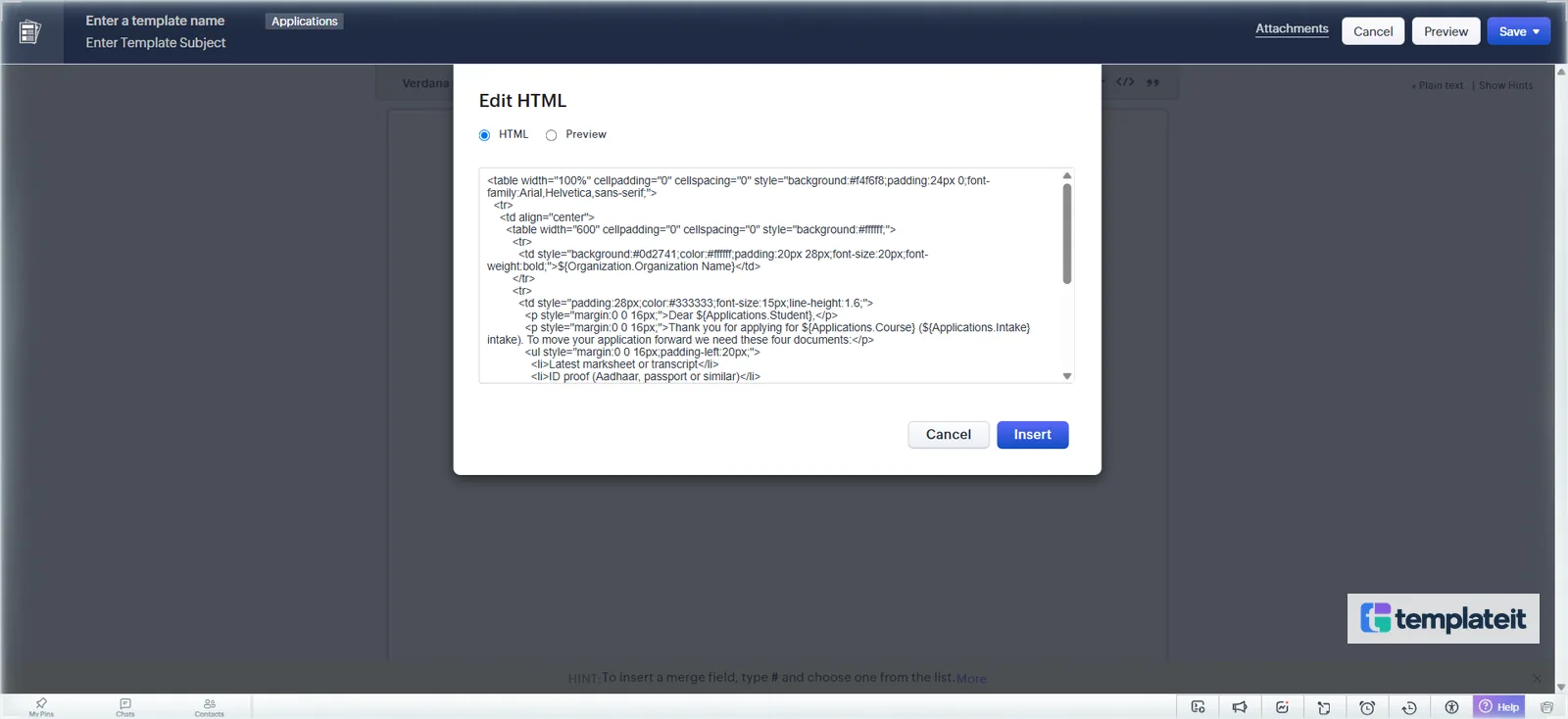
- Type the template name and subject from the header comment and choose Save > Save Now into Public Email Templates.
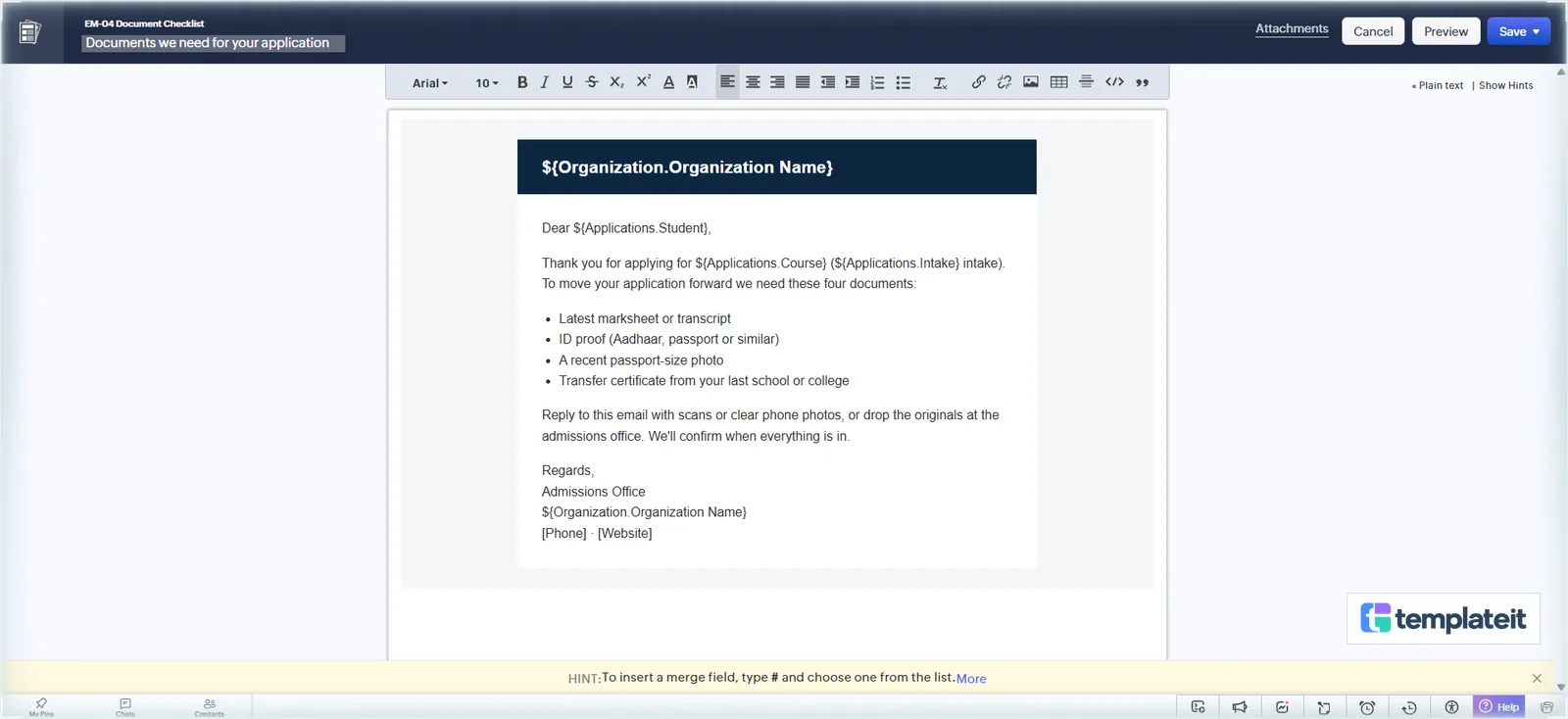
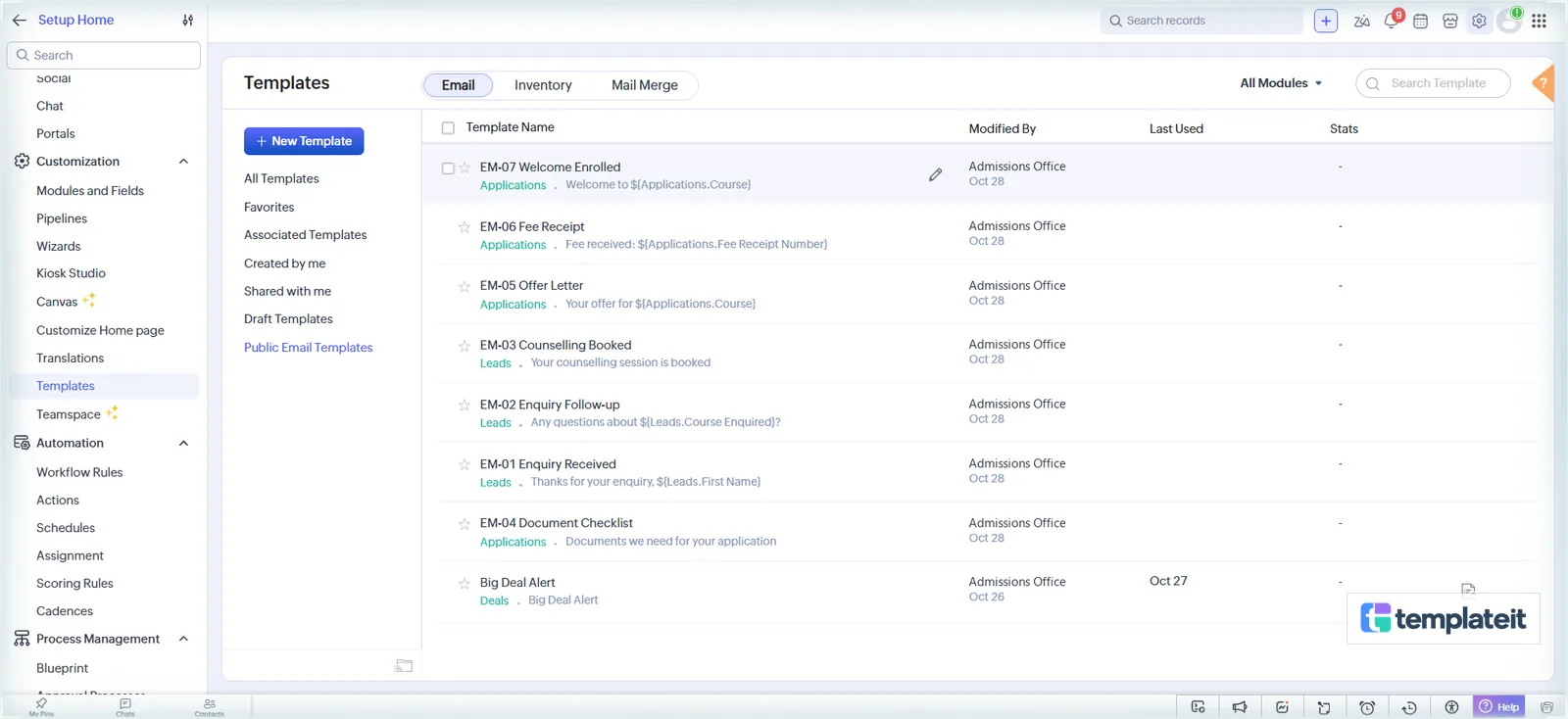
Before saving, swap [Phone] and [Website] for your own, and edit the document list in EM-04 if you ask for different papers. The EM- numbers came late: an earlier plan had template AD-04 sent by rule AD-05, which would have confused anyone reading the rules list.
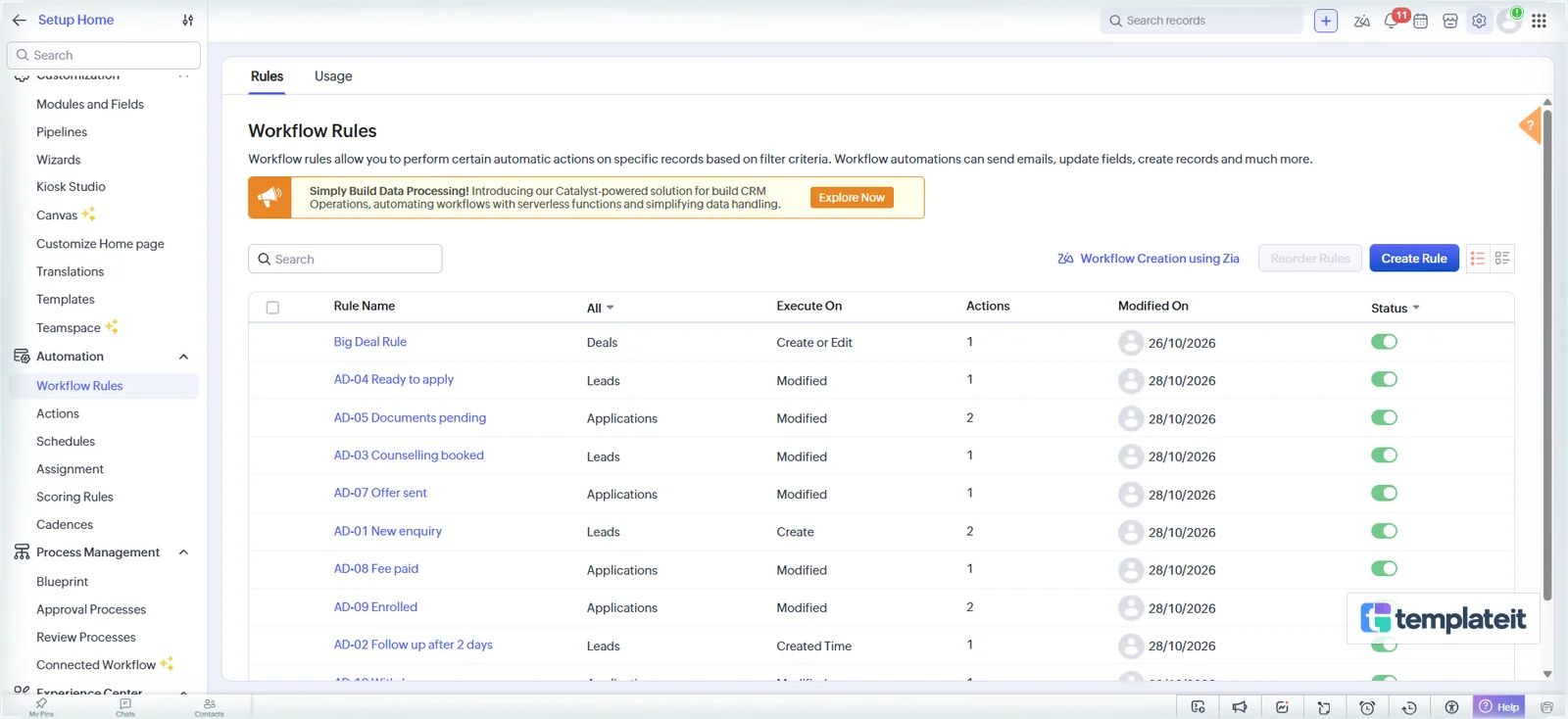
Step 7: Create the ten workflow rules
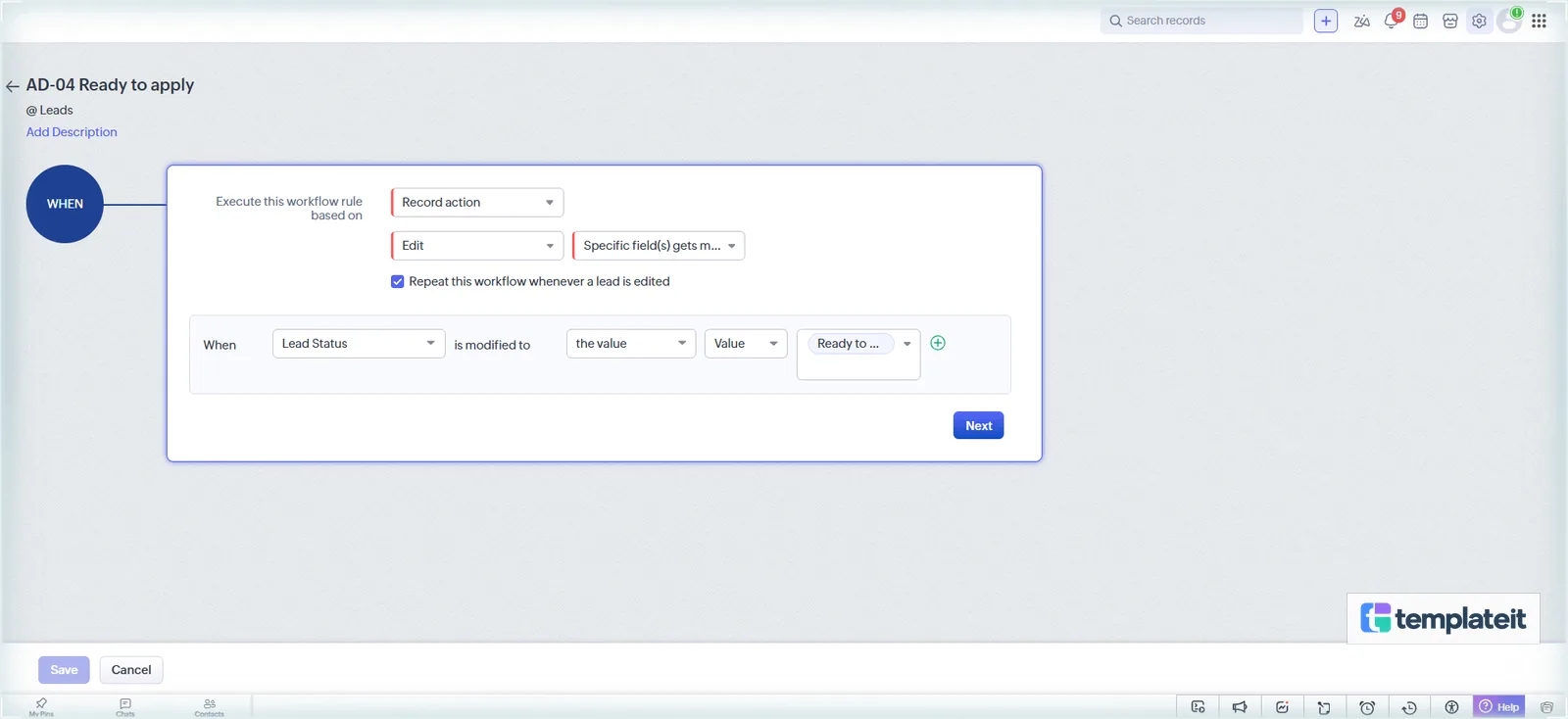
Tab 8 Workflows has all ten. We built AD-04 on screen because everything hangs on it (about four minutes), and these are the clicks:
- Setup > Automation > Workflow Rules > Create Rule, module Leads, name AD-04 Ready to apply.
- Record action > Edit > Specific field(s) gets modified, then Lead Status, the value, Ready to Apply. Tick Repeat this workflow whenever a lead is edited, or a lead that goes back to counselling and returns will never fire it a second time.
- All Leads and Done. The function checks the status itself.
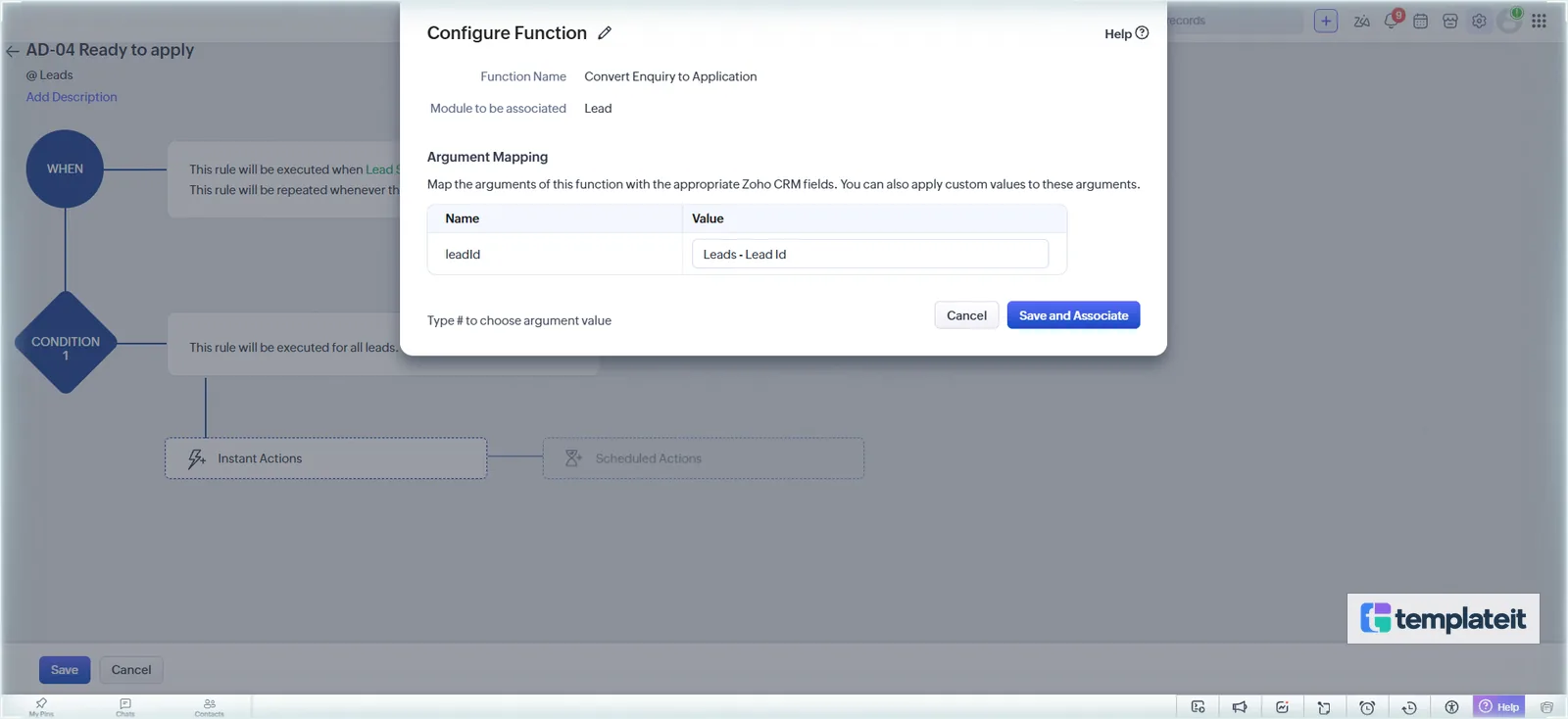
- Instant Actions > Function > Functions, find Convert Enquiry to Application and click Configure. Type
#in Value, pick Leads > Lead Id, Done, then Save and Associate and Save.
The other nine follow the same pattern.
| ID | Module | When | Condition | Actions |
|---|---|---|---|---|
| AD-01 New enquiry | Leads | Create | Lead Status is New Enquiry | Task Call new enquiry, due same day, High (EM-01 goes from the form) |
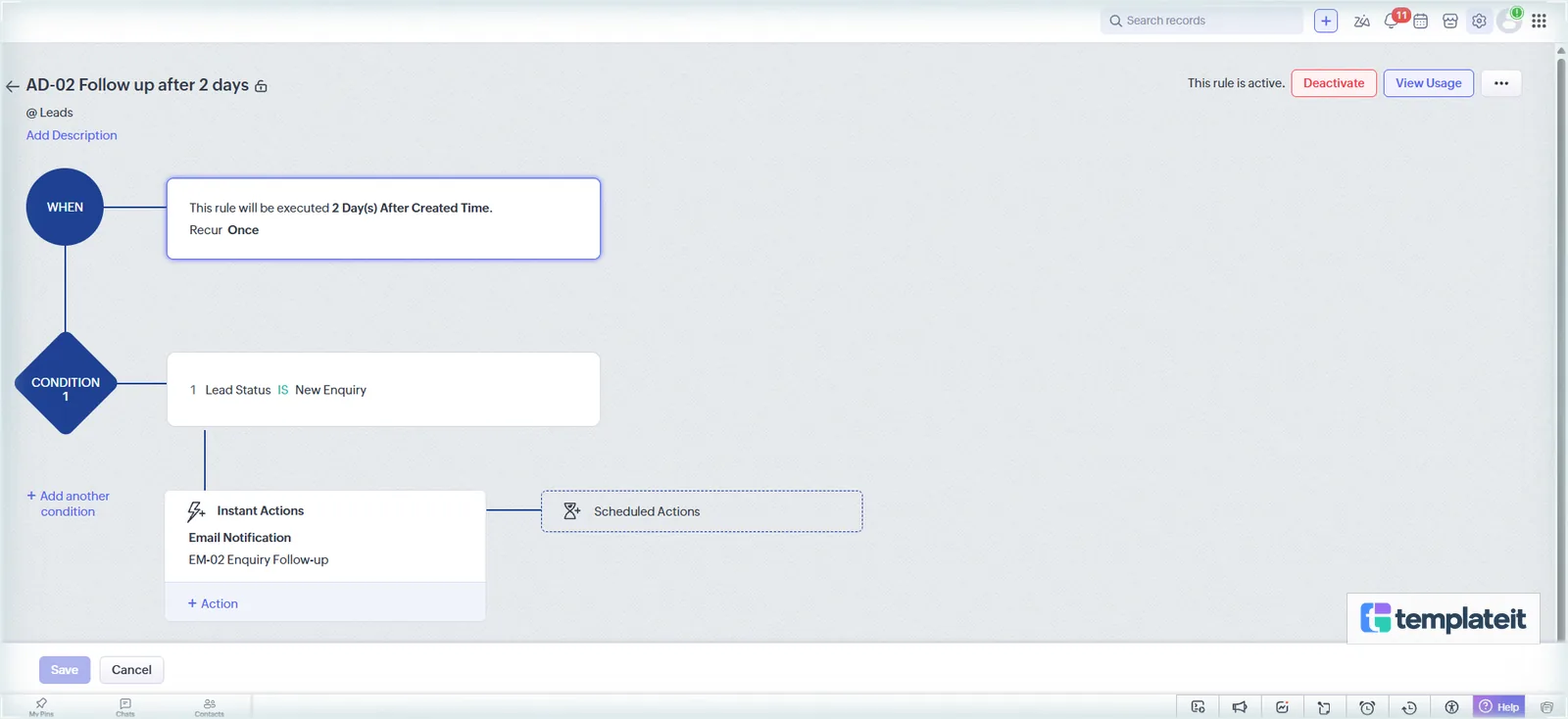
| AD-02 Follow up after 2 days | Leads | Date/Time field: Created Time, 2 day(s) after, once | Lead Status is New Enquiry | Email EM-02 |
| AD-03 Counselling booked | Leads | Lead Status modified to Counselling Booked (Repeat) | All | Email EM-03 |
| AD-04 Ready to apply | Leads | Lead Status modified to Ready to Apply (Repeat) | All | Function convert_enquiry_to_application |
| AD-05 Documents pending | Applications | Application Stage modified to Documents Pending (Repeat) | All | Email EM-04 to Student > Email. Task Chase documents, due in 3 days |
| AD-06 Check documents | Applications | Marksheet, ID Proof, Photo or Transfer Certificate modified to any value (Repeat) | All | Function check_documents |
| AD-07 Offer sent | Applications | Application Stage to Offer Sent (Repeat) | All | Email EM-05 to Student > Email |
| AD-08 Fee paid | Applications | Application Stage to Fee Paid (Repeat) | All | Email EM-06 to Student > Email |
| AD-09 Enrolled | Applications | Application Stage to Enrolled (Repeat) | All | Email EM-07 to Student > Email. Function update_course_seats |
| AD-10 Withdrawn | Applications | Application Stage to Withdrawn (Repeat) | All | Function update_course_seats |
An Applications rule reaches the student through Email Notification: switch the To list from Application to Student and pick Email. On AD-02, make sure the trigger reads 2 Day(s) After Created Time, because Before sits right next to it.
Step 8: Build the admissions dashboard
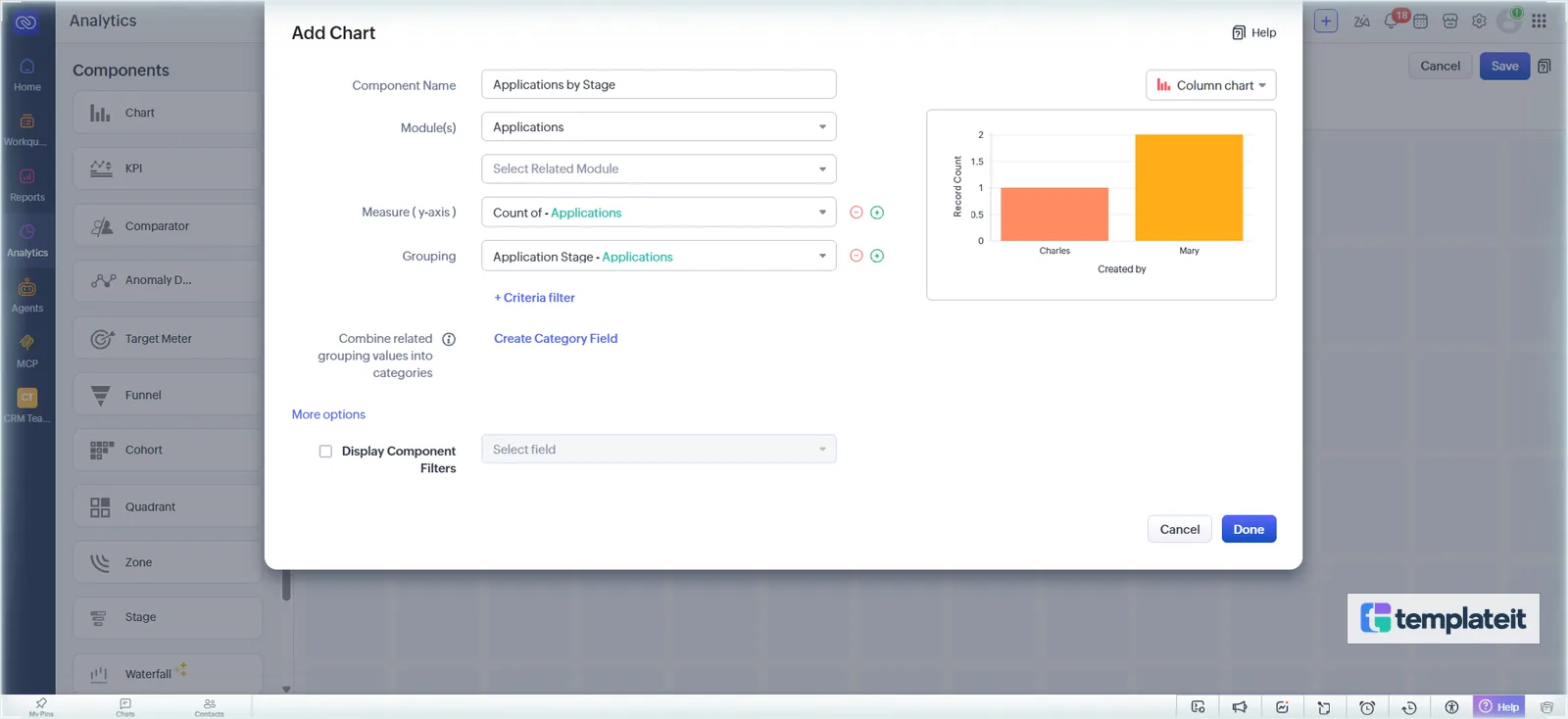
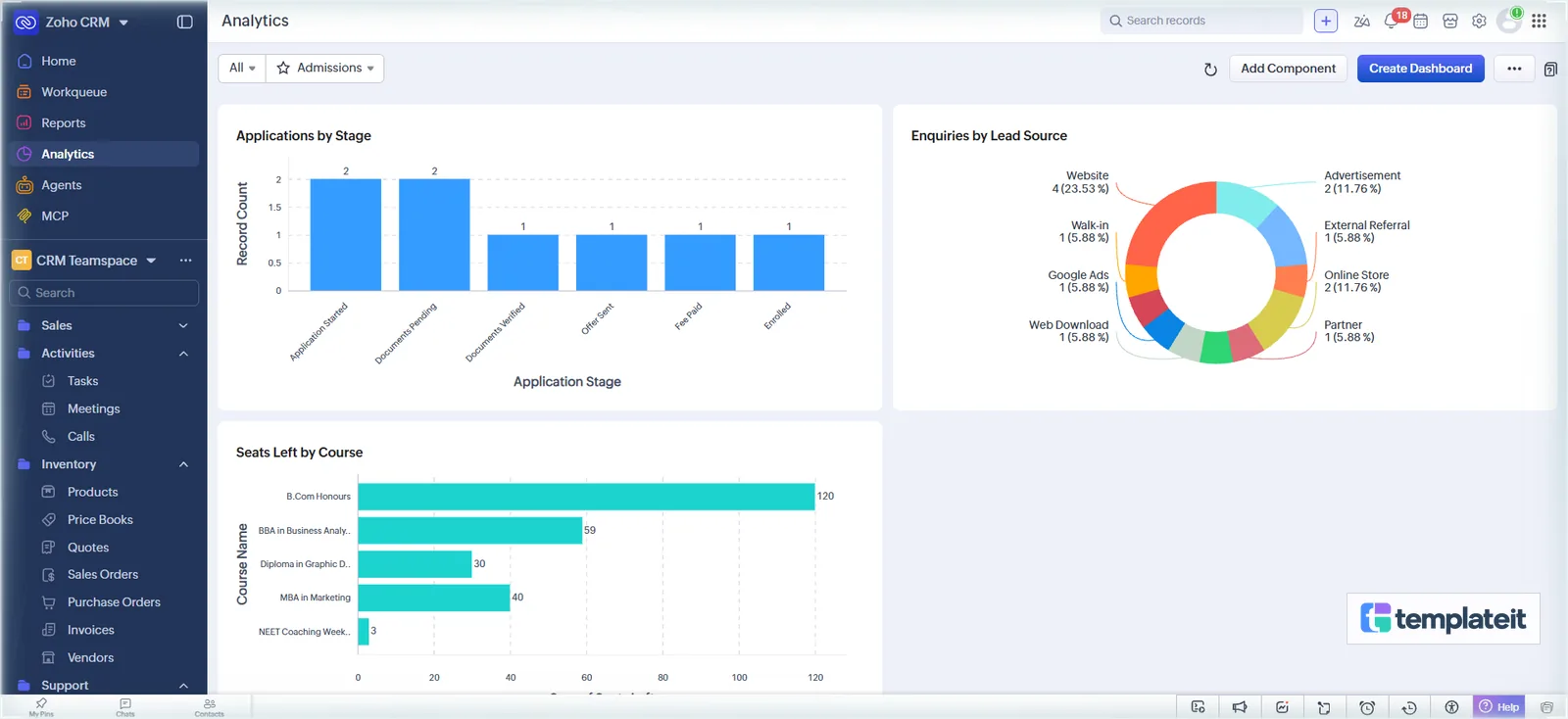
Analytics > Create Dashboard, named Admissions. Add Chart > Quick chart (a quick chart doesn’t need a report behind it): component Applications by Stage, module Applications, measure Count, grouping Application Stage, then Done.
Save, and use Add Component for two more: Enquiries by Lead Source (Leads, Count, Lead Source, donut) and Seats Left by Course (Courses, Sum of Seats Left, Course Name, bar).
Step 9: Import the sample data and walk one enquiry through
Import from each module’s Create > Import in this order, with Trigger configured automations unticked because the sample records use example.com addresses:
courses.csvinto Coursesstudents.csvinto Studentsapplications.csvinto Applications, mapping Student and Course to their lookups by nameenquiries.csvinto Leads
Imported applications aren’t counted in Seats Filled until they move to Enrolled or Withdrawn, so if you import students who are already enrolled, type the right number in once. Delete the sample records before you go live.
Use an inbox you can open for the test records. Zoho CRM stops emailing an address after one bounce, so a made-up address will only show you the first email. Every email that goes out is also listed in the record’s Emails related list.
- Submit the form on your admissions page. You should get a lead with Lead Source Website and Lead Status New Enquiry, EM-01 in the inbox, and a Call new enquiry task due today.
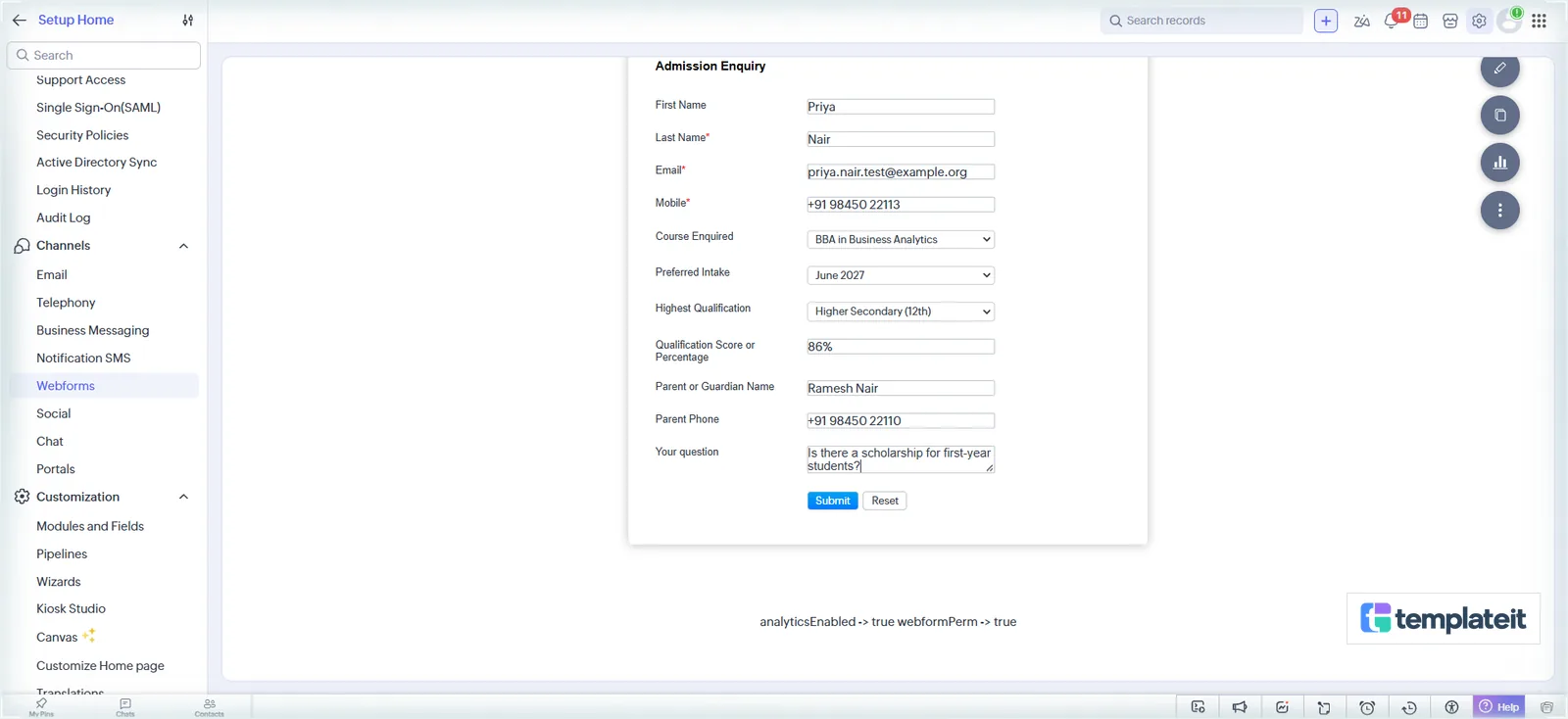
Submit it from the page you entered as the Form Location URL. Setup > Channels > Webforms counts every submission.
- Book counselling: fill Preferred Counselling Date and set Lead Status to Counselling Booked. EM-03 arrives with the date, course and intake.
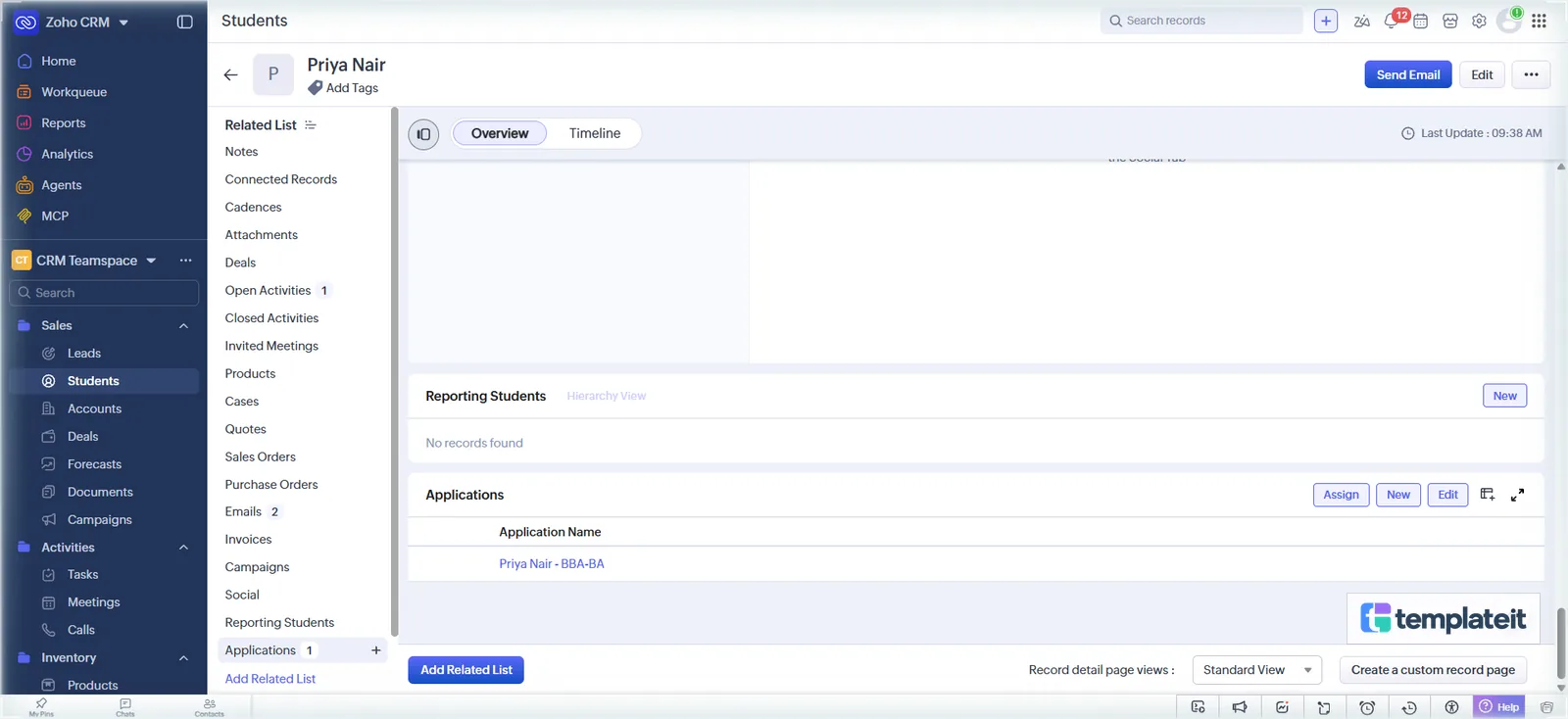
- Click Ready to Apply on the lead’s status bar. Within a couple of seconds the lead is gone and you have a Student with a Student ID and no account, plus an Application at Application Started with the course’s fee. Open tasks move across to the student.
- Drag the card to Documents Pending on the Kanban. EM-04 goes out and a Chase documents task is due in three days.
- Tick the four documents one at a time. Nothing happens until the fourth, then Documents Complete is ticked and the stage moves to Documents Verified. Untick one and it drops back to Documents Pending without a second checklist email.
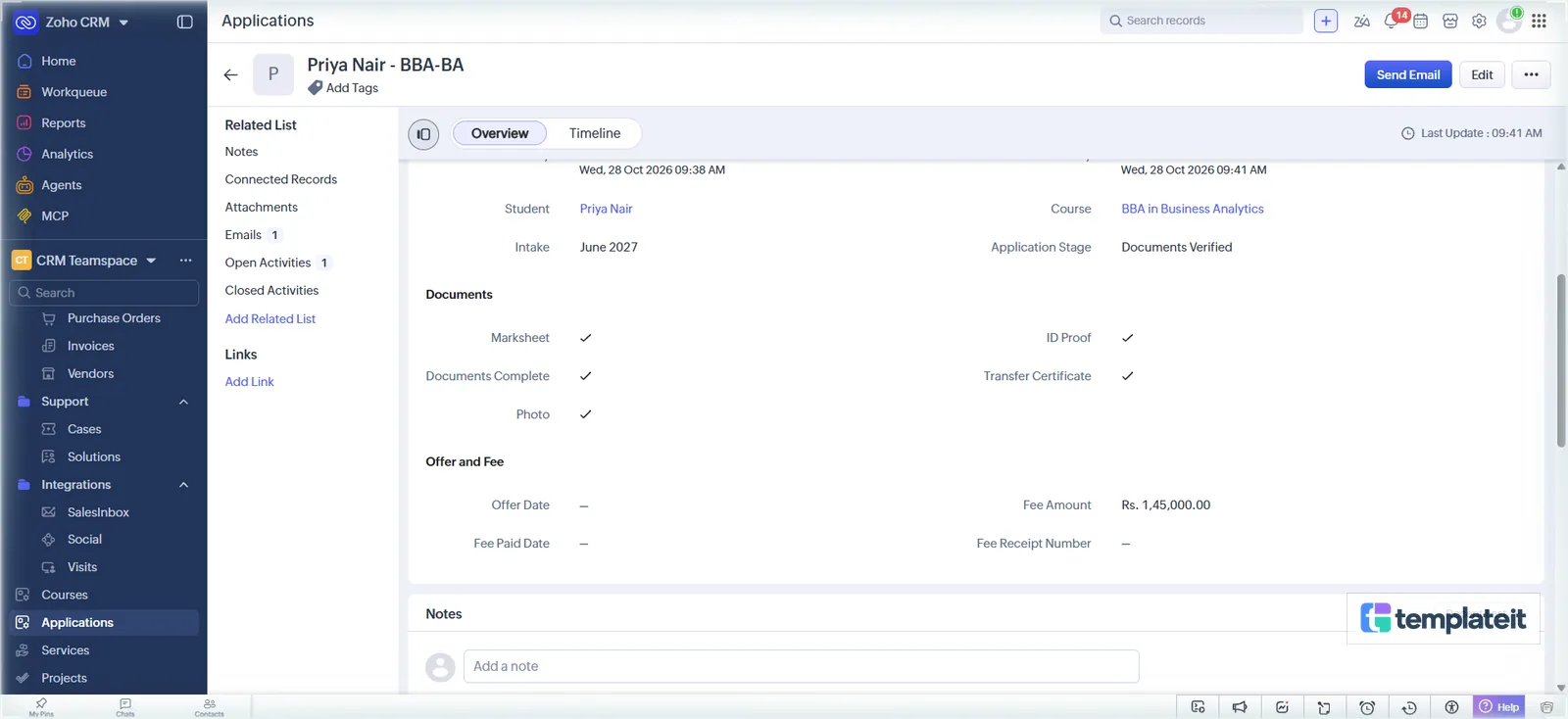
- Offer Sent, Fee Paid, Enrolled, filling Offer Date and the receipt number on the way. EM-05, EM-06 and EM-07 arrive, Seats Filled on the course goes up by one and Seats Left down by one, and the student’s Enrolment Status reads Enrolled.
- Fill a course. Enrol on a course with few seats until Seats Left is 0 and Course Status turns Full; withdraw one student and it’s Open again. Setting a course to 1 seat makes this a quick test.
- Ready to Apply with no course. An enquiry whose Course Enquired is Not sure yet doesn’t convert, and a Not converted note appears on it. Pick Course Interested and set Ready to Apply again. Course Enquired values match course names exactly, letter for letter.
For AD-02, leave one test enquiry at New Enquiry; EM-02 goes out two days after it was created. Rules that run on a status change need the Repeat this workflow tick so they fire every time.
Changing it for your institution
Coaching institutes can use it as it is. Courses are just courses, and the sample data already has a NEET weekend batch next to the degrees: set Level to Coaching, give Duration in months, and remove the Transfer Certificate checkbox if you don’t ask for one.
If Deals already holds your corporate training or other sales, leave it alone. Nothing here reads or writes Deals, its pipelines or its stages.
SMS or WhatsApp needs an extension for Zoho CRM first. Once that’s installed, the same workflow rules can send a message alongside the email, or in place of it.
Setup by us
We can build this in your Zoho CRM and fit it to your courses and intakes, or add online application fees, a parent portal, document uploads on the form, SMS or WhatsApp reminders, or reports by counsellor.
Tell us about your admissions process
TemplateIt is not affiliated with or endorsed by Zoho Corporation.
This template is made by TemplateIt and is not affiliated with or endorsed by Zoho Corporation.