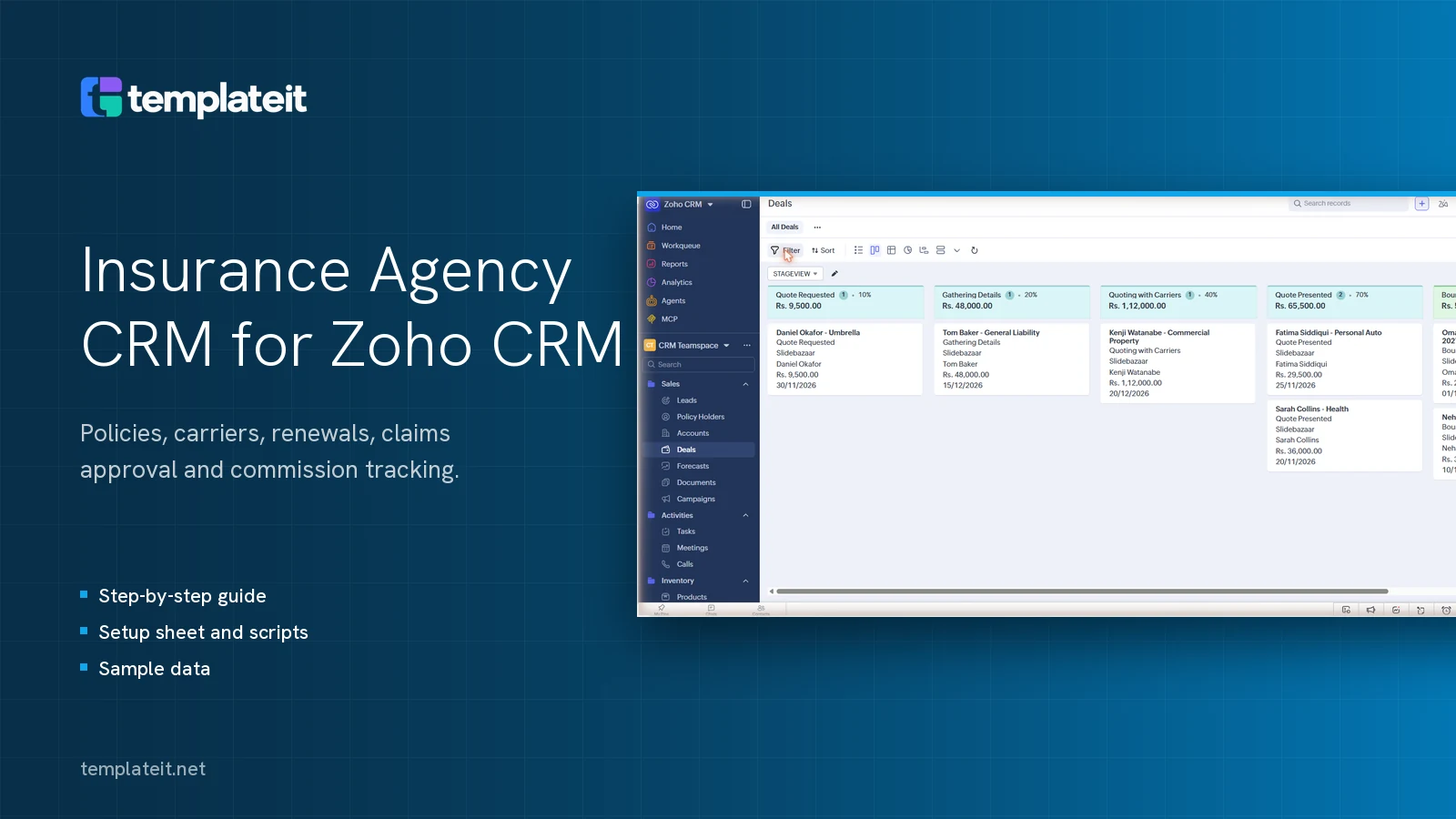
One decision shaped this insurance agency CRM: in an agency the policy is the record that lasts, and the deal is only how you won it, so we gave standard Zoho CRM a Policies module and made every bound quote turn into a policy by itself. Carriers, claims and commission all hang off that policy, and next year’s renewal starts from it 60 days before it expires.
It runs in the ordinary Zoho CRM, not the insurance edition Zoho sells as a separate product, and you don’t need that edition for any of it. Setup takes about two hours with the setup sheet open next to you.
On this page
- What it adds to Zoho CRM
- What you need, and what it changes
- Step 1: Create the Carriers and Policies modules, and rename Contacts
- Step 2: Add policy fields and a layout rule per line of business
- Step 3: Set up the new business and renewals pipelines
- Step 4: Build the renewal reminder workflow
- Step 5: Add the claims approval process
- Step 6: Track commission per policy
- Step 7: Turn bound quotes into policies
- Step 8: Import the sample data
- Run one policy through it
- What we left out
- Setup and changes
What it adds to Zoho CRM
| Piece | What it does |
|---|---|
| Carriers | One record per insurer you place business with: your agency code, the underwriter, and separate new business and renewal commission rates |
| Policies | Policy number, holder, carrier, line of business, dates, premium and commission, plus fields that show only for personal or commercial lines |
| Policy Holders | The standard Contacts module with its tab renamed |
| Claims | Carrier and adjuster details, and sign-off for any claim of 50,000 or more |
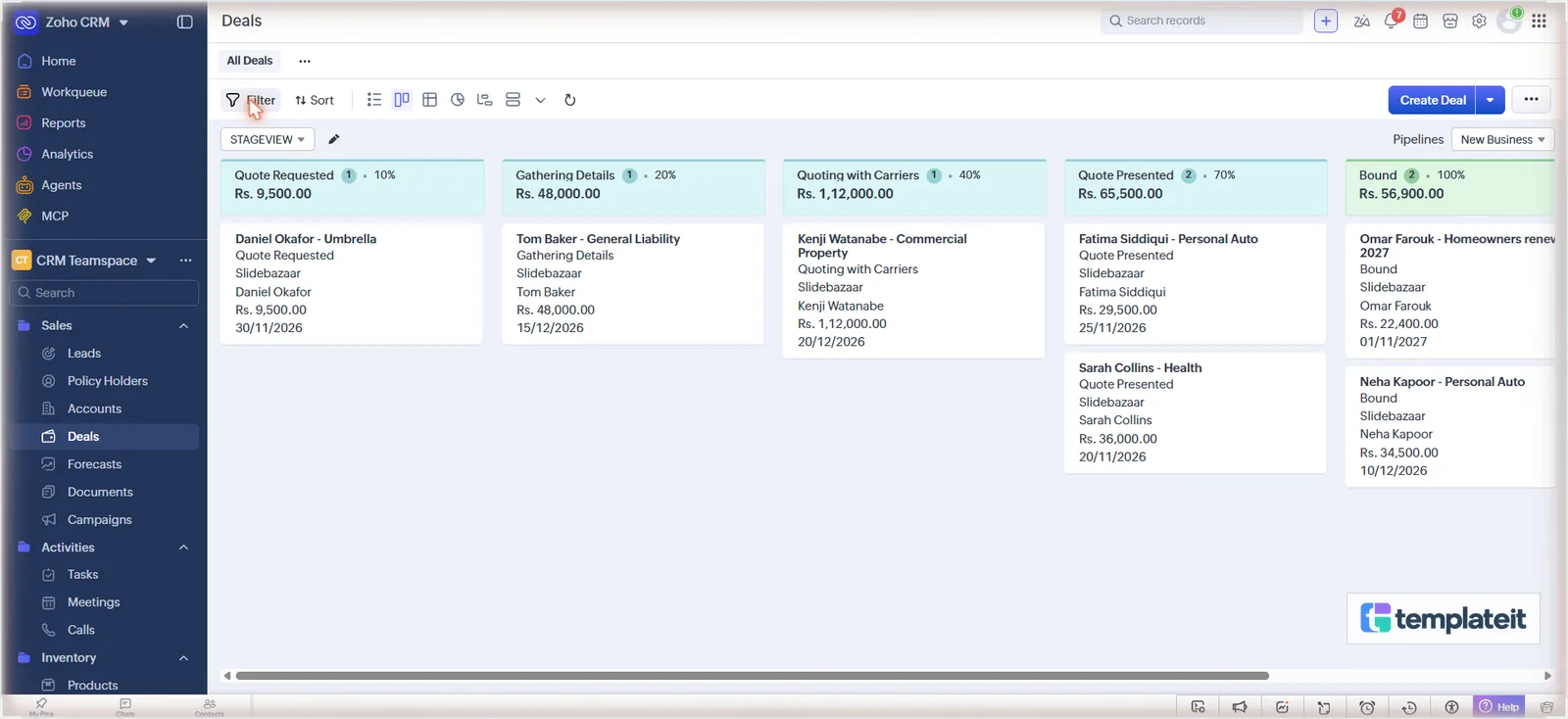
| Two pipelines | New Business (Quote Requested to Bound) and Renewals (Renewal Due to Renewed) |
| 3 Deluge functions | Bound quote to policy, a renewal deal 60 days out, and a check on what the carrier actually paid |
| 8 workflow rules and 4 emails | Quote request, policy welcome, a renewal reminder 30 days out, claim received |
In the download you’ll find setup-sheet.xlsx, which lists every module, field, layout rule, stage, workflow, function and the approval process with a Done column, along with the three .deluge files, the four HTML email templates, six CSVs of sample data and setup-guide.txt, a plain text copy of this page.
Download the template: #download
What you need, and what it changes
You’ll need administrator access and Zoho CRM Enterprise. We built and tested it on an Enterprise trial, and because it leans on custom modules, layout rules, two extra pipelines, functions inside workflow rules and an approval process, check Zoho’s current edition comparison before you try anything lower.
Count your pipelines first. A Deals layout holds three, Standard included, and this adds two, so if you already have a third one, move its deals to Standard and remove it before you build Renewals.
On an account that’s already in use, it adds modules, fields, the two pipelines and the rules, renames the Contacts tab to Policy Holders and makes Company optional on Leads. Nothing else of yours changes, but a trial or sandbox is still the safer place for a first run, and any workflow rules you already have on Leads or Deals will run on your test records as well.
Two settings before you start. Put your company name in Setup > Company Settings > Company Details, since the emails use it. And if you send from a Gmail or Outlook address, Zoho routes it through its own domain and it can land in spam, so set up your business domain under Setup > Channels > Email before you go live.
Step 1: Create the Carriers and Policies modules, and rename Contacts
- Go to Setup > Customization > Modules and Fields and click Create New Module.
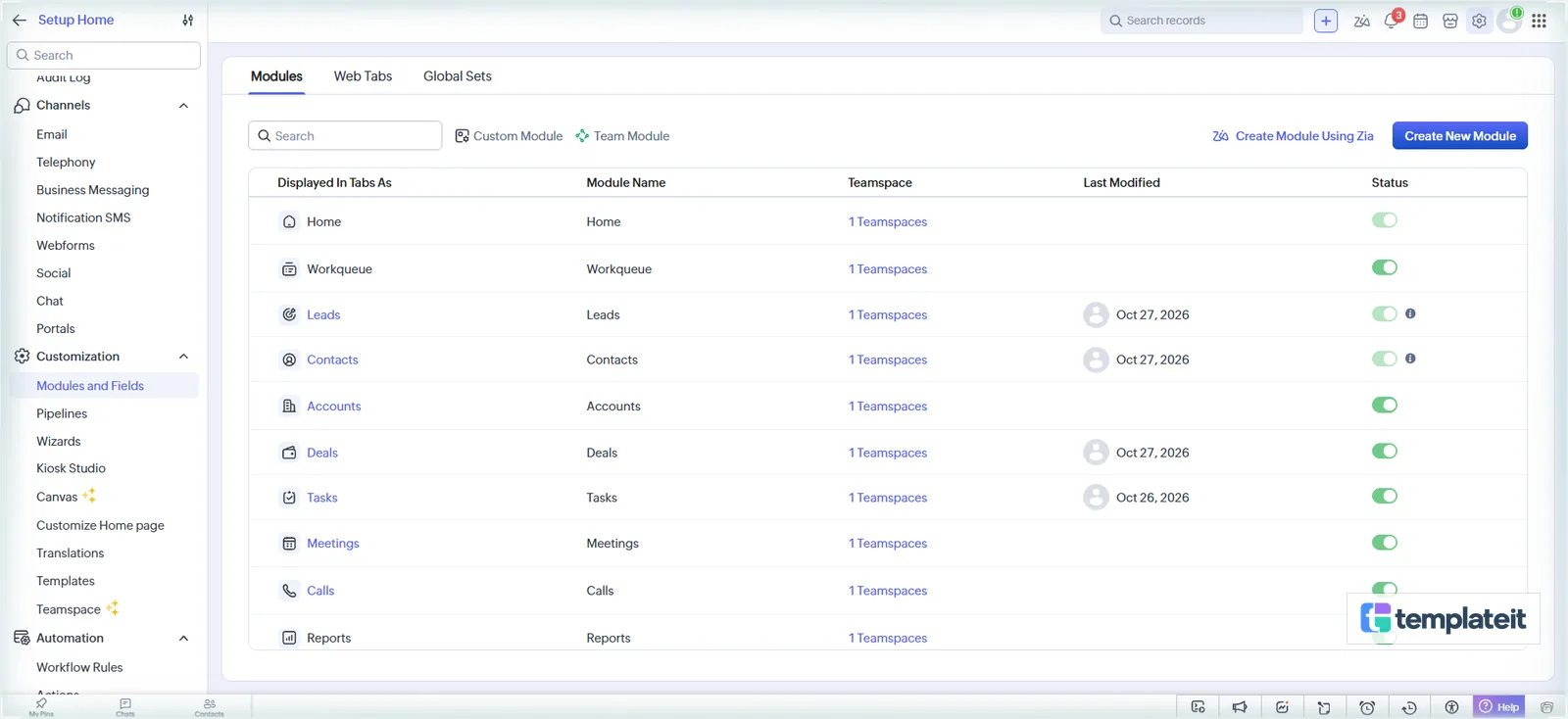
- Choose Organization Modules and click Next, which opens the layout editor.
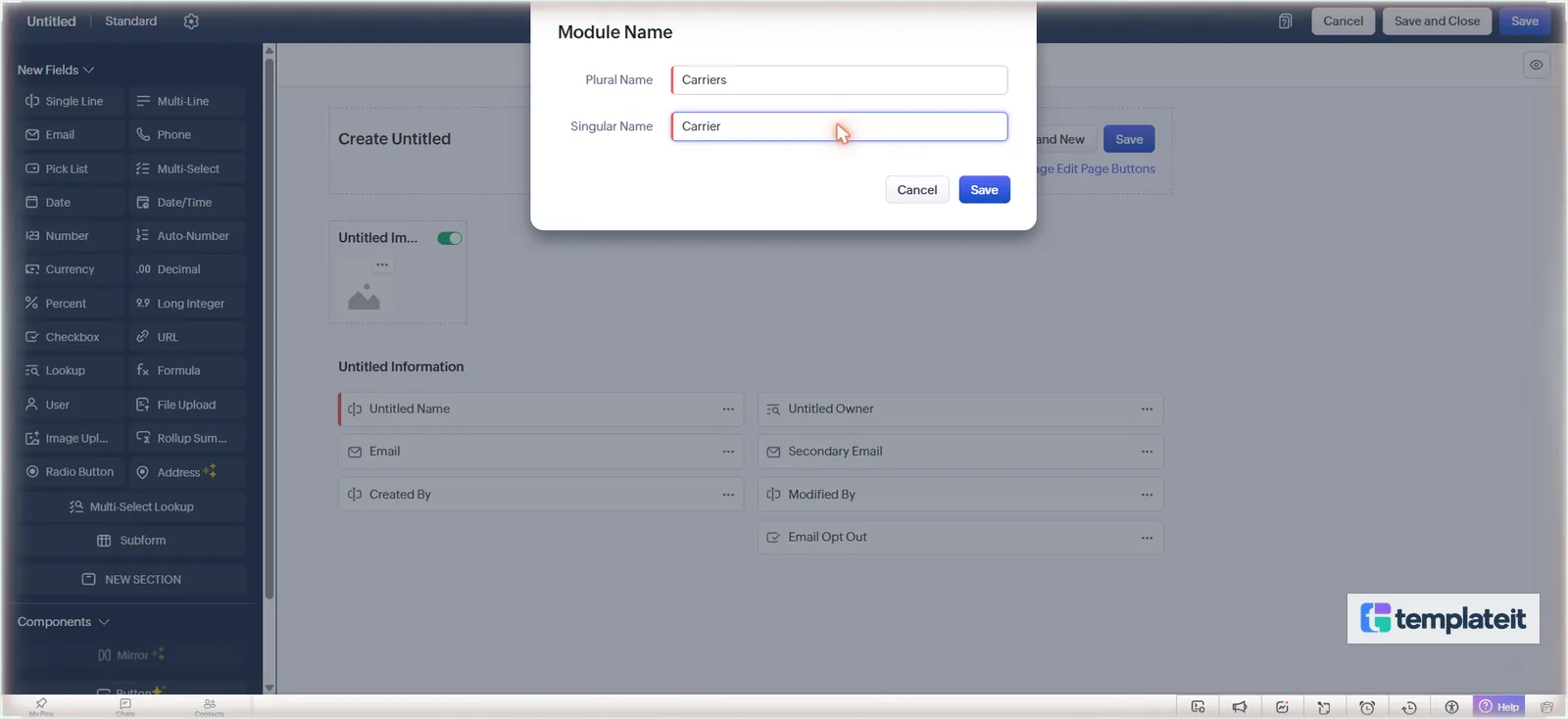
- Click Untitled at the top left, type Carriers as the plural name, then select the singular box, replace its text with Carrier and click Save.
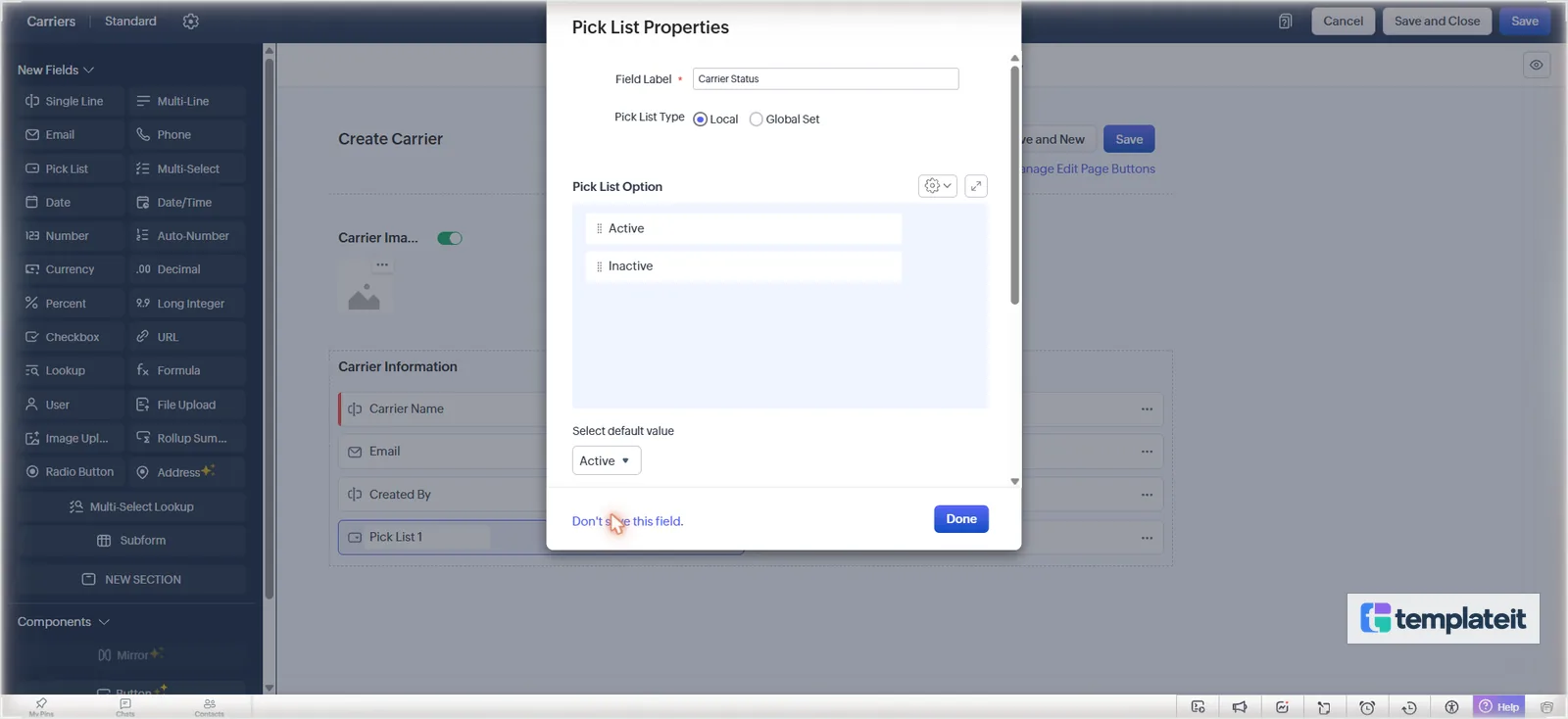
- Add the Carrier fields from tab “2 Fields” of the setup sheet by dragging each field type from the New Fields panel onto the layout and typing its label. For pick lists, type the first two values over Option 1 and Option 2 and add the rest after. Carrier Status defaults to Active.
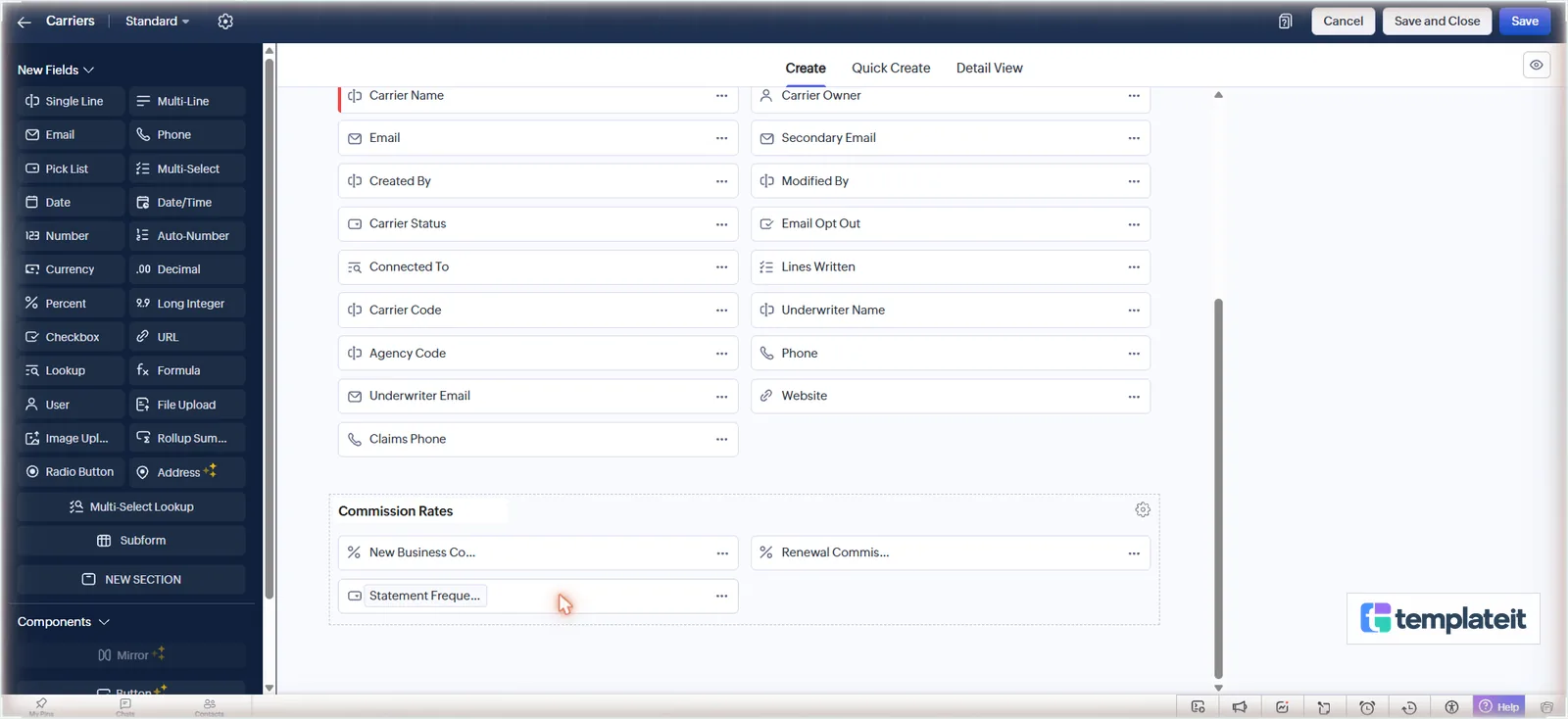
- Drag a NEW SECTION below Carrier Information and name it Commission Rates. Move New Business Commission %, Renewal Commission % and Statement Frequency into it; fields only move if you grab the icon on their left, not the label.
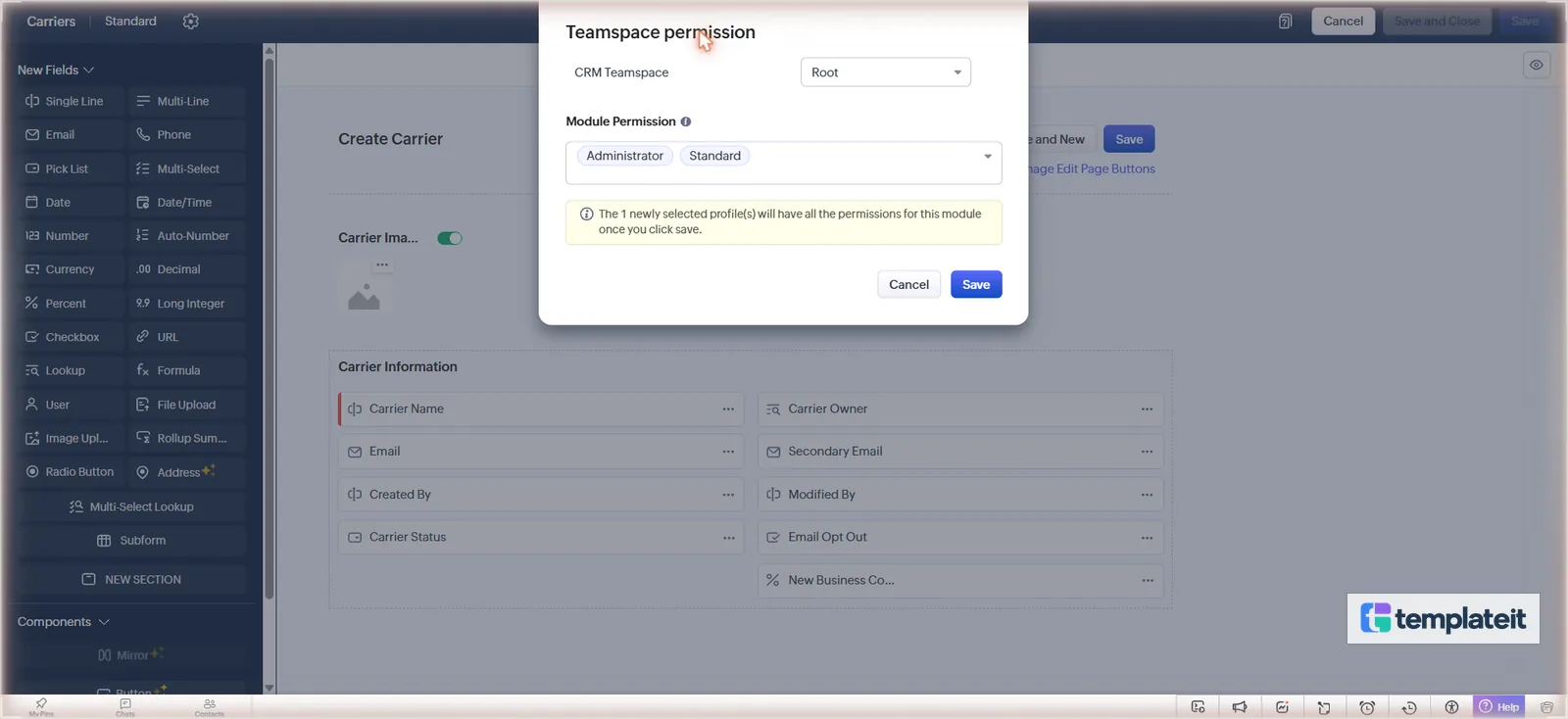
- Click Save and Close at the top right. The form preview has a Save button of its own that doesn’t save the layout, and anything you added since the last real save is gone if you use it. Zoho then asks which profiles can use the module: add Standard next to Administrator and click Save.
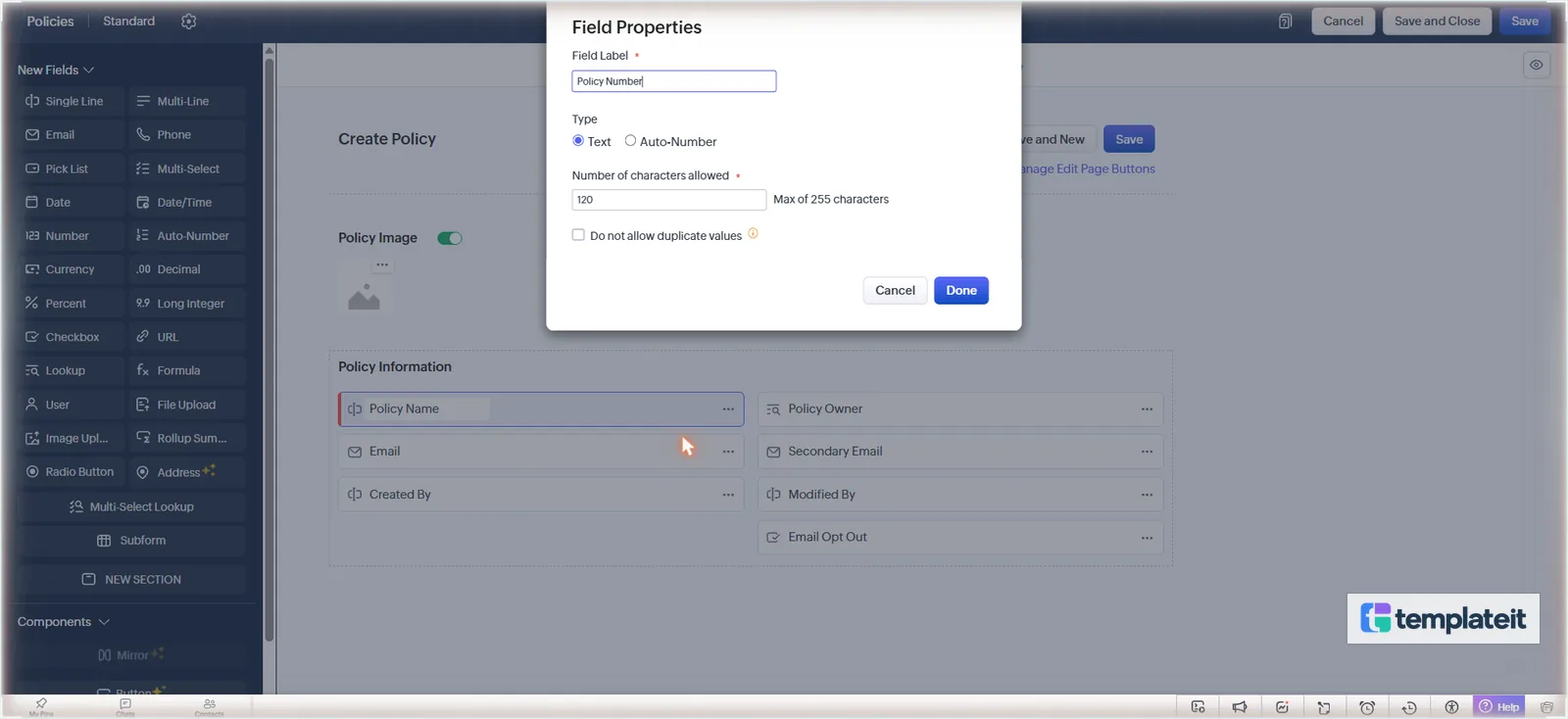
- Create Policies (singular Policy) the same way. On Policy Name, open the … menu, choose Edit Properties and rename it Policy Number. Leave Do not allow duplicate values unticked, because plenty of carriers keep the same number at renewal.
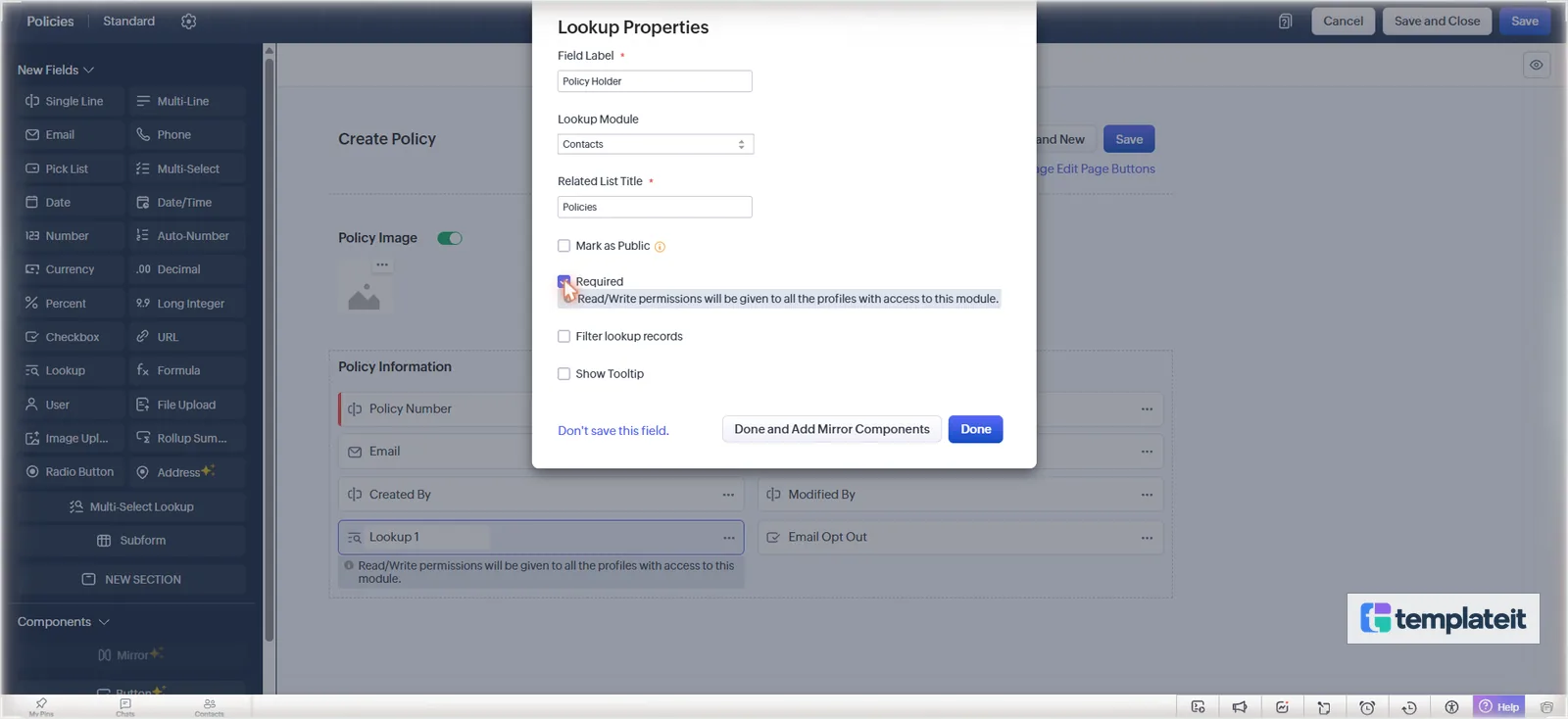
- Drag in a Lookup field called Policy Holder, set Lookup Module to Contacts and the related list title to Policies, and tick Required.
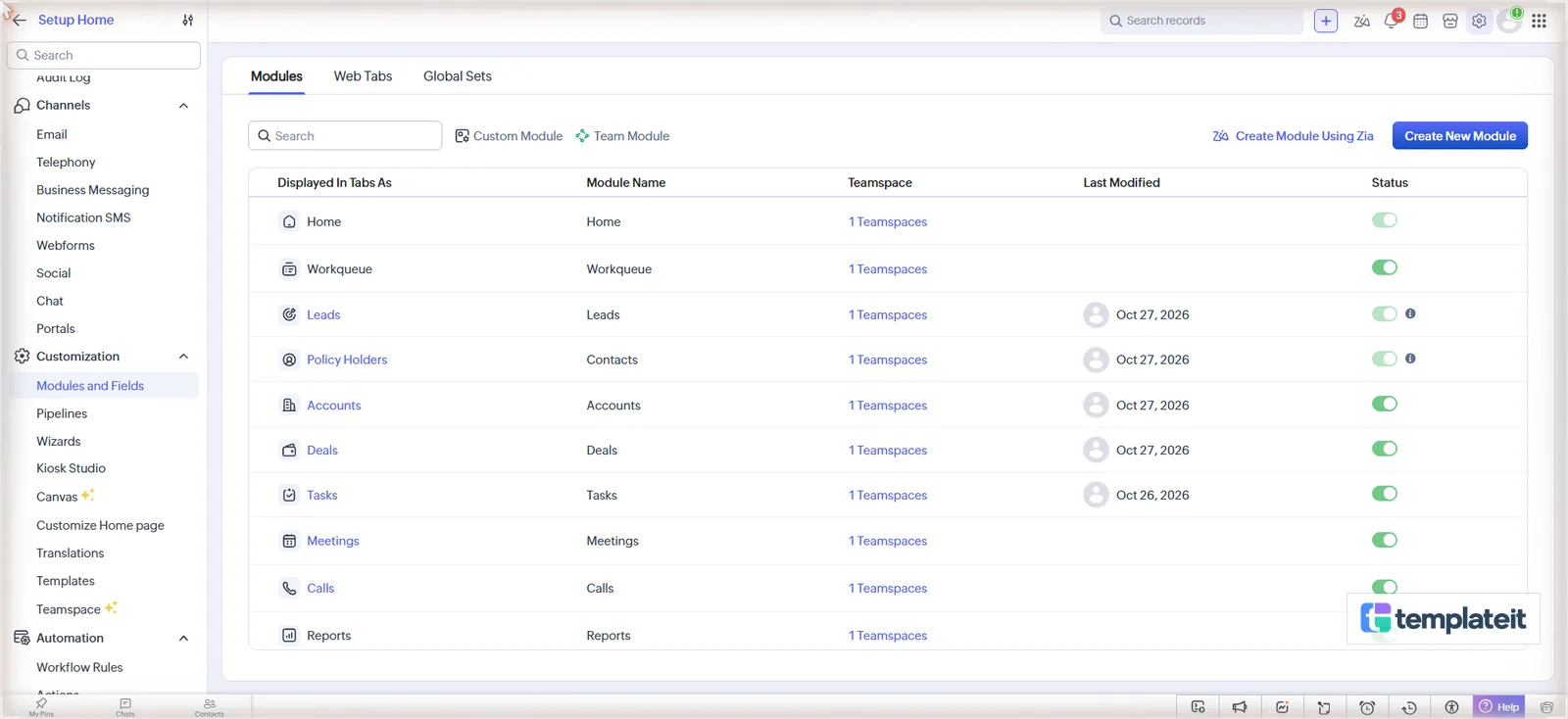
- For the holders themselves we kept Contacts and only renamed the tab, rather than building a new module, so lead conversion and email carry on working. In Modules and Fields, open the … menu on the Contacts row, choose Rename and use Policy Holders and Policy Holder. Merge fields and scripts still call it Contacts.
Every new module also gets a Policy Owner field. That’s the CRM user who looks after the record. The client goes in Policy Holder.
Step 2: Add policy fields and a layout rule per line of business
Open Modules and Fields > Policies > Layouts > Standard and add the Policies fields from the setup sheet. The lookups point to Carriers (Carrier), Accounts (Business Account, for commercial clients) and Deals (Source Deal). Group them into five sections: Policy Information, Dates and Premium, Commission, Personal Lines Details and Commercial Lines Details.
Use each field’s … menu to Mark as required on Carrier, Line of Business, Effective Date, Expiration Date and Annual Premium, and Remove Field on the default Email, Secondary Email and Email Opt Out, since policy emails go to the holder. Set Policy Status to default to Active, Business Type to New Business and Commission Status to Expected, then Save.
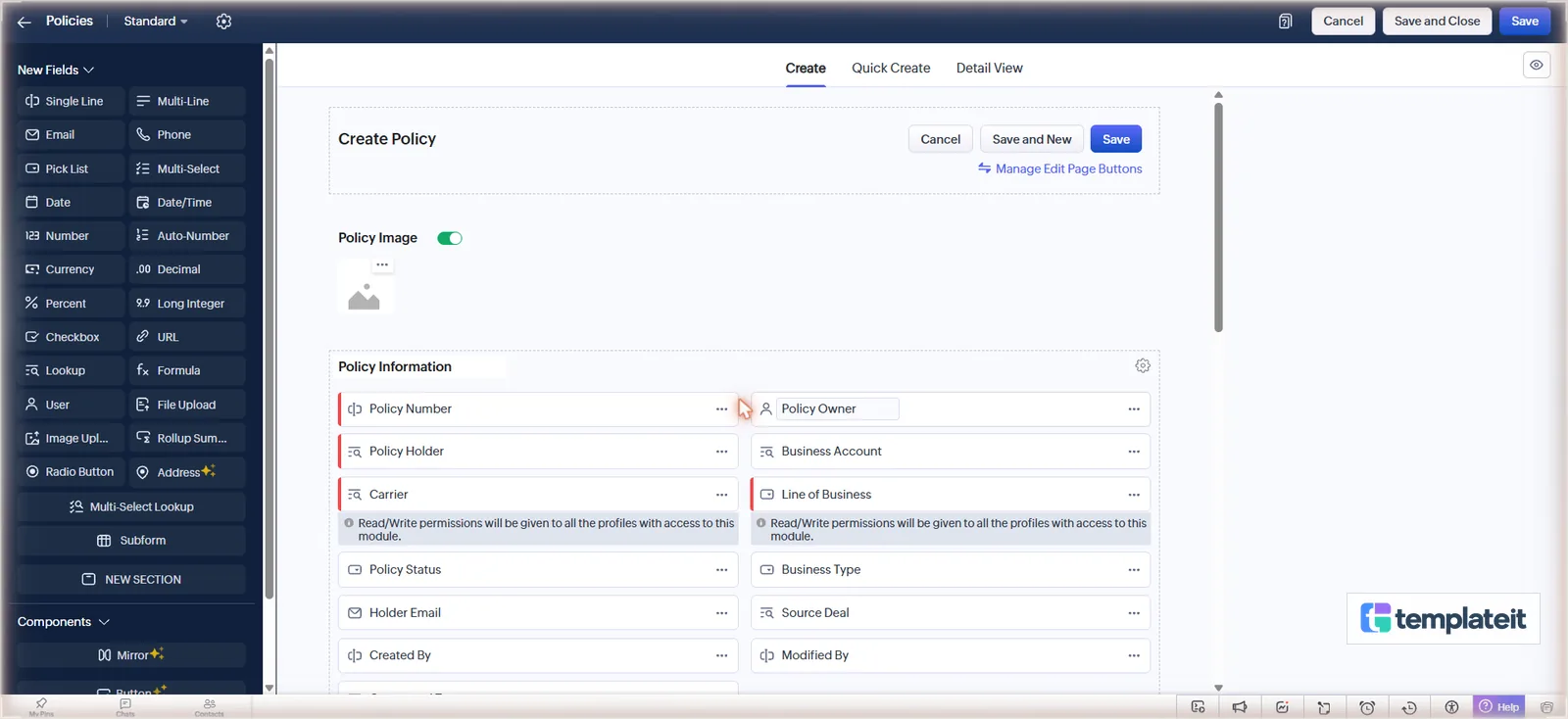
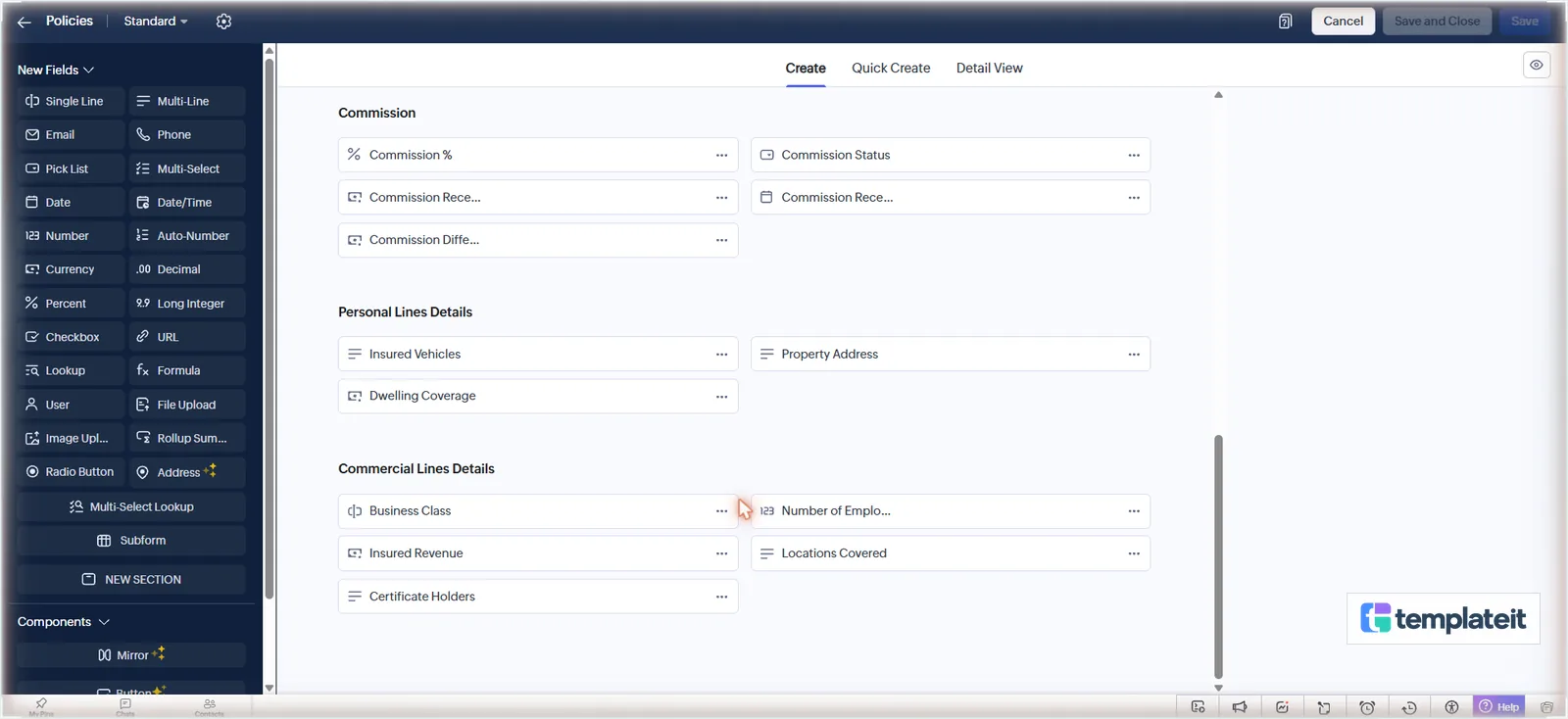
The layout rule hides whichever lines section doesn’t apply:
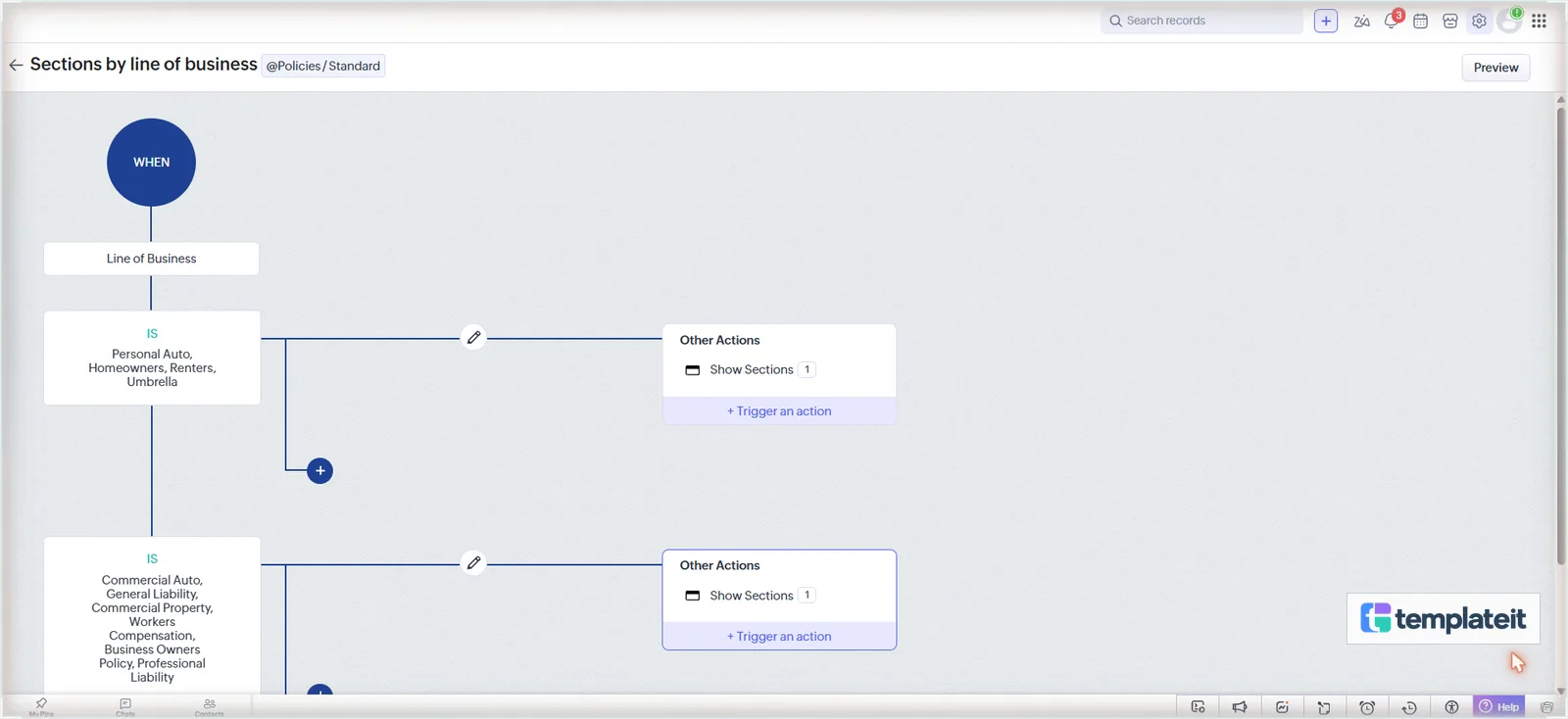
- In the Policies module settings open Layout Rules > New Layout Rule, name it Sections by line of business and pick Line of Business as the primary field.
- First condition: Line of Business is Personal Auto, Homeowners, Renters, Umbrella. Click Done, then Trigger an action > Show Sections > Personal Lines Details, and Save. Click the values in the list; typing makes free-text chips instead.
- Add the second branch with Choose an option under the first condition. The + looks like the right button, but it adds an AND. Condition: Line of Business is Commercial Auto, General Liability, Commercial Property, Workers Compensation, Business Owners Policy, Professional Liability. Action: Show Sections > Commercial Lines Details.
Step 3: Set up the new business and renewals pipelines
Leads and Deals need a few fields first.
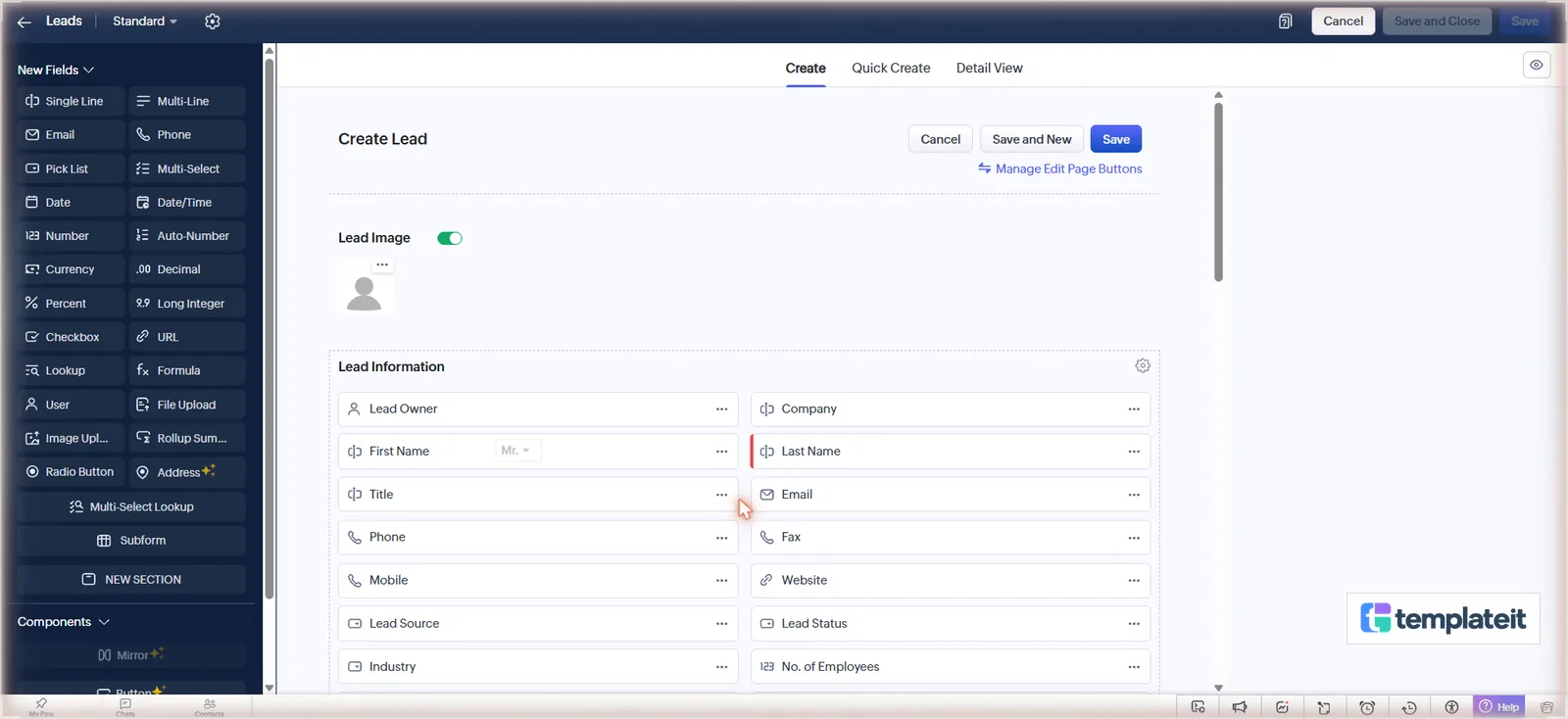
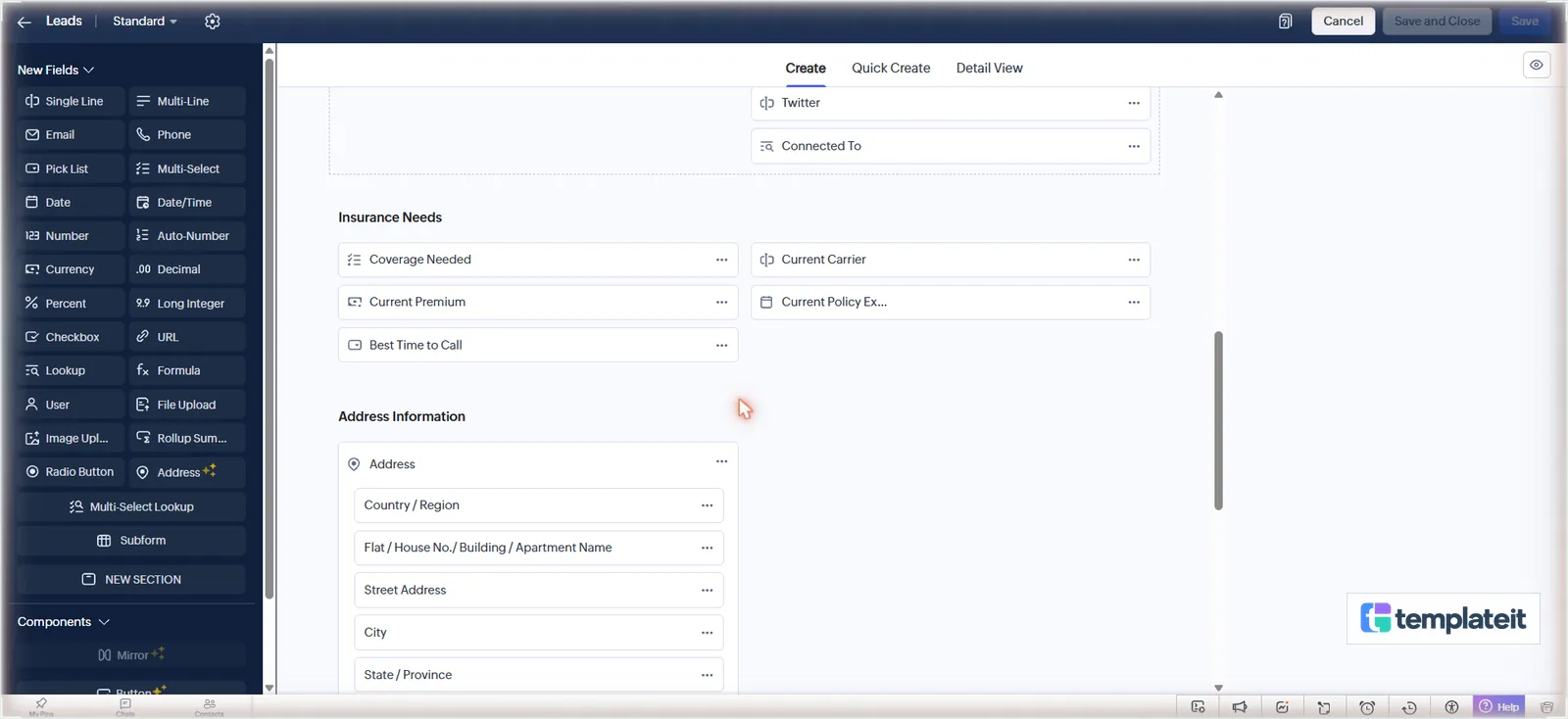
On Leads, untick Mark as required in the Company field’s … menu. Most personal lines clients are people, not companies, and a required Company would create an Account at every conversion. Then add an Insurance Needs section with Coverage Needed (Multi-Select), Current Carrier, Current Premium, Current Policy Expires and Best Time to Call.
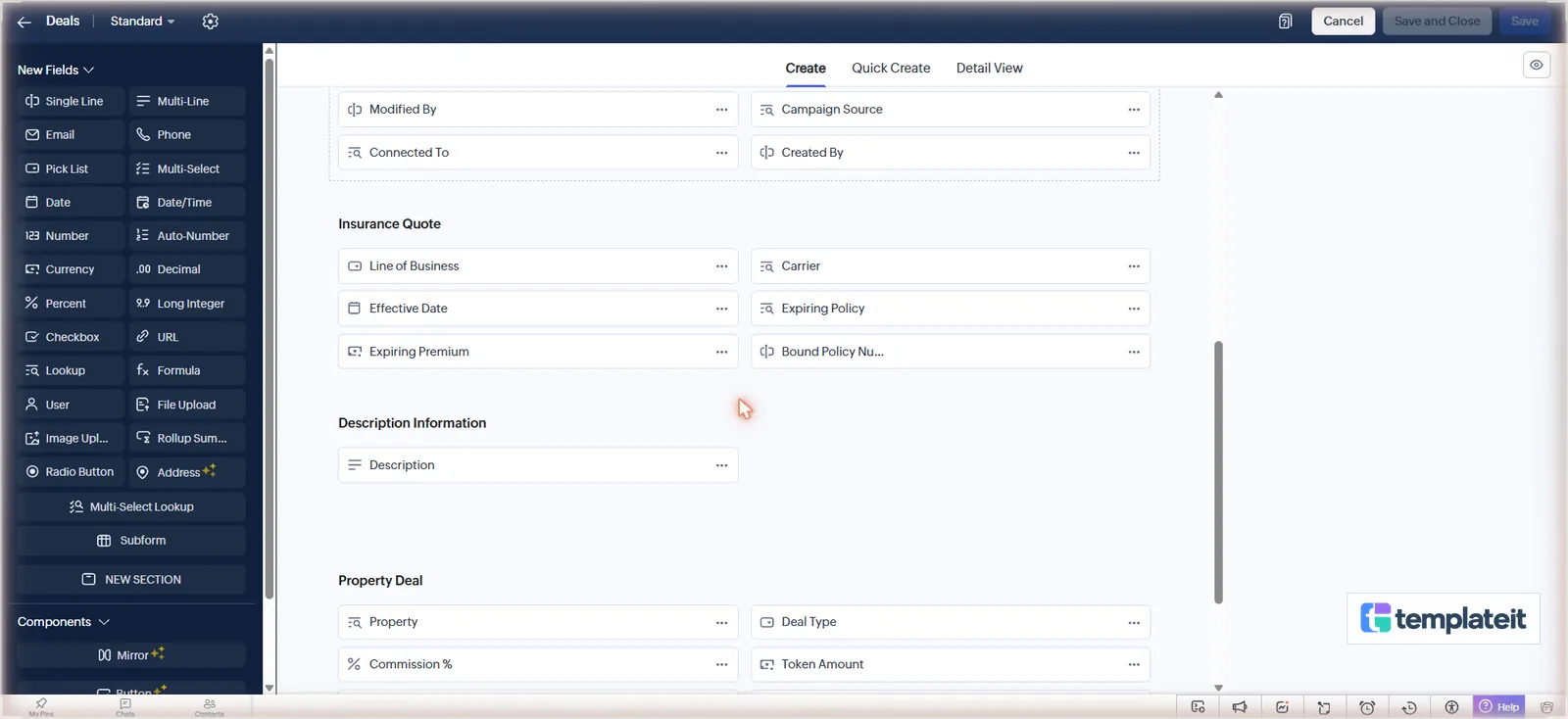
On Deals, add an Insurance Quote section with Line of Business, Carrier (lookup to Carriers, related list Quotes), Effective Date, Expiring Policy (lookup to Policies, related list Renewal Quotes), Expiring Premium and Bound Policy Number. The quoted annual premium goes in the standard Amount field.
Now the pipelines. Go to Setup > Customization > Pipelines > New Pipeline, name it New Business and keep the Standard layout. Under Stages, click Create New Stage and a table opens with an empty row at the bottom; type the name and probability, pick the record and forecast category, and Save. The table scrolls as it opens, so your first click often lands before it settles. Click the empty row again before you type. Finish with the existing Closed Lost stage, tick Set as Default and Save.
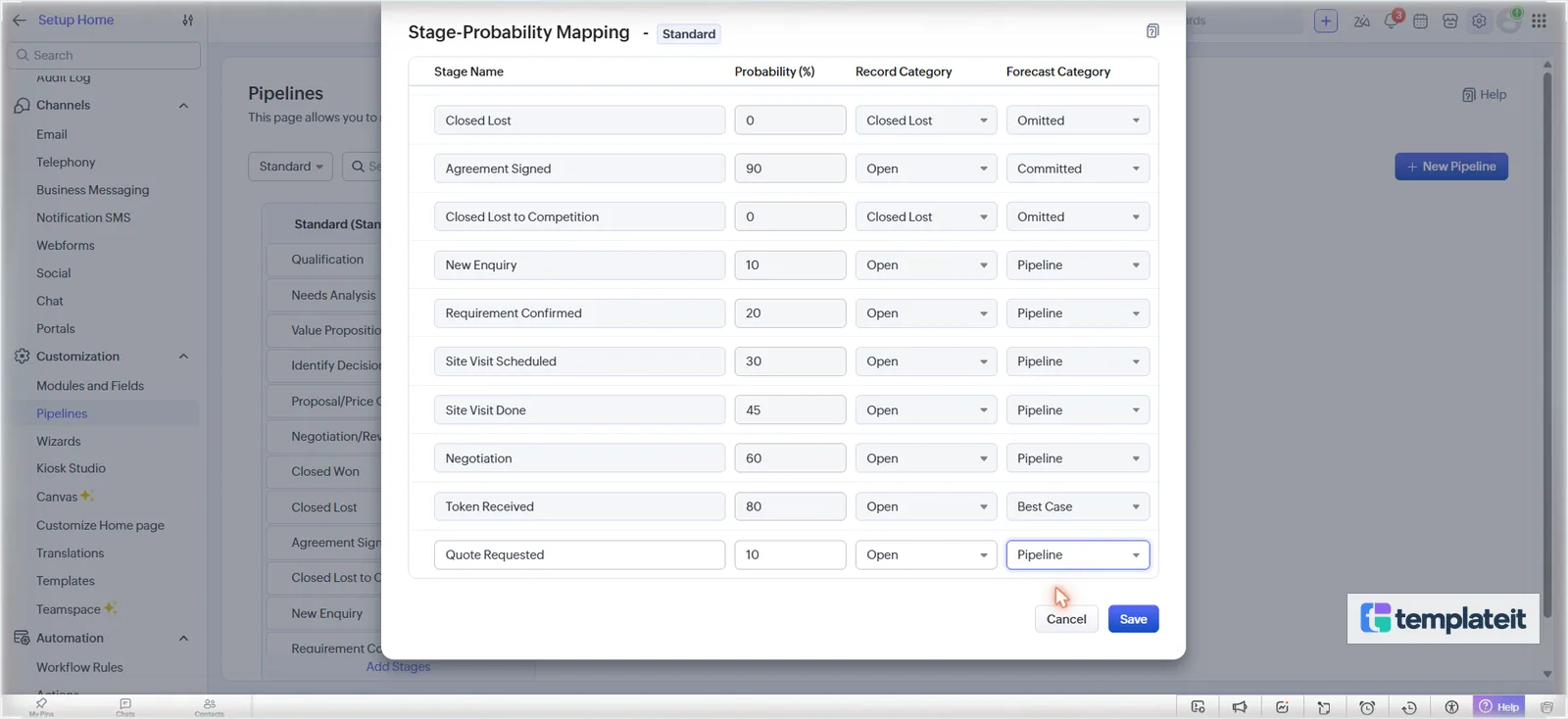
| Pipeline | Stage | Probability | Record category | Forecast |
|---|---|---|---|---|
| New Business | Quote Requested | 10% | Open | Pipeline |
| New Business | Gathering Details | 20% | Open | Pipeline |
| New Business | Quoting with Carriers | 40% | Open | Pipeline |
| New Business | Quote Presented | 70% | Open | Best Case |
| New Business | Bound | 100% | Closed Won | Closed |
| Renewals | Renewal Due | 30% | Open | Pipeline |
| Renewals | Reviewing Coverage | 50% | Open | Pipeline |
| Renewals | Remarketing | 60% | Open | Pipeline |
| Renewals | Renewal Offered | 80% | Open | Committed |
| Renewals | Renewed | 100% | Closed Won | Closed |
| Both | Closed Lost | 0% | Closed Lost | Omitted |
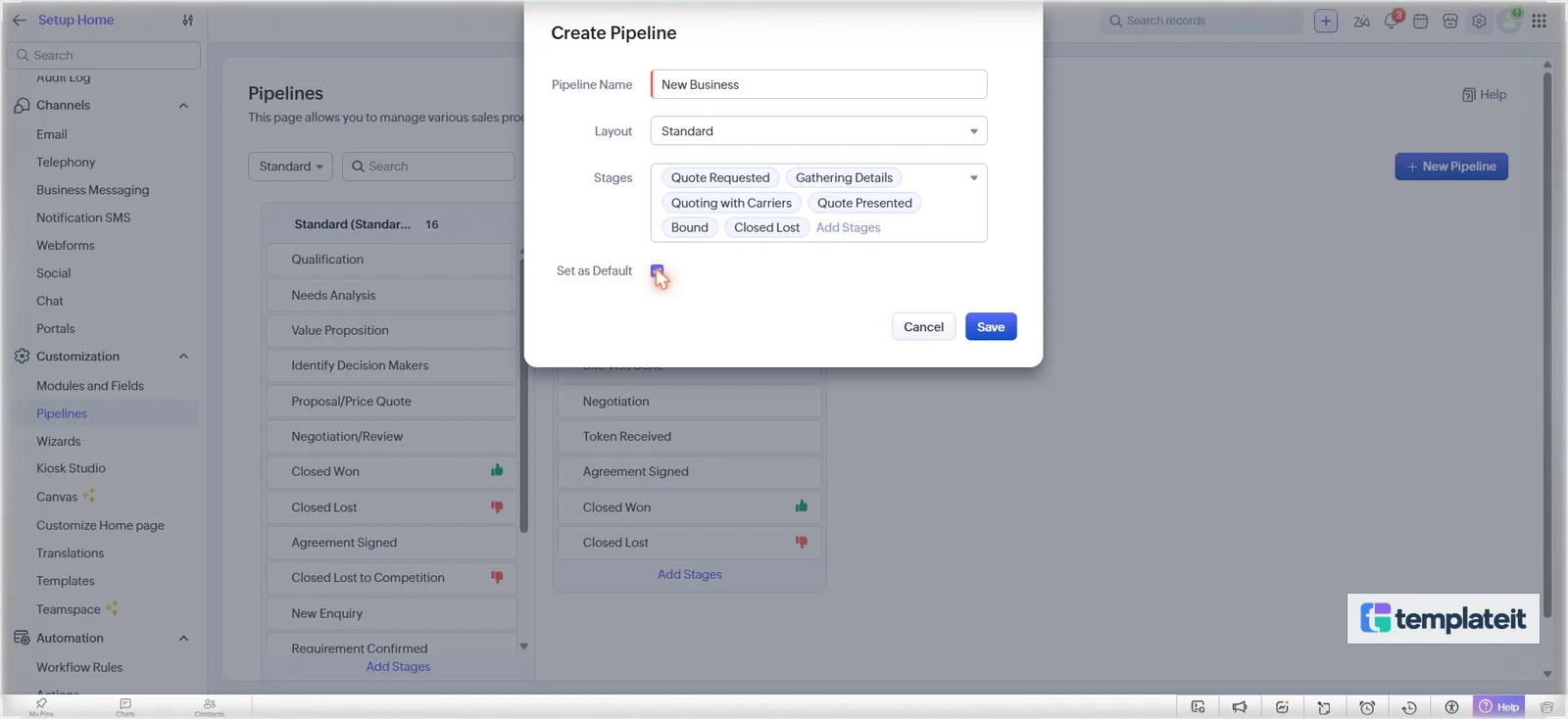
Build Renewals the same way, with its five stages and Closed Lost, but don’t make it the default. You won’t add deals to it by hand; the renewal workflow puts them there.
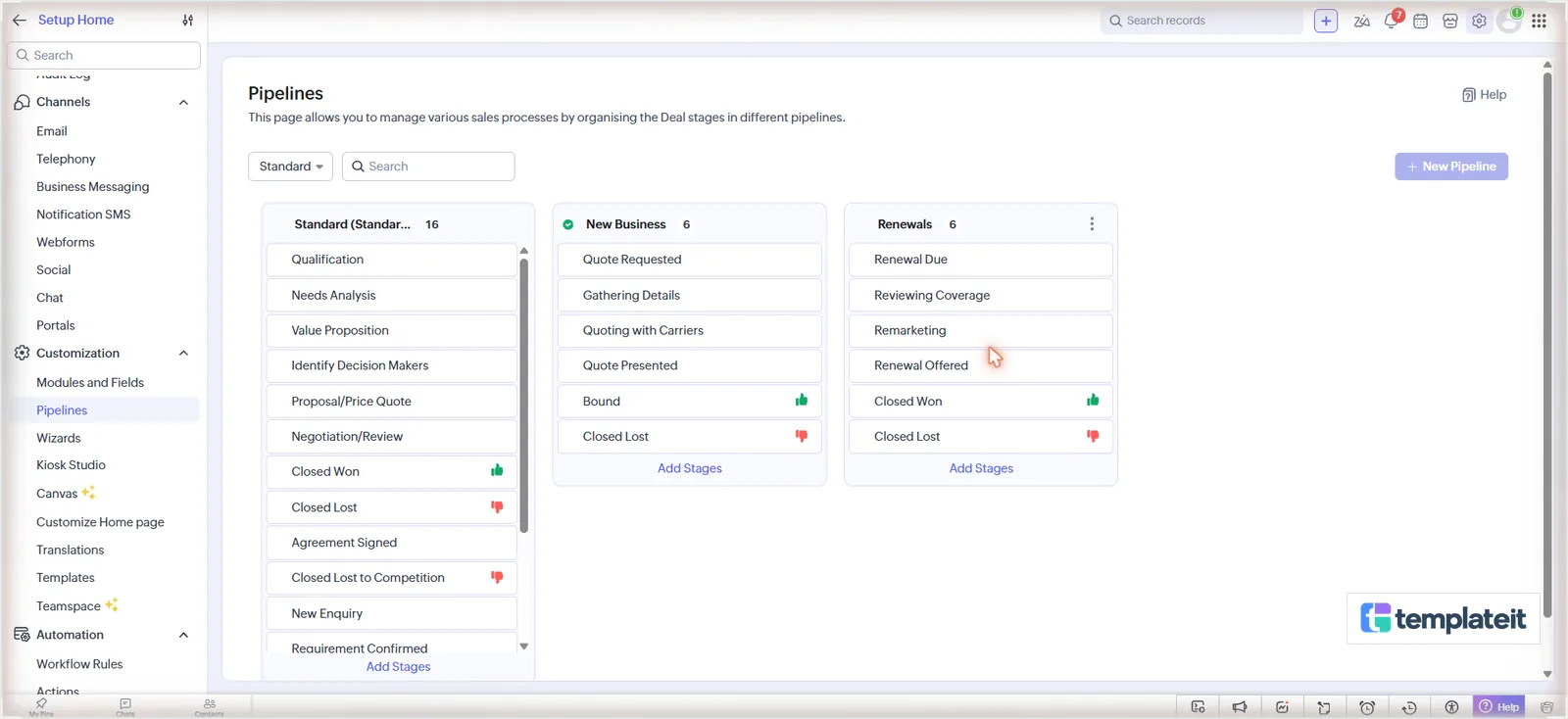
Every pipeline draws on one Stage pick list, which holds 25 values, and removing a pipeline leaves its stages in that list. These two pipelines add ten, so count the values already on the Deals Stage field before you start.
Step 4: Build the renewal reminder workflow
Start with the email templates, INS-03 first. For each file in email-templates/:
- Setup > Customization > Templates > New Template, pick the module named in the file’s header comment (Leads, Policies or Claims) and click Next.
- Click Insert HTML / Plain Text at the top right of the gallery.
- Click the
</>button in the editor toolbar, replace everything in the box with the file’s HTML and click Insert. - Type the name and subject from the header comment, then Save > Save Now into Public Email Templates.
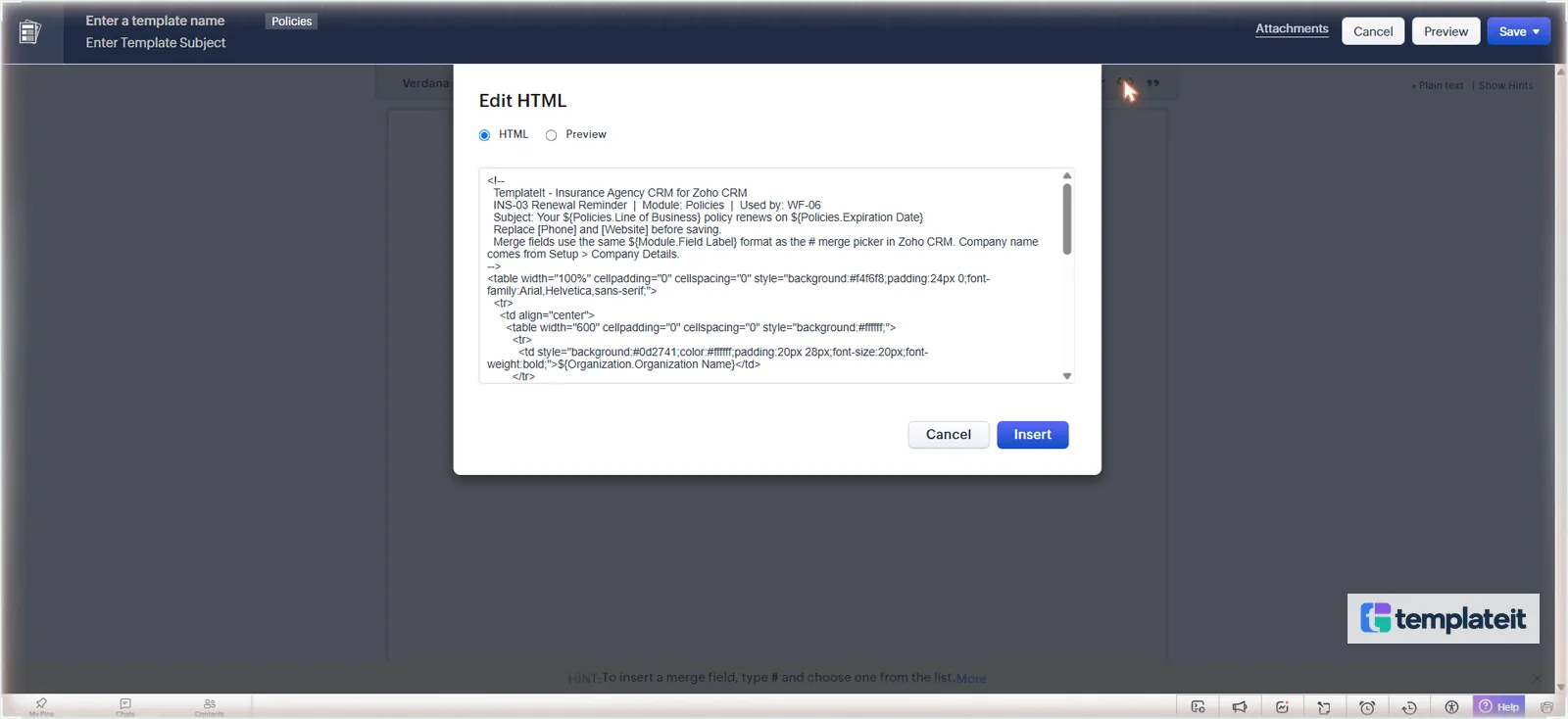
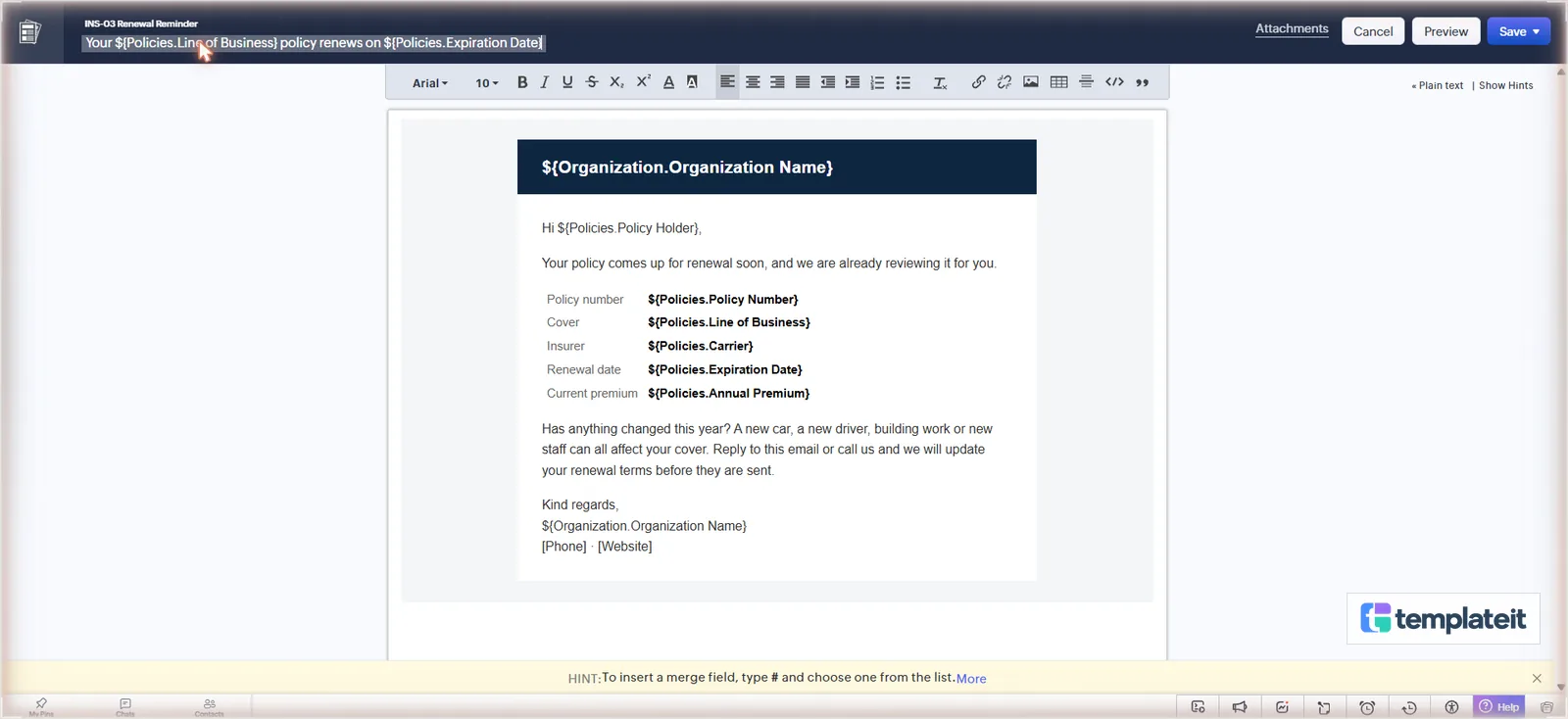
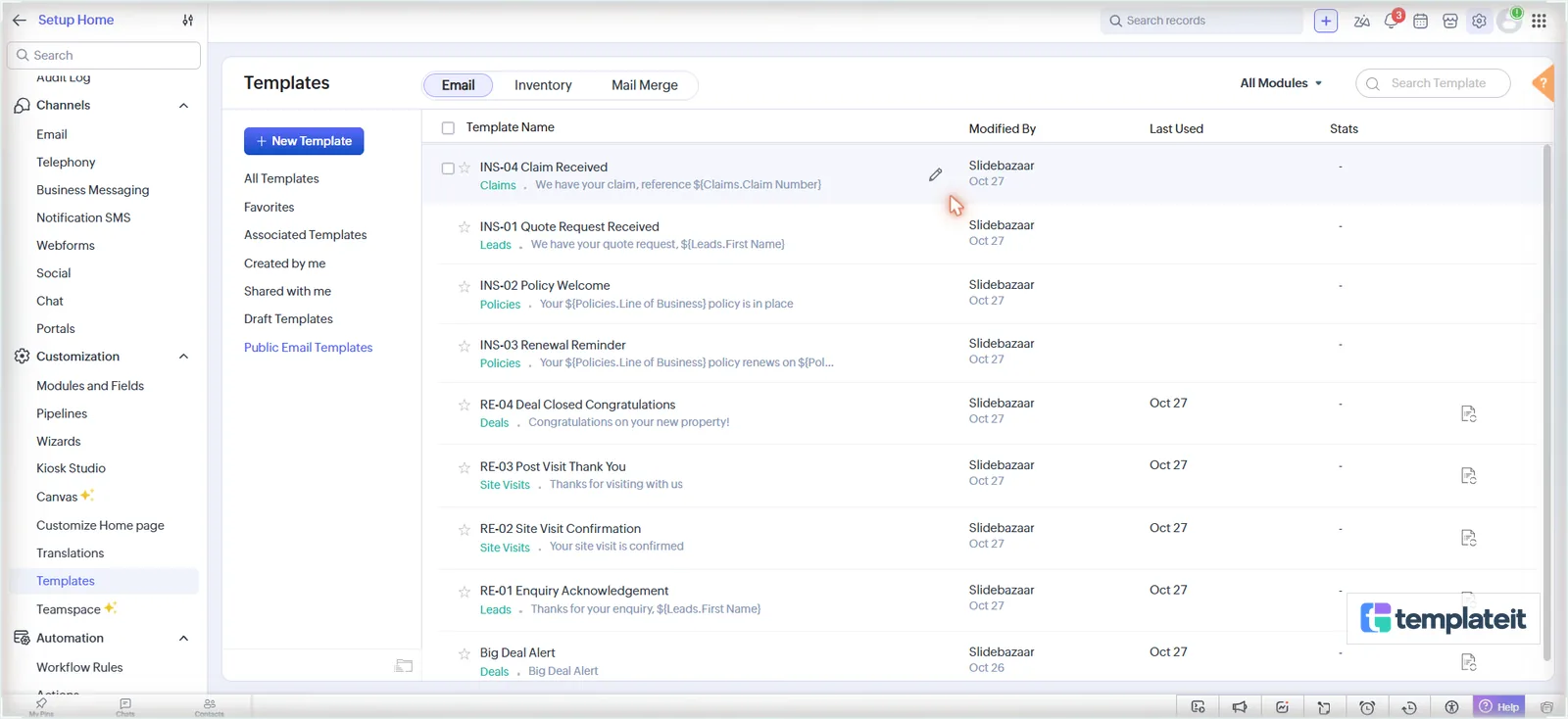
All four then show up under Public Email Templates.
Swap [Phone] and [Website] for your own. Merge fields such as ${Policies.Policy Number} are in the same format the # picker writes, so they work as pasted, unless one of your field labels differs. Then Zoho says Please Remove/Change the unsupported merge fields, and you re-insert that field with the # picker.
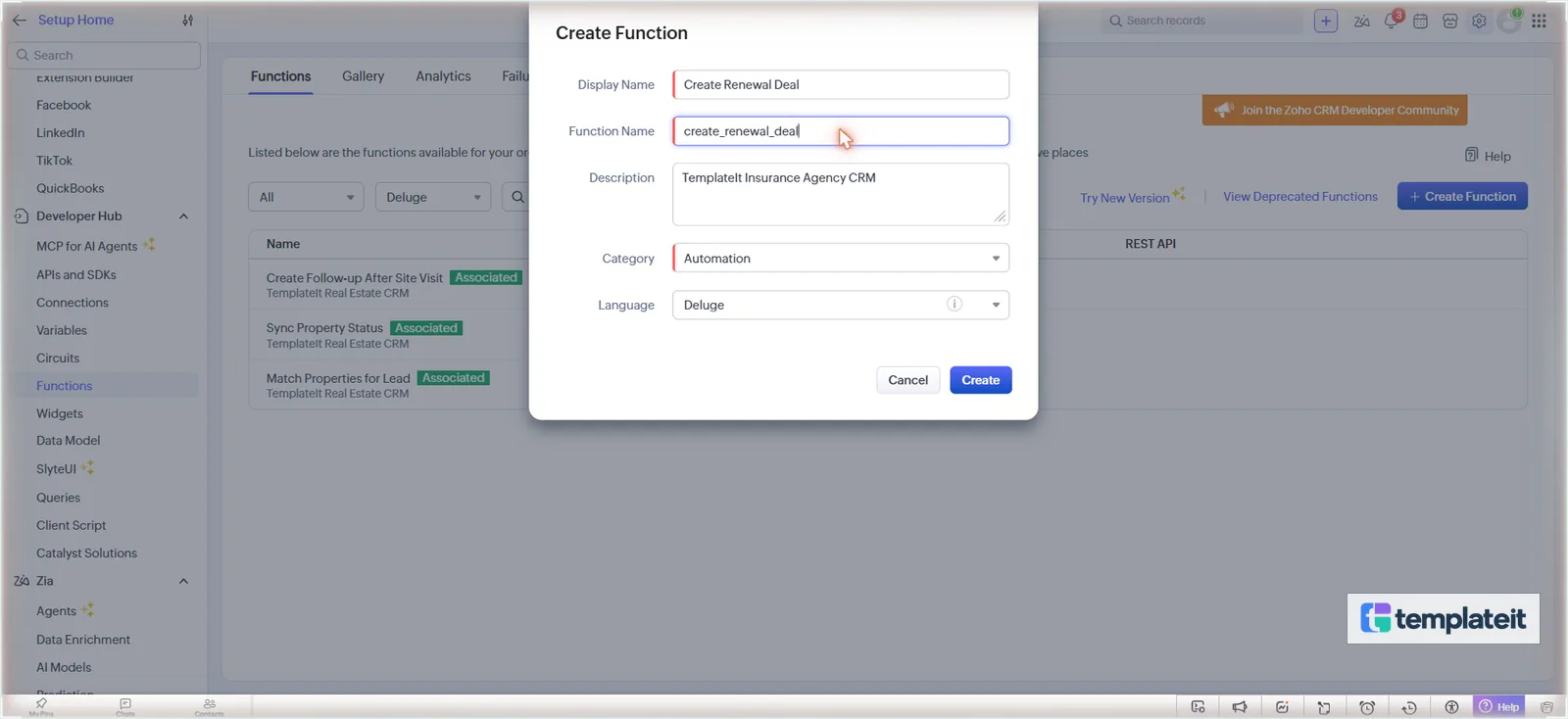
Then the functions. Each one is created in Setup > Developer Hub > Functions > Create Function, with the display name and function name from tab “6 Functions” and category Automation. Click Create, replace the editor contents with the function’s first line from this table, then {, the code from its file, and }, and Save. You should see 0 errors.
| File | First line in the editor |
|---|---|
create_renewal_deal.deluge | void automation.create_renewal_deal(String policyId) |
check_commission.deluge | void automation.check_commission(String policyId) |
create_policy_from_deal.deluge | void automation.create_policy_from_deal(String dealId) |
Only the first goes in now; the other two come in Steps 6 and 7. If a function complains about a field, an API name in your account differs from the script. Setup > Developer Hub > APIs and SDKs > API Names shows the real one.
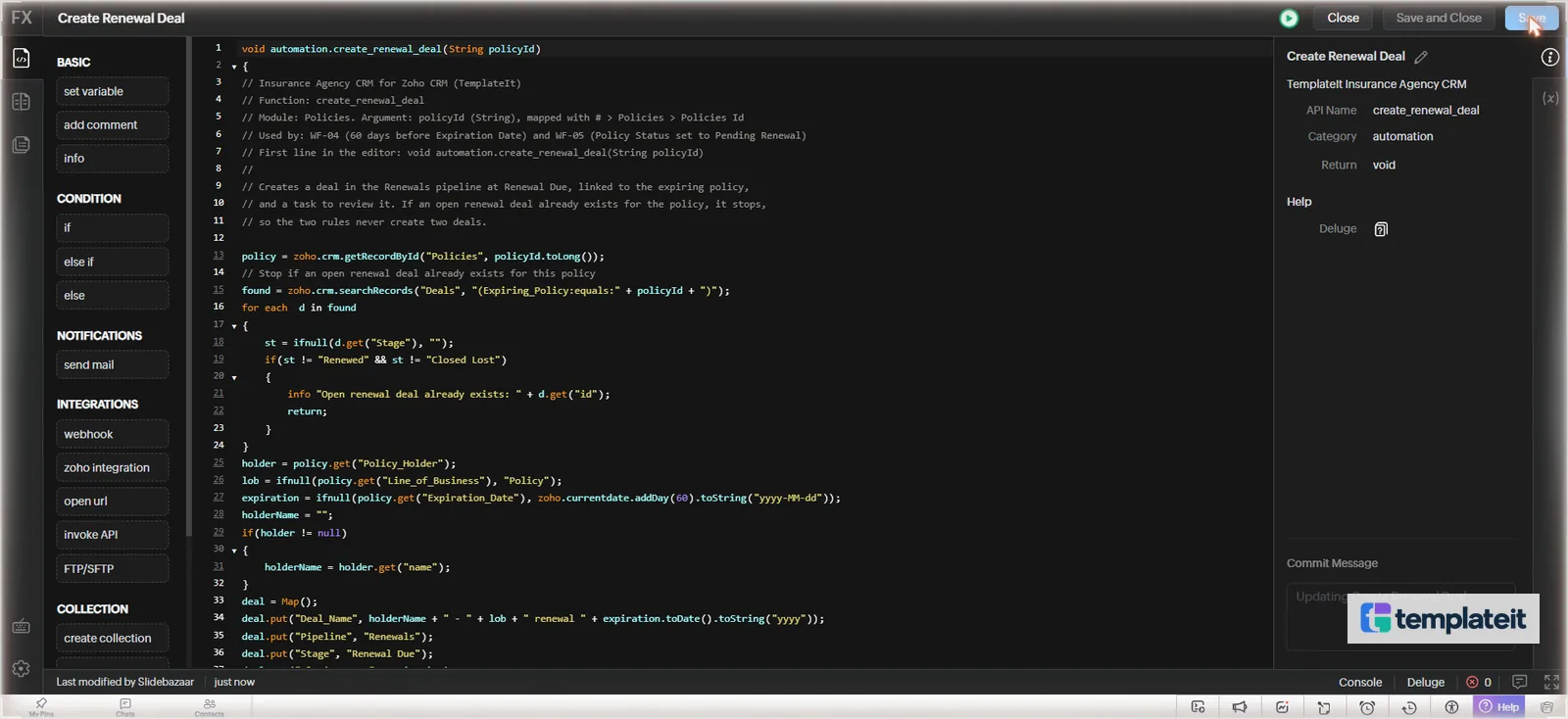
deluge/create_renewal_deal.deluge · Create a renewal deal for an expiring policy
policy = zoho.crm.getRecordById("Policies", policyId.toLong());
// both wf-04 and wf-05 land here, skip if an open renewal exists
found = zoho.crm.searchRecords("Deals", "(Expiring_Policy:equals:" + policyId + ")");
for each  d in found
{
	st = ifnull(d.get("Stage"), "");
	if(st != "Renewed" && st != "Closed Lost")
	{
		info "Open renewal deal already exists: " + d.get("id");
		return;
	}
}
holder = policy.get("Policy_Holder");
lob = ifnull(policy.get("Line_of_Business"), "Policy");
expiration = ifnull(policy.get("Expiration_Date"), zoho.currentdate.addDay(60).toString("yyyy-MM-dd"));
holderName = "";
if(holder != null)
{
	holderName = holder.get("name");
}
deal = Map();
deal.put("Deal_Name", holderName + " - " + lob + " renewal " + expiration.toDate().toString("yyyy"));
deal.put("Pipeline", "Renewals");
deal.put("Stage", "Renewal Due");
deal.put("Closing_Date", expiration);
deal.put("Effective_Date", expiration);
deal.put("Amount", ifnull(policy.get("Annual_Premium"), 0));
deal.put("Expiring_Premium", ifnull(policy.get("Annual_Premium"), 0));
deal.put("Line_of_Business", policy.get("Line_of_Business"));
deal.put("Expiring_Policy", policyId);
deal.put("Bound_Policy_Number", policy.get("Name"));
if(holder != null)
{
	deal.put("Contact_Name", holder.get("id"));
}
if(policy.get("Business_Account") != null)
{
	deal.put("Account_Name", policy.get("Business_Account").get("id"));
}
if(policy.get("Carrier") != null)
{
	deal.put("Carrier", policy.get("Carrier").get("id"));
}
ownerId = null;
if(policy.get("Owner") != null)
{
	ownerId = policy.get("Owner").get("id");
	deal.put("Owner", ownerId);
}
created = zoho.crm.createRecord("Deals", deal);
newId = created.get("id");
if(newId == null)
{
	info "Renewal deal not created: " + created;
	return;
}
if(policy.get("Policy_Status") == "Active")
{
	zoho.crm.updateRecord("Policies", policyId.toLong(), {"Policy_Status":"Pending Renewal"});
}
task = Map();
task.put("Subject", "Review renewal: " + policy.get("Name") + " (" + lob + ")");
task.put("Due_Date", zoho.currentdate.addDay(7).toString("yyyy-MM-dd"));
task.put("Priority", "High");
task.put("What_Id", newId);
task.put("$se_module", "Deals");
if(ownerId != null)
{
	task.put("Owner", ownerId);
}
zoho.crm.createRecord("Tasks", task);
The three renewal rules go in Setup > Automation > Workflow Rules > Create Rule, module Policies:
| ID | When | Condition | Action |
|---|---|---|---|
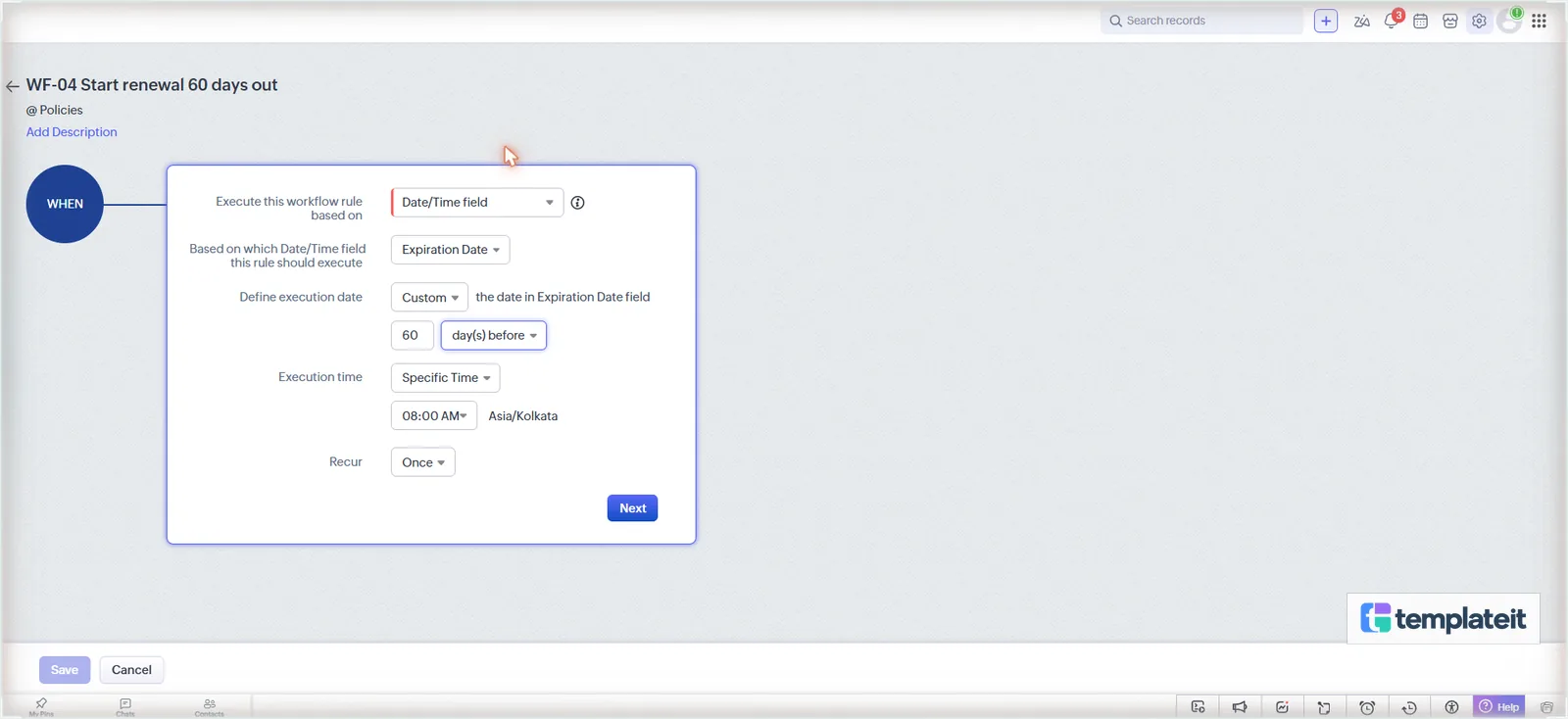
| WF-04 Start renewal 60 days out | Date/Time field > Expiration Date > Custom: 60 day(s) before, 08:00, Once | Policy Status is Active | Function Create Renewal Deal |
| WF-05 Renewal deal on status change | Record action > Edit > Specific field(s) gets modified: Policy Status to the value Pending Renewal (tick Repeat) | All Policies | Function Create Renewal Deal |
| WF-06 Renewal reminder 30 days out | Date/Time field > Expiration Date > 1 month before, 08:00, Once | Policy Status is Pending Renewal | Email INS-03 Renewal Reminder to the policy holder |
The date presets stop at a month, which is why WF-04 uses Custom.
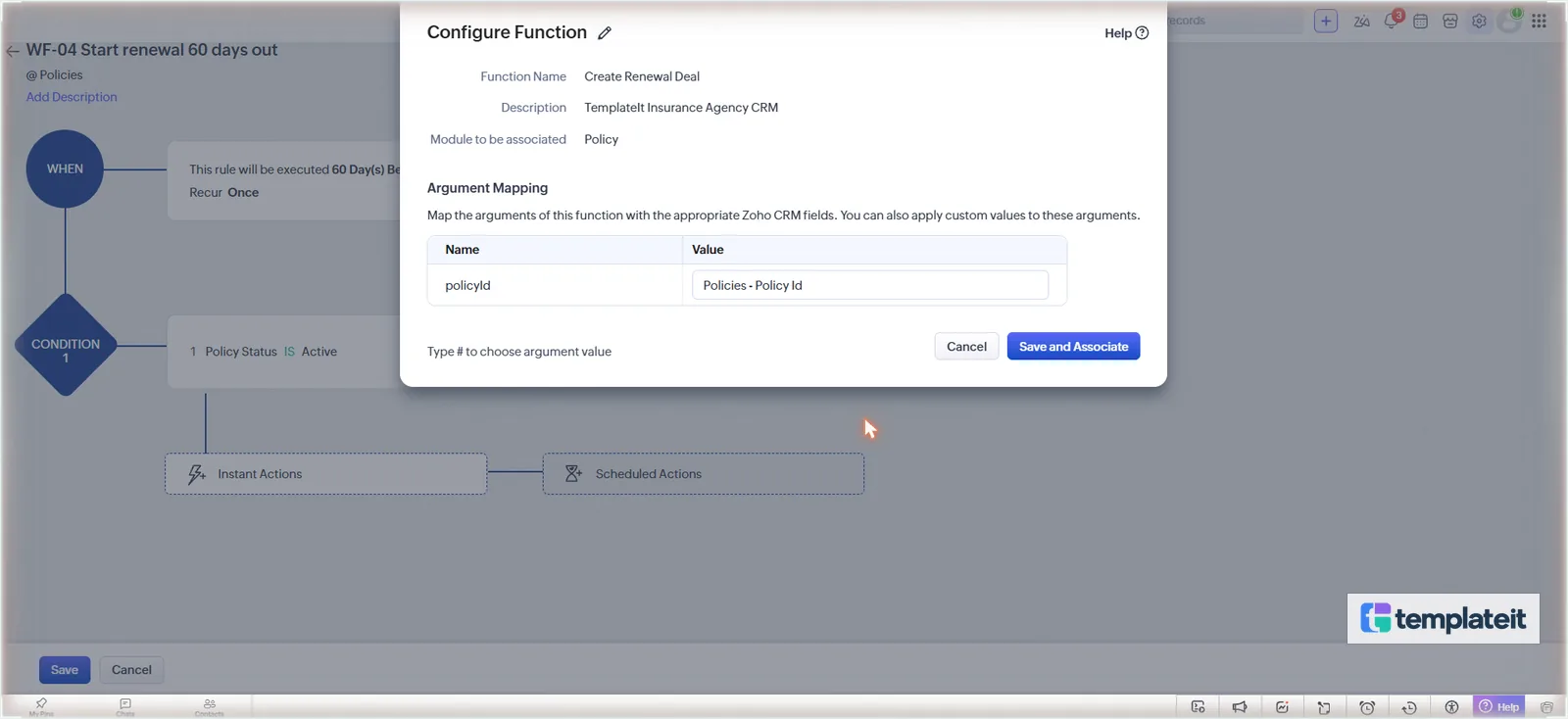
To attach the function, go to Instant Actions > Function > Functions, click Configure next to it, type # in Value and pick Policies > Policy Id. Done, then Save and Associate. On WF-05 the function is already in the list, so pick it and click Associate.
For WF-06 use Instant Actions > Email Notification. In To, switch the list from Policy to Policy Holder and pick Email, then Select Template and Save and Associate. There’s no need to copy the holder’s email onto the policy.
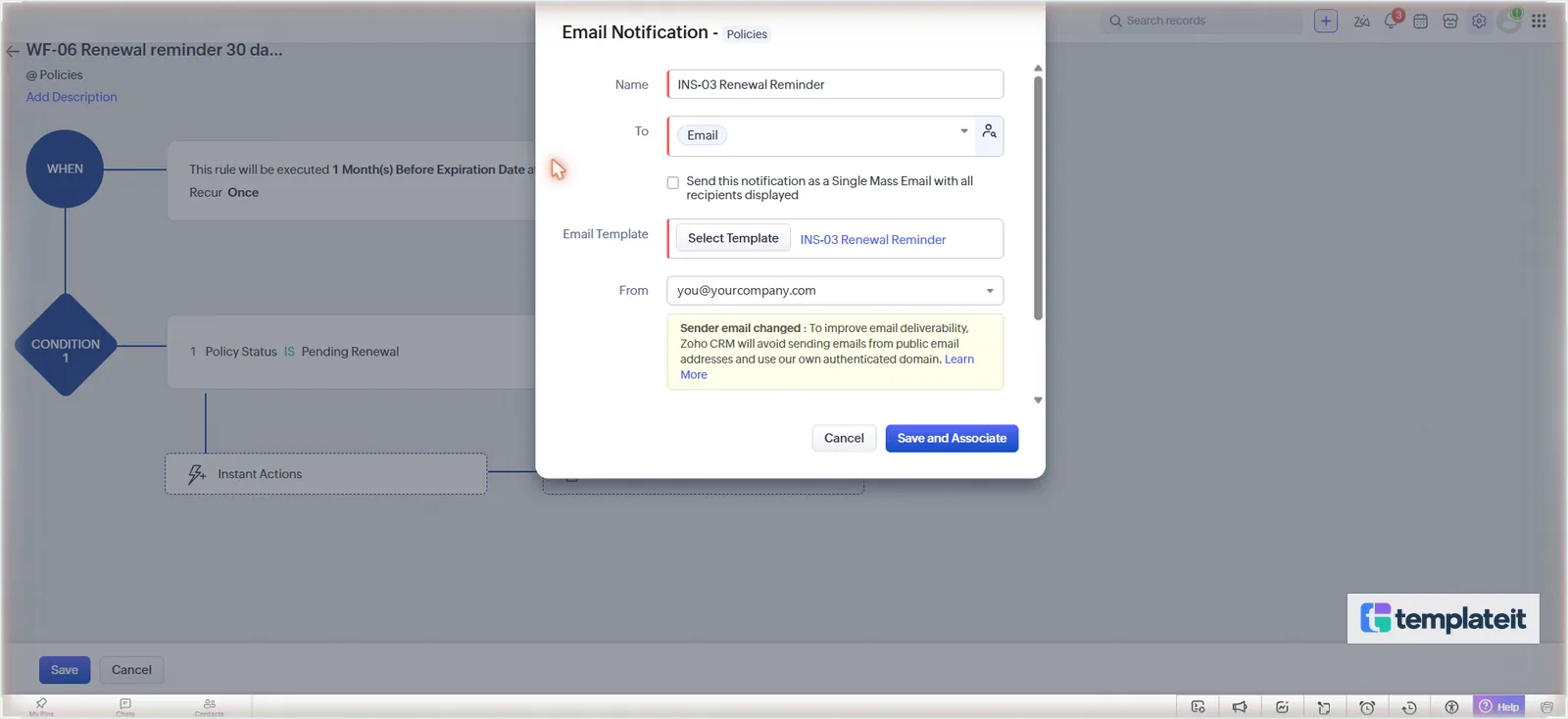
WF-05 is how you start a renewal early, by setting a policy to Pending Renewal, and it’s also the quick way to watch the renewal function run without waiting 60 days. It and WF-04 call the same function, which looks for an open renewal deal on the policy before it makes one, so a policy set twice still gets one deal.
Step 5: Add the claims approval process
Create the Claims module (singular Claim) as in Step 1, rename Claim Name to Claim Number, and this time do tick Do not allow duplicate values. Its fields from the setup sheet are Policy (lookup to Policies), Policy Holder (lookup to Contacts), Claim Type, Claim Status (default Reported), Date of Loss, Date Reported, Claim Amount, and a Carrier Handling section for the carrier’s claim number and the adjuster. Policy, Policy Holder, Date of Loss and Claim Amount are required, and the default Email fields come out.
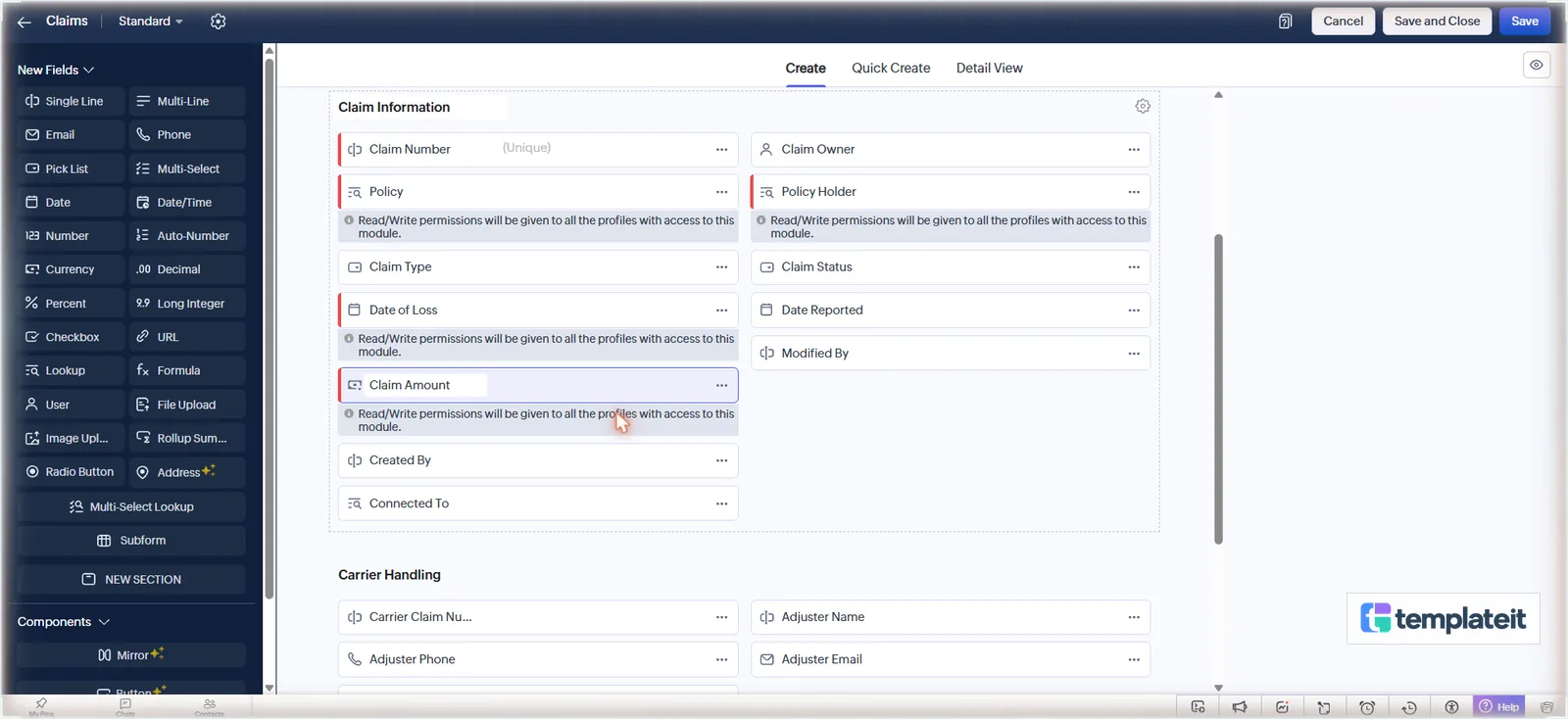
Add the template INS-04 Claim Received and the rule WF-08 Claim received: module Claims, Record action Create, all claims. It emails INS-04 to Policy Holder > Email and, under Activities > Assign Task, sets Review claim and report to carrier, due on the trigger date, priority High.
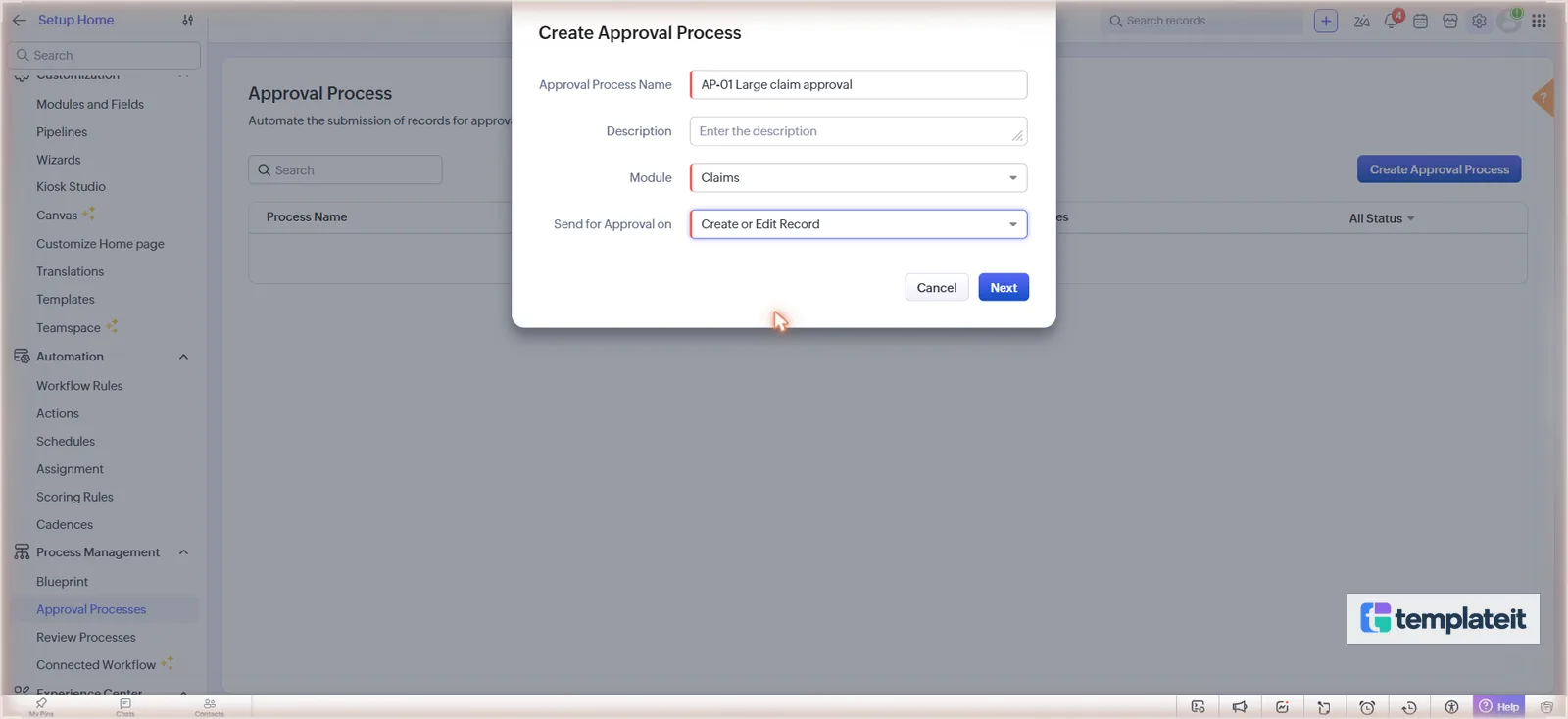
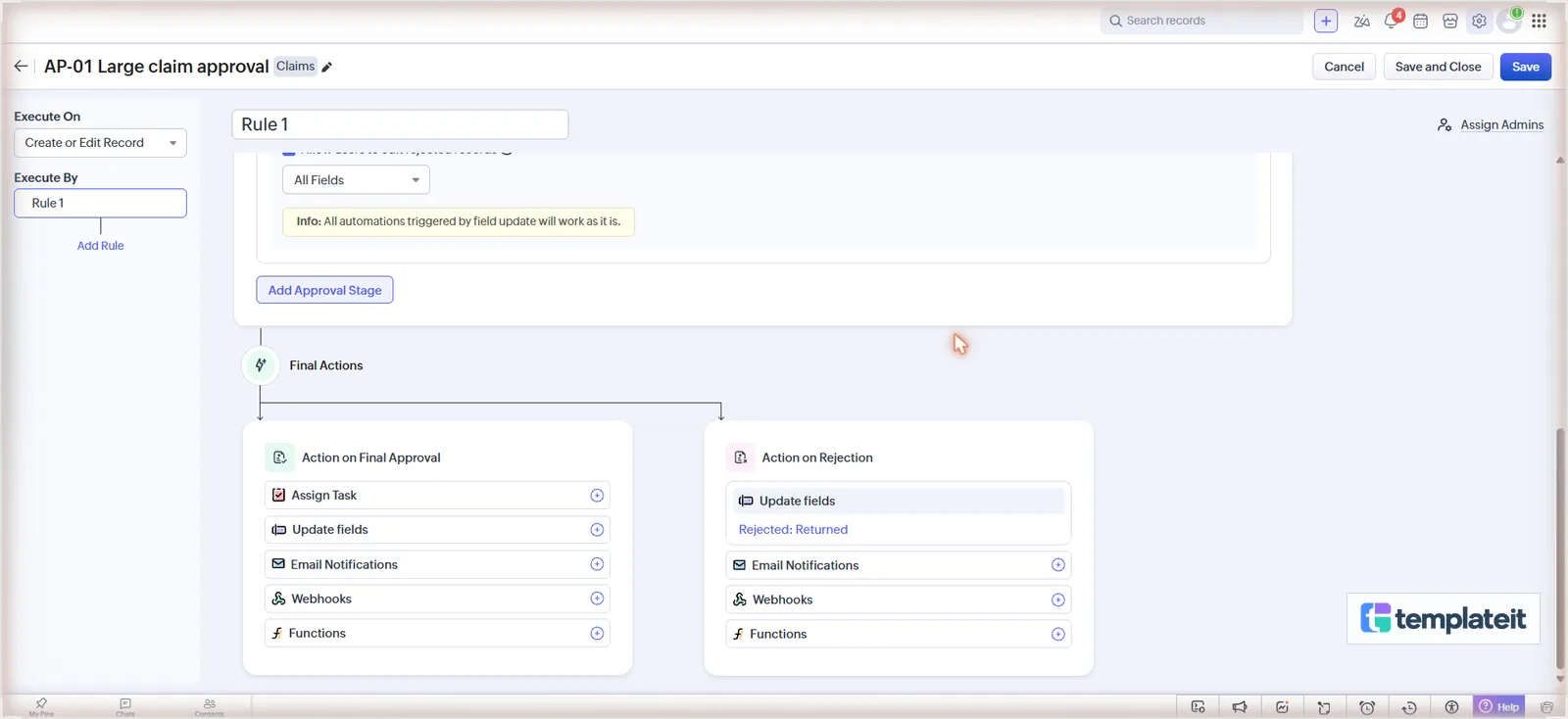
For the approval, go to Setup > Process Management > Approval Processes > Create Approval Process. Call it AP-01 Large claim approval, module Claims, Send for Approval on: Create or Edit Record, and click Next.
- Approval Criteria: Claim Amount >= 50000. Pick a figure that suits your agency.
- Add Approval Stage > Role: the role of whoever signs off claims (CEO in a new account), with Anyone left as it is.
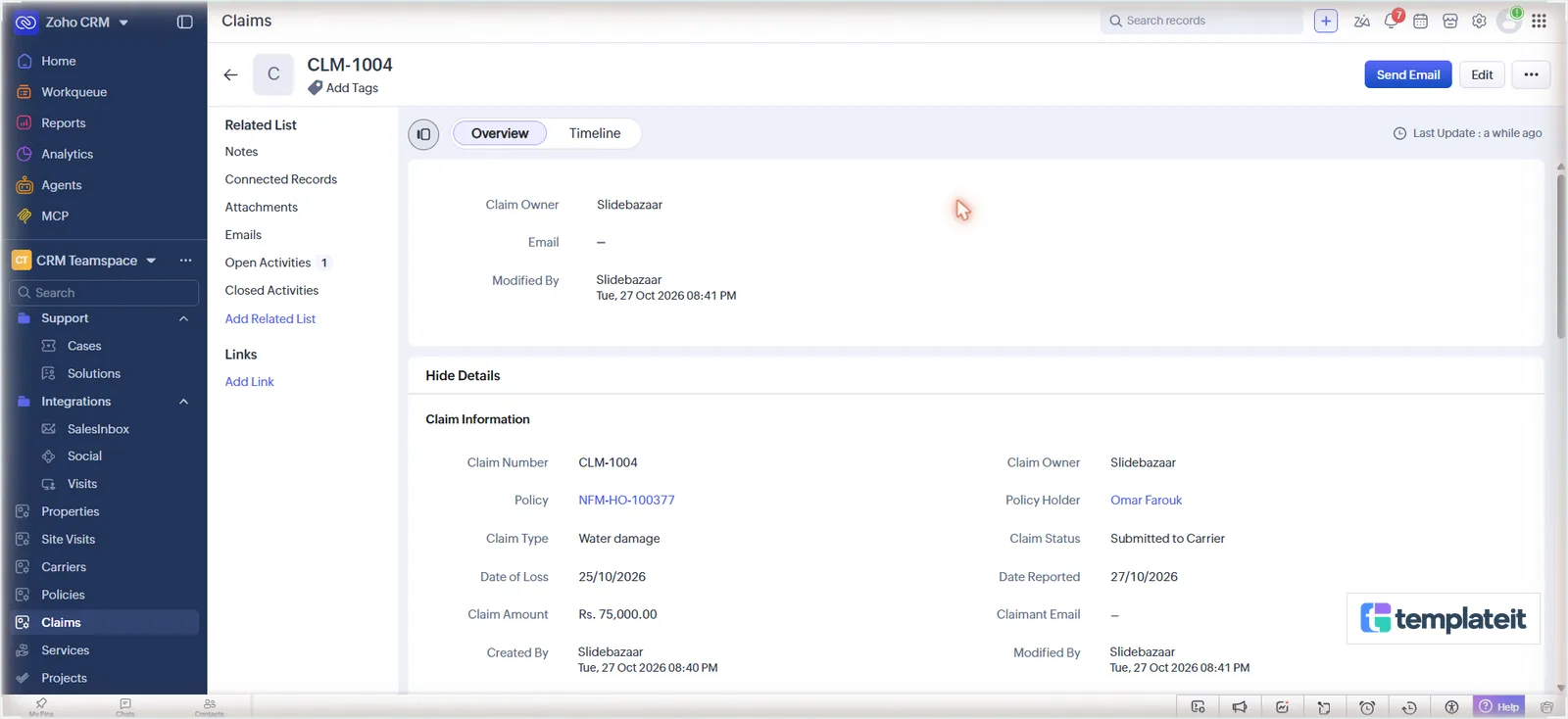
- Action on Approval > Update fields opens a create form straight away. Make Approved: Submitted to Carrier, setting Claim Status to Submitted to Carrier, then Save and Associate.
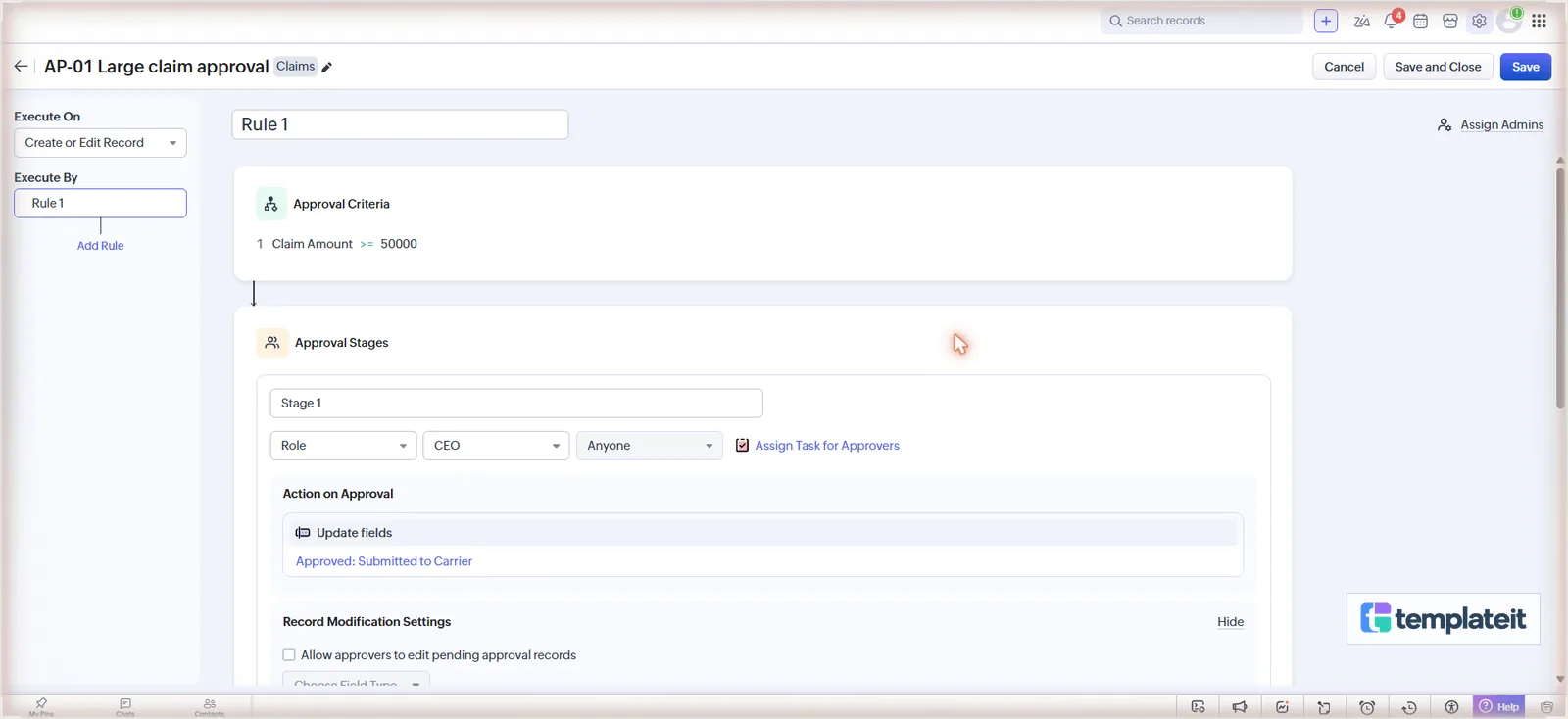
- Rejection lives under Final Actions > Action on Rejection > Update fields: Rejected: Returned sets Claim Status to Returned. Save and Close.
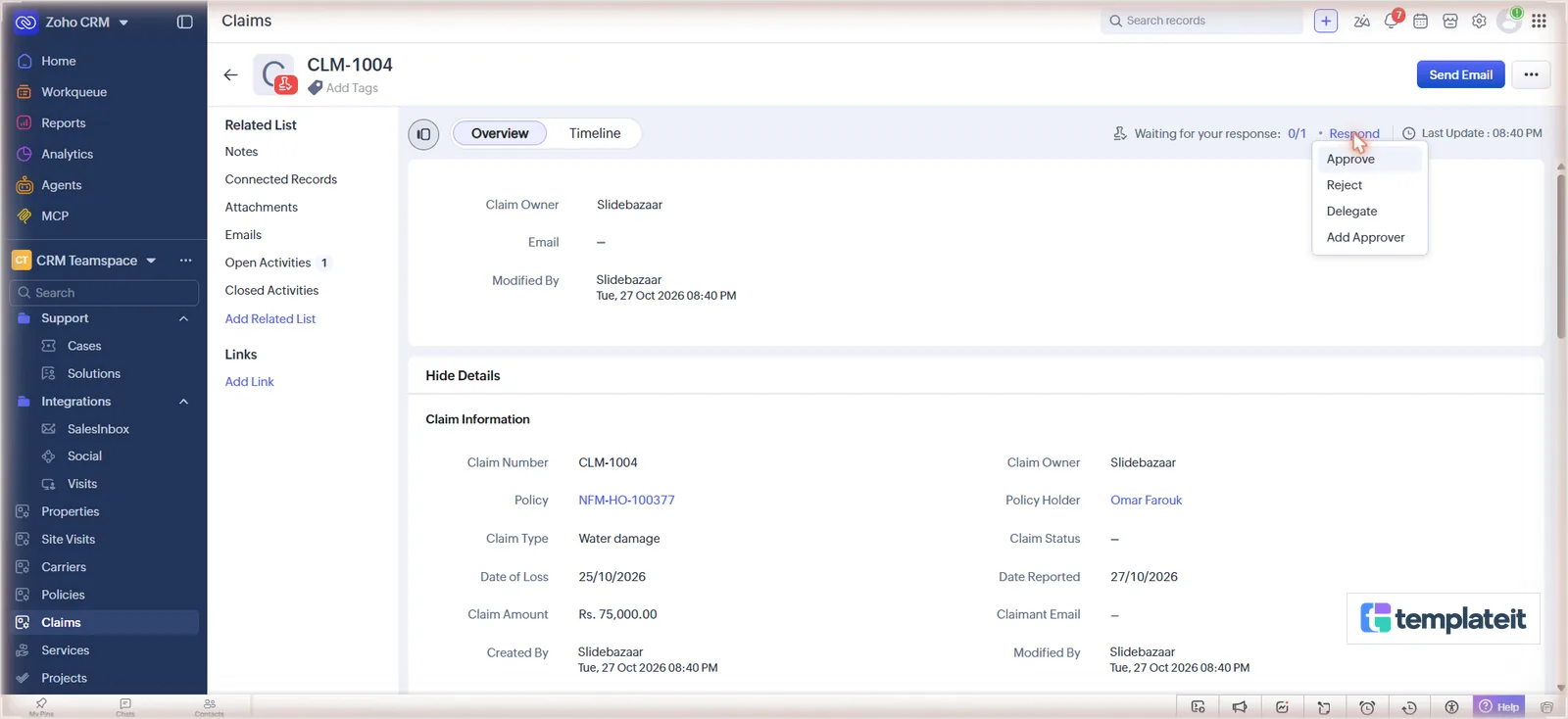
A claim waiting for sign-off is locked, and the approver sees Waiting for your response on it, with Respond > Approve or Reject.
Step 6: Track commission per policy
Fill New Business Commission % and Renewal Commission % on every carrier first. When a quote is bound the function copies the right one onto the new policy, and a carrier left blank gives you a policy at 0%.
Expected Commission is a formula field. The formula editor lists only saved fields, so save the Policies layout with everything else on it before you start. Then drag a Formula field into the Commission section, label it Expected Commission, set Formula Return Type to Currency and enter ${Policies.Annual Premium}*${Policies.Commission %}/100. Done, and Save the layout.
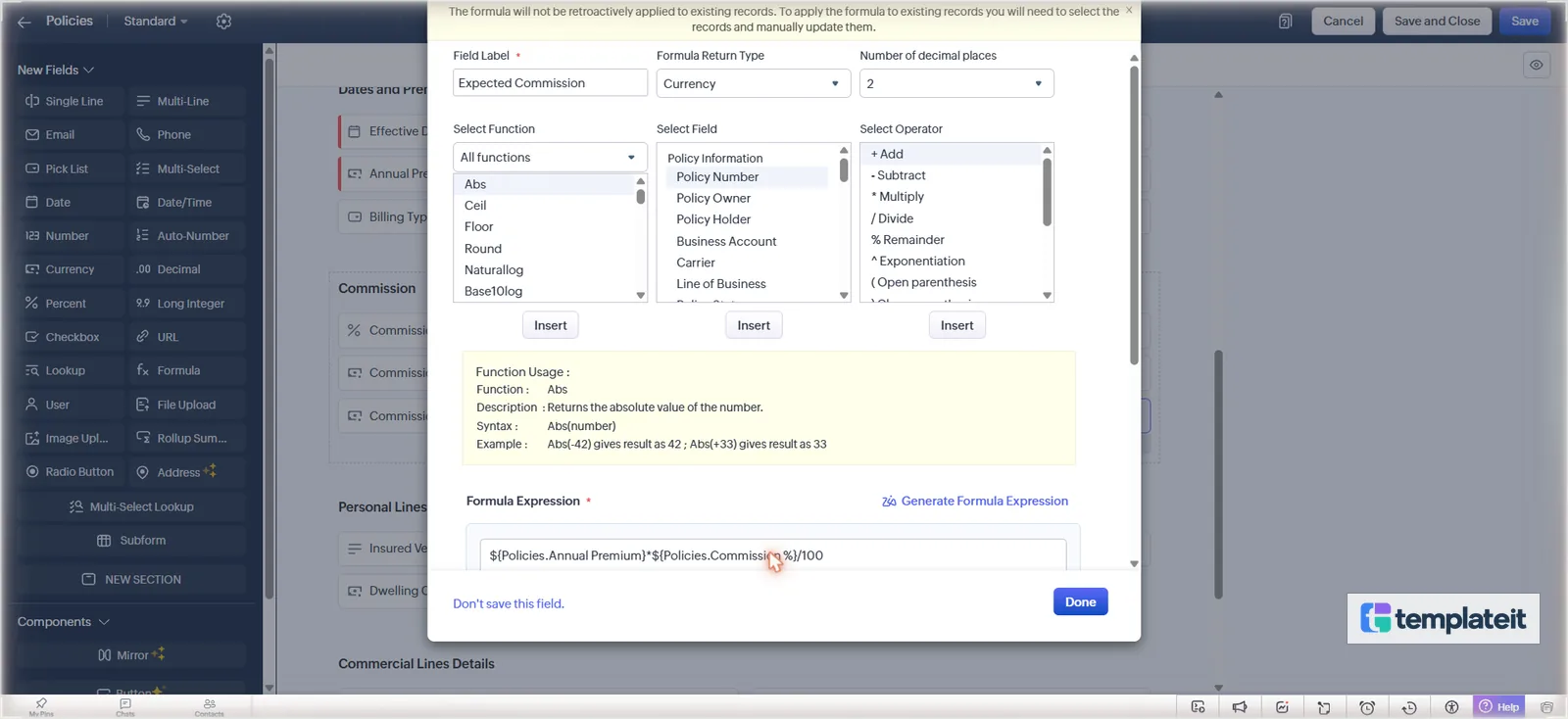
Next add check_commission (first line in the Step 4 table) and the rule WF-07 Check commission received: module Policies, Edit > Specific field(s) gets modified: Commission Received to any value (tick Repeat), all policies, function Check Commission with # > Policies > Policy Id.
deluge/check_commission.deluge · Compare what the carrier paid with the expected commission
// wf-07, on any commission received edit
policy = zoho.crm.getRecordById("Policies", policyId.toLong());
received = policy.get("Commission_Received");
if(received == null)
{
	return;
}
premium = ifnull(policy.get("Annual_Premium"), 0).toDecimal();
rate = ifnull(policy.get("Commission"), 0).toDecimal();
expected = (premium * rate / 100).round(2);
diff = (received.toDecimal() - expected).round(2);
// under 1 either way is rounding, call it received
status = "Received";
if(diff <= -1)
{
	status = "Short Paid";
}
else if(diff >= 1)
{
	status = "Overpaid";
}
update = Map();
update.put("Commission_Status", status);
update.put("Commission_Difference", diff);
if(policy.get("Commission_Received_Date") == null)
{
	update.put("Commission_Received_Date", zoho.currentdate.toString("yyyy-MM-dd"));
}
zoho.crm.updateRecord("Policies", policyId.toLong(), update);
if(status == "Short Paid")
{
	carrierName = "the carrier";
	if(policy.get("Carrier") != null)
	{
		carrierName = policy.get("Carrier").get("name");
	}
	task = Map();
	task.put("Subject", "Chase " + carrierName + " for commission short by " + (diff * -1) + " on " + policy.get("Name"));
	task.put("Due_Date", zoho.currentdate.addDay(3).toString("yyyy-MM-dd"));
	task.put("Priority", "High");
	task.put("What_Id", policyId);
	task.put("$se_module", "Policies");
	if(policy.get("Owner") != null)
	{
		task.put("Owner", policy.get("Owner").get("id"));
	}
	zoho.crm.createRecord("Tasks", task);
}
From then on, when a carrier statement comes in, you type the amount into Commission Received and the function does the rest. It sets Commission Status to Received, Short Paid or Overpaid, fills Commission Difference, and on a short payment creates a high priority task to chase the carrier, due in three days. Anything under 1 either way counts as Received, so a rounding difference on a statement doesn’t raise a task.
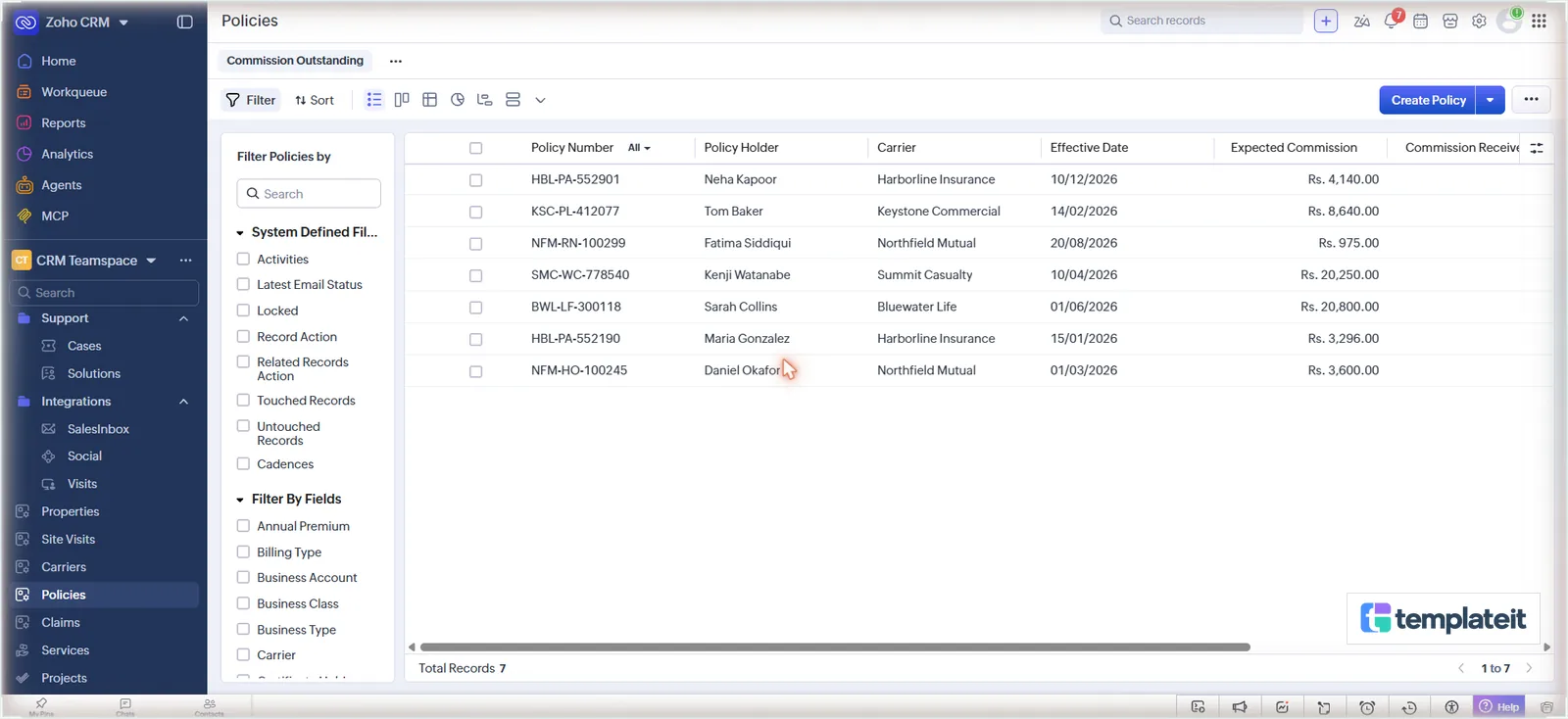
The Commission Outstanding view goes on the Policies list: Commission Status is Expected or Short Paid, with Policy Number, Policy Holder, Carrier, Effective Date, Expected Commission, Commission Received and Commission Difference as columns.
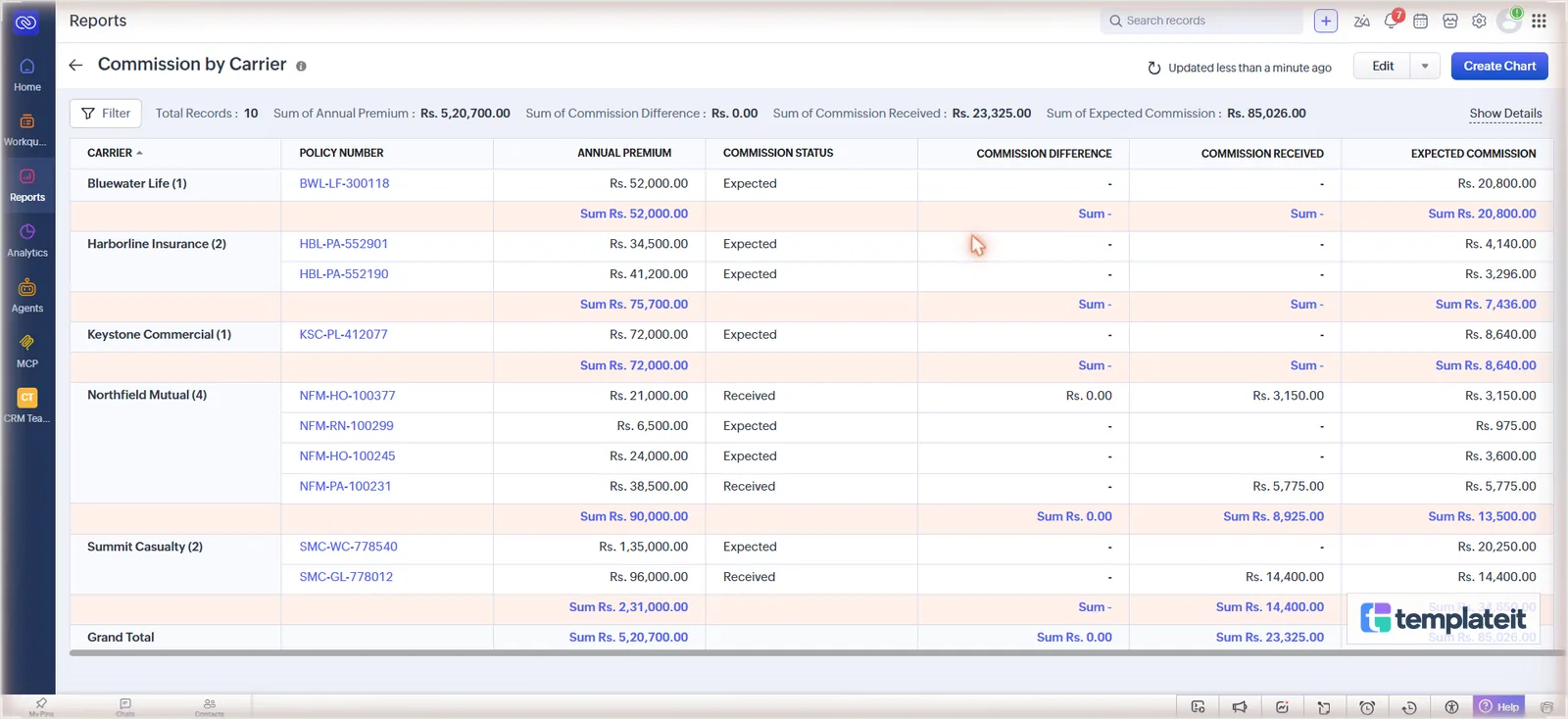
For Commission by Carrier, use Reports > Create Report on Policies, grouped by Carrier, with Sum of Annual Premium, Expected Commission, Commission Received and Commission Difference, saved in a reports folder.
Step 7: Turn bound quotes into policies
Add the templates INS-01 Quote Request Received (Leads) and INS-02 Policy Welcome (Policies), the function create_policy_from_deal as in Step 4, and these rules:
| ID | Module | When | Condition | Actions |
|---|---|---|---|---|
| WF-01 New quote request | Leads | Record action > Create | All Leads | Email INS-01 to Email. Task Call to gather quote details, trigger date plus 0 days, High |
| WF-02 Create policy when bound | Deals | Record action > Edit > Specific field(s) gets modified: Stage to any value (tick Repeat) | All Deals | Function Create Policy From Deal, # > Deals > Deal Id |
| WF-03 Policy welcome email | Policies | Record action > Create | Business Type is New Business | Email INS-02 to Policy Holder > Email |
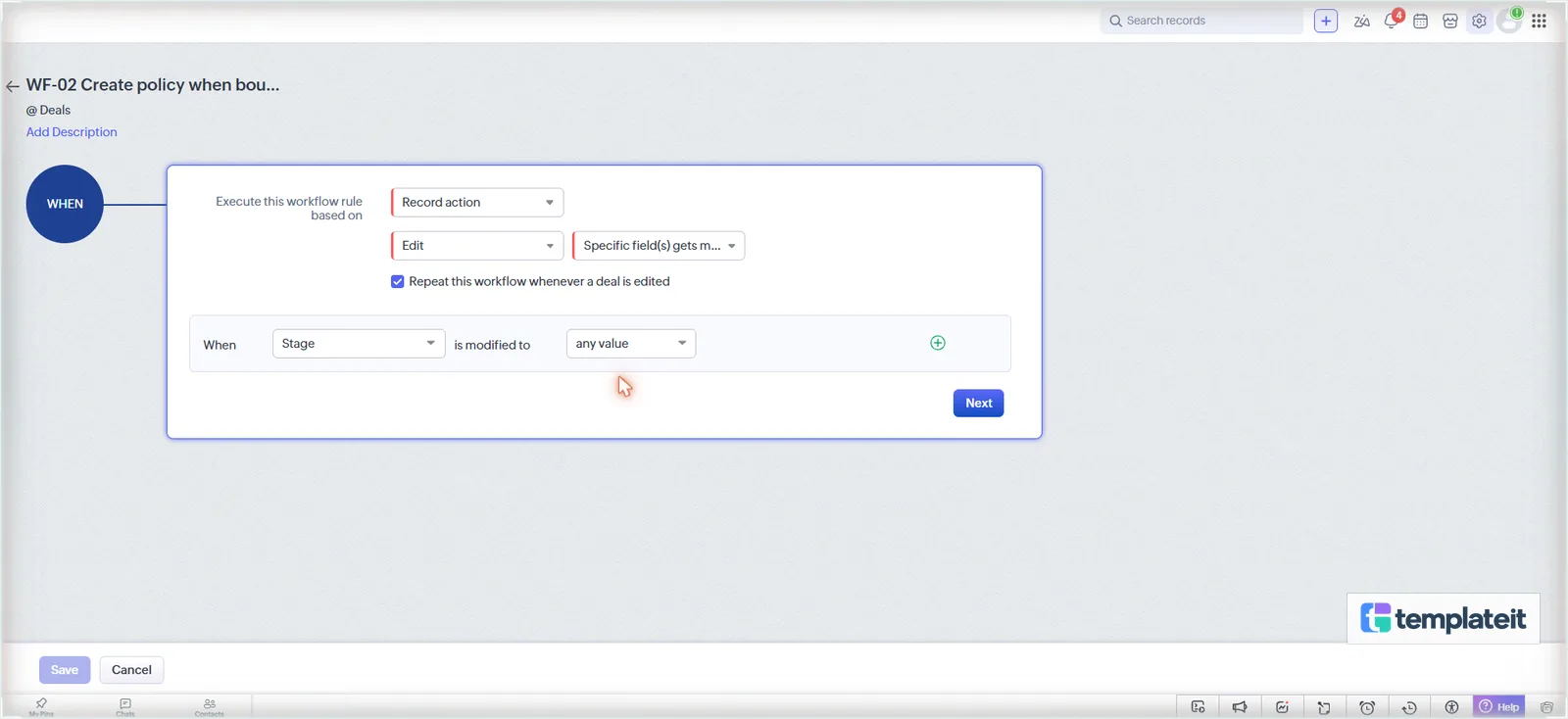
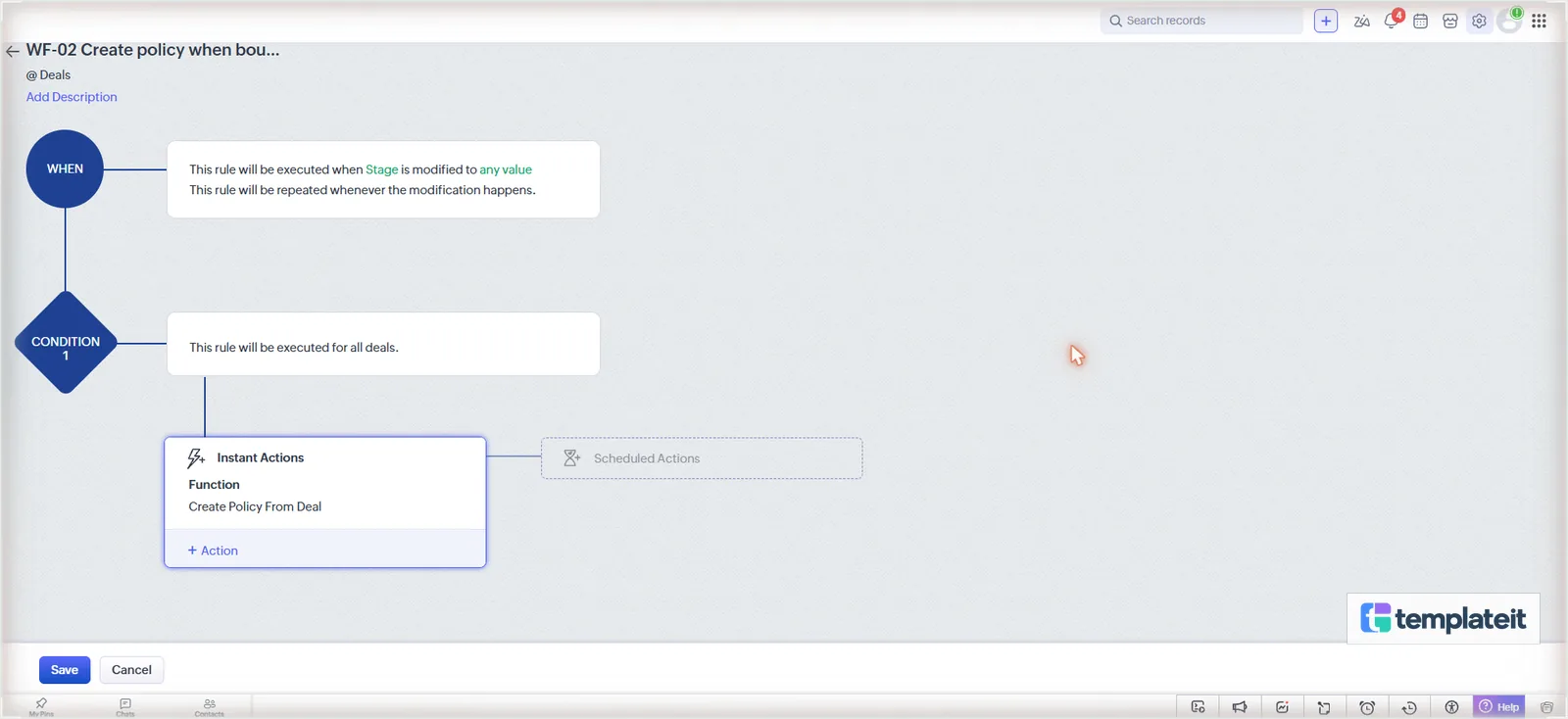
WF-02 fires on every stage change, but the function ignores everything except Bound, Renewed, or Closed Won on a renewal deal, and it never makes a second policy for the same deal. What it creates has the holder, carrier, line of business and Bound Policy Number, the effective date with an expiration one year later, the premium from Amount and the carrier’s commission rate. On a renewal it also marks the expiring policy Renewed, and either way it leaves a note on the deal saying what it made.
A deal counts as a renewal when its Expiring Policy is filled in, because Deluge doesn’t return a deal’s Pipeline when it reads the record. The renewal function fills it for you; just don’t clear it.
deluge/create_policy_from_deal.deluge · Create the policy when a quote is bound or renewed
deal = zoho.crm.getRecordById("Deals", dealId.toLong());
stage = ifnull(deal.get("Stage"), "");
expiring = deal.get("Expiring_Policy");
// no Pipeline from getRecordById, a linked expiring policy means renewal
won = stage == "Bound" || stage == "Renewed" || (stage == "Closed Won" && expiring != null);
if(!won)
{
	return;
}
// one policy per deal, wf-02 fires on every stage edit
existing = zoho.crm.searchRecords("Policies", "(Source_Deal:equals:" + dealId + ")");
if(existing.size() > 0)
{
	info "Policy already exists for deal " + dealId;
	return;
}
holder = deal.get("Contact_Name");
if(holder == null)
{
	info "Deal has no policy holder (Contact Name). Policy not created.";
	return;
}
holderId = holder.get("id");
isRenewal = stage != "Bound" || expiring != null;
effective = ifnull(deal.get("Effective_Date"), zoho.currentdate.toString("yyyy-MM-dd"));
expiration = effective.toDate().addYear(1).toString("yyyy-MM-dd");
rate = 0;
carrierId = null;
carrier = deal.get("Carrier");
if(carrier != null)
{
	carrierId = carrier.get("id");
	carrierRec = zoho.crm.getRecordById("Carriers", carrierId.toLong());
	if(isRenewal)
	{
		rate = ifnull(carrierRec.get("Renewal_Commission"), 0);
	}
	else
	{
		rate = ifnull(carrierRec.get("New_Business_Commission"), 0);
	}
}
policyNumber = ifnull(deal.get("Bound_Policy_Number"), "");
if(policyNumber == "")
{
	policyNumber = "PENDING-" + dealId.right(6);
}
policy = Map();
policy.put("Name", policyNumber);
policy.put("Policy_Holder", holderId);
if(deal.get("Account_Name") != null)
{
	policy.put("Business_Account", deal.get("Account_Name").get("id"));
}
if(carrierId != null)
{
	policy.put("Carrier", carrierId);
}
policy.put("Line_of_Business", deal.get("Line_of_Business"));
policy.put("Policy_Status", "Active");
policy.put("Business_Type", if(isRenewal, "Renewal", "New Business"));
policy.put("Effective_Date", effective);
policy.put("Expiration_Date", expiration);
policy.put("Annual_Premium", ifnull(deal.get("Amount"), 0));
policy.put("Commission", rate);
policy.put("Commission_Status", "Expected");
policy.put("Source_Deal", dealId);
if(deal.get("Owner") != null)
{
	policy.put("Owner", deal.get("Owner").get("id"));
}
created = zoho.crm.createRecord("Policies", policy, {"trigger":{"workflow"}});
if(created.get("id") == null)
{
	info "Policy not created: " + created;
	return;
}
if(isRenewal && deal.get("Expiring_Policy") != null)
{
	oldId = deal.get("Expiring_Policy").get("id");
	zoho.crm.updateRecord("Policies", oldId.toLong(), {"Policy_Status":"Renewed"});
}
note = Map();
note.put("Parent_Id", dealId);
note.put("se_module", "Deals");
note.put("Note_Title", "Policy created");
note.put("Note_Content", "Policy " + policyNumber + " created, effective " + effective + " to " + expiration + ", commission " + rate + "%.");
zoho.crm.createRecord("Notes", note);
Put the carrier’s number in Bound Policy Number before you move the deal to Bound. Left empty, the policy is called PENDING plus the end of the deal ID, which you can rename when the number arrives.
No policy after Bound? The function won’t make one for a deal with no Contact Name, and Setup > Developer Hub > Functions > Failures shows any run that went wrong.
Step 8: Import the sample data
Import from each module’s Create > Import in this order. On the last screen leave Trigger configured automations unticked, because the sample records use example.com addresses.
carriers.csvinto Carriers (Lines Written values are separated by;)policy-holders.csvinto Policy Holderspolicies.csvinto Policies, mapping Policy Holder and Carrier to their lookups by namedeals.csvinto Dealsleads.csvinto Leadsclaims.csvinto Claims, mapping Policy by policy number
Delete it all before you go live.
Run one policy through it
Zoho stops emailing an address after a bounce, so put an inbox you own on these test records.
- Create a lead with Coverage Needed Personal Auto. The quote request email arrives, and a high priority Call to gather quote details task sits on the lead.
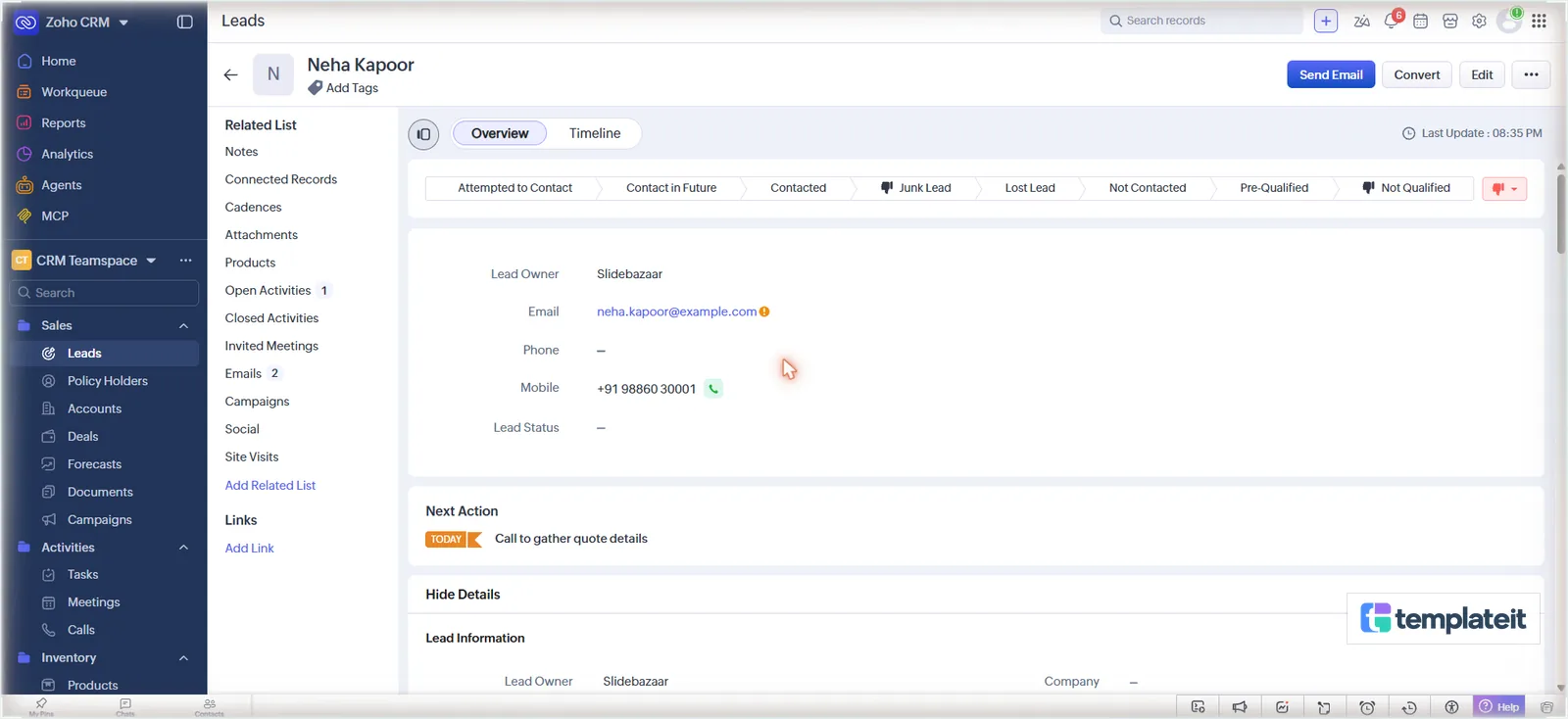
- Convert it and create a deal in New Business with Line of Business, Carrier, Effective Date and Amount.
- Fill Bound Policy Number and move the deal to Bound. The policy turns up in the deal’s Policies related list with a year’s dates and Expected Commission filled in. Ours picked up the carrier’s 12% new business rate, and the client got the welcome email.
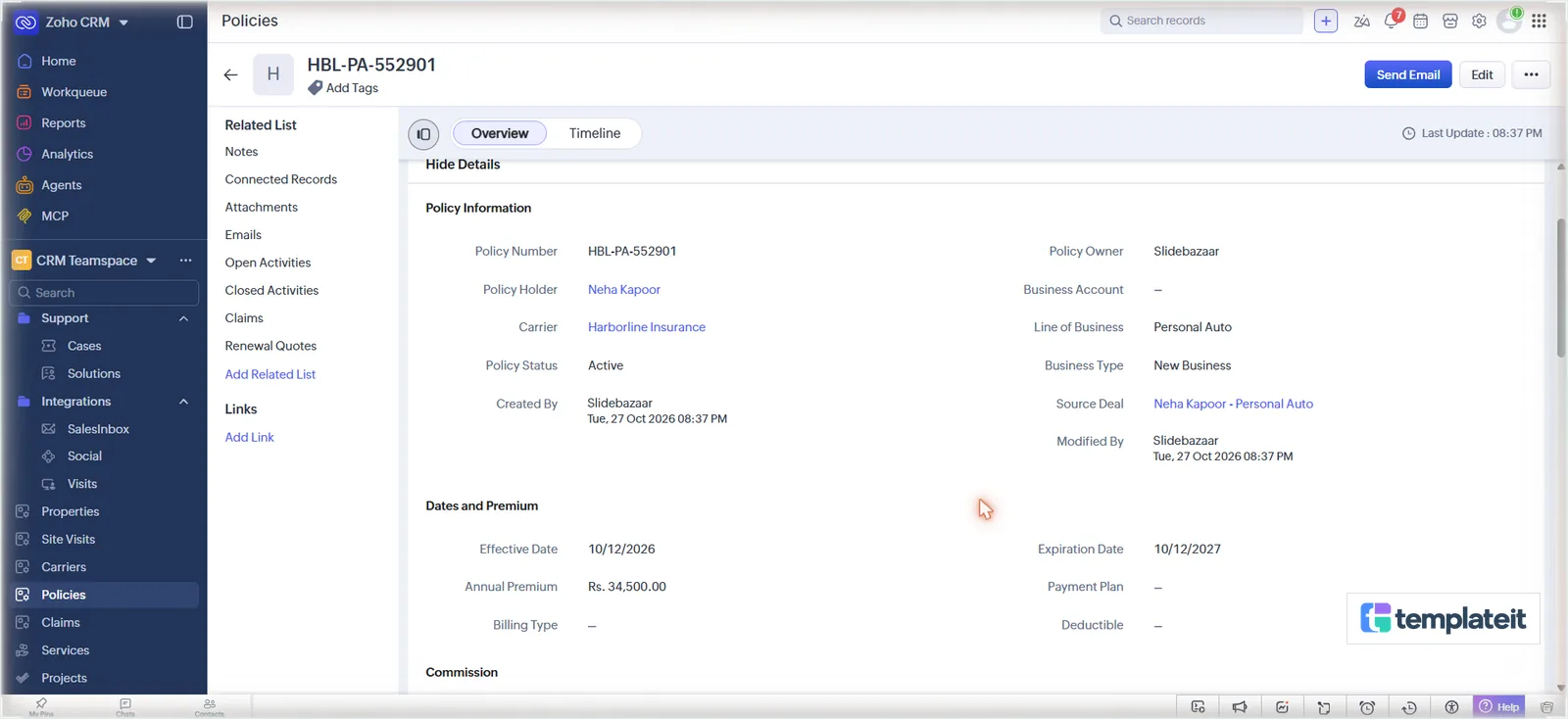
- Set that policy to Pending Renewal. A deal appears in Renewals at Renewal Due with a Review renewal task, and setting the status again doesn’t make a second one.
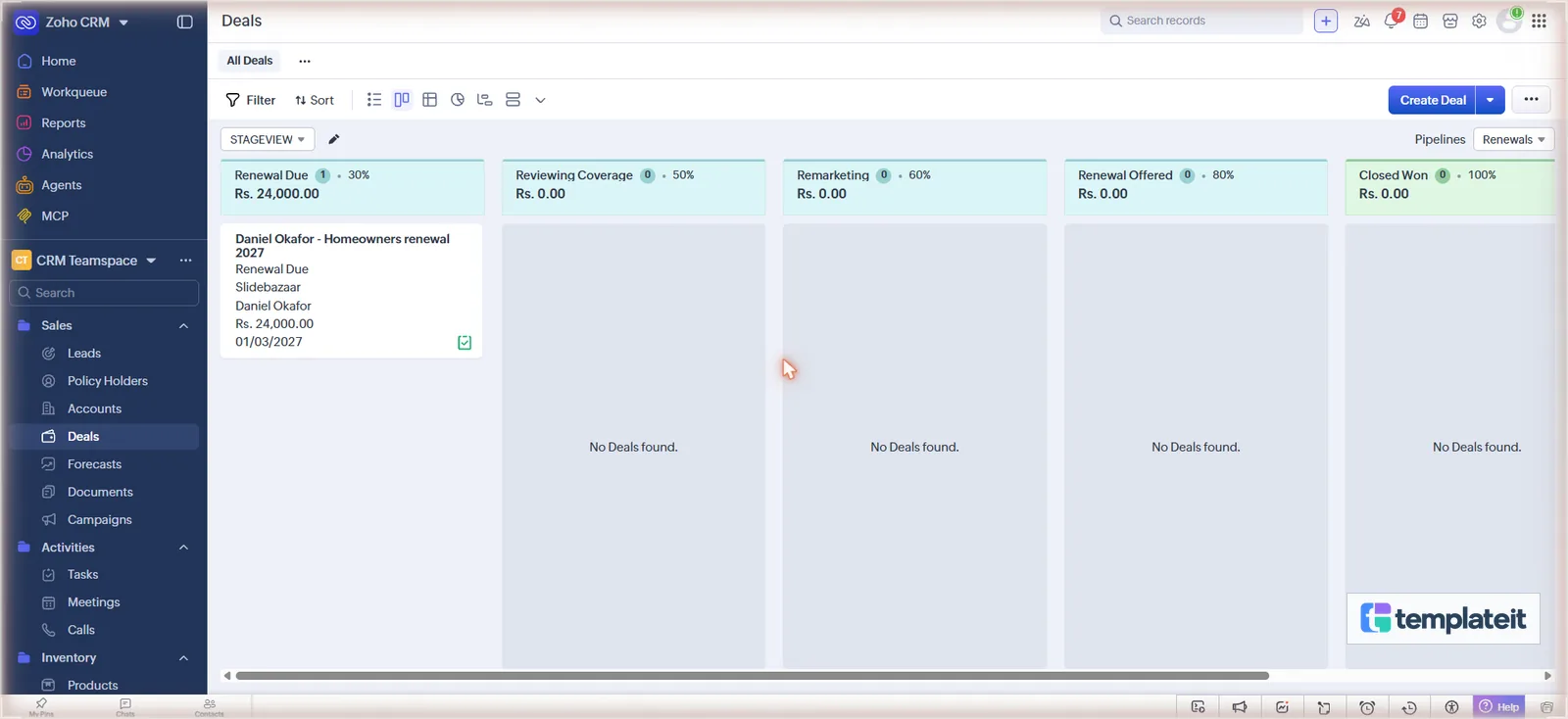
- Move the renewal deal to Renewed. A new policy starts on the old expiration date at the carrier’s renewal rate, 10% in our test, and the old one shows Renewed.
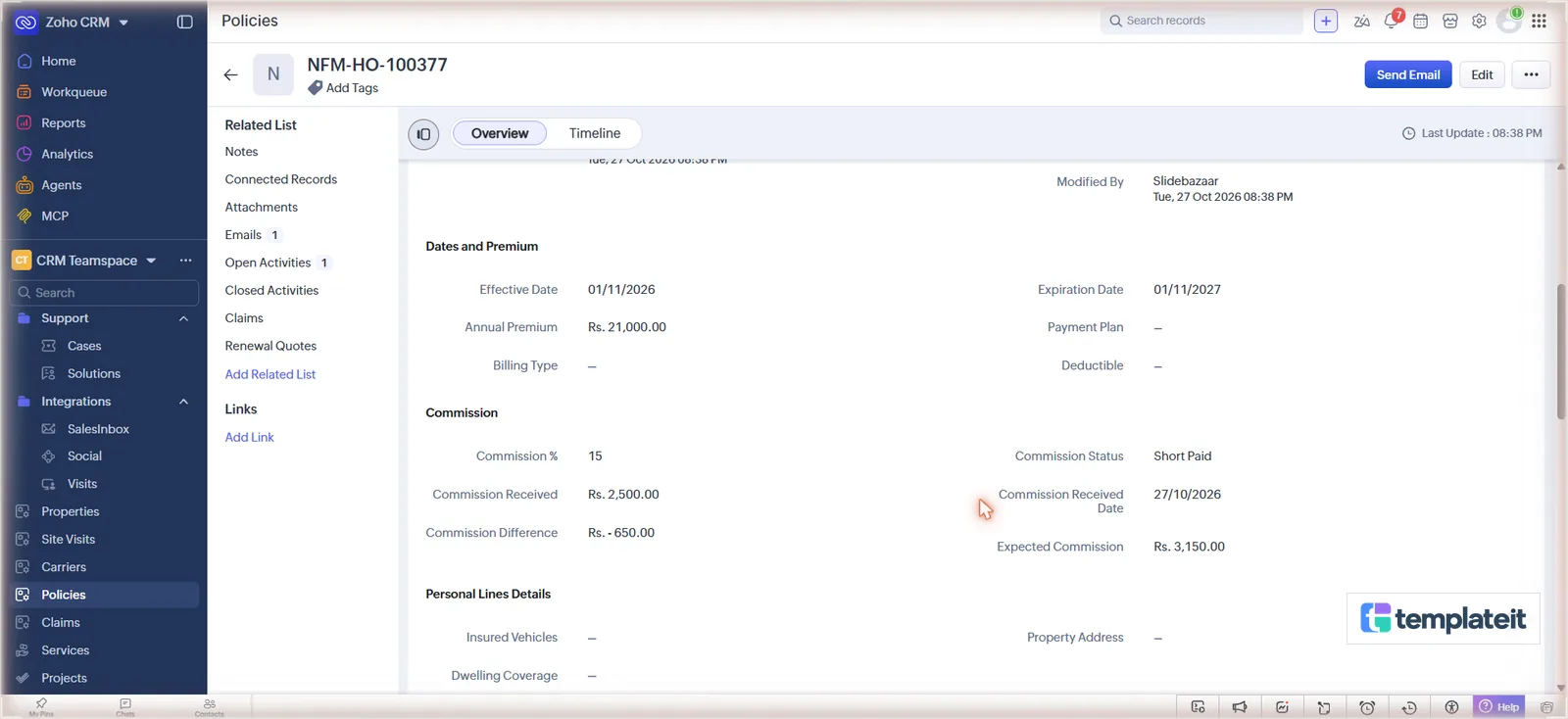
- Type a short amount into Commission Received. We came in 650 under, got Short Paid, a difference of -650 and a Chase … for commission task. Enter the full amount and it flips to Received.
- Create a claim for 75,000. You get the claim email and review task, and the claim waits for approval until Respond > Approve moves it to Submitted to Carrier.
- A claim for 12,000 skips approval and gets only the email and the task.
What we left out
Life and Health policies get neither lines section. We stopped at personal and commercial, so if you write a lot of life business, add a section of your own and a third condition to the layout rule. Commission splits between producers, carrier statement imports, certificate of insurance requests and a claims portal for clients aren’t in it either.
Setup and changes
Rather not spend the two hours in Setup? We’ll build it in your Zoho CRM account, or rework it around your carriers and the way you split commission.
TemplateIt is not affiliated with or endorsed by Zoho Corporation.
This template is made by TemplateIt and is not affiliated with or endorsed by Zoho Corporation.